

Scheduling Links
Close offers the ability to save and send meeting links directly to Leads. Sales representatives can quickly book a follow-up call with an Account Executive while on the phone with a Lead without ever leaving Close.
Creating Scheduling Links
You can manually add unique scheduling links to your Close account, which will be specific to your user and organization membership.
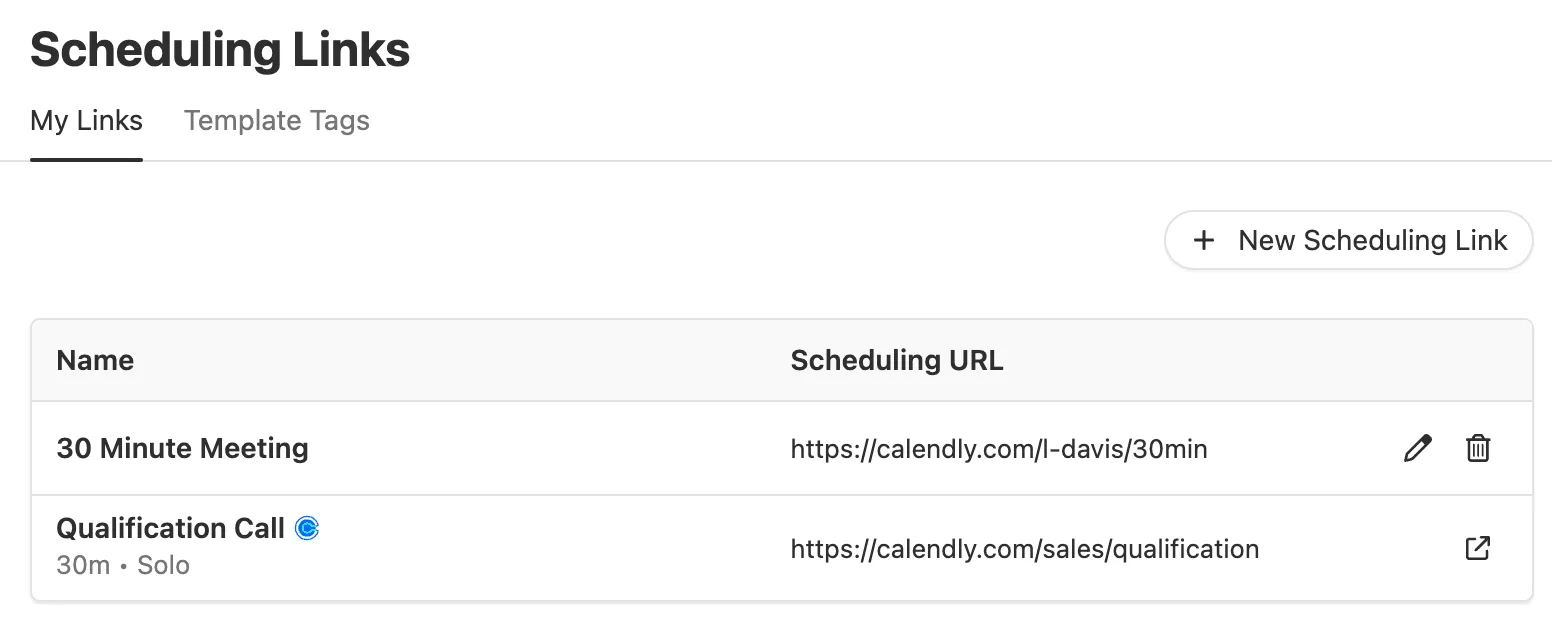
Navigate to the Scheduling Links page under Settings > Scheduling Links. Under the My Links tab, you can add and manage your own Scheduling Links. Simply type or paste in a URL and give it a name.
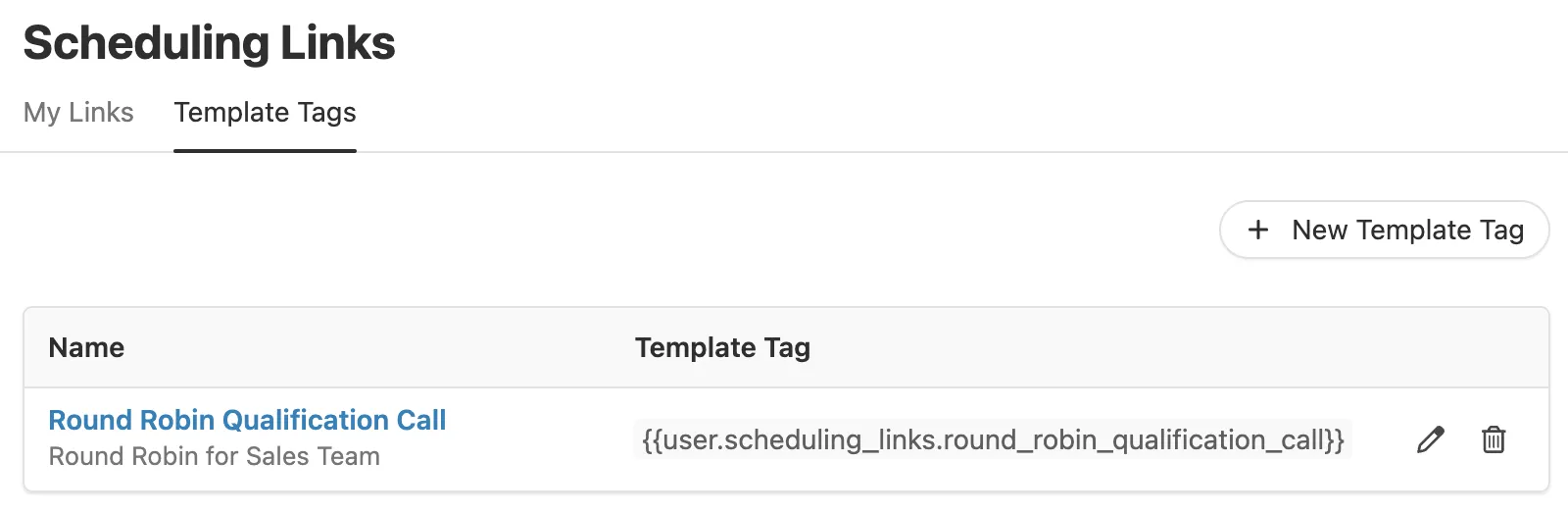
If you tab over to Template Tags, you can map your own Scheduling Links to scheduling links shared within your Organization by specifying which of your links correspond to which shared scheduling links. For example, you can map your personal “Qualification Call” Scheduling Link to the “Qualification Call” shared scheduling link under Template Tags. This means your Scheduling Link will be used when a scheduling link Template Tag is inserted into an email template - more on this in the Using Scheduling Links section below.
Scheduling Link limits
There is a limit of:
- 20 personal links (per User)
- 20 shared links (per Organization)
Managing Template Tag Links
Close Admins with the “Manage Customizations” permission can create and manage shared Scheduling Links under the Template Tagstab. These links are visible to all users in Close and contain a corresponding Liquid tag that can be used in templates.
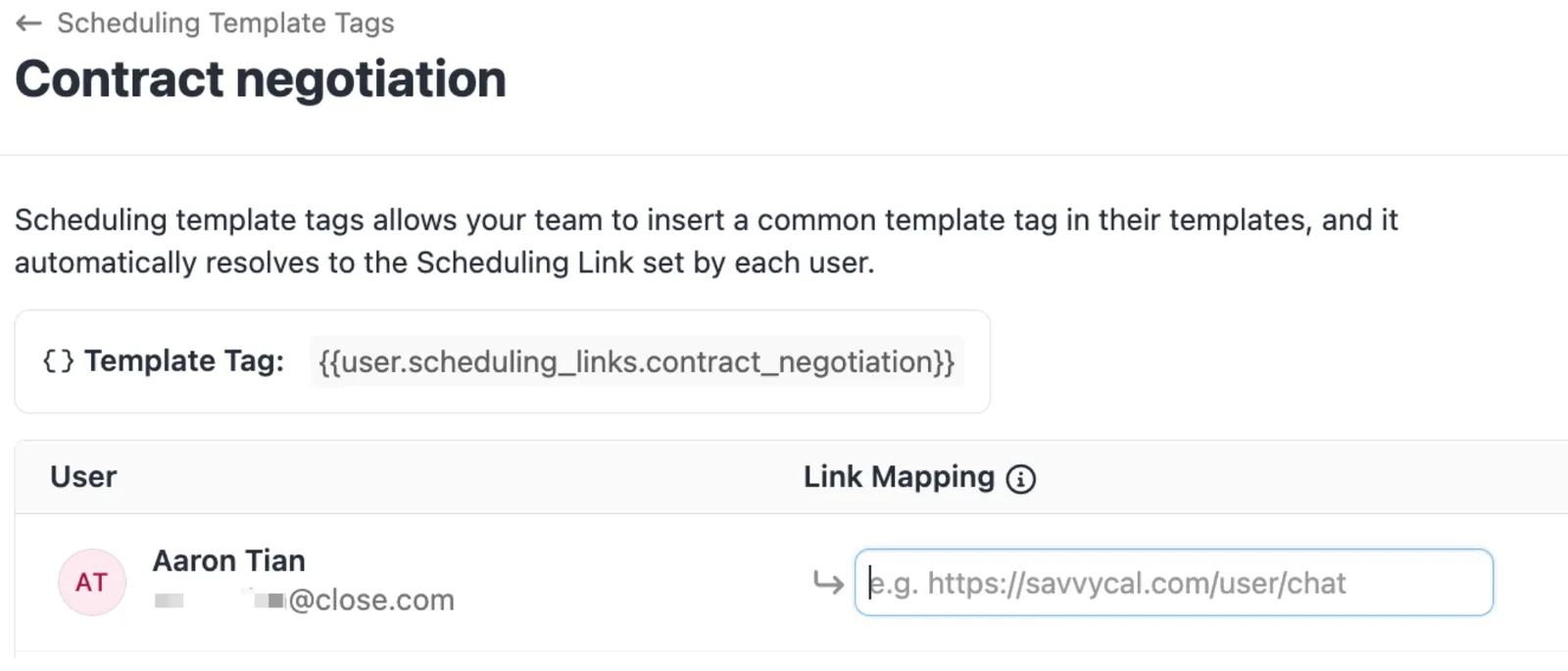
Each link has a name, such as “Demo Call,” and a corresponding Liquid tag, such as {{user.scheduling_links.demo_call}}. Close Admins can edit the URL for each user, but cannot edit the name or Liquid tag.
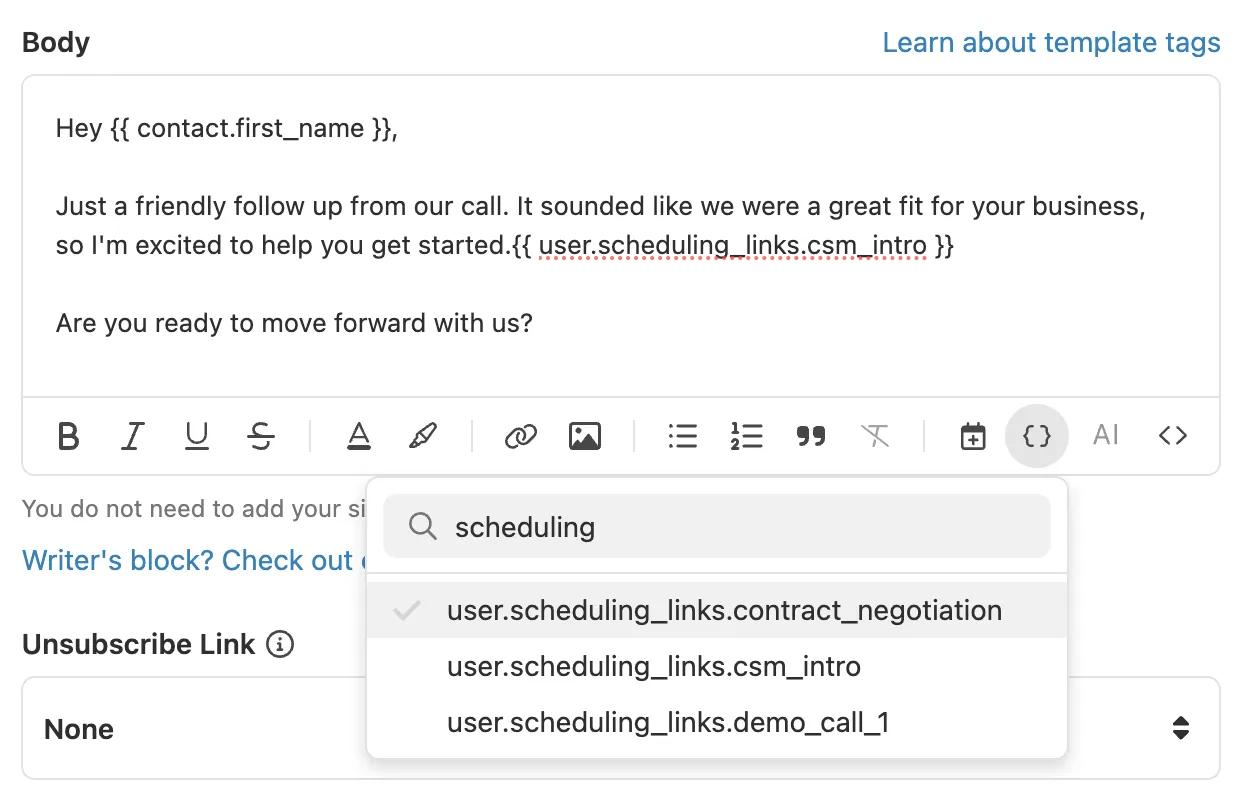
Once shared Scheduling Links have been created, users can use the corresponding Liquid tag in their templates. For example, if a user wants to include a link to a demo call in their email template, they can include the template tag {{user.scheduling_links.demo_call}} in the template, which will map to the link corresponding with their name under the Link Mapping column.
Template Tag Scheduling Links are not auto-populated or synced from Calendly.
Close Admins must create and manage these links manually.
Using Scheduling Links
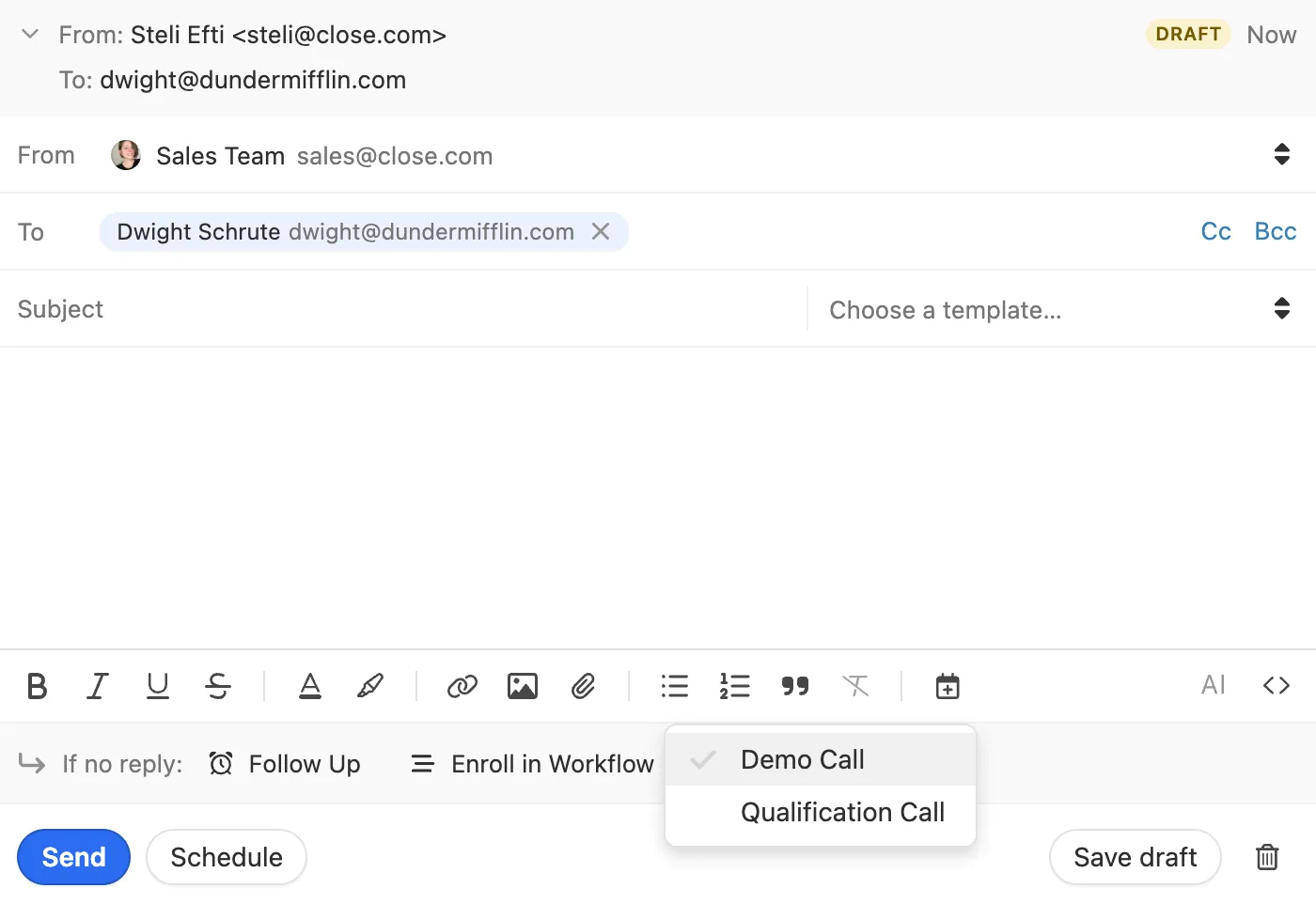
Once your Scheduling Links are set up, you can quickly send a meeting link to your Leads when crafting an email.
You can also include Scheduling Links in templates under Settings > Templates. If using a shared email template, be sure to utilize Scheduling Link Template Tags so that any user who sends out that template will have their meeting link automatically added.
If there are any questions about using Scheduling Links, please contact our Support Team.