Office365 connected accounts
This article covers Office365 accounts that connect to Close but have trouble sending or syncing emails. If you can’t connect your Microsoft account at all and Microsoft shows an “Administrator approval required” screen during the connection flow, that’s an app consent issue in your organization’s Microsoft tenant. See Connecting Microsoft 365 in managed tenants (Entra admin guide).
Reconnecting an existing Microsoft account can also show a fresh consent prompt that now includes calendar permissions. In August 2026, we updated the Close app registration with Microsoft to list the Calendar permissions Close requests, so Microsoft asks for them again on reconnect. This is expected, and accounts that stay connected and brand-new connections are unaffected. If that prompt says an administrator must approve, see the same Entra admin guide.
Email account disconnecting from Close
If you’ve connected your Office365 mailbox to Close, you might try to send an email only to find that your email account has been immediately disconnected and your email remains in the Close outbox. You can confirm if that is the case by going to your Close Settings > Accounts & Apps > your account and seeing if Email Sending and Email Syncing are connected or not.
Enable SMTP
If your email disconnects when you try to send an email, it usually means that your SMTP (email sending) is not enabled on your Office365 mailbox for 3rd party apps like Close. To fix this, make sure to enable or reset the Authenticated SMTP option within the Office365 Admin center.
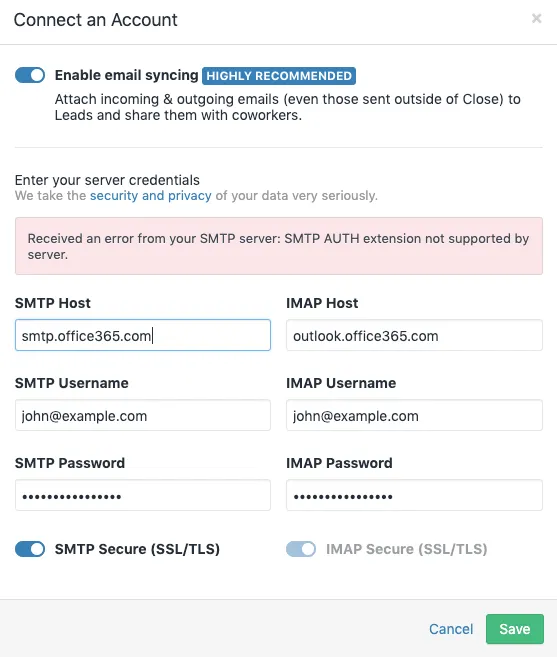
You can confirm this is the problem by the error Microsoft returns on the failed send attempt:
If the error says disabled for the Mailbox, the steps below fix it. If it says disabled for the Tenant, see SMTP disabled for the entire tenant further down.
Prerequisites
You must be an admin in your Office365 account to be able to make the changes below. If you are not an admin, please loop in your admin who can make those changes for you.
If you don’t have access to these settings because you are hosted with a provider that doesn’t allow you to make such changes (such as GoDaddy), please reach out to their Support Team and ask them to enable legacy authentication via SMTP/IMAP for you; feel free to share this article with them).
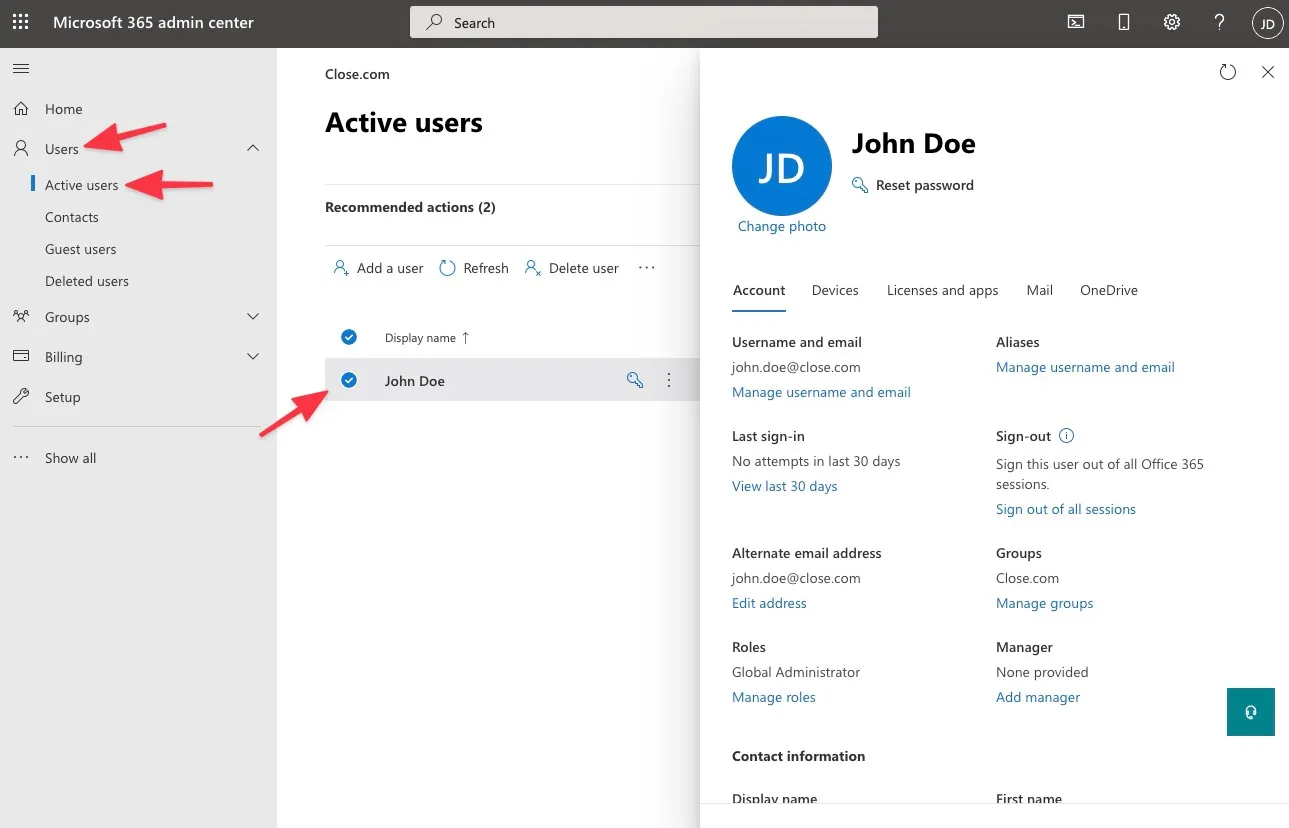
To do this, as an Office365 Admin, go to admin.microsoft.com and Users > Active users and open your user:
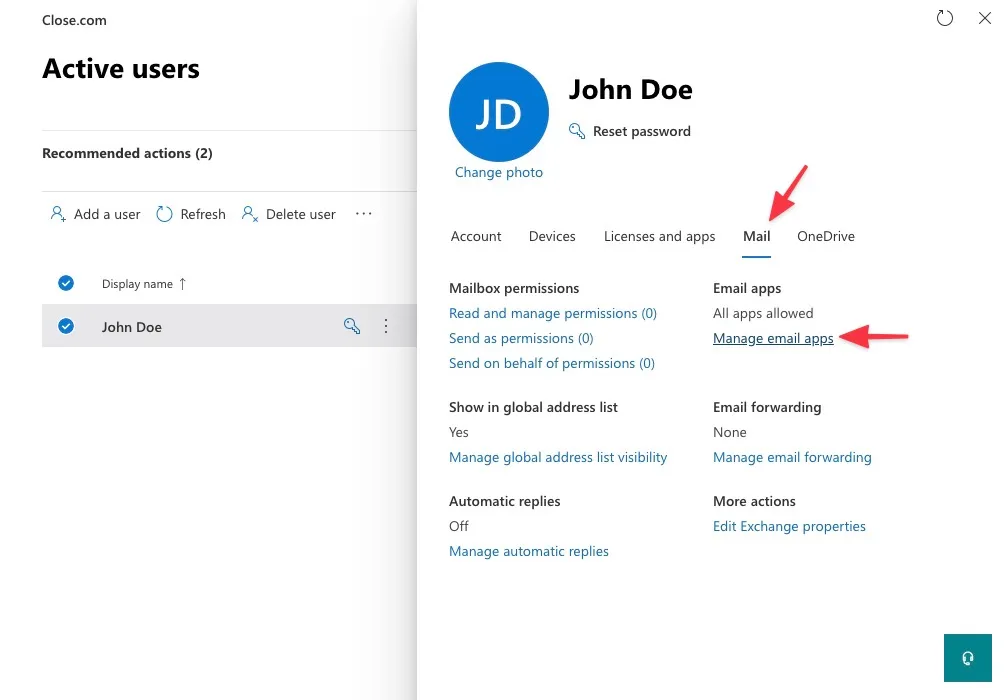
From there, go to Mail > Manage Email Apps:
From there, look at the Authenticated SMTP setting:
- If this option is already checked, first uncheck it,
Save Changes, check it again,Save Changesagain - If not already checked, then check it and
Save Changes
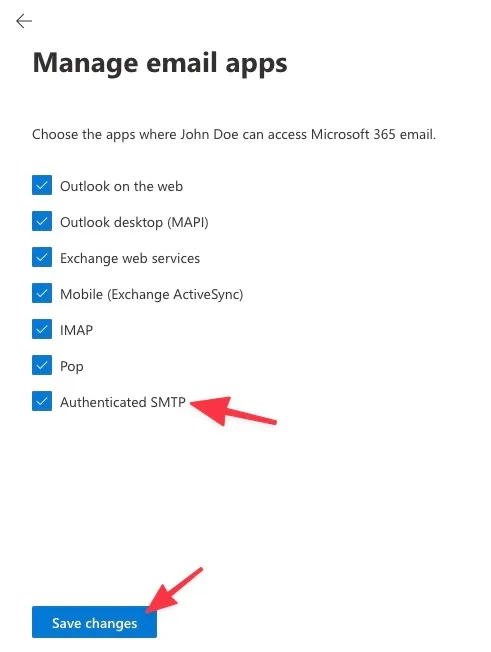
Then wait some time (give it about 30 minutes) for those changes to take place. Back in Close, go to Settings > Accounts & Apps within Close to reconnect your email account. Then test sending again.
SMTP disabled for the entire tenant
If the error says SMTP client authentication is disabled for the Tenant, your organization has turned off SMTP AUTH org-wide and the affected mailbox has no per-mailbox override. An Exchange admin can either:
- re-enable SMTP AUTH for the whole organization in the Exchange admin center under
Settings > Mail flow(uncheck “Turn off SMTP AUTH protocol for your organization”), or - keep the org-wide setting off and enable SMTP AUTH only for the mailboxes connected to Close. The
Authenticated SMTPcheckbox above sets this per-mailbox override, or you can set it via Exchange Online PowerShell:
See Microsoft’s documentation for details on both settings.
Microsoft Windows SSO issues
If you’re logging into your Windows using an SSO that automatically signs you into any other services, instead of going to the Close desktop app and connecting your email account from there, open Close at https://app.close.com/ in a 3rd party browser such as Firefox (instead of default Edge), and then try to connect your email account from there.
That should circumvent the default Windows SSO that could create issues during the authentication process.
Emails are not syncing and/or being stored in Sent Folder
If you’re able to successfully connect your Office365 account underSettings > Accounts & Apps within Close, but you’re not seeing any Close-sent emails in your Office365 folder, and/or you’re not seeing any incoming emails syncing in, make sure that your Office365 primary email address and username matches your email address in Close.
Go to admin.microsoft.com and Users > Active users and open your user:
From there, go to Account > Username and email:
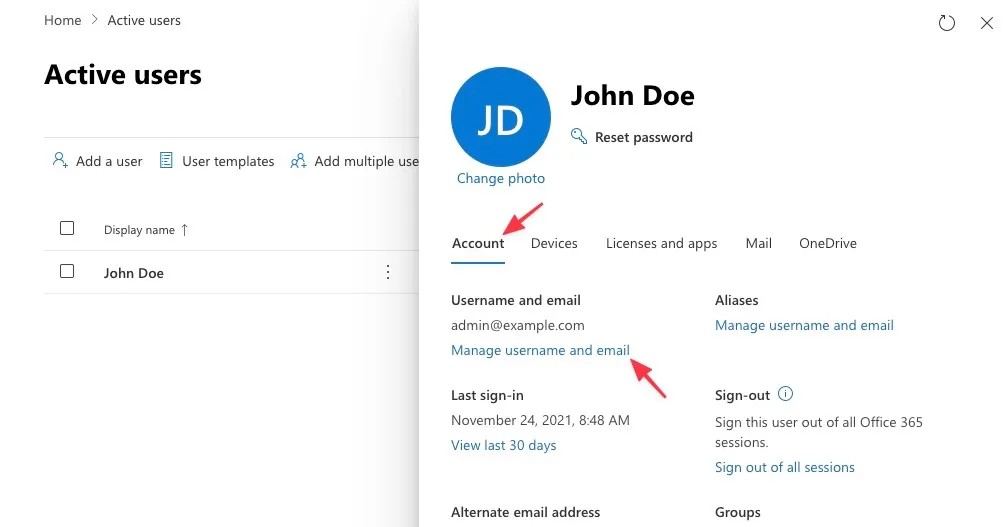
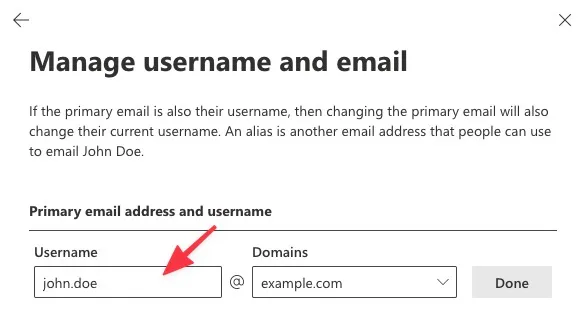
Make sure that your primary email address and username is your actual email address that’s being added to Close Settings > Accounts & Apps. If that is not the case, simply change your existing username (email address):
Or, go to aliases > ... > Change to primary email:
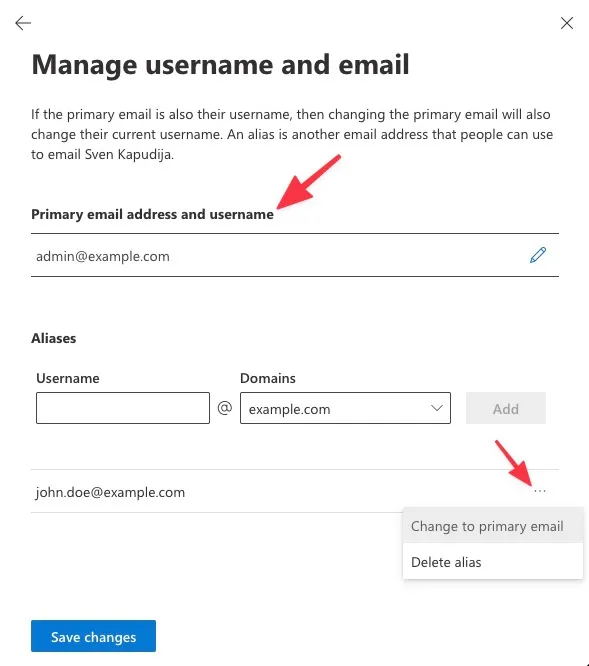
Save changes, go to your Close Settings > Accounts & Apps, open your account, remove it by clicking Remove account at the bottom of the page and re-add it back into Close via Settings > Accounts & Apps > + Add Account > Microsoft.
Enable IMAP
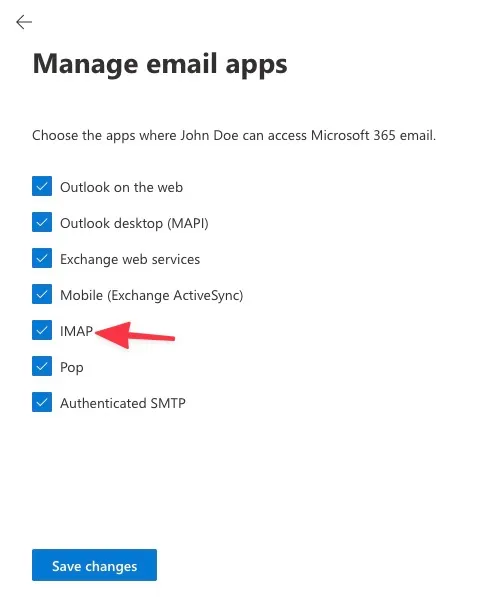
If that’s not working, make sure you’ve also enabled IMAP under your Office365 user Mail > Manage email apps > IMAP. Save changes and re-add the email account in Close Settings > Accounts & Apps.
SMTP AUTH extension not supported by the server
If you receive this kind of error make sure that your email provider is allowing all IP addresses listed here, and that the Authenticated SMTP setting explained above is enabled.