Editing, Merging, and Deleting Leads
Edit Leads
To make a change to a group of leads at once, first filter for those leads or go to an existing Smart View. All leads in your search or Smart View will be included in your bulk edit. Navigate to the menu in the upper-right, select Bulk Edit, then select the bulk action type from any of the following:
- Update lead status
- Update a lead custom field
- Clear a lead custom field
- Delete the leads
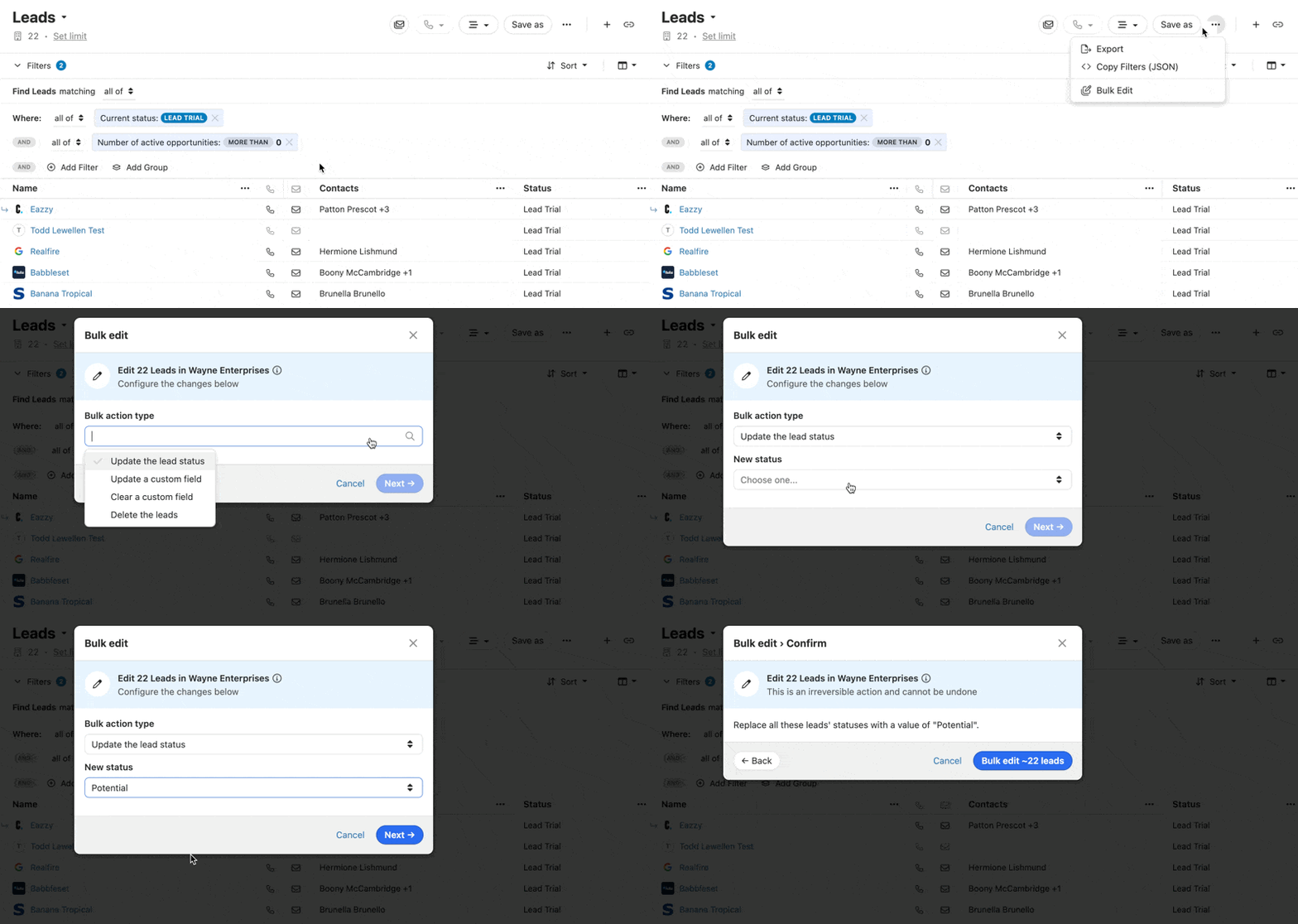
Apply your changes, and confirm. You will receive an confirmation email once the bulk edit is complete.
Deleting Leads
Deleting a single lead
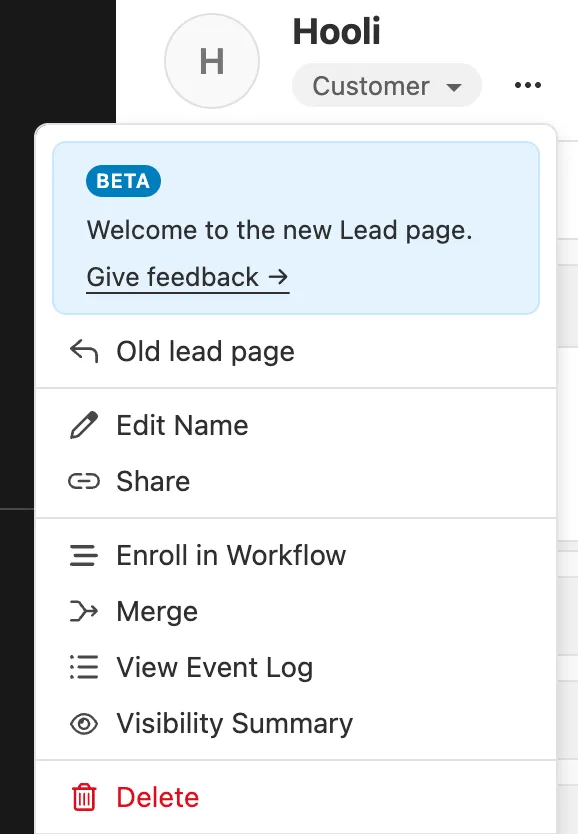
You may need to delete leads for various reasons. To do so, on the left side of a leads page, click on the three dots button next to the lead status and select Delete from the menu that appears.
Deleting leads in bulk
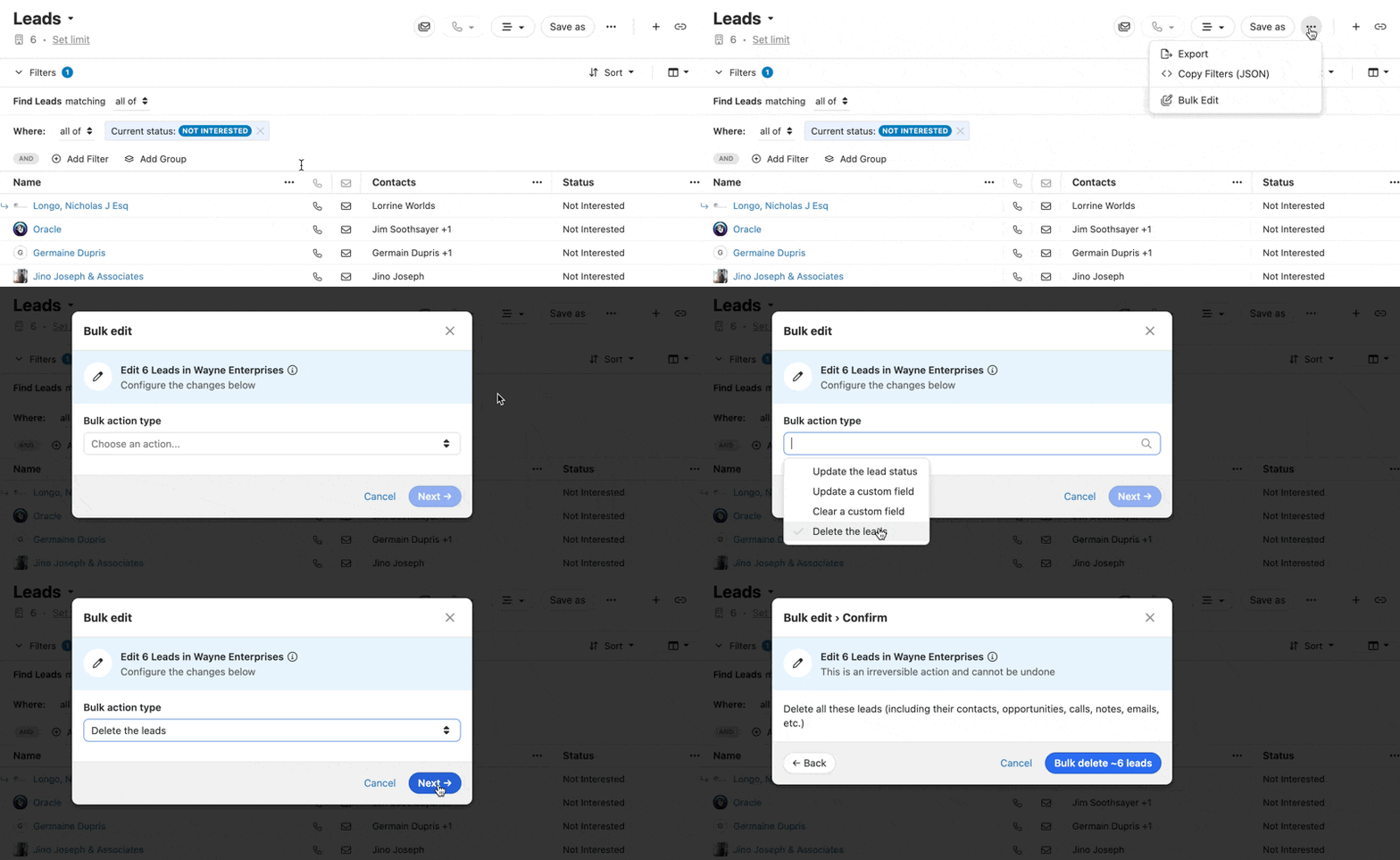
To delete many leads at once, search for the Leads you want to delete using your desired criteria using the Leads filter, then go to the More button (… ) in the upper-right and select Bulk Edit. Select Delete the leads from the dropdown and confirm.
Merge Leads
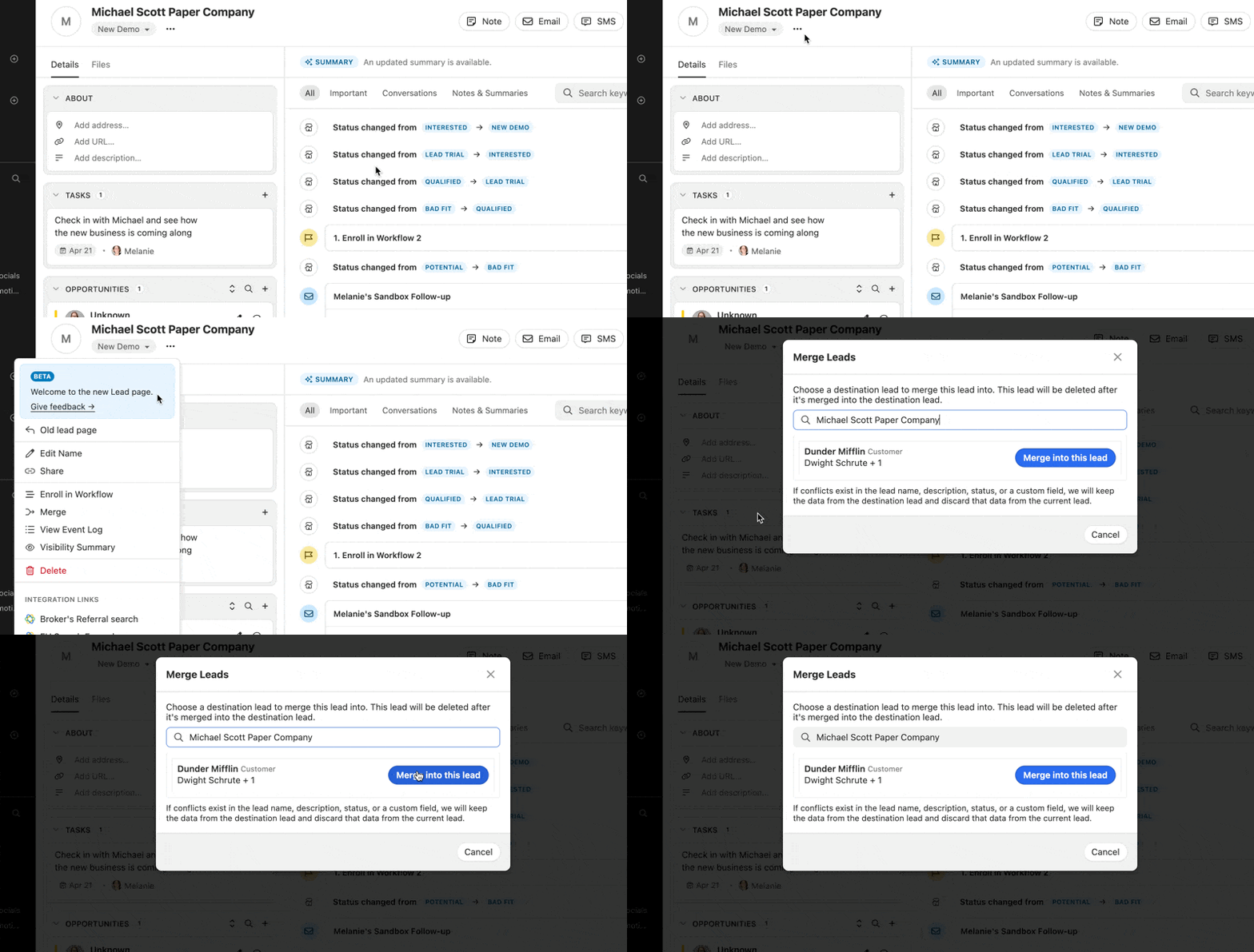
In the event an existing lead needs to be merged with another lead, click into the lead menu found next to the lead status. Select Merge, then choose the destination lead.
A few things before you merge
- Once merged, a lead can’t be unmerged.
- If conflicts exist in the lead name, description, status, or a custom field, we will keep the data from the destination lead and discard that data from the current lead.
- For the final merged lead, we will utilize the “Date Created” and “Created By” values from the older of the two leads.