Conversations
Conversations View
The Conversations View in Close allows you to quickly review any calls or meetings that happen in your organization, as well as see any currently ongoing calls or meetings.
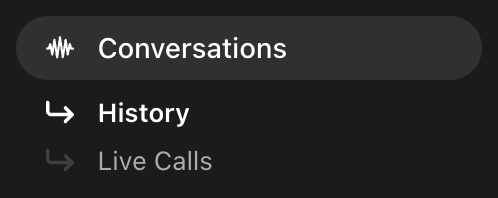
History
When you first load conversations you’ll see your History view. This contains any completed calls or meetings in your organization. We default you to showing you recorded calls over 2 minutes, but you can easily change these filters based on your goals.
Keyword and Phrase Search
A powerful feature of the Conversations page is that you can easily search for instances of particular words or phrases in your calls and meetings. Keyword search will search across notes, transcripts, and summaries, to return mentions of your desired keywords or phrases.
After entering the keywords or phrases you’re hoping to find, you can toggle whether you want to Match Any or Match All.
Match Any: Only one keyword or phrase needs to be present.
Match All: All keywords or phrases need to be present.
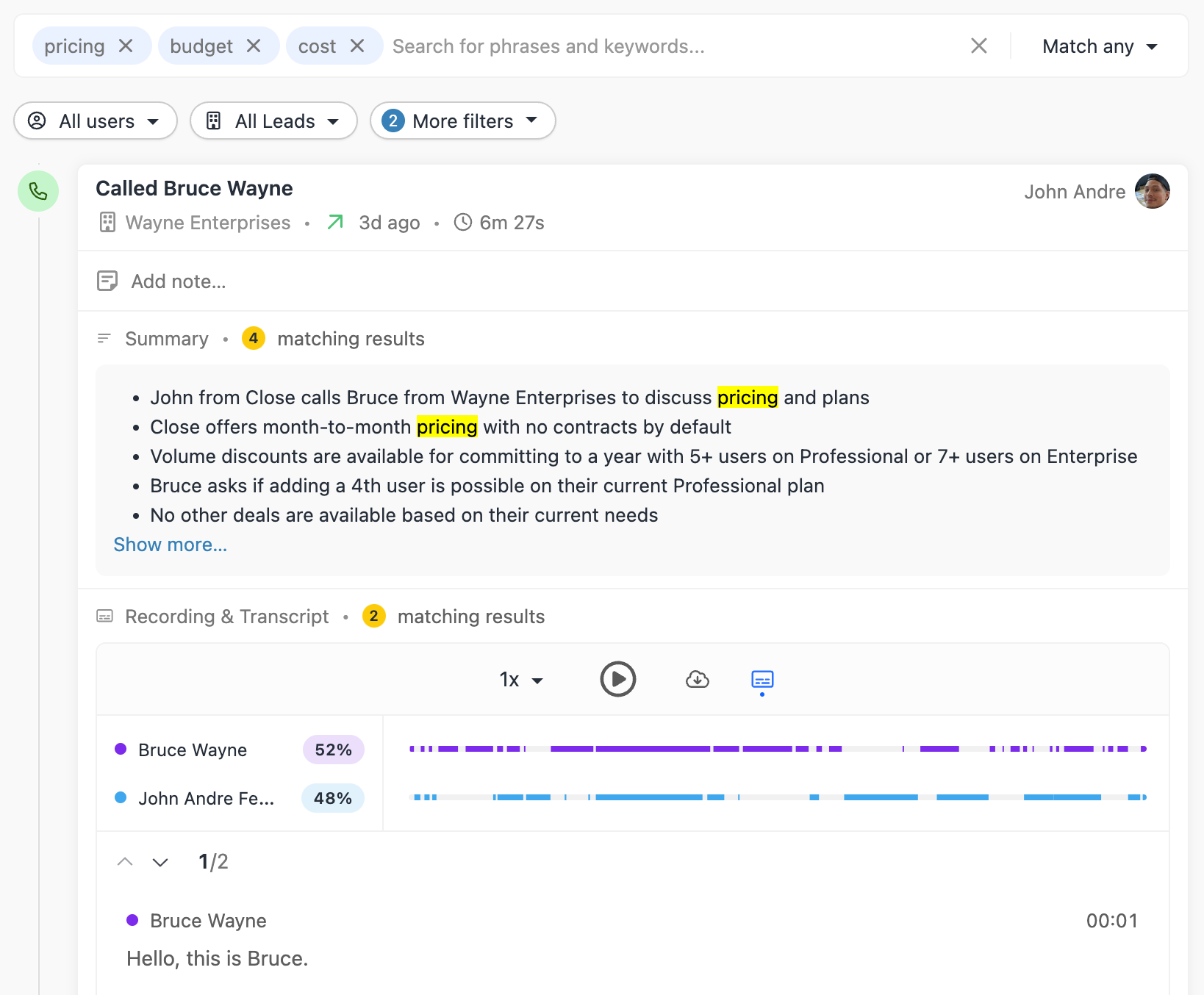
When using keyword and phrase search, you’ll also see the number of matching results in each section of the returned calls or meetings. For transcription matches, the transcripts will be expanded so you can see the exact context of the first matching result.
You can also use the up and down arrows within the transcript to quickly navigate in cases where there are multiple matches.
Transcript and summary search is only available on calls made with Call Assistant enabled.
Filters
You can filter your Conversations View in a number of ways.
User: Find calls and meetings associated with a particular User, set of Users, or a User Group.
Leads: Narrow down the list to only calls associated with a particular Smart View.
Call Direction: Show inbound or outbound calls only. Defaults to both directions.
Duration: Only return calls or meetings that are over or under a certain duration.
User talk time percentage: Only return calls or meetings where a User was talking more or less than a certain percentage of the time on the call
Recorded calls only: Toggle whether you only want to see calls that were recorded in this list.
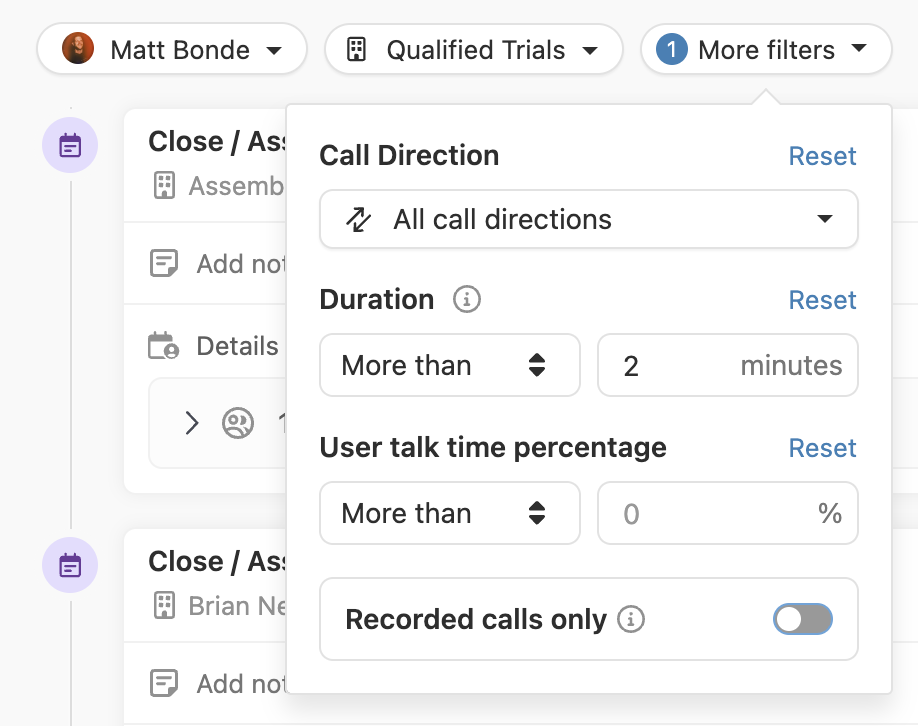
Talk time percentage filters is only available on calls made with Call Assistant enabled.
Saving and Sharing Views
Once you build a filtered view, you can easily save it for quick reference later. Simply click Save As in the top right of the page and name your view.
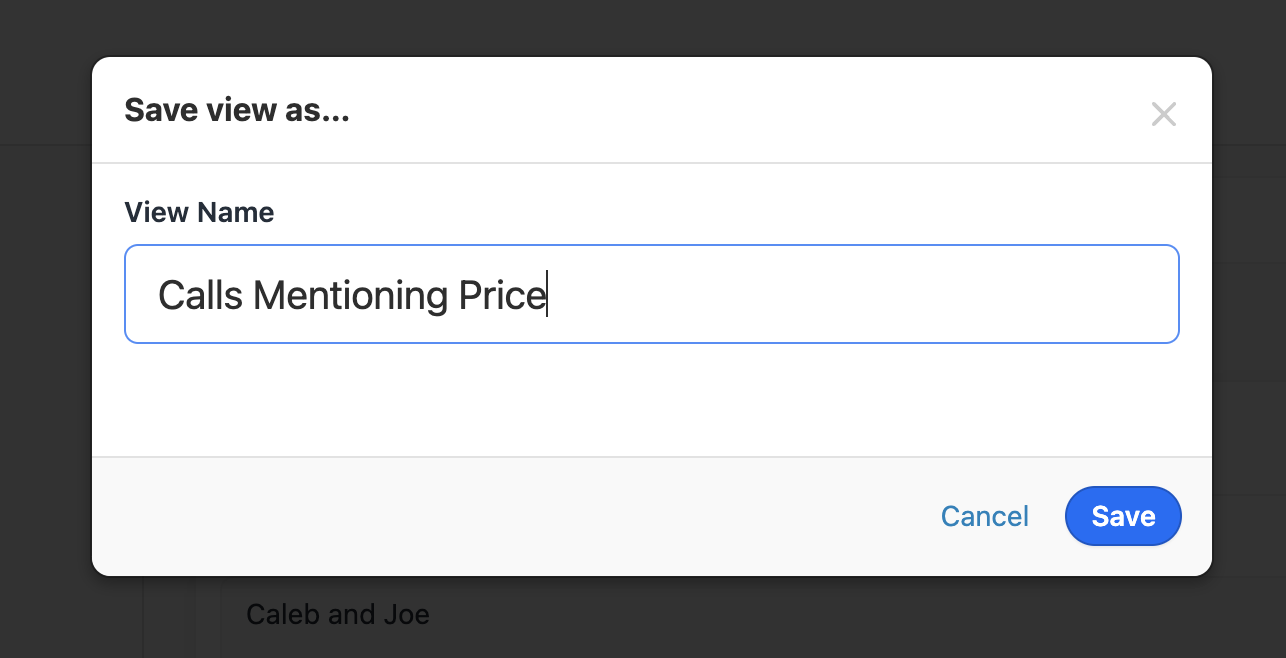
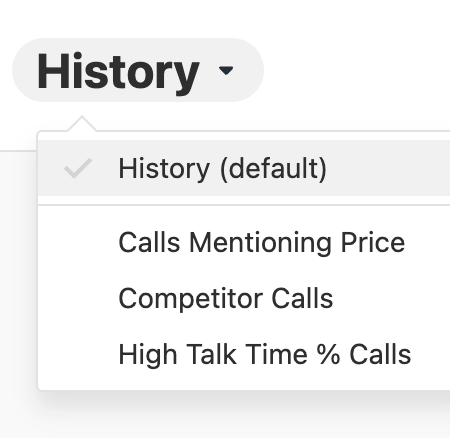
Once the view is saved, you can load these views by clicking the view dropdown.
If you want to share your set of filters with another User, simply click the link icon on the page. Note that they will need to save their own version of the report if desired.