

Tasks
In Close, you can set Tasks for yourself or other team members within any lead. Tasks are best used when noting a unique action that is not in your normal workflow or for reaching out to another team member for help (share an update, provide support, reach out to a Contact within a Lead, etc).
Creating and Assigning Tasks
You can create a Task for yourself or someone else on your team by going into any lead and clicking “add” to the right of the “Tasks” section located below the Lead name.
You set a description, date, and time, attach a Contact, and select the person to whom you would like to assign the Task. You can also mark tasks as High Priority. These tasks stand out more easily in your inbox and on Lead pages, making them quick to find.
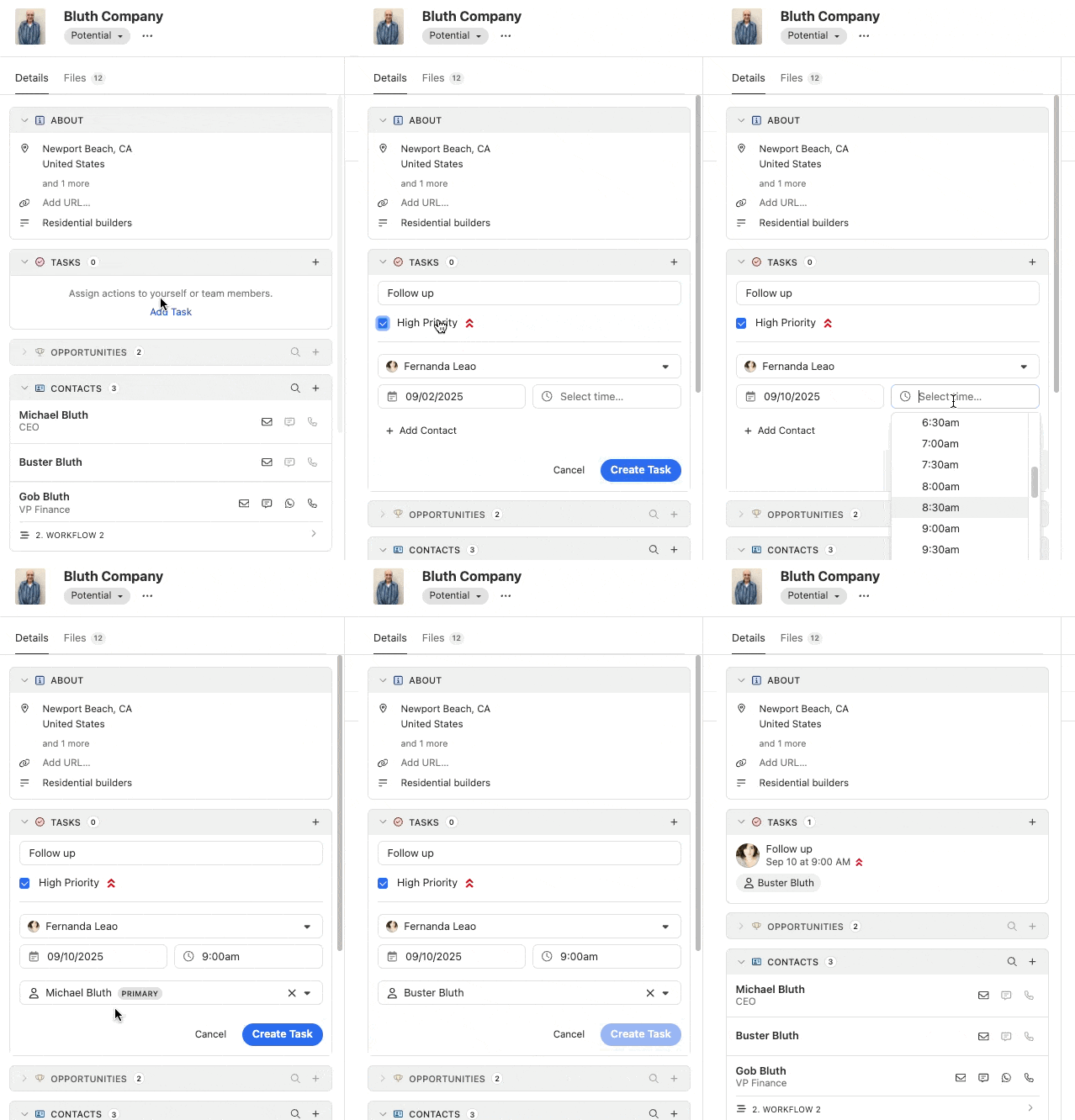
If you assign a Task to anyone other than yourself, they will receive an email notification.
Check off Tasks as you complete them and the action will show up on your Lead’s communication history. You can “snooze” a Task or change the due date from the Lead page. Delete Tasks that are no longer relevant to keep your workflow clear.
Call Tasks
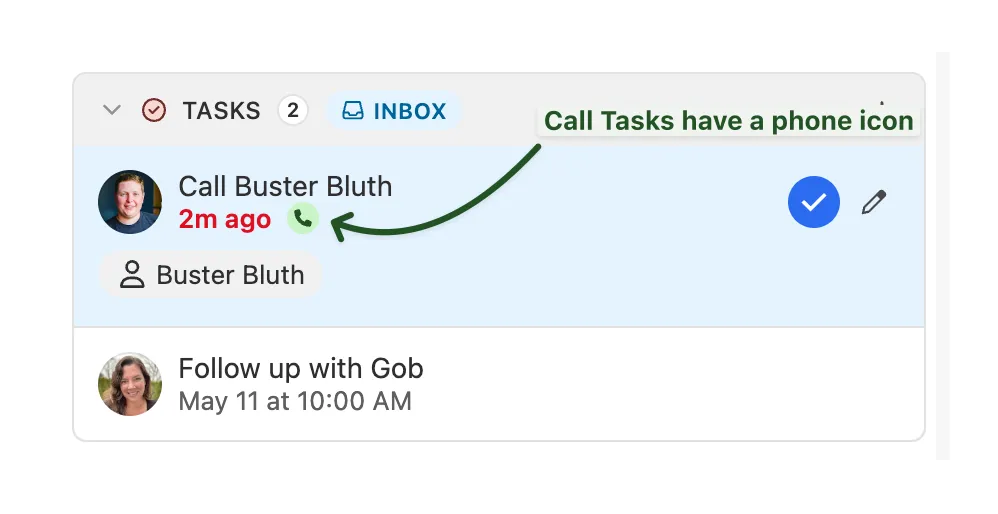
Call Tasks are a type of Task that instruct the assigned user to call a Contact at a particular date and time. Call Tasks can be created on a Lead, via the Call step in Workflows, or via API/Zapier. Incomplete Call Tasks appear under Tasks on a Lead and the assigned user’s Inbox. If the Call Task was created using a Workflow, any incomplete Call Tasks will also appear in Workflows under the “Call Task” for the assigned user.
The difference between Lead Tasks and Call Tasks is that a Call Task requires a completed Call activity between the assigned User and Contact in order to marked as completed. Close will automatically mark Call Tasks as completed when there is a matching call activity.
If you want to mark a Call Task complete before there is a Call activity, there are two ways:
- In the Inbox, mark the Call Task as done. Close will automatically create a manual Call activity between the assigned user and Contact.
- On a Lead, find the Call Task under “Tasks” and click the “Mark as complete” icon. Close will automatically create a manual Call activity between the assigned user and Contact.
If you do not wish to complete the Call Task, you can delete it.
View All Tasks for All Leads
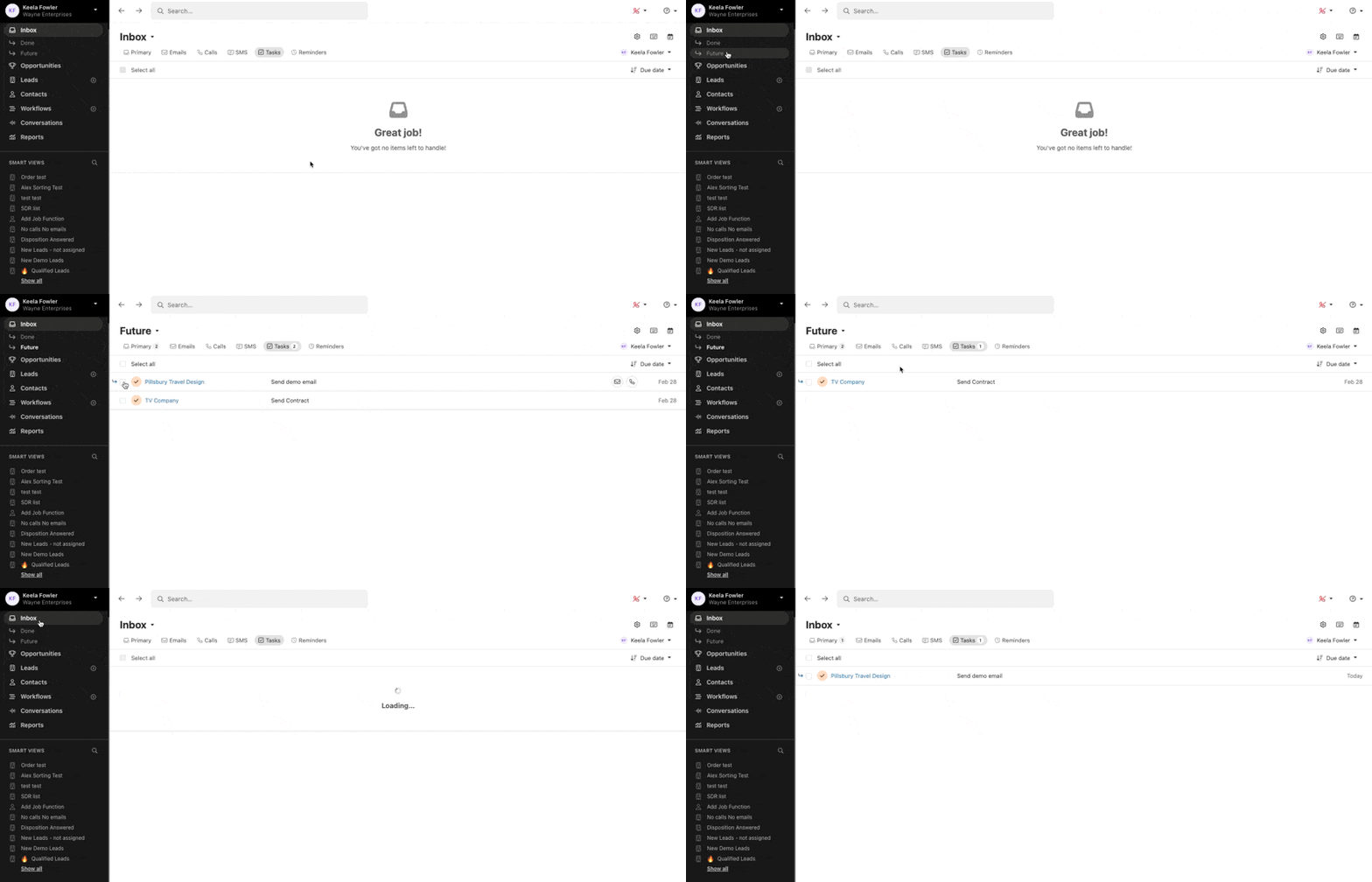
Inbox is your Tasks dashboard – the central place where you can view and manage your Tasks. Tasks will automatically show up in your Inbox on the date they are scheduled for. But you can see all your Tasks, if you’d like:
- Incomplete Tasks for today (or a date in the past) show up in your Inbox.
- Incomplete Tasks scheduled for a future date show up under Inbox > Future.
- Completed Tasks show up under Inbox > Done.
- From Inbox, if you only want to view Tasks by themselves (rather than together with incoming emails, missed calls, etc.) then you can use the Tasks filter tab at the top of your Inbox.
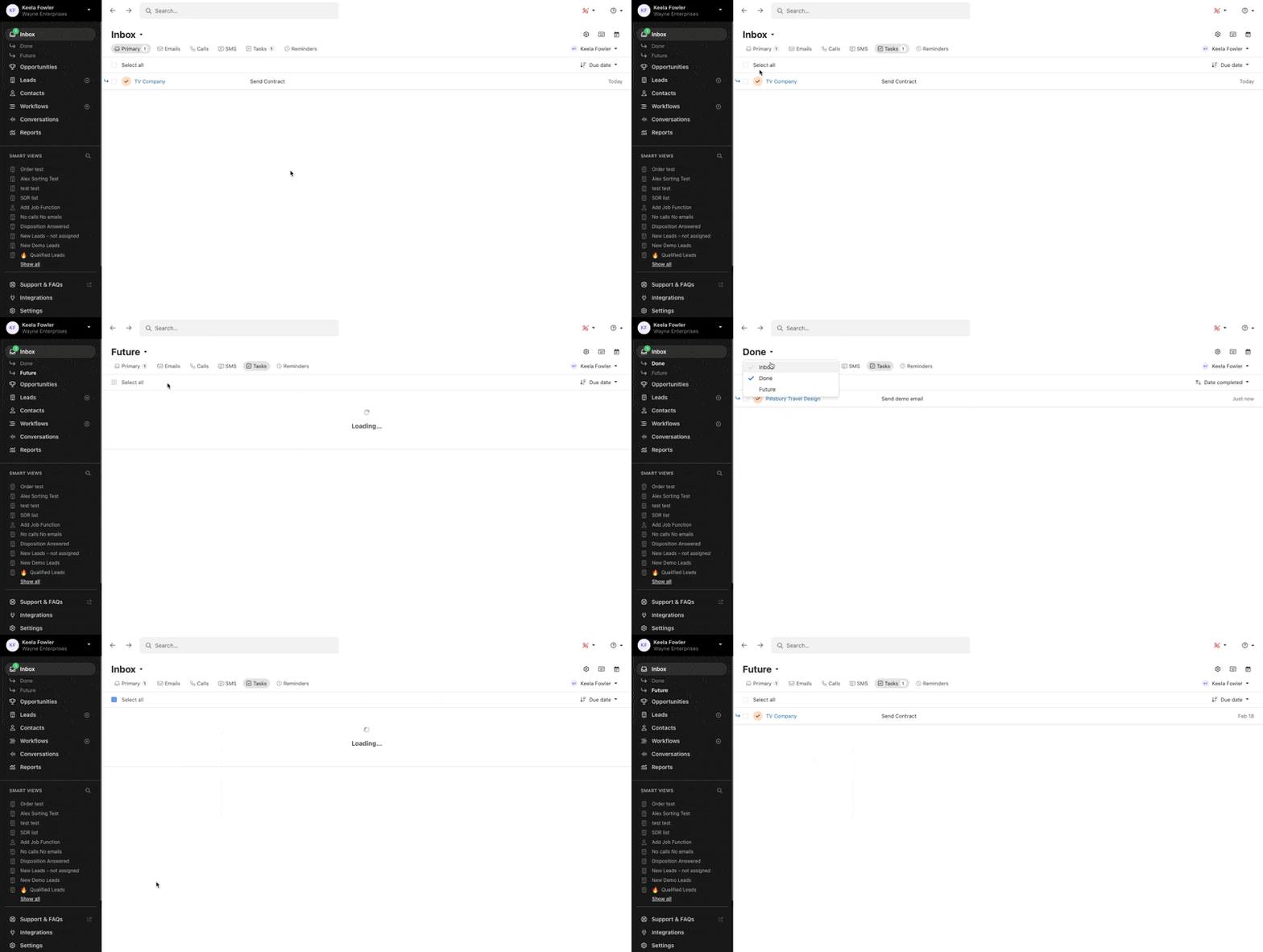
You can click directly into the lead from the Inbox, or manage the Tasks in bulk from your Inbox.
When using Inbox as designed, all Tasks that are important for you today will show up in your Inbox already. On the day and time they are due, a banner will pop up. You can mark the Task as done, snooze, or click to view it from the banner.

If you have a bunch of Tasks in your Inbox that aren’t actionable today, we suggest doing a bulk cleanup either by marking them Done or by Snoozing them to a future date when you’d like to see them again. We don’t recommend leaving a significant number of Tasks in your Inbox for long periods of time as this can clutter your workflow and leave you disorganized.
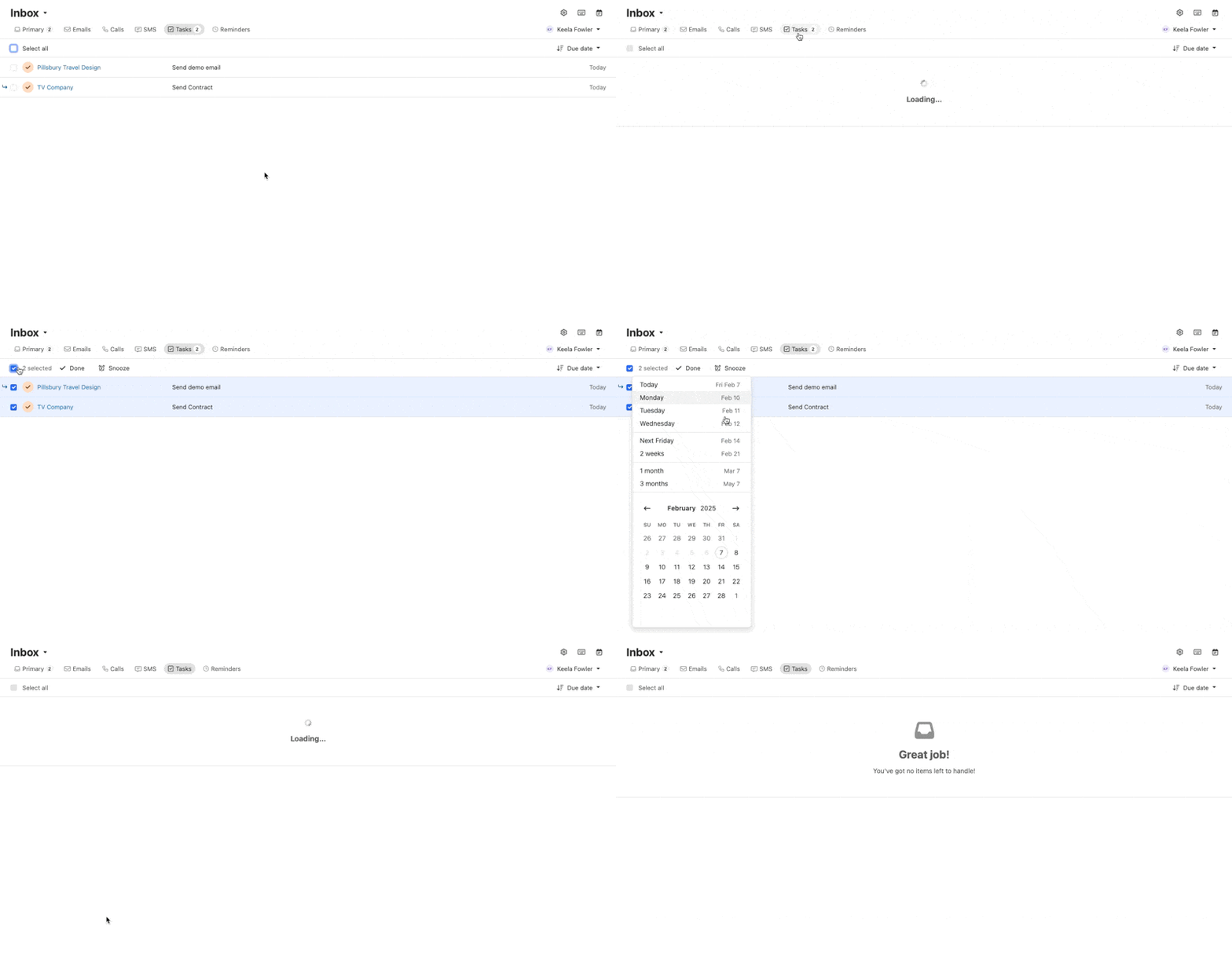
If you find yourself frequently looking at Future Tasks, it would help to think of a Task’s date as a “notification date” (date you want to start seeing it in your Inbox) as opposed to a “due date” (latest date a Task can be completed). If there are Tasks in your Future Inbox that you want to work on today, just select them and click “Move to Inbox”.
Close Pro Tip: When to Use Tasks
It’s best to use Smart Views instead of Tasks when you are keeping track of communication workflows that are part of your routine follow-up process. Save Tasks for accomplishing unique actions.