

Spell check
With the built-in spell checker for Close desktop app, you can ensure that your emails and notes are mistake-free. Spell check will work on both Windows and Mac.
Spell check is multilingual, which means you can select more than one language at once, and Close will check for errors across multiple languages.
Windows
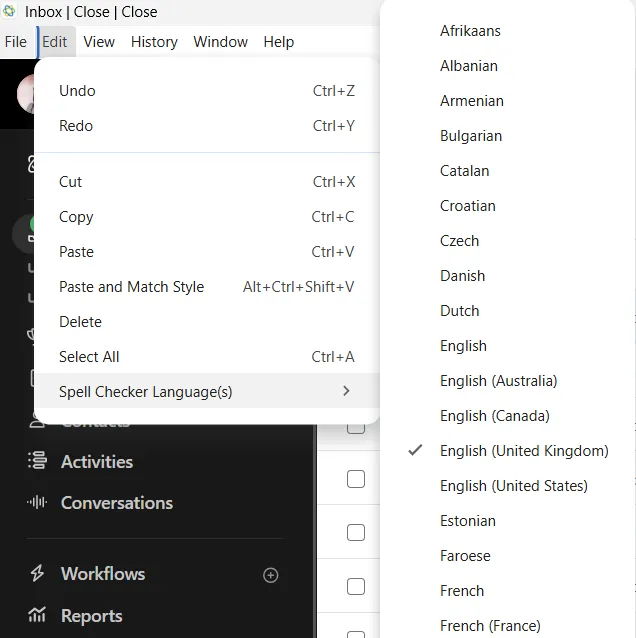
On Windows, press Alt key to bring up the menu bar, and then you can find the spell check settings under Edit > Spell Checker Languages(s) where you can toggle on/off languages as needed:
See it in action, where we go from English to English + German:
Mac
On Mac, Close will use macOS built-in spell-check preferences, which can be found on your System Settings > Keyboard > Input Sources > Edit :
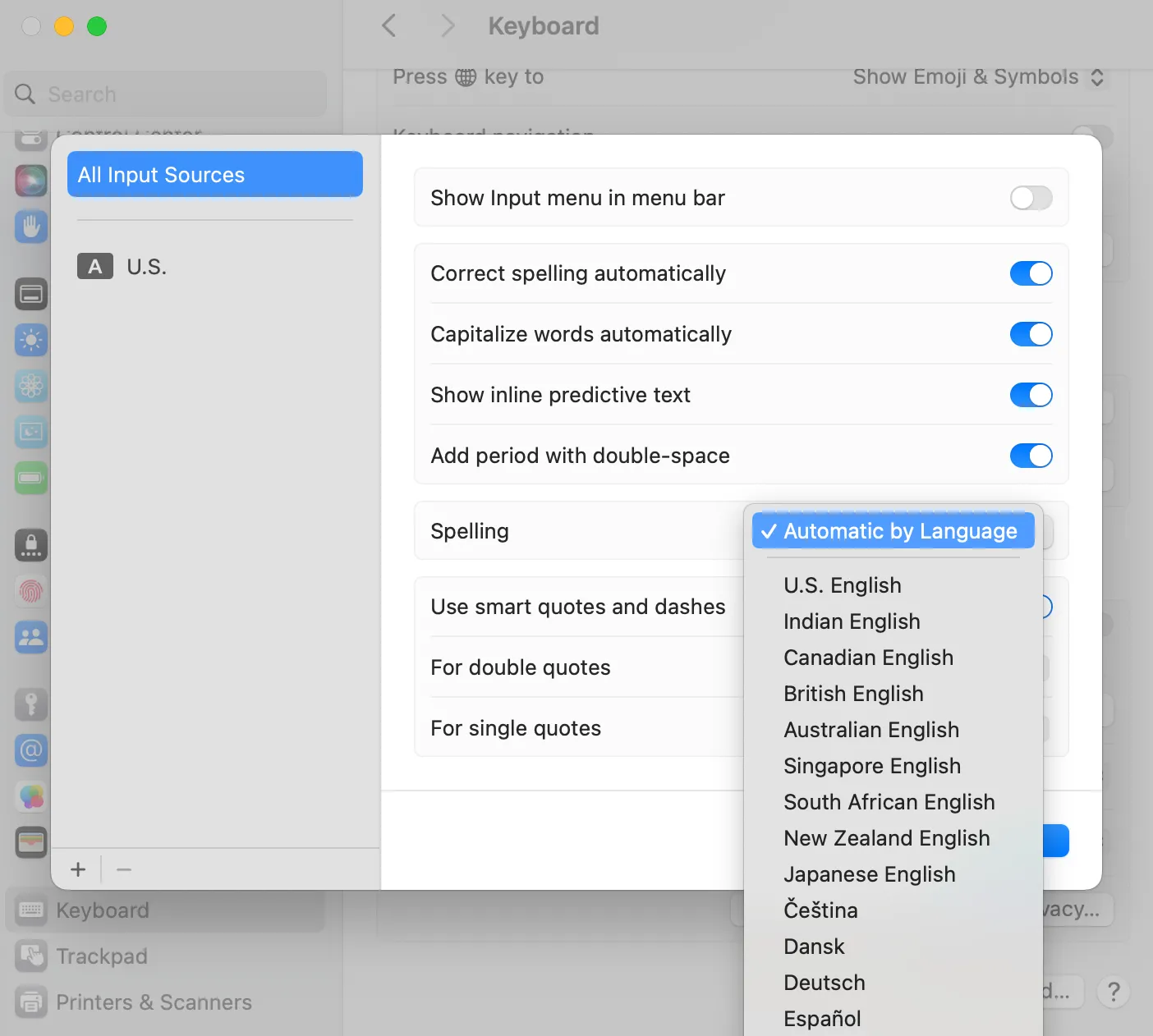
After you change the macOS settings, make sure to refresh the Close app for changes to take effect.