

Rename Objects
Customize Close’s standard object names to match the language your team uses. For example, you can rename Leads to “Accounts,” Contacts to “Candidates,” or Opportunities to “Deals.”
You can also rename the Lead and Opportunity Status field to something like “Stage.” Your changes apply across your organization, so everyone sees the same names.
Before you begin
- Custom names are available on all plans, including trials.
- You need the can change object names permission under Manage Customizations to rename standard objects.
- Close uses the default names (Lead, Contact, Opportunity, and Status) until someone with permission changes them.
Rename a standard object
- Go to Settings > Objects. Standard objects and Custom Objects are listed on the same page.
- Select the standard object you want to rename: Leads, Contacts, or Opportunities.
- Enter a singular and plural name. For example, enter “Account” and “Accounts.”
- Save your changes.
The new names appear throughout Close for everyone in your organization, not just your account.
Naming examples
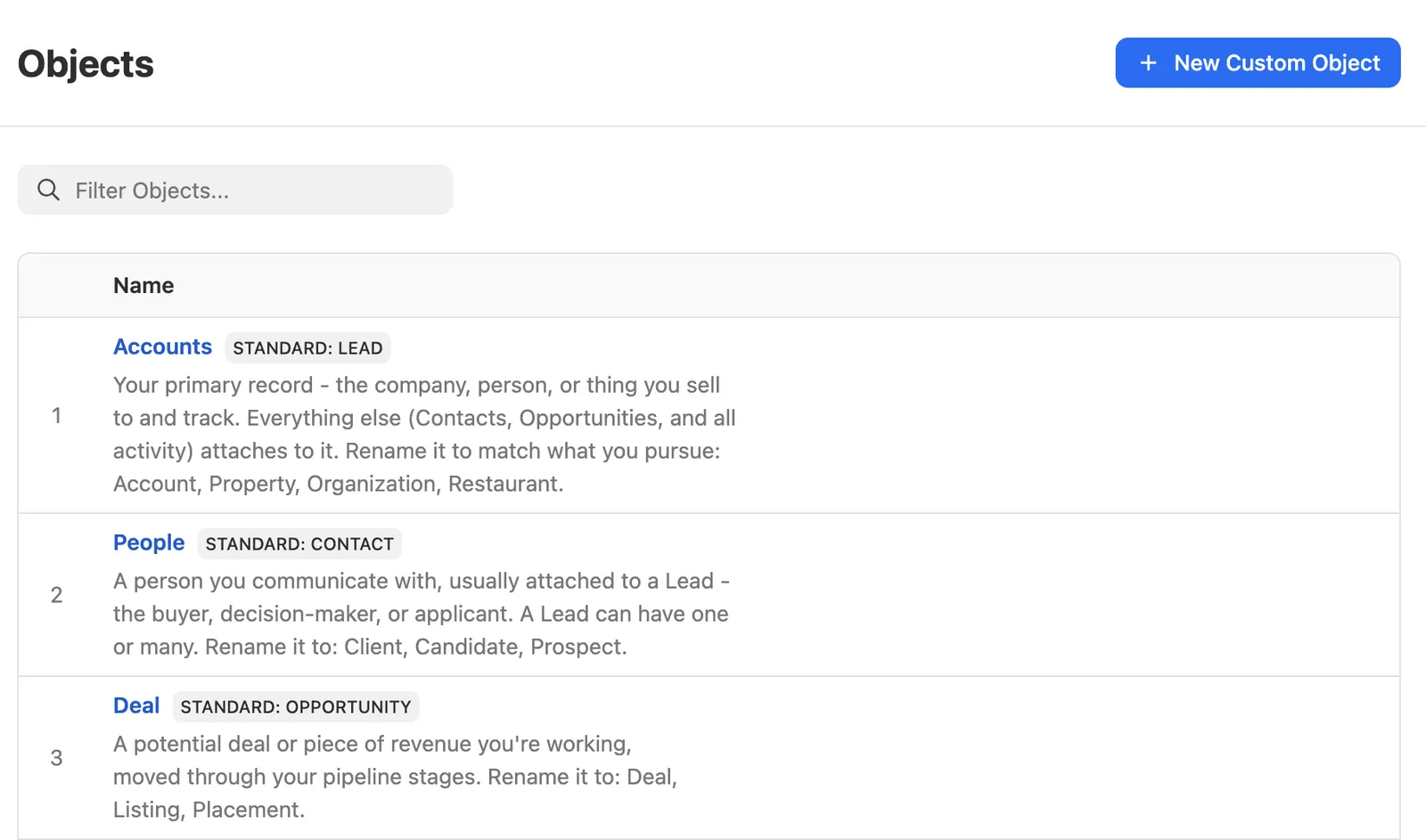
Choose names your team recognizes, and provide both singular and plural forms so Close can use the appropriate name in different contexts.
Naming restrictions
Object names must be unique across your standard and custom objects. You can’t:
- Give two objects the same name, such as renaming both Leads and Contacts to “Accounts.”
- Rename an object to another standard object’s default name, such as renaming Leads to “Contacts.”
- Use a name already assigned to a custom object.
Multi-word names are supported, and Close preserves the capitalization you enter.
Rename the Status field
If your team uses a different term for Status, you can change the label for Leads or Opportunities.
- Go to Settings > Objects.
- Select Leads or Opportunities, or their custom names if they’ve already been renamed.
- Edit the Status label. For example, change it to “Stage.”
- Save your changes.
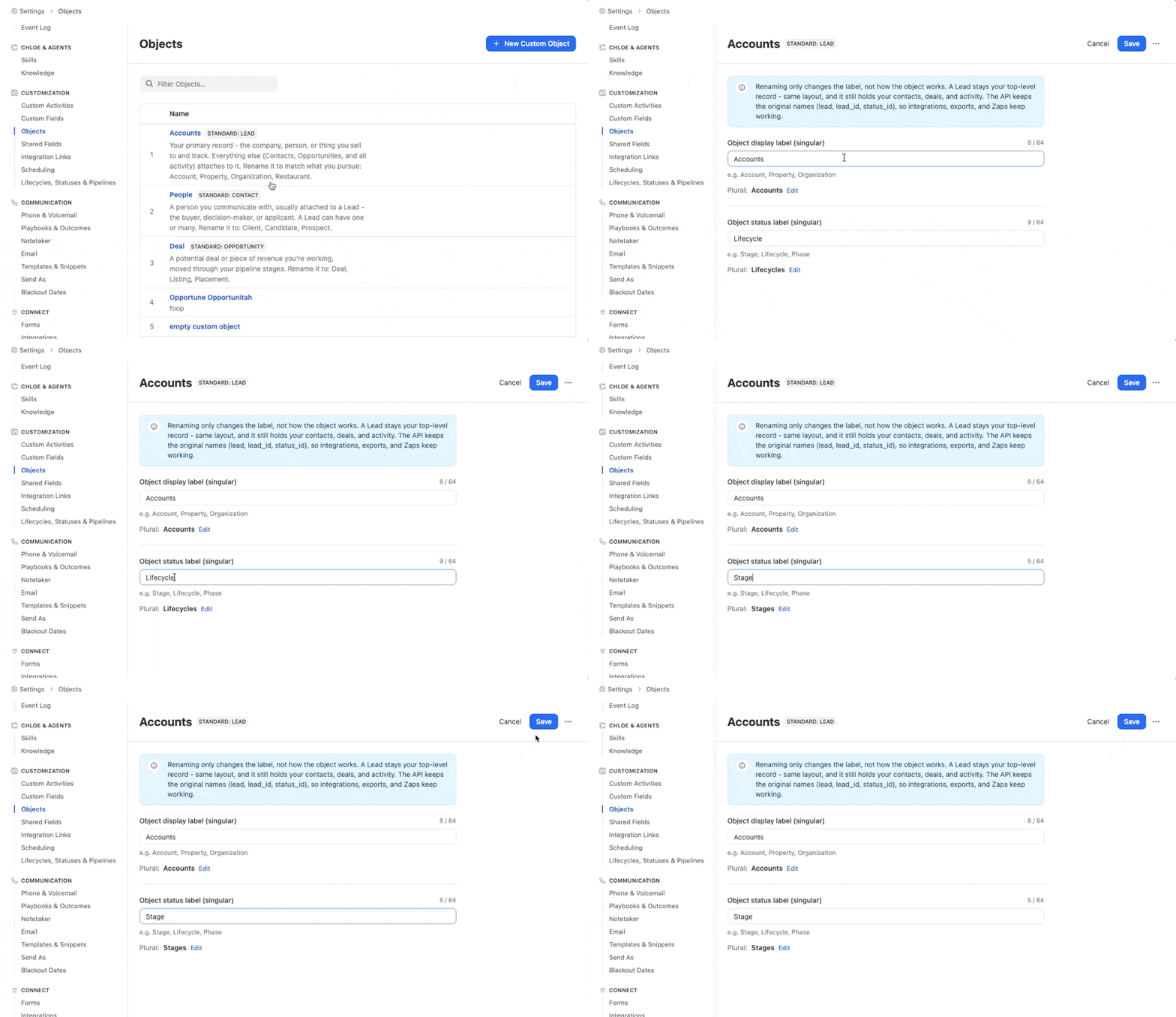
This changes the field’s label, not the statuses themselves. For Opportunities, the underlying Active, Won, and Lost status types stay the same. To add, edit, or remove the statuses themselves, see Lead statuses.
Where custom names appear
Close uses your custom names throughout the app, including navigation, record pages, Smart Views, search, filters, reports, workflows, and settings.
Chloe, Custom Agents, and AI tools connected through the Close MCP also understand your organization’s names. For example, if you rename Leads to “Accounts,” you can ask an AI tool to “show me my top Accounts.”
What doesn’t change
Renaming an object changes how it’s labeled, not the object itself or its relationship to other records.
The following keep Close’s standard names:
- API object and field names
- Record ID prefixes, such as
lead_,cont_, andoppo_ - CSV export field names
- Canonical MCP tool and field names
Your existing integrations continue using the standard names. For example, if you rename Leads to “Accounts,” the API still uses lead. The API also exposes custom labels as additional information.
Frequently asked questions
Does renaming affect everyone in my organization?
Yes. Custom names apply across your organization. They aren’t individual user preferences.
Does renaming an object create a new object or move my records?
No. Renaming changes the labels used in Close. Your existing records and relationships stay the same.
Can I see who changed an object’s name?
Yes. Object name changes are recorded in the Event Log.
Why does the API still say “lead” after I renamed Leads?
This is expected. API names remain unchanged so existing integrations keep working. Your custom name is a label, not a replacement API name.