

Groups
Availability
This feature is only available on the Scale and Enterprise (legacy) plans
Groups were made for managers who want to filter performance by groups of team members rather than the organization as a whole. Create saved groups of users to monitor your sales team’s Pipeline, report on their activities, search Leads by Group activity, and more.
Creating a Group
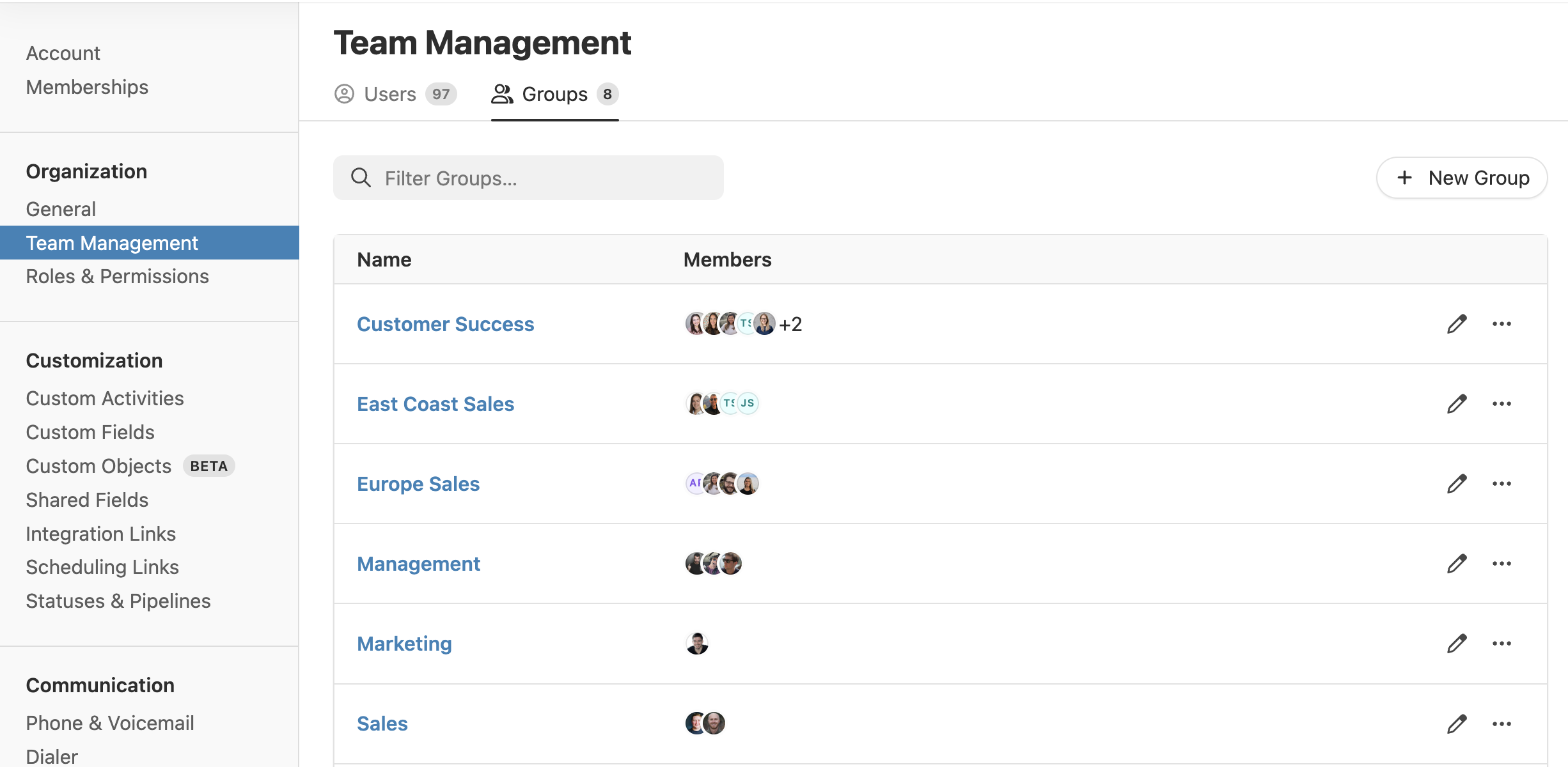
You can access Groups by going to Settings > Team Management and then choosing the Groups tab. Select the New Group button to create a new Group:
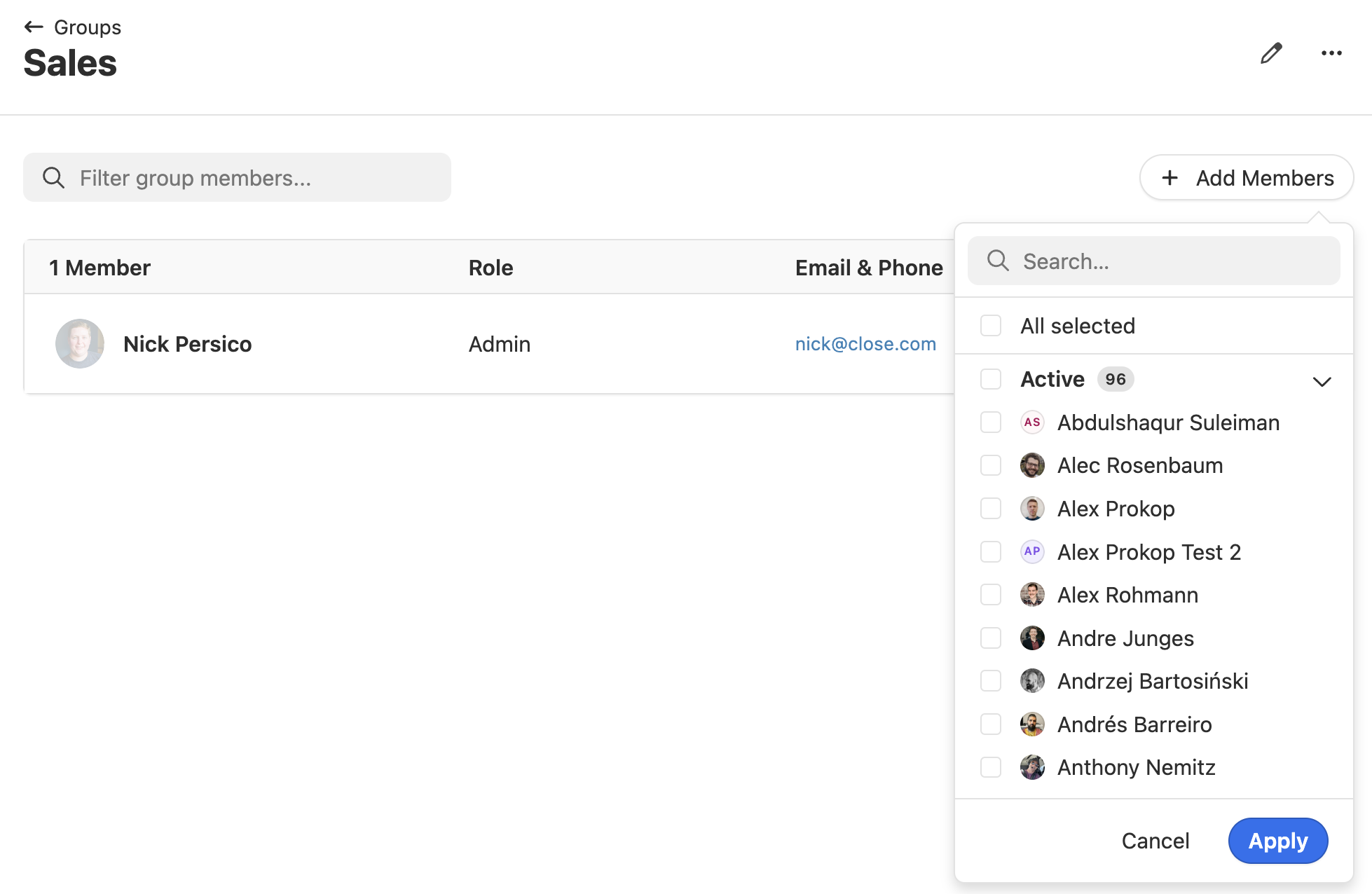
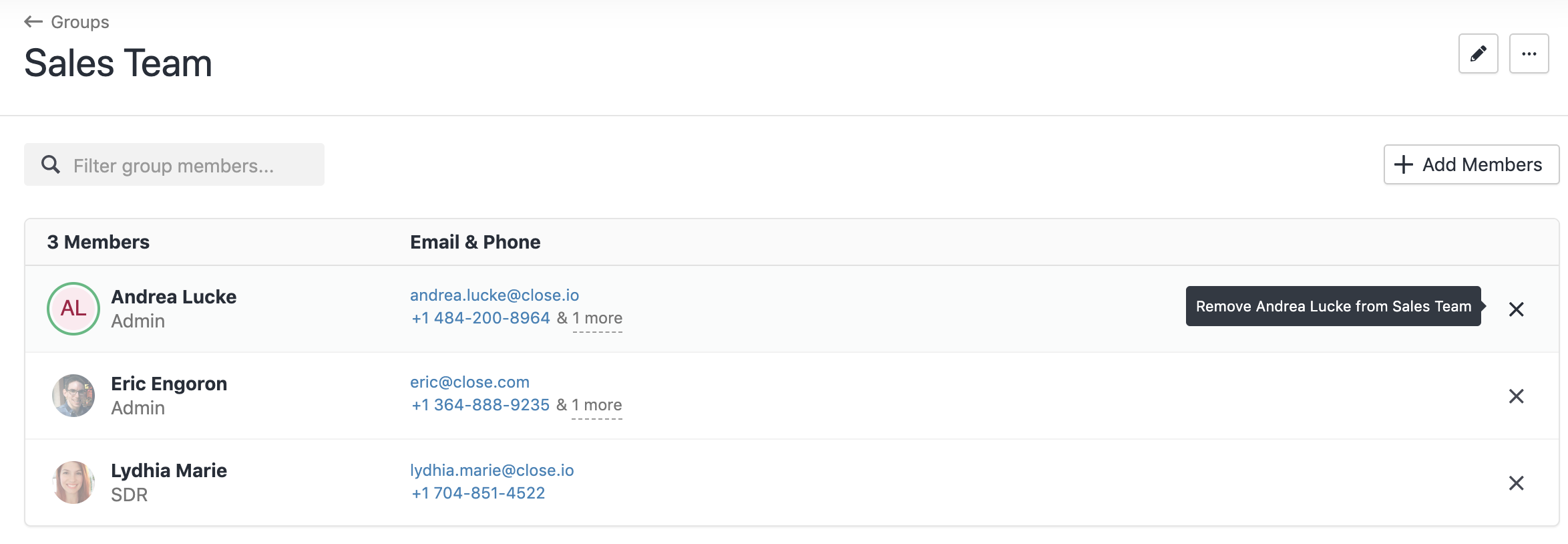
Add members into your Group by selecting + Add Members on the right hand side:
Searching and Filtering by Group
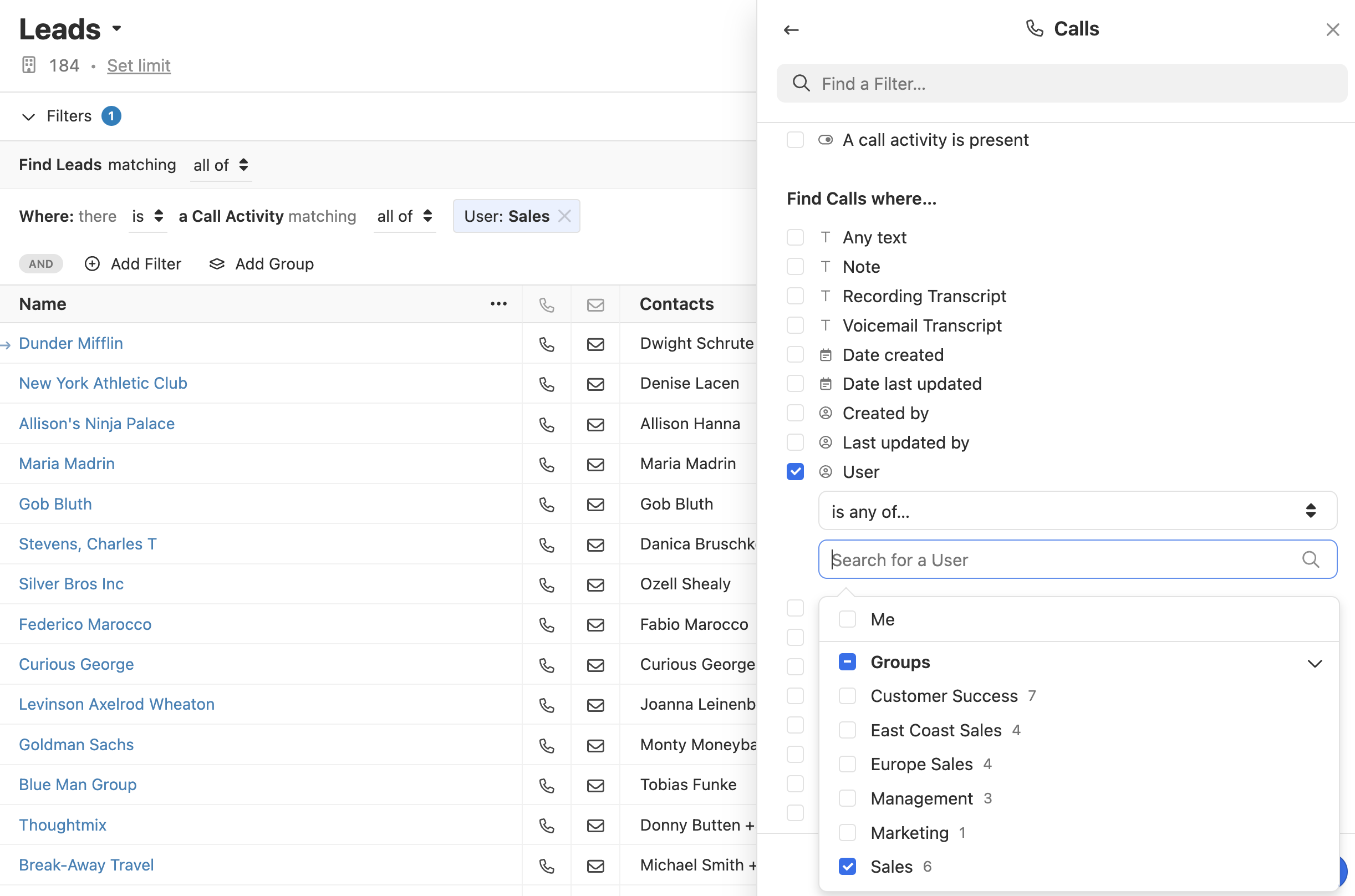
Once a Group is created, you can filter by Group in Reporting and search by Group in our search filters. For example, to see all calls that have been made by your Sales Team, you can filter your Leads by Calls > User > Sales Team:
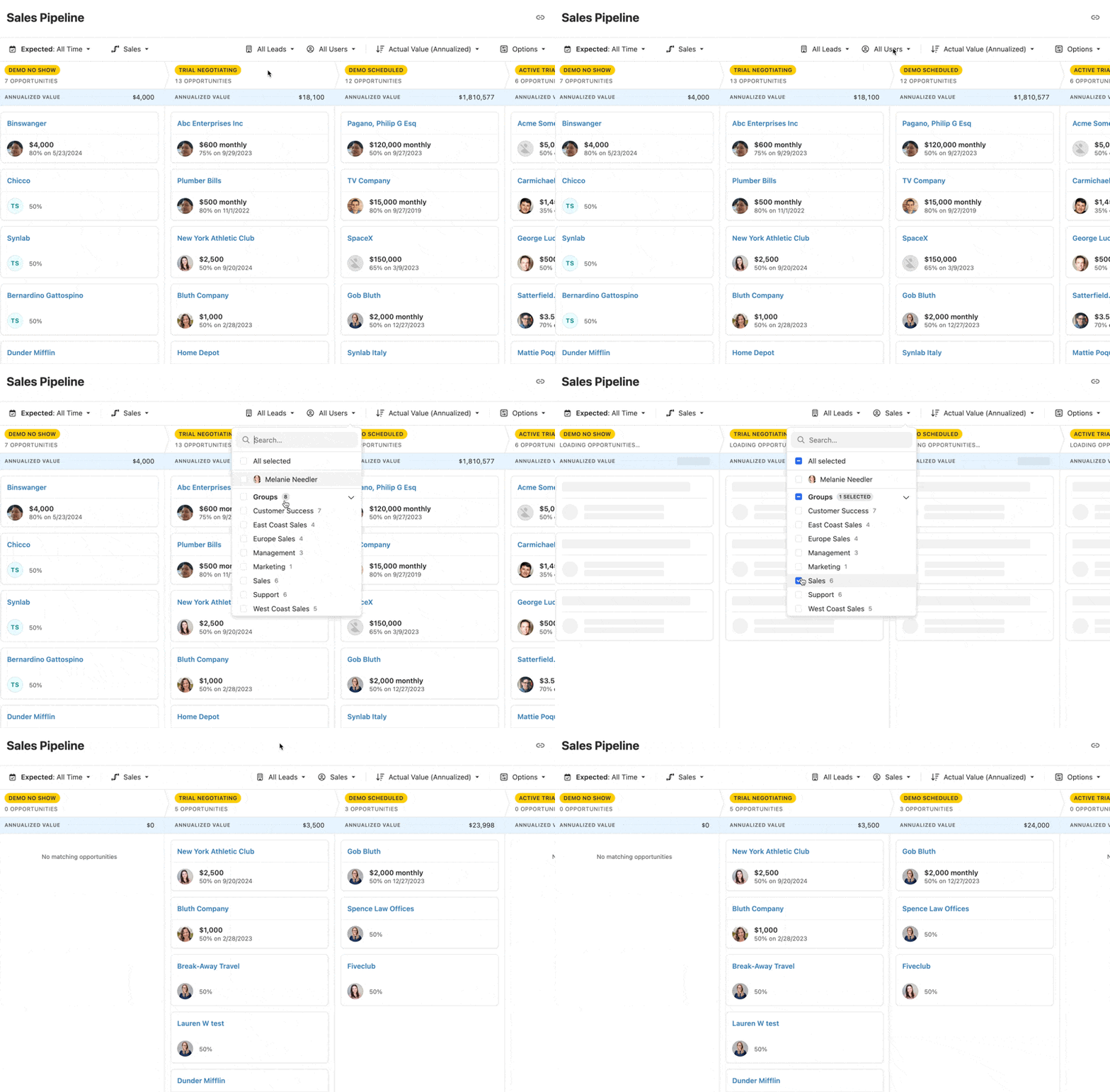
Similarly, you can narrow down your Opportunity report to see a snapshot of the Groups sales activities over a certain timeframe:
Removing Members from Groups
You can remove individual users from Groups by selecting the X icon to the right of their name in the Groups section of your Team Management page:
In the event that you need to remove a user from your Close org, they will remain in any Groups to support historical reporting.
API Documentation
If you’re interested in connecting to our API to automate your Group activity you can take a look at our API documentation for a list of different endpoints.