

Call Routing and Phone Menus
Close is both a CRM and a business phone system, so inbound calls can be routed using the data you already have. Send a call to the Lead Owner, distribute new leads across your reps, or let callers route themselves through a phone menu.
Turning routing on
Go to Settings > Communication > Phone & Voicemail and select a number. On the number’s settings page you’ll find cards for Lead-based call routing and Phone Menu.
Both require the Manage Team Phone Numbers permission, which Admins and Super Users have by default. See Who can change what.
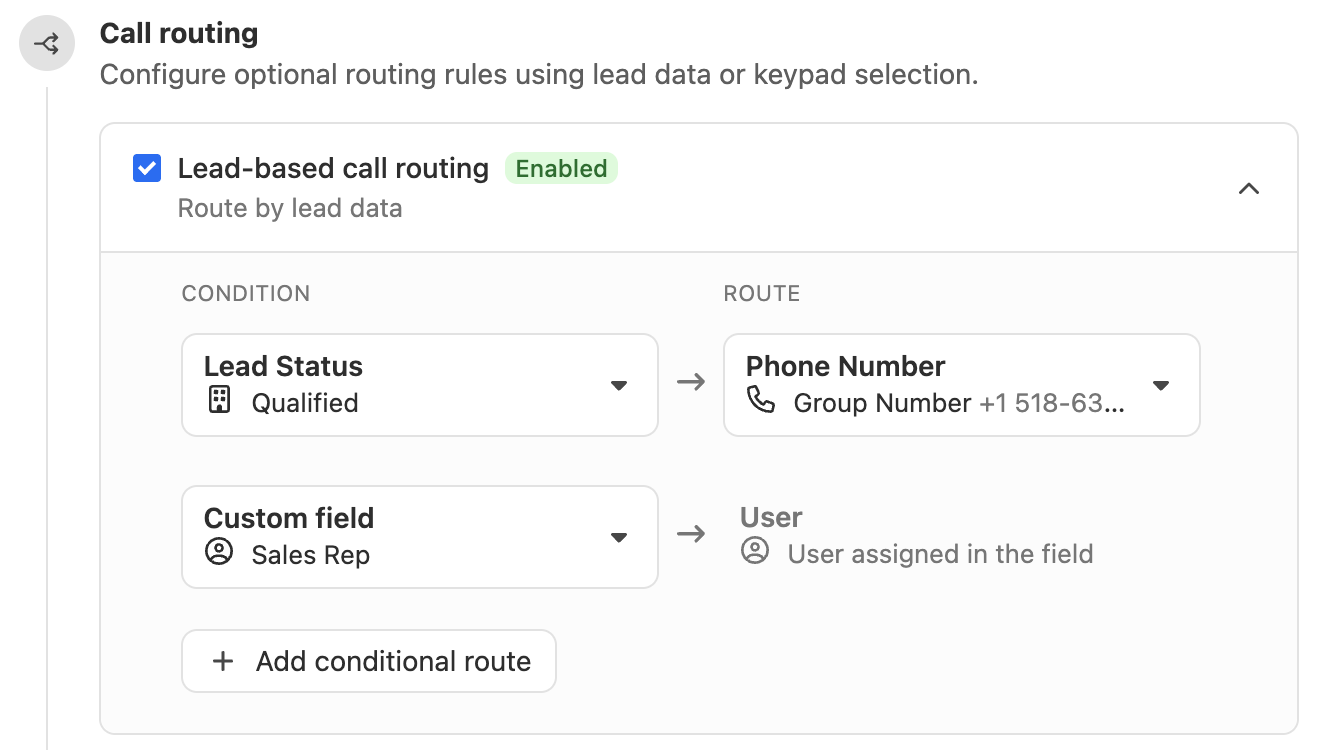
Lead-based call routing
Incoming calls are routed using the calling lead’s data — for example its status, or a user Custom Field such as Lead Owner.
Routing by lead status
Set rules against the lead’s current status:
- Prospects, Qualified Leads, Demos, Negotiations → route to the Sales team’s number
- Customers → route to the Success team’s number
- Partners → route to the Support team’s number
Routing by Custom Field
Single-user Custom Fields such as “Lead Owner” route the call to that one user. Multi-user Custom Fields such as “Response Team” ring everyone listed.
Phone Menu
A Phone Menu works as an IVR: callers route themselves to the right person or team, so reps get calls that are relevant to them and callers get passed around less.
You can record a menu greeting directly in Close, or upload an existing audio file.
Call hold and hold music
Close does not support call hold/queue functionality, so there is no place to upload custom hold music.
If you need a greeting played before callers choose menu options, set the Phone Menu (IVR) greeting on a premium group number.
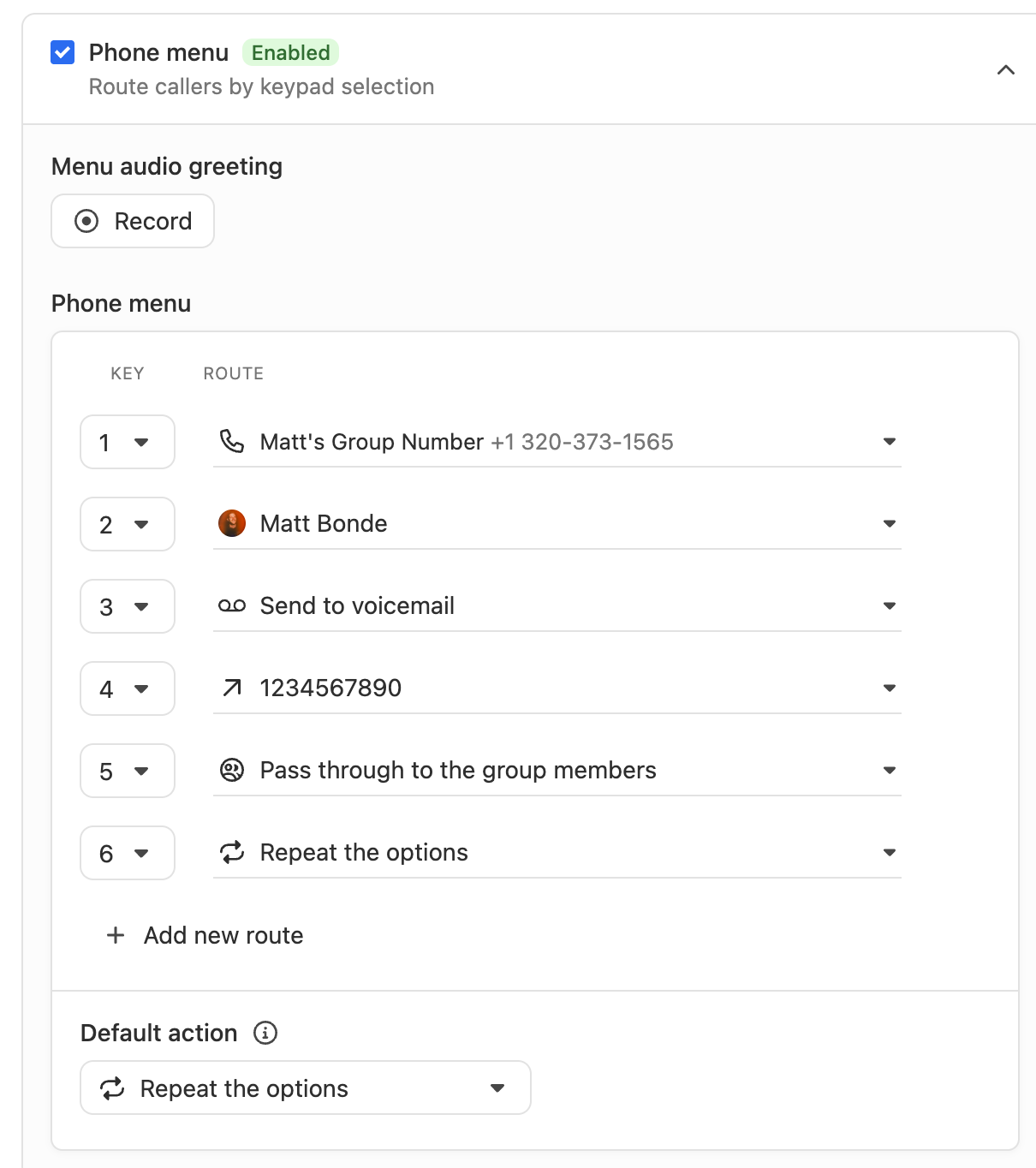
Setting up the Phone Menu
After enabling the Phone Menu, define what each key does. You can select a specific user — including a user who is not a member of the number — or one of these actions:
- Ring the number’s members
- Forward the call to an external number
- Send the caller to voicemail
- Repeat the options
The default action fires when a caller stays on the line without pressing anything. Repeating the options (it repeats up to 10 times) or ringing the number’s members are both reasonable choices.
Users need a number they’re a member of in order to receive calls
If a user in your Phone Menu isn’t a member of any phone number, the default action fires instead. Check that everyone named in the menu is a member of at least one number. Membership is shown in the Members card on each number under Settings > Communication > Phone & Voicemail.
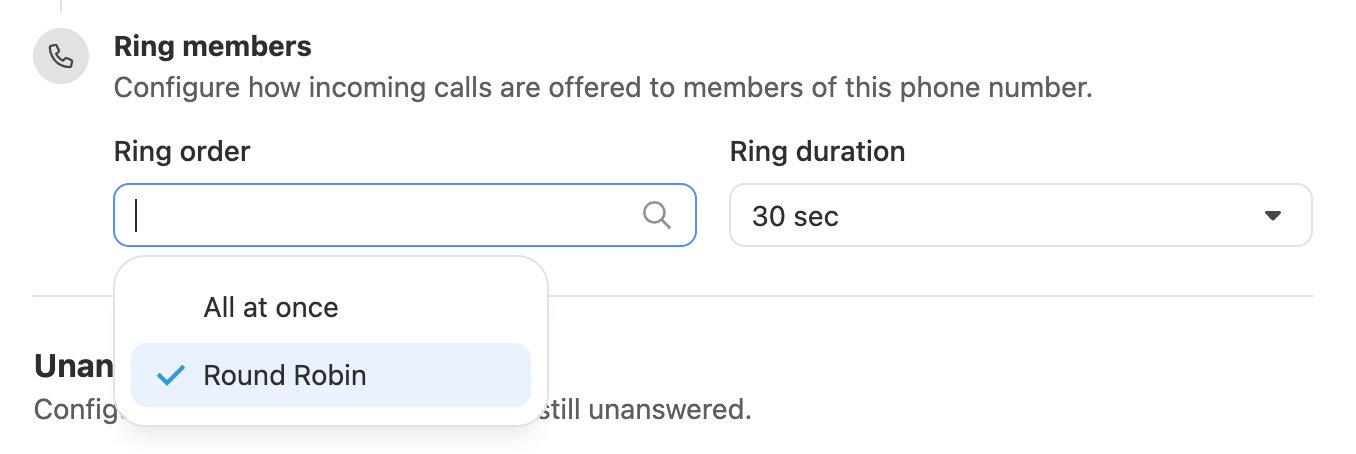
Round robin call distribution
Set the Ring card to Round robin to distribute inbound calls evenly across a number’s members. Each new call is offered to members in turn based on previous attempts and answers. Members already on a call are skipped, and the call moves to the next person after the ring duration elapses.
See Shared Numbers.
Turning routing off
Switch off the Lead-based call routing or Phone Menu card on the number’s settings page. The number keeps working as an ordinary number and rings its members directly.
There is no separate downgrade step and no change to what the number costs — turning routing off doesn’t change your bill, and turning it back on doesn’t either.
Deleting a number
Deleting a number removes it from Close and unrents it from your account. Do this only if you don’t intend to use the number again.
Ported numbers cannot be deleted from Close — contact Support if you need to port one out.
Any questions?
Our Support Team is always happy to help.