

Skills
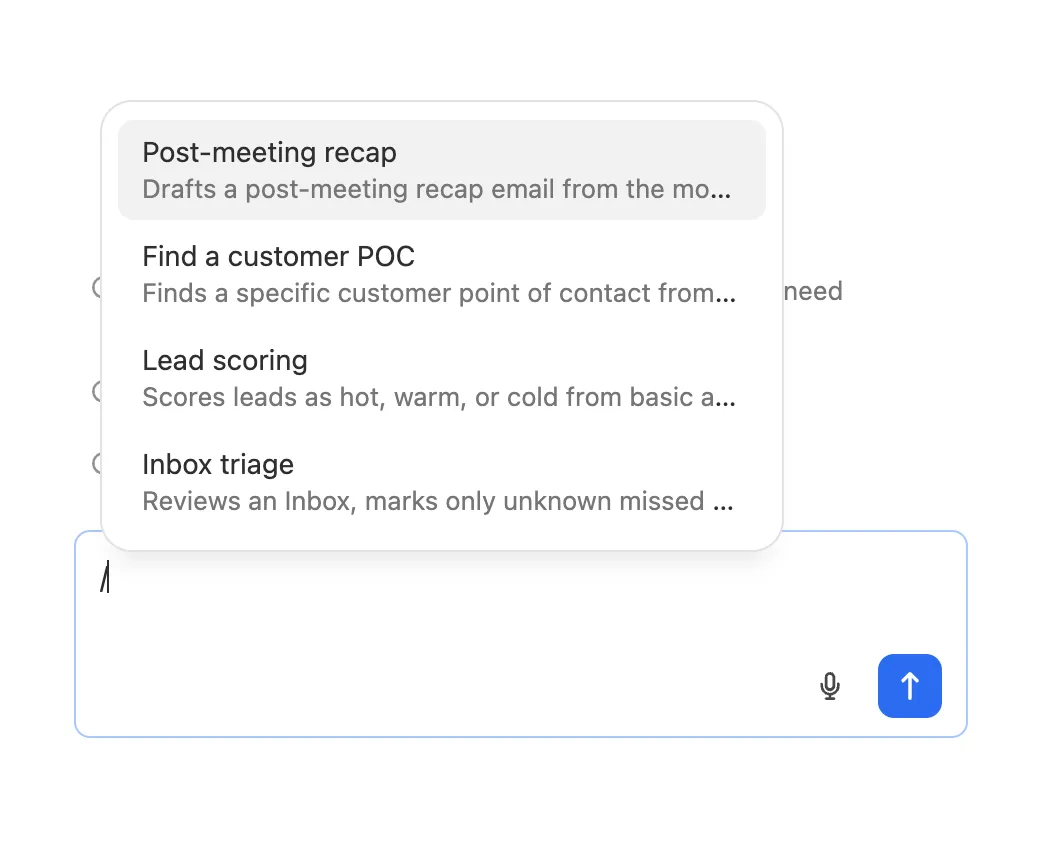
Skills are saved instructions that teach Chloe how to do a specific job your way. Write your instructions once, or have Chloe write them, and use the slash command (/) in Chat to reference them.
Skills are useful for anything you ask Chloe to do more than once, for example:
- Call prep: “Before a discovery call, summarize the lead’s recent activity, list open opportunities, and suggest three questions to ask.”
- Inbox triage: “Review my Inbox notifications, draft replies to emails and SMS for my review, mark resolved notifications as done, and summarize what you did.”
- Pipeline review: “List my opportunities closing this month, flag any with no activity in 14 days, and suggest a next step for each.”
- Weekly report: “Build a table of calls, emails, and meetings per user for last week, and highlight the top three performers.”
Create a skill
- Go to Settings > Chloe & Agents > Skills.
- Select Create skill.
- Enter a Name, for example “Discovery call prep”.
- Enter the Instructions: tell Chloe what to do, what inputs to use, and what a good result looks like. You can use Markdown, such as headings and lists.
- Select Create skill.
You can also ask Chloe to create a skill for you in Chat. See Manage your skills with Chloe. Skills are private to you and cannot be shared.
Names and descriptions
Close turns the name into a short command you type in Chat. It’s lowercase, with spaces and symbols replaced by hyphens. For example, “Discovery Call Prep” becomes /discovery-call-prep. Each of your skills needs a different name.
After you save a skill, Close writes a short description from its name and instructions, saying what the skill does and when to use it. It appears under the skill’s name in your list and in the / menu. When you change a skill’s name or instructions, Close writes a new description. Skill descriptions are important because Chloe relies on them to decide if a skill fits your request. See How Chloe chooses a skill on her own.
Writing good instructions
- Start with the task and when to use it. The opening of your instructions shapes the description. “Prepares a briefing before a discovery call. Use when I ask to prep for a call or meeting with a lead.” gives Chloe a clear signal.
- Use the words you’d use when asking. If you say “prep me for my call”, put “prep” and “call” in the instructions.
- List the steps in order. Numbered steps are easy for Chloe to follow.
- Describe the output. Say whether you want a table, a bulleted summary, a draft email, or something else, and what it should include.
- Make it stand on its own. Chloe reads the skill without your earlier conversations, so don’t rely on “like last time”.
- Keep each skill to one job. Two focused skills work better than one that tries to do everything.
Example
Skill limits
Manage your skills
Your skills are listed at Settings > Chloe & Agents > Skills, sorted newest first. Each skill shows its name and description:
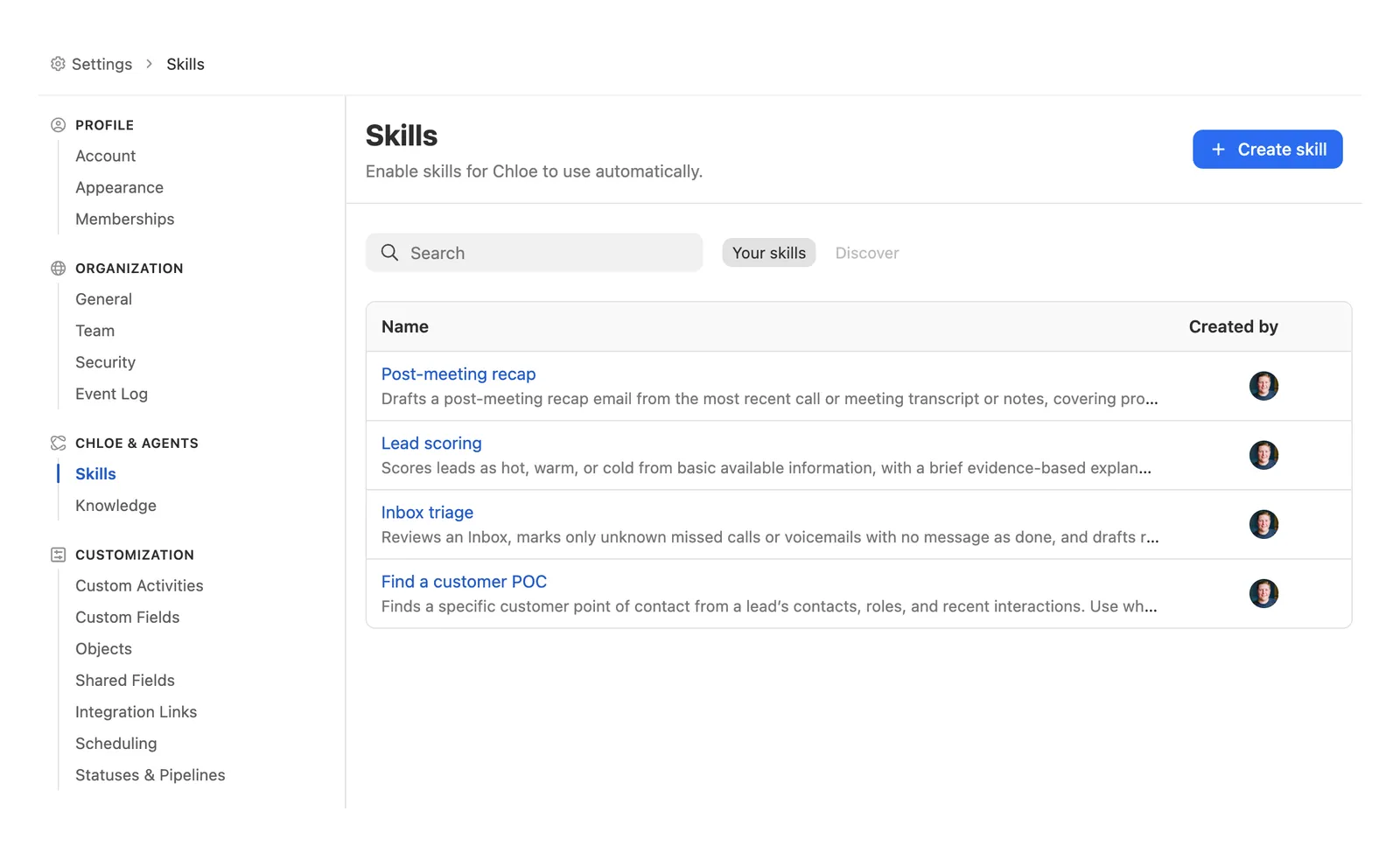
To manage a skill, select its name to open it, or select the More menu on its row:
- Edit skill: change the name or instructions, then select Save.
- Duplicate skill: open a copy with the same instructions, named after the original with “(Copy)” added. Change what you need and select Create skill. This is a quick way to make a variation of a skill you already have.
- Delete skill: permanently delete the skill. This can’t be undone.
If you delete a skill that you used in an earlier chat, that chat shows it as Unavailable skill. If you use that chat again, Chloe lets you know if your request depended on the skill.
Reference a skill with the / command in Chloe
To use a skill directly, type / in the Chloe message box.
- Type
/. A menu opens with your skills, most recently used first. - Keep typing to filter by name, for example
/call. - Use the arrow keys to highlight a skill, then press Enter or Tab, or select it with your mouse. Press Esc to close the menu.
- The skill appears in your message as
/skill-name. Hover over it to see its name and description. - Add anything else Chloe needs, then send. For example: “
/discovery-call-prepfor Acme Corp, the call is tomorrow at 10.”
When you use a skill this way, Chloe reads it before she does anything else, then follows its instructions for your request. You can use more than one skill in a message.
How Chloe chooses a skill on her own
You don’t have to type / every time. Chloe can use your skills on her own when a request fits one.
Here’s how it works:
- Chloe sees a list of your skills. With every message, Chloe gets the name and description of each of your skills. She doesn’t see the full instructions yet.
- She compares your request to the descriptions. If your request matches what a skill says it does, and when to use it, she treats that skill as a fit. For example, “Prep me for my call with Acme tomorrow” fits a skill described as “Prepares a briefing before a discovery call. Use when asked to prep for a call or meeting with a lead.”
- She reads the skill, then follows it. Chloe reads the full instructions before she starts the work, then uses them for that task. If no skill fits, she answers as she normally would.
Because Chloe decides from the description, the clearer your skill’s name and instructions are, the more reliably she picks it. If Chloe isn’t using a skill when you expect her to:
- Edit the skill so its first lines say what it does and when to use it, using the words you’d use when asking. Close writes a new description after you save.
- Make sure two skills don’t describe the same job. If they overlap, Chloe may pick the other one.
- Use the
/command. It always tells Chloe exactly which skill to use.
Skills are written by you, not by Close, so Chloe follows a skill only for its own task. A skill can’t override Chloe’s built-in rules, such as asking for approval before she makes changes.
Manage your skills with Chloe
Chloe can help you come up with ideas for skills, including drafting and creating them for you. Start here.
You can ask Chloe to find, read, create, and update your skills in Chat.
- Find skills: “What skills do I have?” or “Do I have a skill for pipeline reviews?”
- Read a skill: “Show me the instructions for my call prep skill.”
- Create a skill: “Create a skill that reviews my overdue tasks and suggests which to reschedule.”
- Turn a chat into a skill: After Chloe does something well, ask “Save what you just did as a skill called Weekly pipeline review.” Chloe writes instructions that work on their own, without the rest of the chat.
- Update a skill: “Update my call prep skill to also list the lead’s open tasks.” Chloe reads the current instructions first and keeps what you didn’t ask to change.
Chloe asks for your approval before she creates or updates a skill. To delete a skill, use the Skills settings page.
Creating skills requires Read & write Chloe tool access, and updating skills requires Read, write, and delete. See Managing access to Chloe.
Manage your skills from Claude and ChatGPT
The Close MCP Server includes tools for managing your Close skills, so you can find, read, create, and update them from Claude, ChatGPT, or any other MCP client connected to Close:
Bring your Claude or ChatGPT skills to Chloe
If you’ve already built skills, saved prompts, or custom instructions in Claude or ChatGPT, you don’t have to rewrite them. Ask that assistant to create them in Close, and Chloe can use them right away.
- Connect Claude or ChatGPT to Close with permission to write data (Write safe or higher).
- In a chat, ask the assistant to copy your skills to Close. For example:
- “Take my meeting prep skill and create it as a skill in Close.”
- “Look at the skills I use for sales work and create each one as a skill in Close. Adapt the instructions so they work with Close data.”
- Review what the assistant creates, then open Settings > Chloe & Agents > Skills in Close to see the new skills.
- In Chloe Chat, type
/to try them out.
If the assistant can’t read your existing skill, open it, copy its instructions or attach its file, and paste them into the chat.
Tips
- A Close skill is a single set of instructions. Scripts, templates, and other files bundled with a skill in Claude or ChatGPT don’t come across. Ask the assistant to fold what matters into the instructions.
- Chloe works with your Close data and the Help Center. If a skill depends on other apps, such as Slack, Google Drive, or the web, ask the assistant to remove or rewrite those steps.
- It works the other way, too. Ask Claude or ChatGPT to read one of your Close skills with
fetch_agent_skill, improve it, and save it back withupdate_agent_skill.