

Assigning Numbers
Any phone number in Close can be shared with more than one person. Add several members to a number and inbound calls ring all of them — the ring stops as soon as one person picks up. This is useful for a main line, a support number, or a toll-free number that should reach your whole sales team.
Adding members to a number
Go to Settings > Communication > Phone & Voicemail and select the number you want to share. In the Members card, add the users who should receive calls to this number.
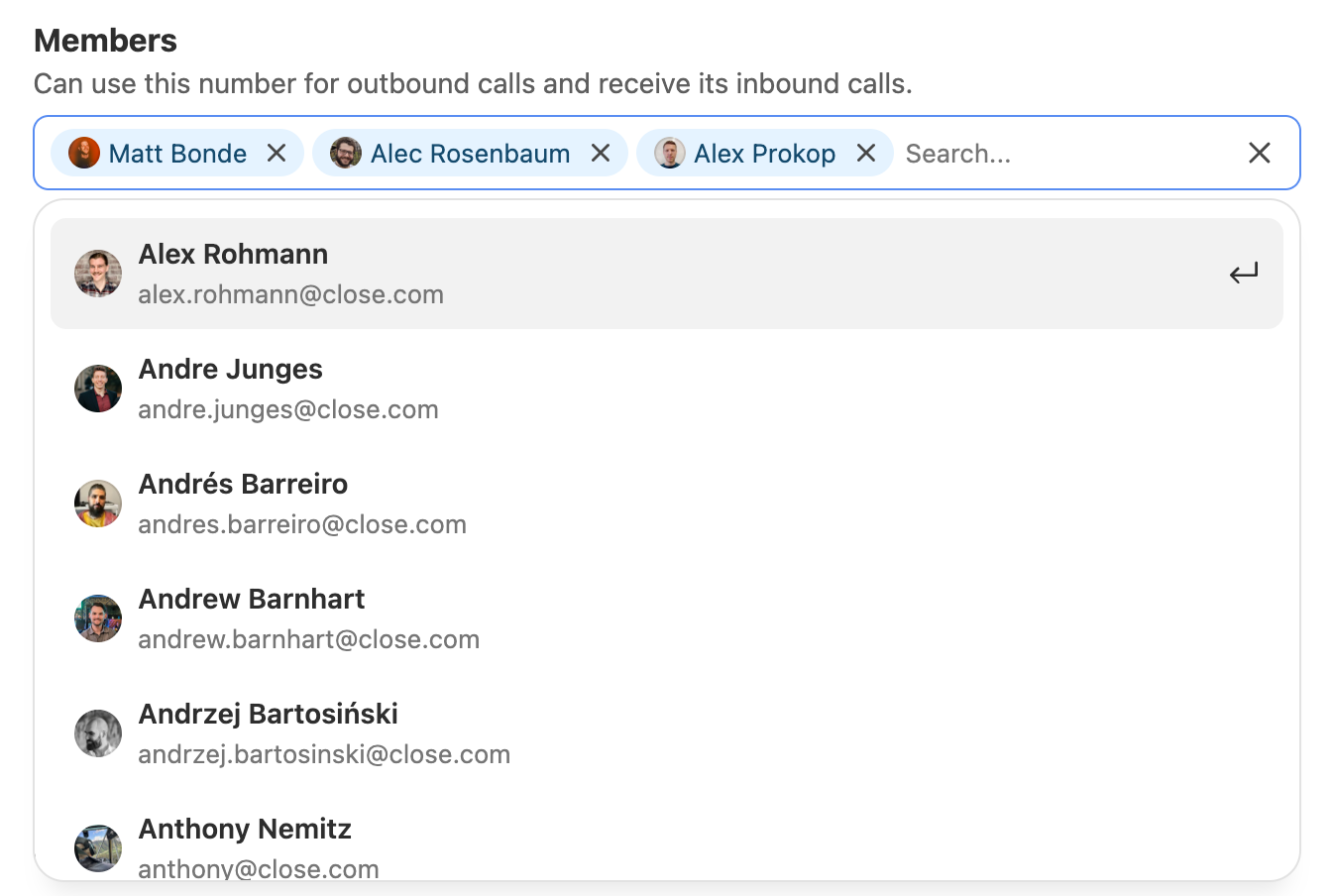
Editing membership requires the Manage Team Phone Numbers permission, which Admins and Super Users have by default. See Who can change what.
How inbound calls ring
The Ring card controls how a shared number rings its members:
- All at once — every member’s device rings simultaneously.
- Round robin — each new call is offered to members in turn, based on previous call attempts and answers, which spreads the load across the team. Members already on a call are skipped.
Ring duration sets how long the number rings each member before moving on.
Both settings require the Manage Team Phone Numbers permission.
While you’re on another call
If you’re a member of a shared number, you’ll see that number’s name on the inbound call. If you or a teammate answers, it stops ringing for everyone else on the number. If you hang up, it keeps ringing for the others.
Missed calls and voicemail
If nobody answers, or the Close desktop app is closed, the call goes to the number’s voicemail. Every member of the number sees the voicemail or missed call in their Inbox. Once one member calls the number back, the notification clears for everyone.
If a number has no members at all, missed call and SMS notifications for it go to every user in the organization.
You can record the voicemail greeting in the Voicemail card on the number’s settings page. If you’re the number’s only member, you can record it without the Manage Team Phone Numbers permission.
Inbound SMS is routed to the Close user who is assigned to the receiving phone number, and not to every member of a shared number. To have inbound texts notify a different user, assign the number to that user or use a Group Number and add the user as a member.
Inbound and outbound are separate
These are controlled independently, and it’s worth being deliberate about both:
- Inbound — only members of a number receive calls to it.
- Outbound — whether someone can use the number as their outbound caller ID depends on membership and on the number’s caller ID settings. A number can be made available as caller ID to people who aren’t members.
So a main line can ring three people on the support team while the whole company calls out from it, or ring that team and be usable only by them. See Outbound Caller ID.
Removing a member
Open the number under Settings > Communication > Phone & Voicemail and remove the user from the Members card. They stop receiving inbound calls to the number immediately.
If that number was their primary number, or the only number they were a member of, they may be left unable to place calls — check that they’re a member of at least one other number.
Deleting a shared number
Deleting a number removes it from Close and unrents it from your account. Do this only if you don’t intend to use the number again.
Deleting a number with more than one member requires the Manage Team Phone Numbers permission. If you’re the only member of a number, you can delete it yourself.
Ported numbers can’t be deleted from Close — contact Support if you need to port one out.
Any questions?
Our Support Team is always happy to help.