LeadFuze
LeadFuze enables you to search and add automatically any online profile as a Close lead.
LeadFuze is a B2B lead generation software that allows you to search for prospects and automatically find their emails, domains, and social media profiles. You already know that sending cold emails can be a great way to initiate sales conversations with potential customers. LeadFuze uses a 5-step validation process to find your ideal customers online, contact information, and all.
When you use LeadFuze to find a prospect’s online profile, this integration will automatically send your prospect’s details to your Close account - including name, email address, phone, company name, and more.
What you’ll need
- A Close account and your API key.
- A LeadFuze account (you can try it for free by adding up to 25 leads).
How the integration works
Let’s say you’re searching for owners or CEO’s of companies in Boston. Using LeadFuze, all you’d need to do is search for those owners via their app as shown below, and once you want to sync/import some prospects into Close click Add to list.
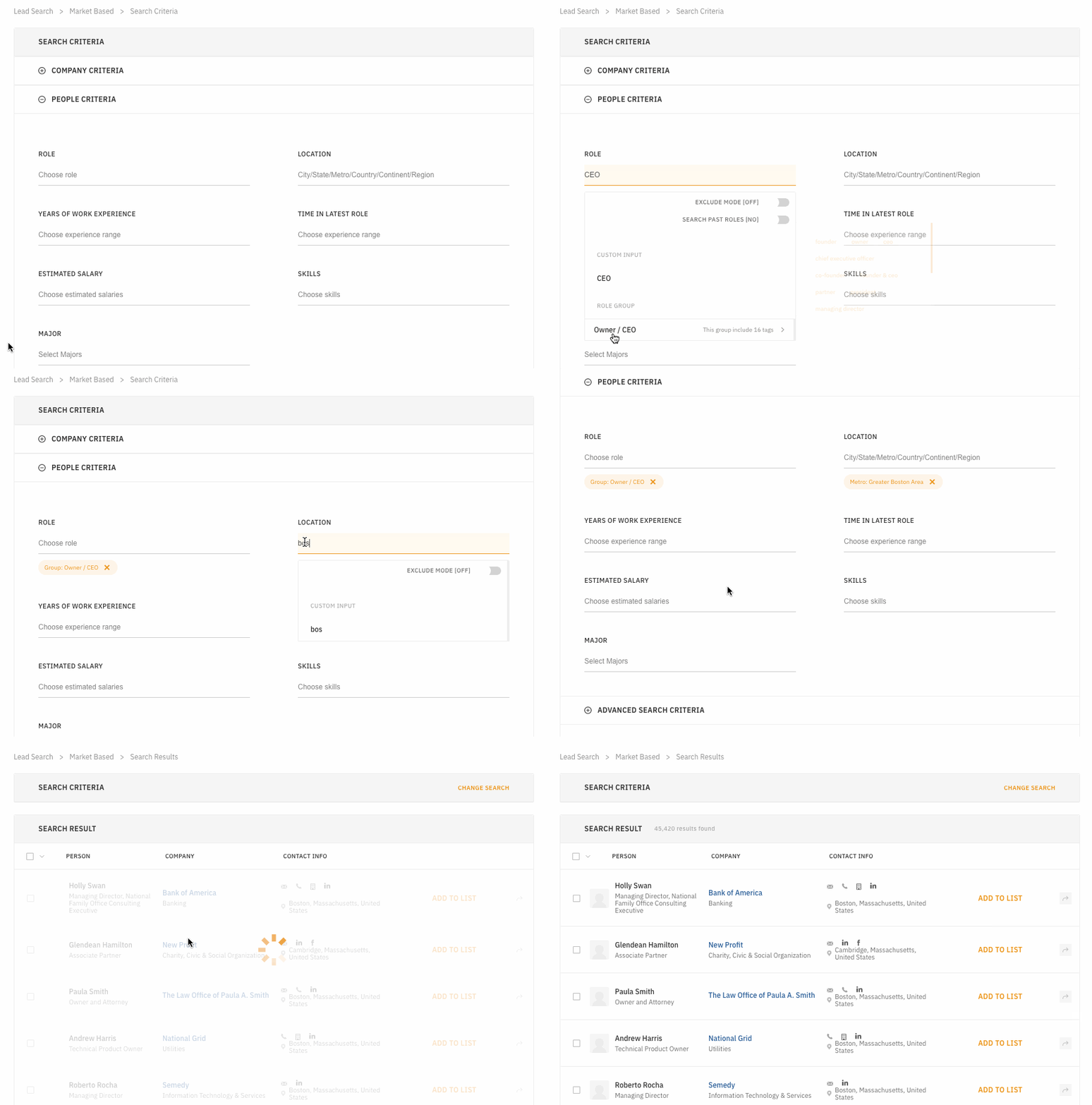
Searching for leads in LeadFuze
Setup
Enable Close integration in LeadFuze
Go to your LeadFuze account > Settings > Integrations and turn on Close integration.
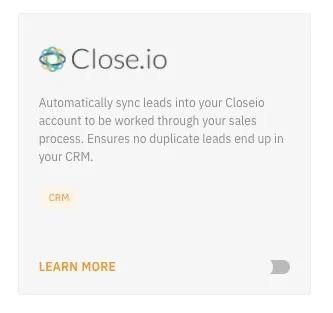
Close integration in LeadFuze
Enter your Close API key and press Authenticate:
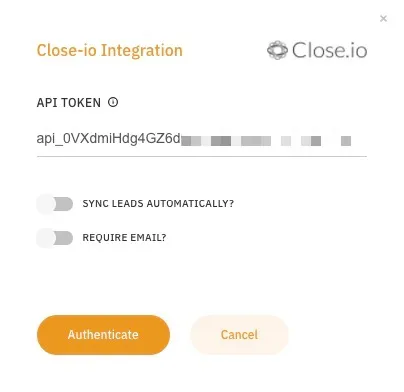
Close integration pop-up
Sync leads automatically- check if you want to automatically sync all leads to Close as soon as you add them to your LeadFuze list without you manually selecting the ones to transfer (see more below)Require email- check to make sure all of your LeadFuze leads have a filled-in email before sending them to Close
Your Close integration should be up & running:
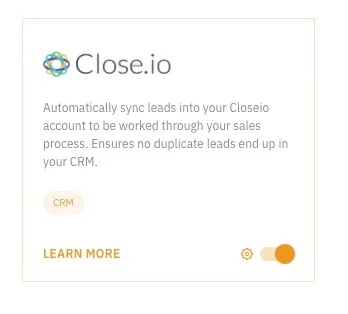
Enabled Close integration
Test it out
You should be all set - go to Lead Search > Market Based
in LeadFuze and search by some criteria, for example we’d like to find CEOs in Boston so we would filter by People Criteria:
Role- CEOLocation- Greater Boston Area
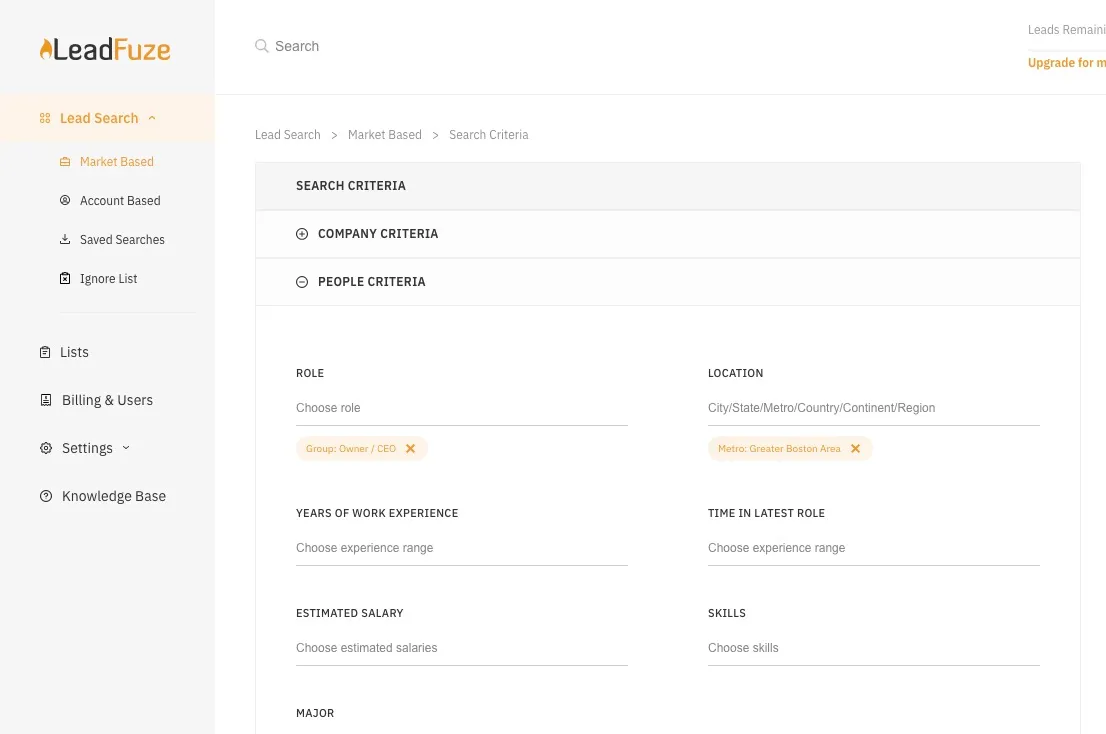
Search for CEOs in Boston in LeadFuze
Press Start Searching and within few seconds you’ll get a list of all CEOs in Boston. Click on Add to list for any one of them to add them to your LeadFuze list (if you don’t have a list, you’ll have an option to create it):
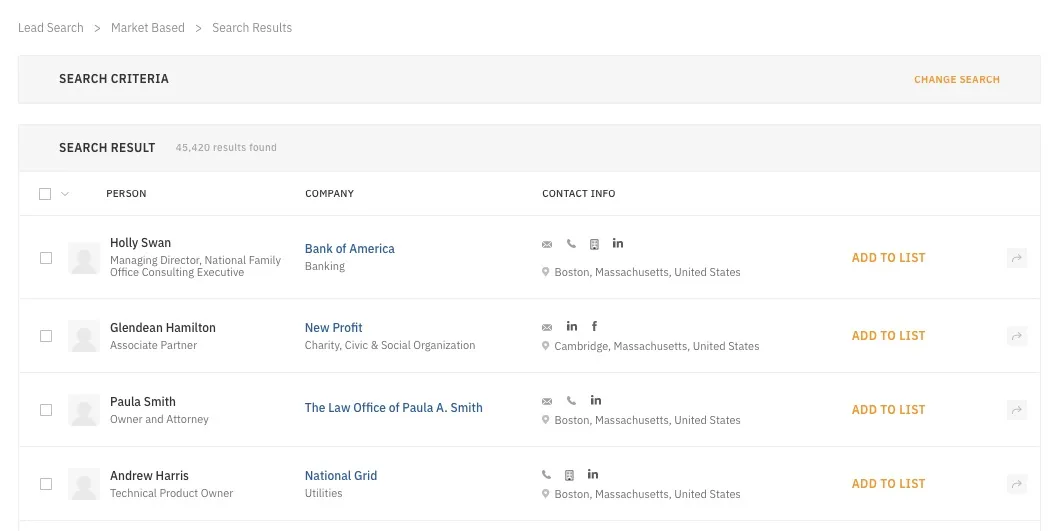
Add to list
Once your leads have been added to your LeadFuze list, they will be automatically added to Close (if you’ve selected that within your LeadFuze integrations page), or you could manually send a lead to Close by clicking on
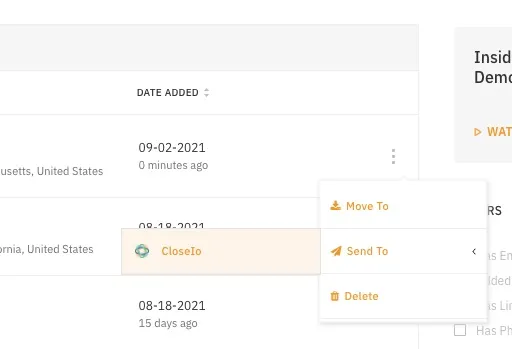
Send lead to Close
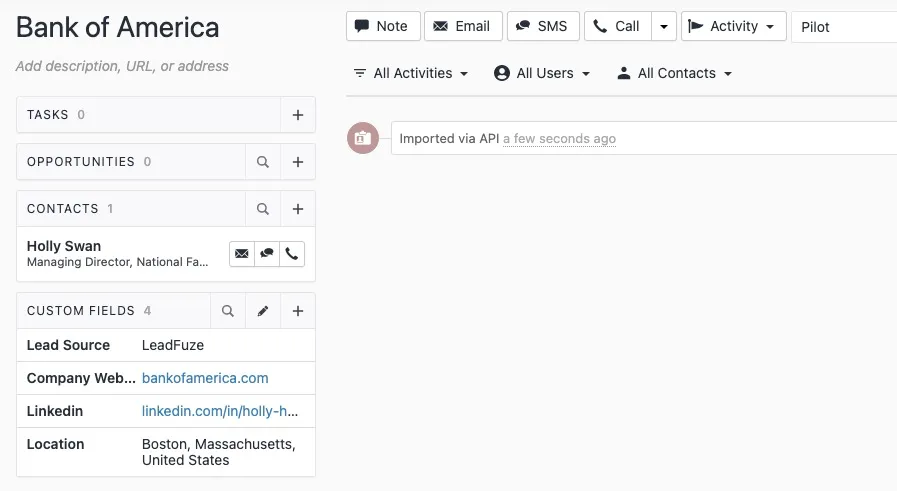
Within a few seconds you should see your lead in Close as well: