

SimpleTexting
Send MMS through SimpleTexting and get alerted in Close when a contact replies with an MMS.

Create a task in Close after receiving an MMS in SimpleTexting
SimpleTexting allows you to send SMS and MMS directly from your cellphone number or from phone number you’ll rend with SimpleTexting. Don’t miss a single MMS reply by getting alerted directly in Close.
If you’re using your Close phone number to text from SimpleTexting, you’ll need to disable the SMS functionality of that number with Twilio.
What you’ll need
- A Close account and your API key
- A Zapier account which allows three steps
How the integration works
This integration will create a task in Close to alert you whenever a contact sends you an MMS in SimpleTexting. The task will link to your SimpleTexting inbox for easy access.
Setup
Step 1 - Catch MMS Webhook
Start by clicking on the “Use this Zap” button at the top of the page to use our pre-made template. Then click “Try this Zap”. Your first step is to copy your Custom Webhook URL and paste it into your SimpleTexting API Settings.
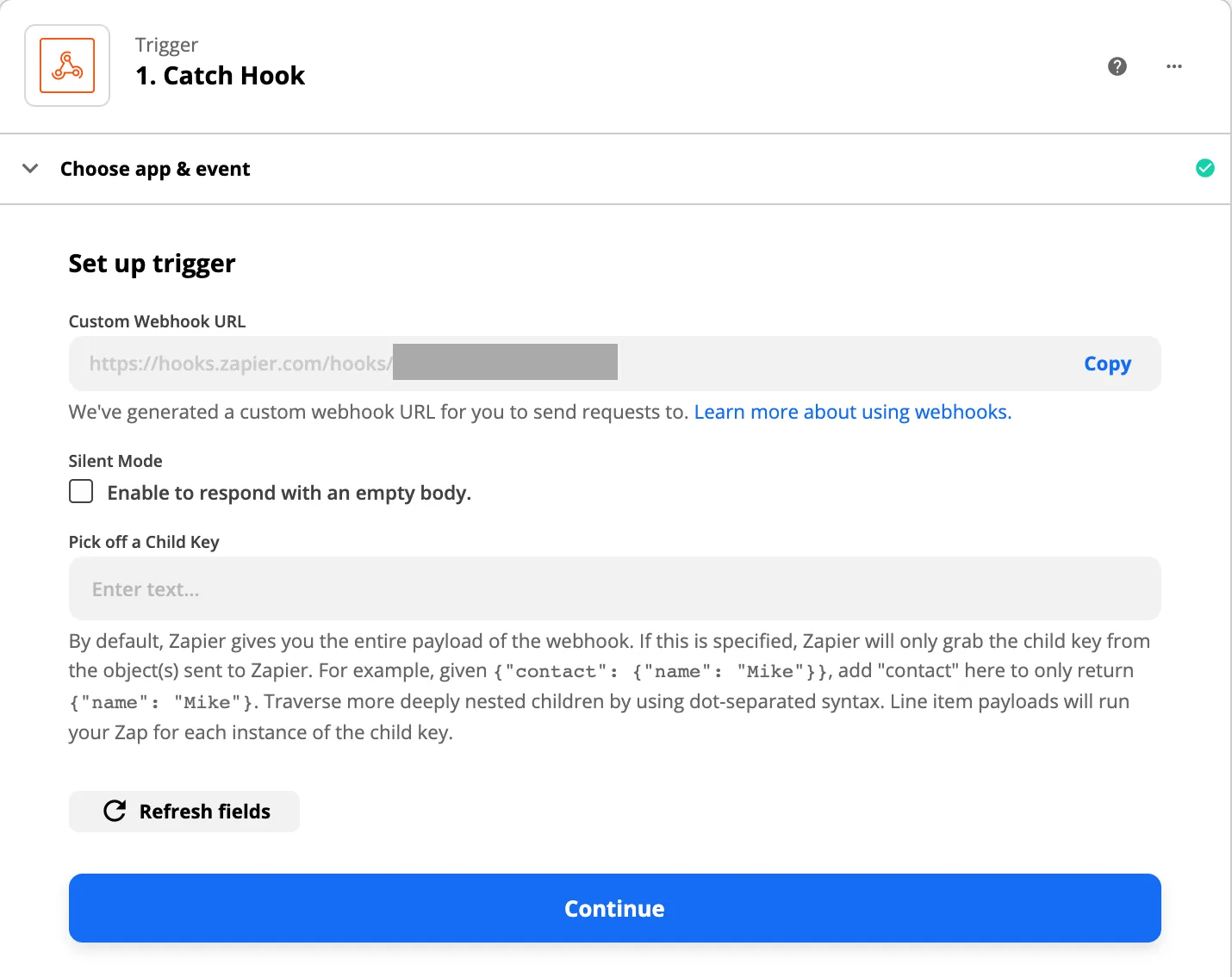
Once you’ve copied the Custom Webhook URL, go to your SimpleTexting account and click on Settings in your left sidebar. At the bottom of your Organization Settings page, click on View Details in the API section.
Go to the Webhooks tab and paste the URL in the MMS FORWARDING URL field. Save Changes.
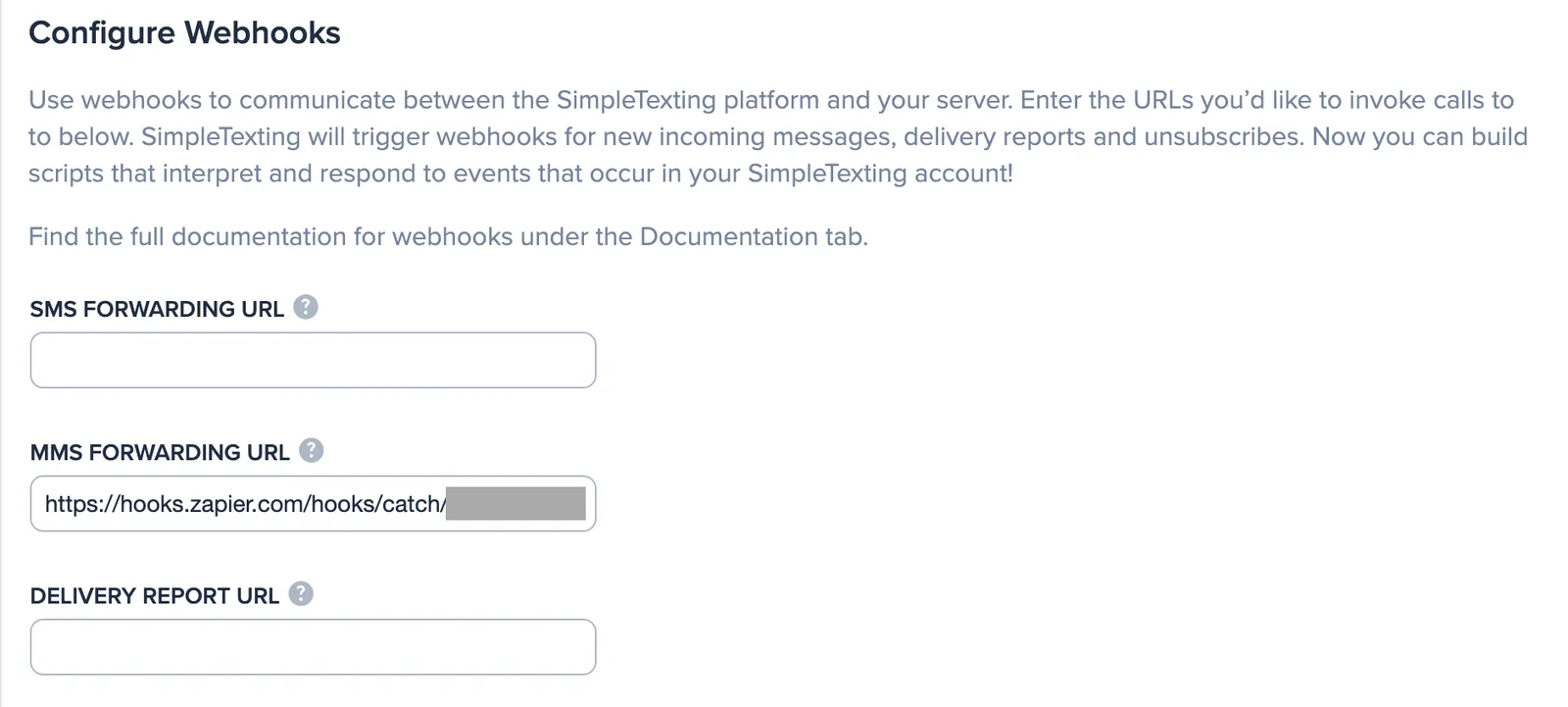
Head back to Zapier and test your trigger.
Step 2 - Find Contact in Close
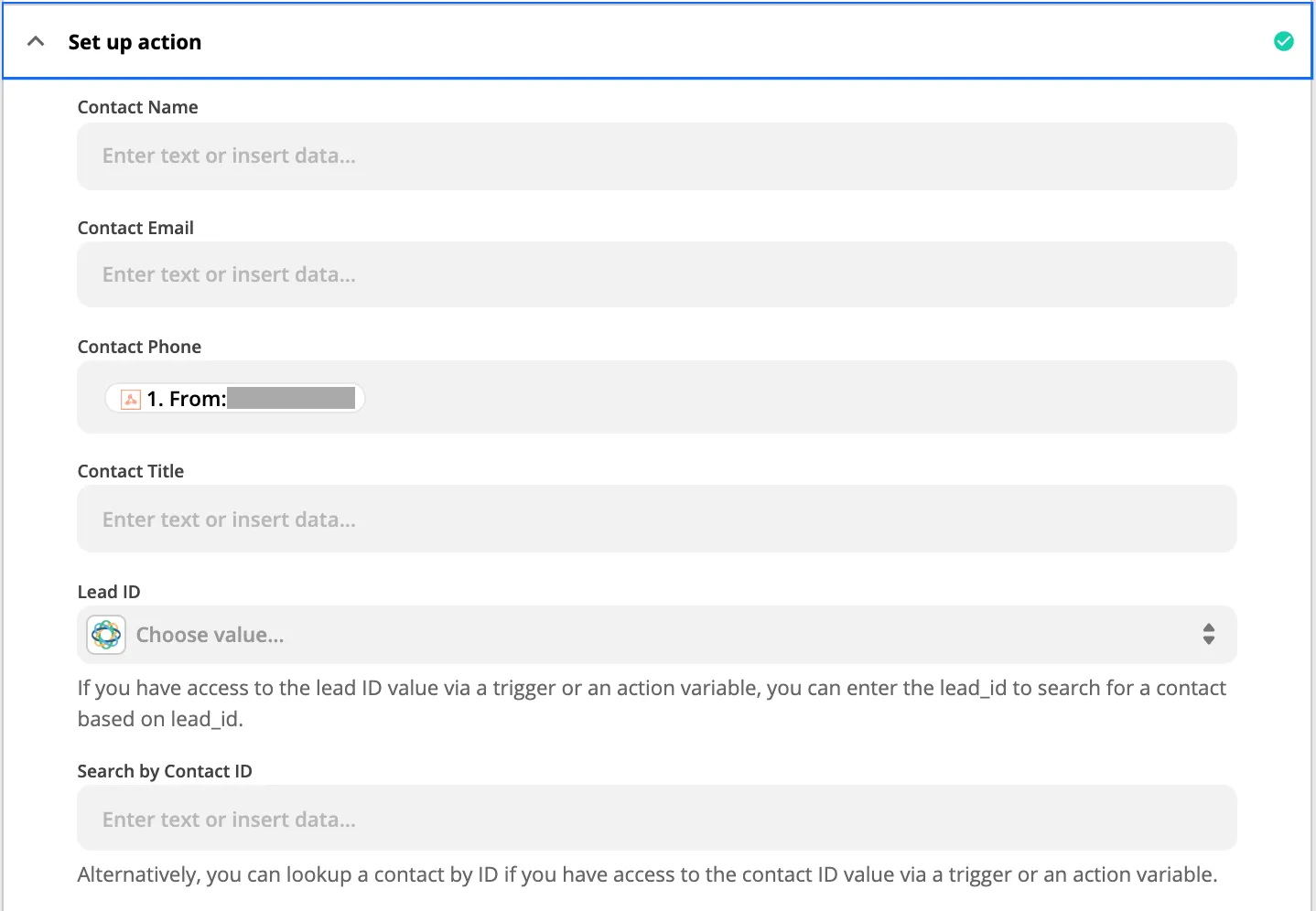
Search for your contact in Close using the “From” phone number of the MMS you received by pulling the value from Step 1.
For this step, you’ll need to connect to your Close account if you haven’t already. In the second tab, authorize Close using your API key found in Settings > API Keys.
In the Set up action tab, pull the phone number of the MMS sender from Step 1 into the “Contact Phone” field.
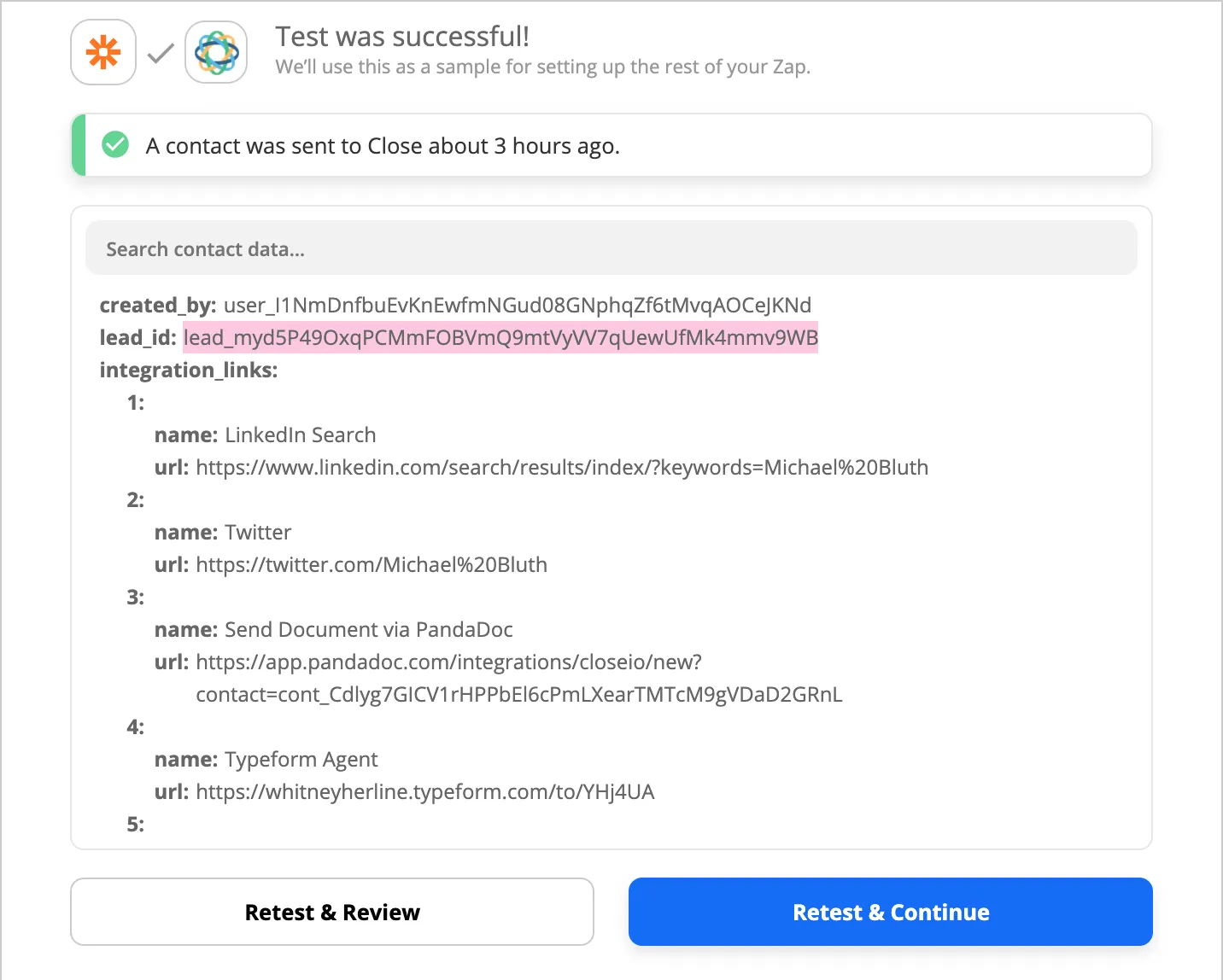
Make sure that the test finds the right contact and lead in Close before moving onto Step 3. You can search the lead ID (highlighted below) in Close to do so.
Step 3 - Create Task in Close
Now that Zapier has found the contact who sent you an MMS in SimpleTexting, let’s make sure you get alerted in Close.
In the second tab, authorize Close using your API key found in Settings > API Keys.
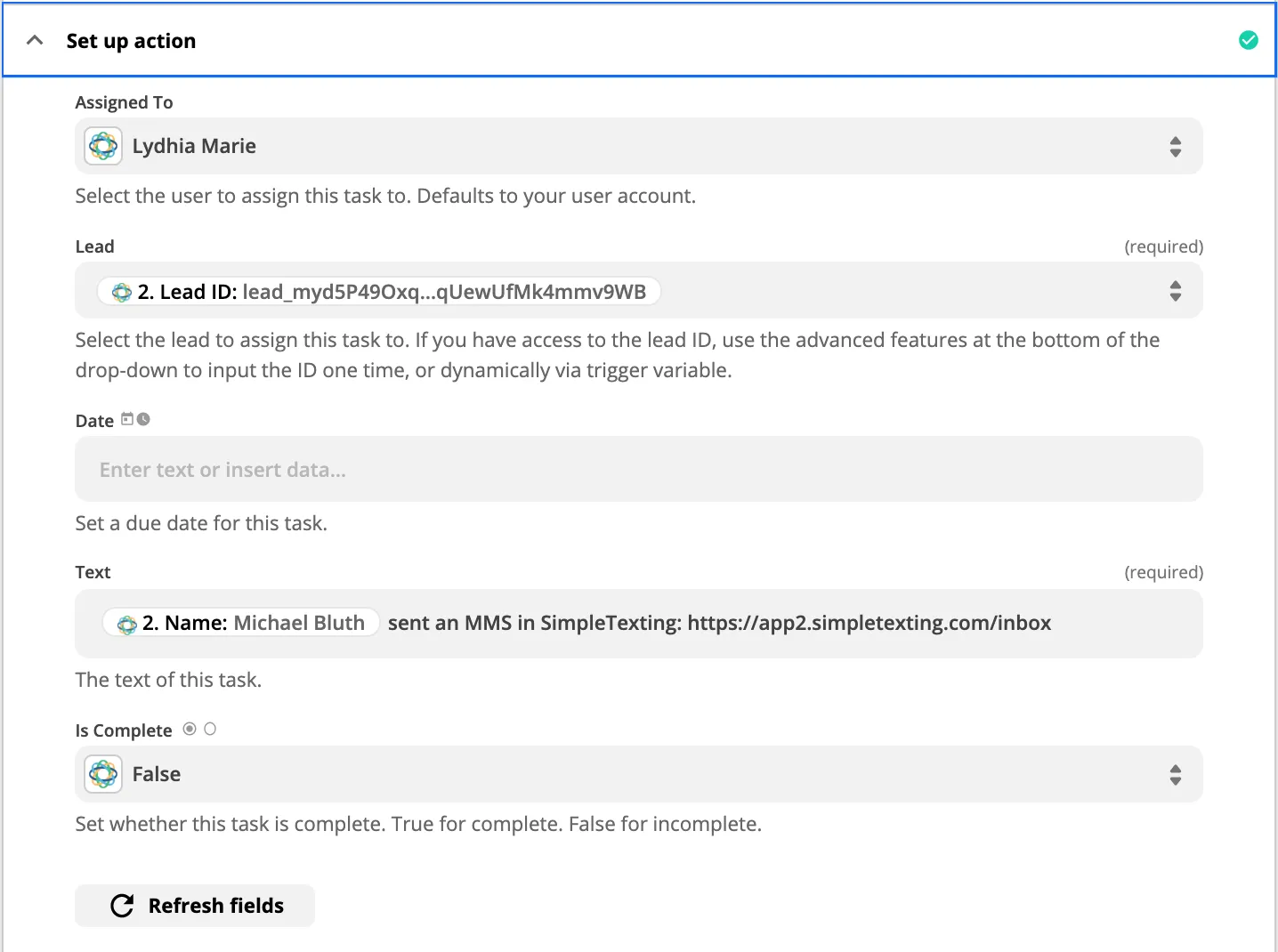
In the Set up action tab, you’ll want to:
- Assign the task to yourself
- Pull the Lead ID from Step 2 in the “Lead” field
- Write the text of the task, which will remind you to check you SimpleTexting inbox for a MMS from your contact
In the below example, I pulled the contact name from Step 2 in the text of the task. This is recommended if you have more than one contact per lead. I also included the URL to my SimpleTexting inbox for quick access.
Click Continue, then Test & Continue and you’re done. Turn on the Zap when you’re good to go!