

Network Logs
If you’re experiencing performance issues with your Close application such as slow loading, network logs might help us in our debugging process where we’ll have a better understanding of all the background network requests that are happening between your device and Close servers.
Please refer to the video or follow the steps below to get the logs so you can send them over. Logs are packaged in a so-called .har file which will contain all the requests and responses we can then inspect.
Generating logs file
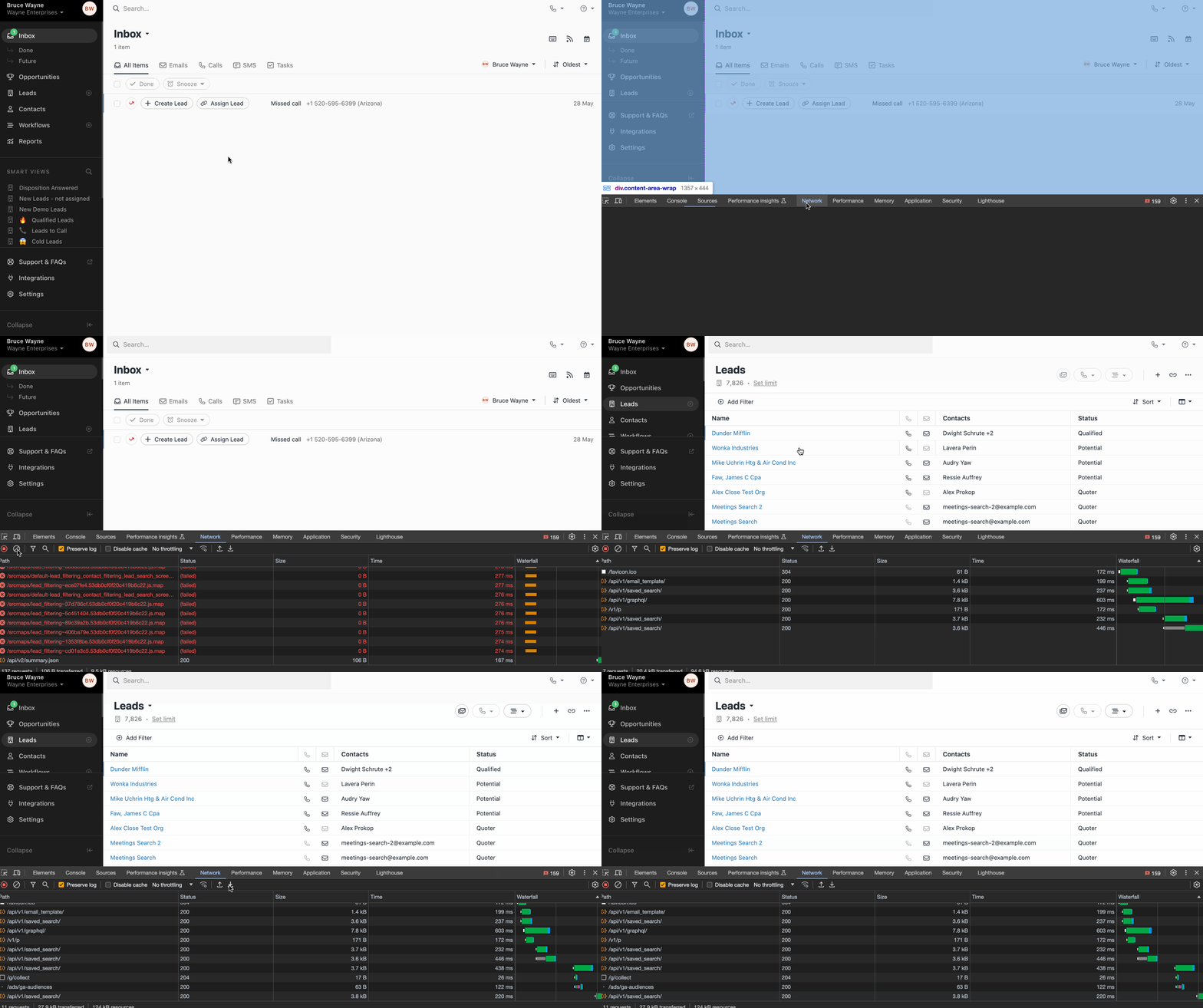
-
Open the app and anywhere in the app
right-click > Inspect or Inspect Elementto open up the developer’s tools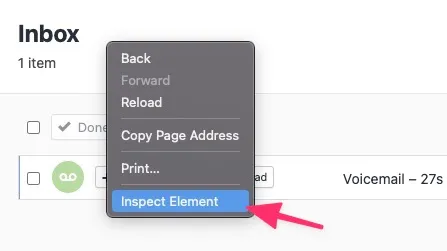
Usually it will appear at the bottom as shown below: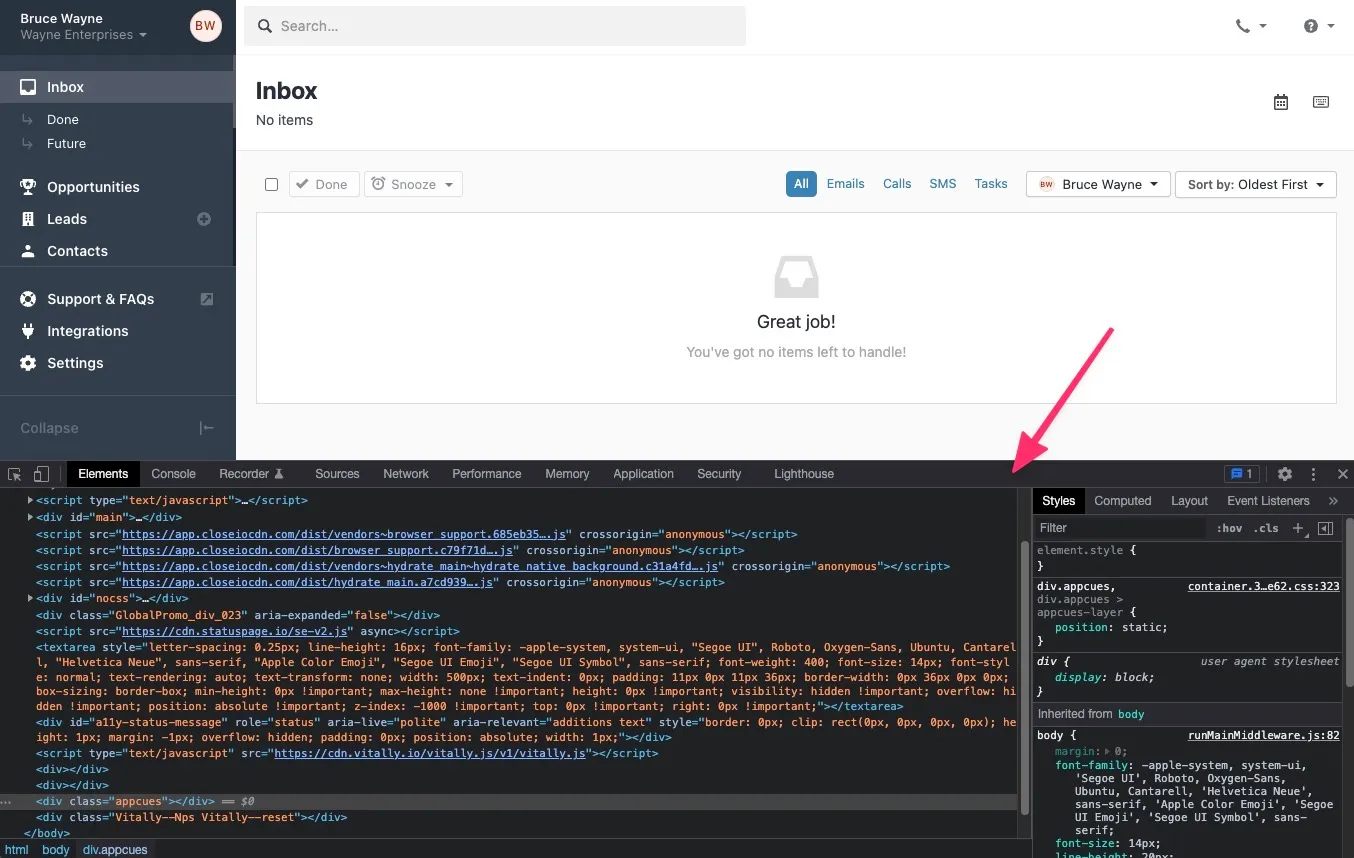
-
Click on the
Networktab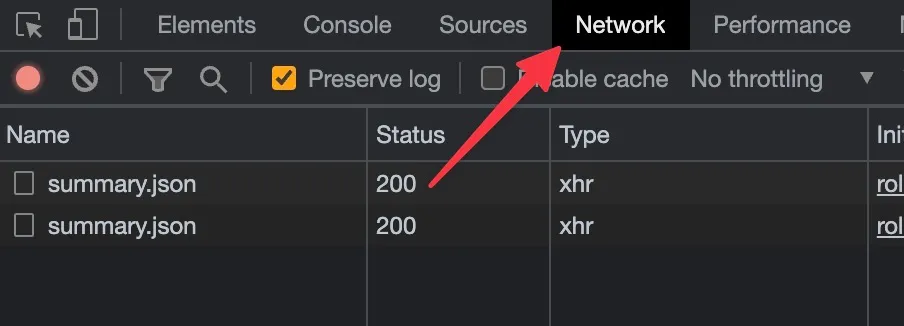
-
Make sure the recording is turned ON (red icon on the left)
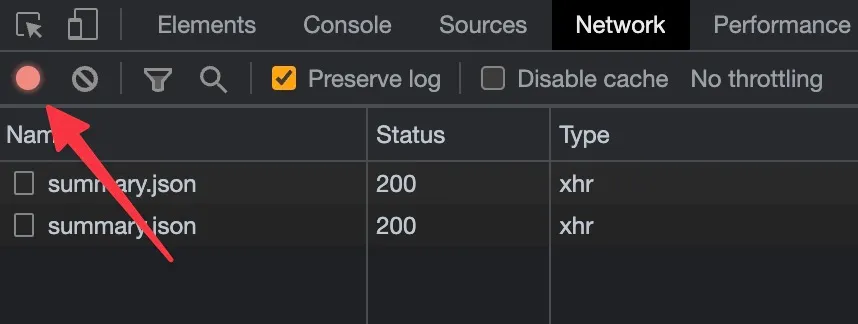
-
Make sure the
Preserve logis checked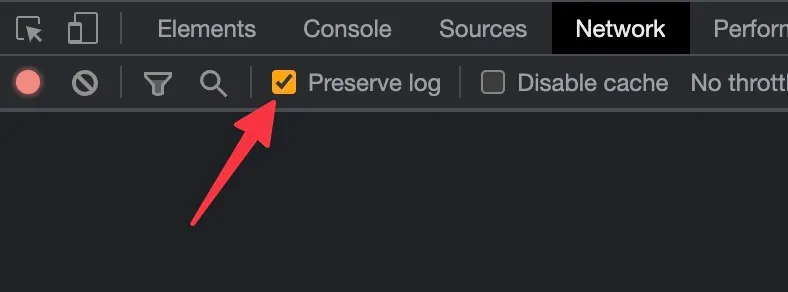
-
Clear any existing logs with a
Clearbutton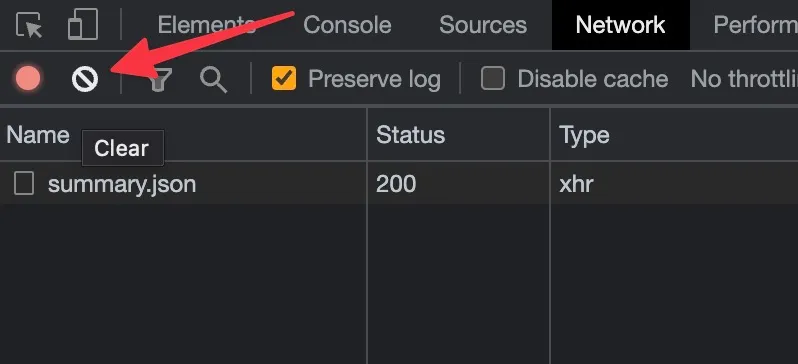
-
Leave the
Networktab opened and navigate away in the Close app, trying to reproduce the issue you’re seeing (for example, slow loading of a specific page) -
Once done, click on the
Export HAR...button to download the logs file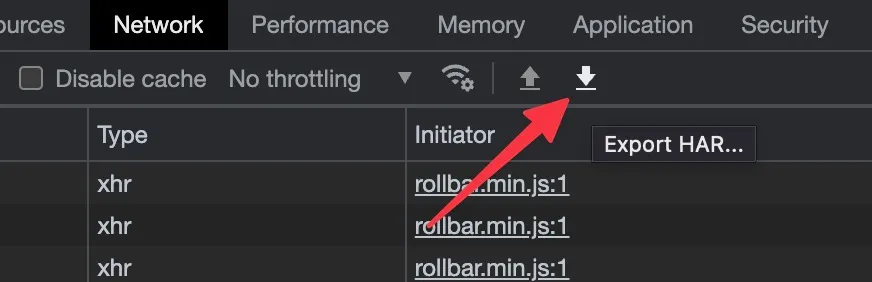
-
Send over the downloaded file to support@close.com
-
We’ll take a look at the logs and provide you with further instructions on how to resolve the issue.