

Managing unsubscribe requests
You can handle your unsubscribe requests directly within Close, making email management a breeze and providing a convenient way for leads to opt out of communications they no longer wish to receive. This guide will cover how to manage your unsubscribe requests and decode what it looks like from a lead’s point of view.
Managing Unsubscribe Requests is not available on the Solo, Essentials and Base (legacy) plans.
Enabling Automatic Unsubscribe
By default, the setting to manage unsubscribe requests is turned off. Those with the Admin role in the Organization can enable it by navigating to Settings > Email and tabbing to Unsubscribe Link.
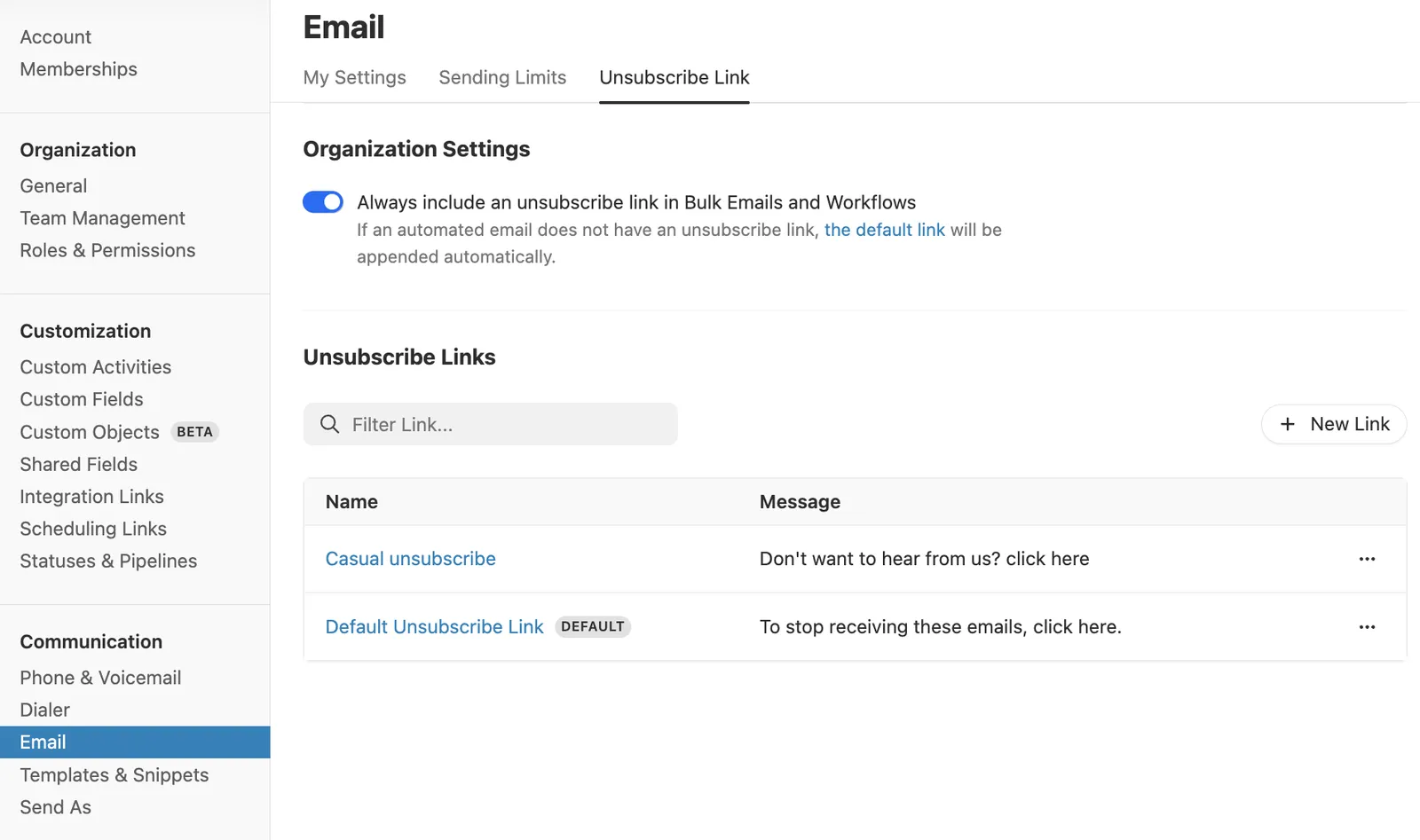
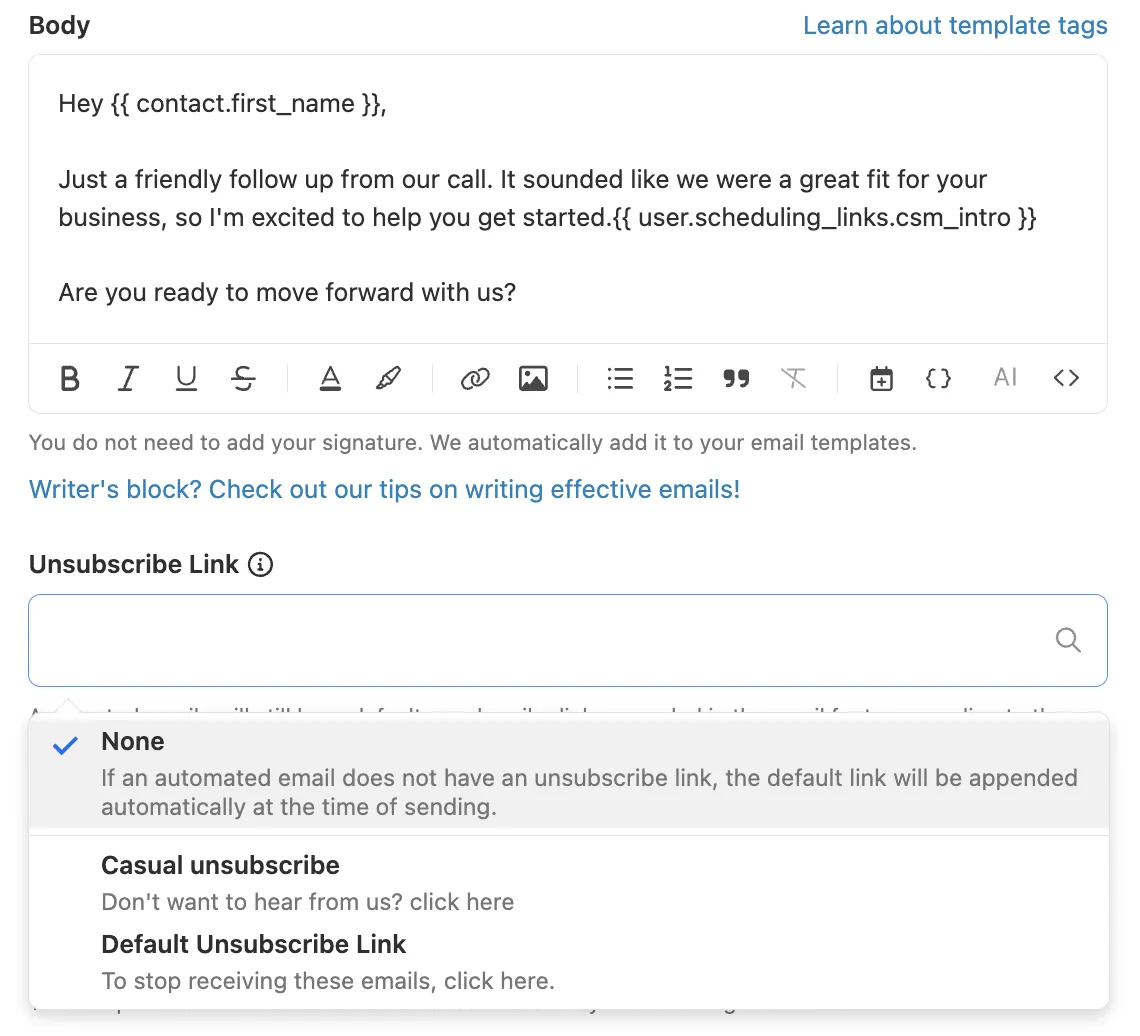
Here, toggle the option to require an unsubscribe link in Bulk Emails and Workflows. Once enabled, the Unsubscribe link will automatically appear below your Email Signature in the footer of the email.
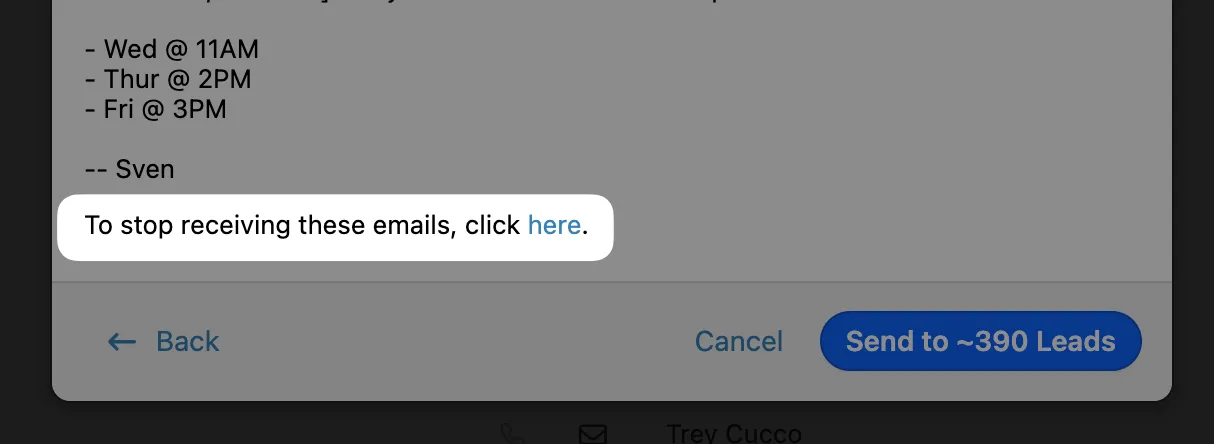
You can customize your unsubscribe link to match your preferences - just click + New Link.
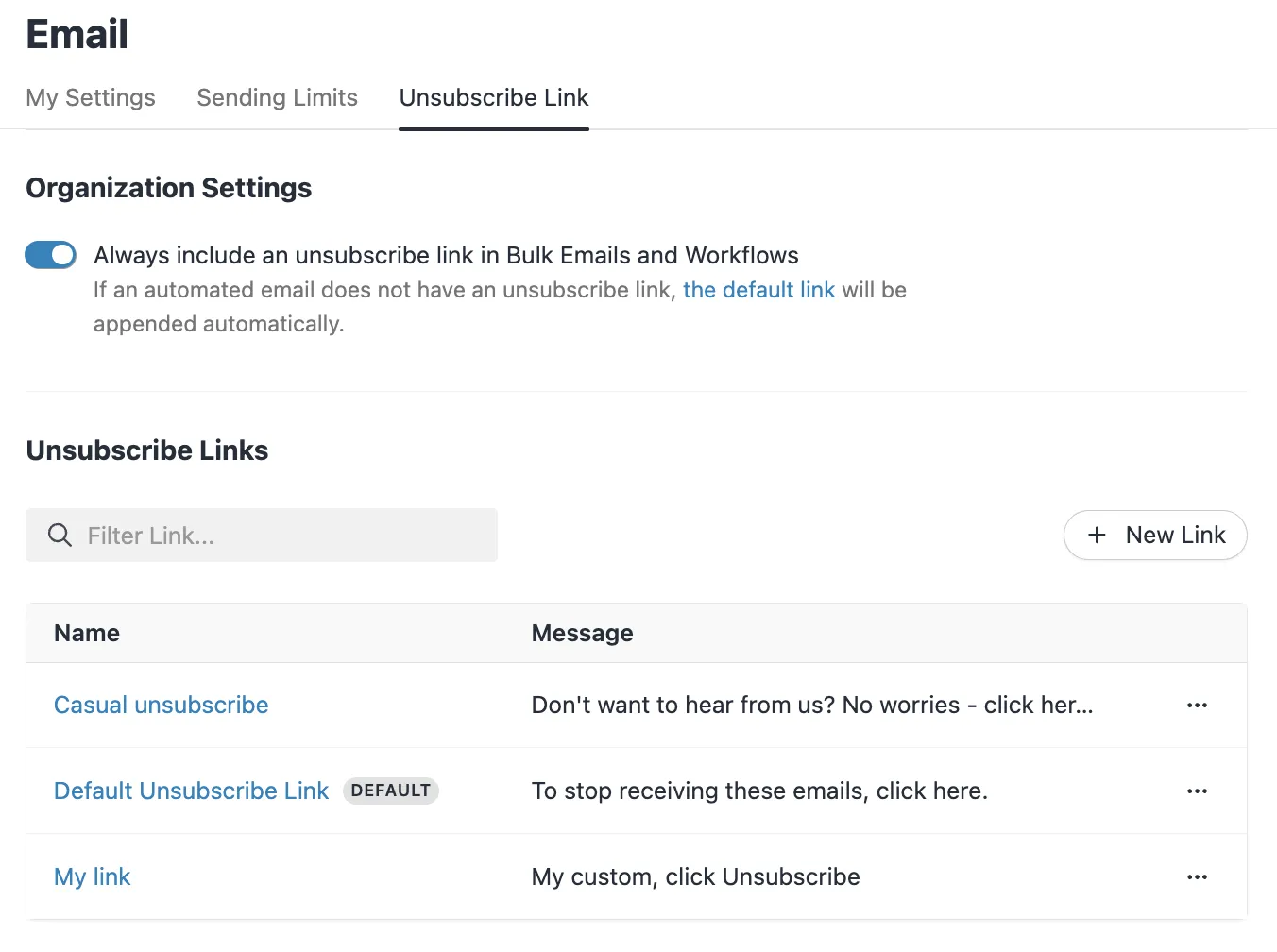
These unsubscribe links can be assigned to specific email templates under Settings > Templates & Snippets. Below the email template, select your unsubscribe message from your dropdown. If an unsubscribe link isn’t specified and “Always include an unsubscribe link” is enabled for the organization, then the Default Unsubscribe Link will be added (“To stop receiving these emails, click here”).
Conversely, when Automatic Subscribe setting is disabled, an unsubscribe link is included solely if the email template utilized in the Workflow or bulk email using that template.
Searching for Unsubscribes
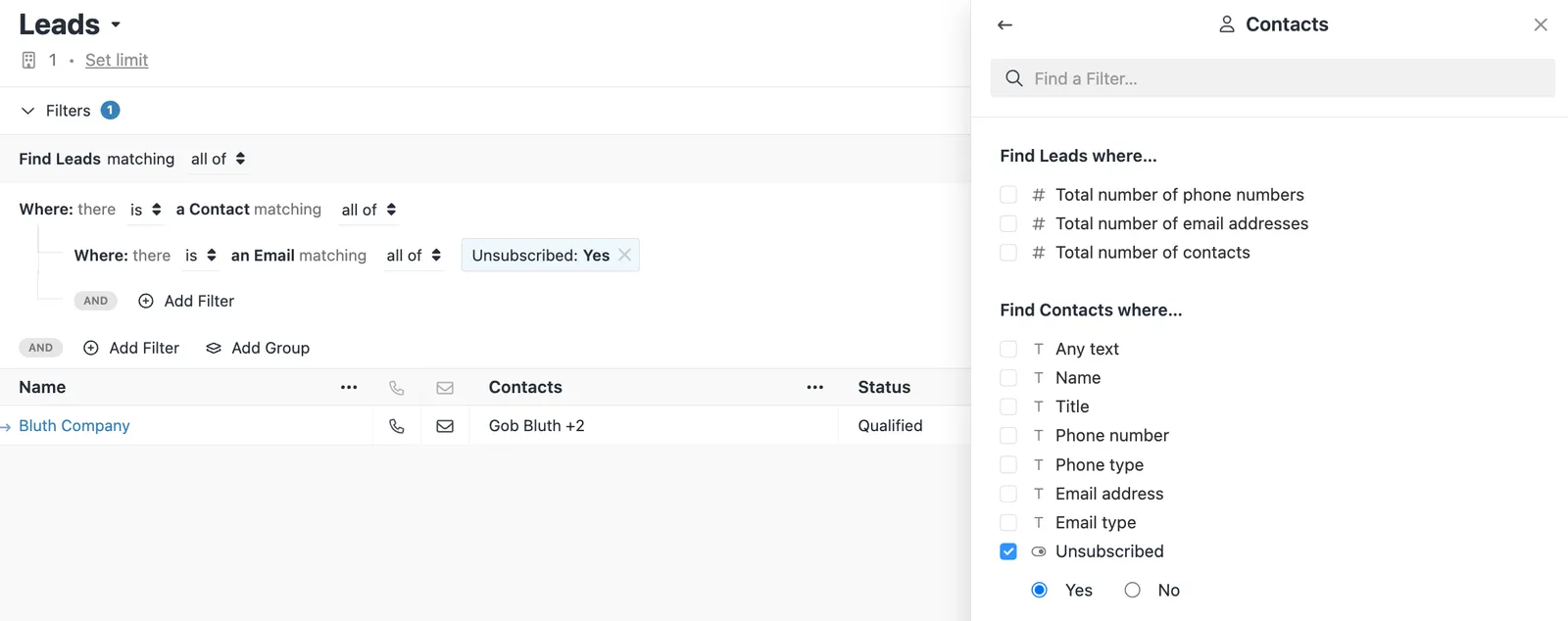
You have the capability to filter contacts who unsubscribed with a quick search. Consider saving this as a Smart View, so this list can be viewed quickly.
From the Lead’s Perspective
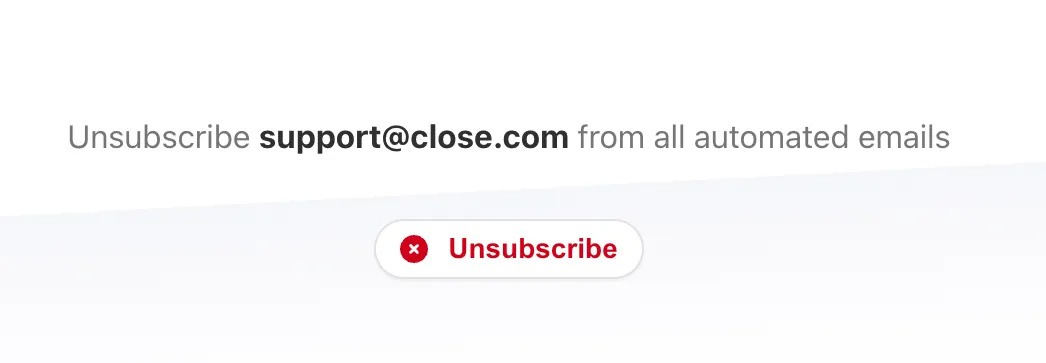
When a lead clicks on an Unsubscribe link, they’ll be directed to a page that confirms their decision. This will unsubscribe their email address from Workflow emails.
Once unsubscribed, the contact card will reflect as such.
If an unsubscribed contact is included in Workflow enrollment, then any email steps will be skipped. The rest of the Workflow steps - calls, SMS, tasks - will run as expected.
If an unsubscribed contact is included in a bulk email, that contact will not receive the email at all.
This unsubscribe flag can be cleared for individual contacts by navigating to the contact profile and hovering over the unsubscribe icon. Only do this if the contact directly asks you to do so; continuing to send messages to those who do not want to receive them can negatively impact your email reputation.
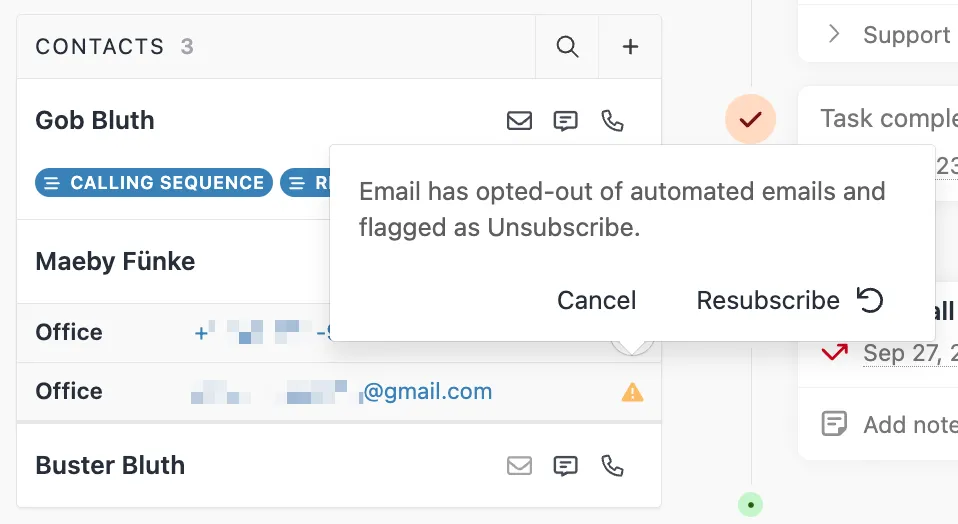
There is no way to clear unsubscription flags in bulk.
Some Frequently Asked Questions
What if a contact has two emails, and only one of them is unsubscribed?
We’ll select the first non-unsubscribed email. If that contact unsubscribes a previously-subscribed email address mid-Workflow, then we’ll skip the remaining email steps.
What is “One Click Unsubscribe”?
One Click Unsubscribe is a standard that facilitates unsubscribing from emails in a single click, often visible as the “Unsubscribe” button in Gmail. This ensures a user-friendly experience for leads managing their communication preferences.