Call and SMS blocking in Close
Close lets you block specific phone numbers directly from the app — no need to contact support. Once a number is blocked, the restriction applies across your entire organization, so all users are protected automatically.
You can also independently toggle the blocking of anonymous callers (callers with a hidden or unknown caller ID) from the same settings page.
This feature is available on all Close plans and accessible to all users.
Set up call and SMS blocking
Go to Settings → Communication → Phone & Voicemail → Blocked Numbers
Enter the phone number in E.164 format (e.g. +12125551234).
Enter a block reason — this is required and can be up to 200 characters.
Save the block.
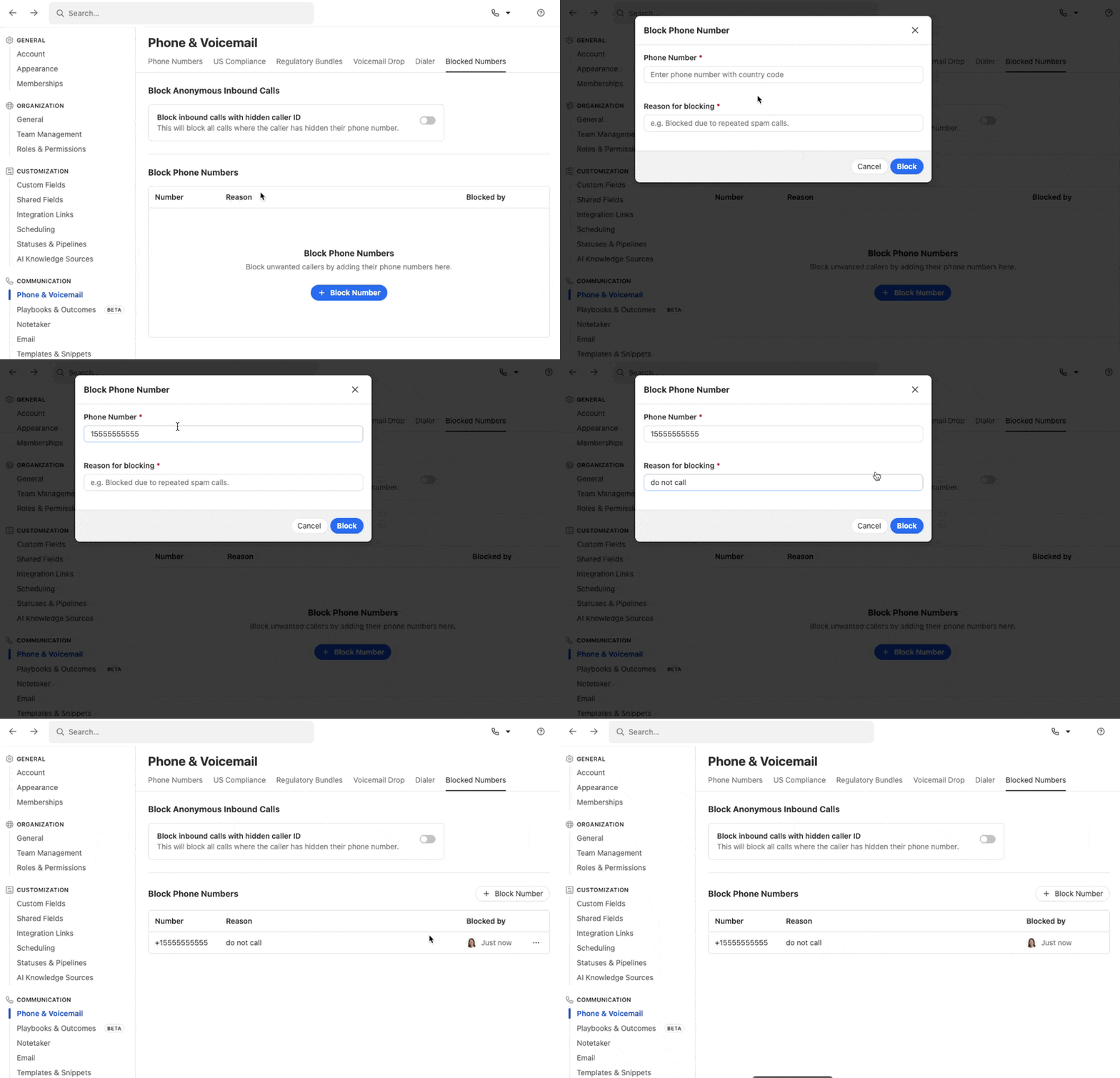
In addition to blocking specific numbers, you can toggle blocking for anonymous inbound calls — callers who have hidden their caller ID. This setting is managed independently from your blocked numbers list, and is also found on the same Blocked Numbers settings page.
What Happens When a Number Is Blocked?
Blocking affects calls and SMS, in both directions.
A few things to keep in mind:
-
If you hear a message like “prohibited on trial accounts” when dialing, it means the dialed phone number (or its number prefix) is on Close’s restricted list, and calls to that destination are not allowed.
-
If you believe this message is appearing in error, flag/report the specific call from inside the Close app. This allows Support to pull provider-side debug information for that call and investigate why it was blocked.
-
The same number cannot be added twice. Close automatically normalizes numbers to E.164 format to prevent duplicates.
-
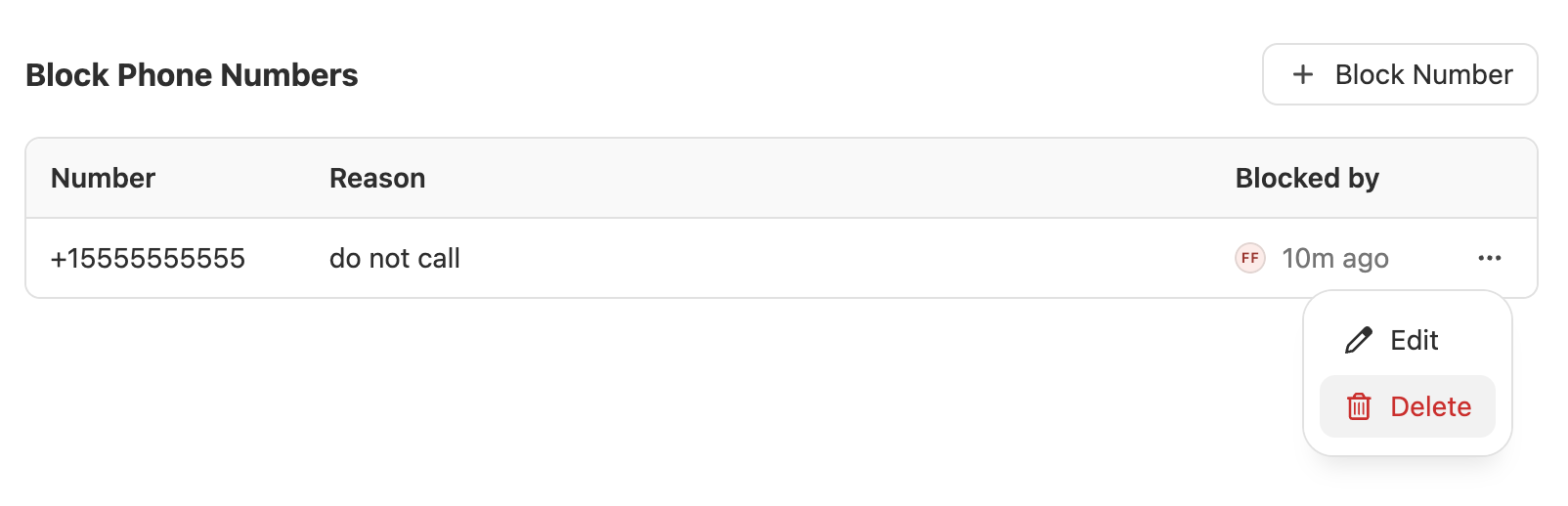
The phone number itself cannot be edited after it’s added. To correct a number, delete the entry and re-add it.
-
The block reason can be edited at any time from the blocked numbers list.
Every block is applied organization-wide. This means:
- It doesn’t matter which user added the block — it applies to everyone in your org.
- There is no way to block a number for only a specific user or team.
Removing the block
To unblock a number, simply delete it from the blocked numbers list by clicking on the ’…’ option.