Find IDs in Close
Whether you’re setting up a Zapier flow or connecting to our API, you might need to find the following IDs in Close:
- User or Membership
- Lead
- Email Template
- Custom Field
- Lead or Opportunity Status
- Organization
User ID
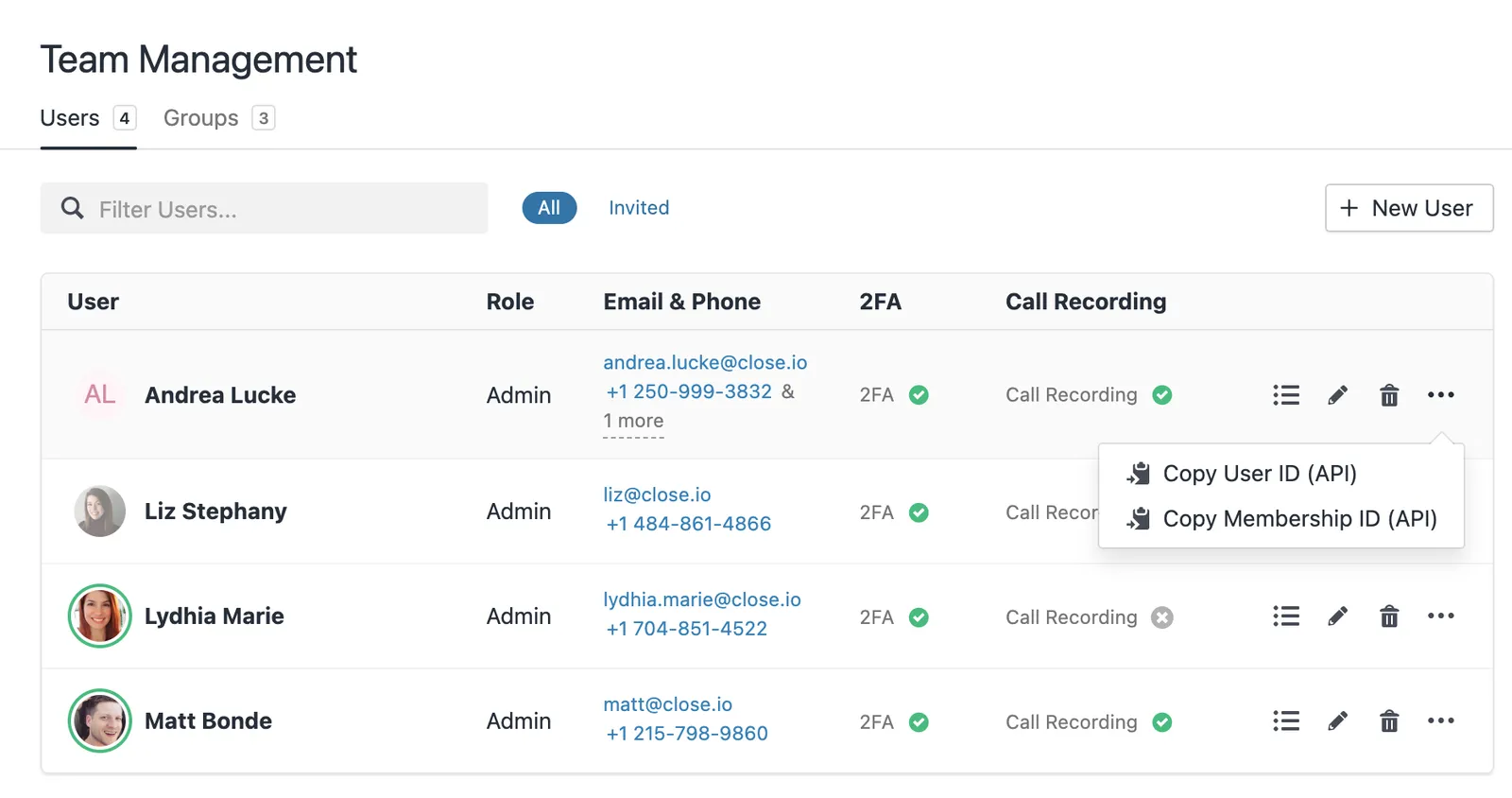
To find a User or Membership ID, go to your Settings > Team Management.
- Find the user for which you need the ID.
- Click the three dots to the right of the user name and select the ID you would like to copy to your keyboard.
Lead ID
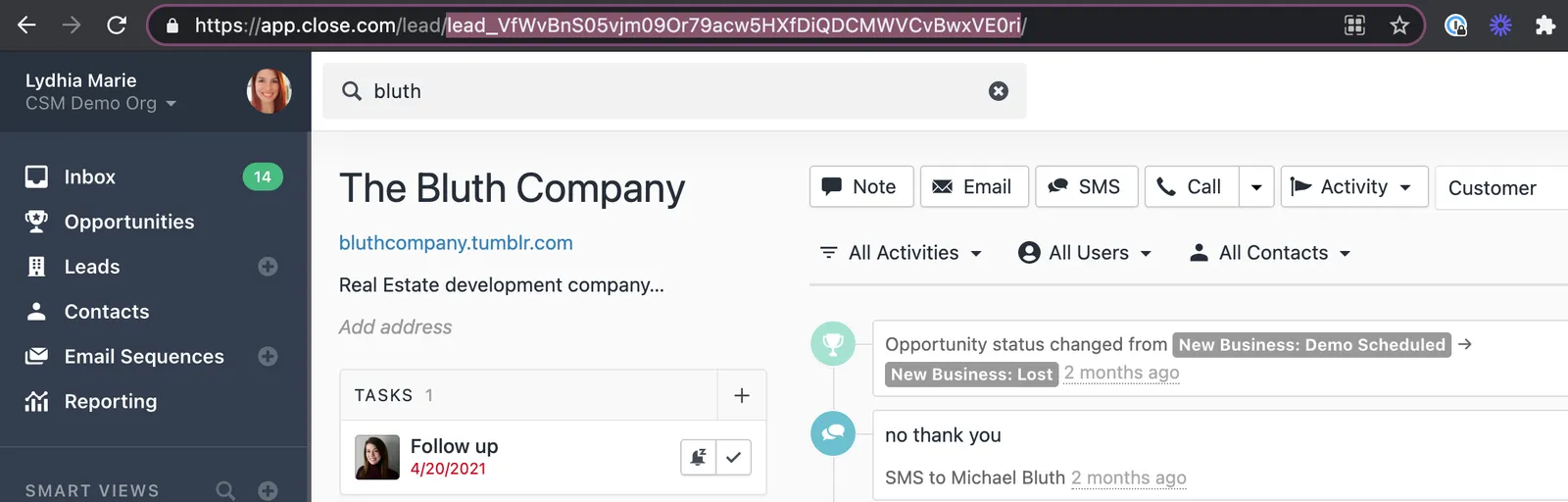
To find a Lead ID in your browser, go to your Leads and click on the lead of your choice. The Lead ID will be in the URL. It starts with lead_.
Email Template ID
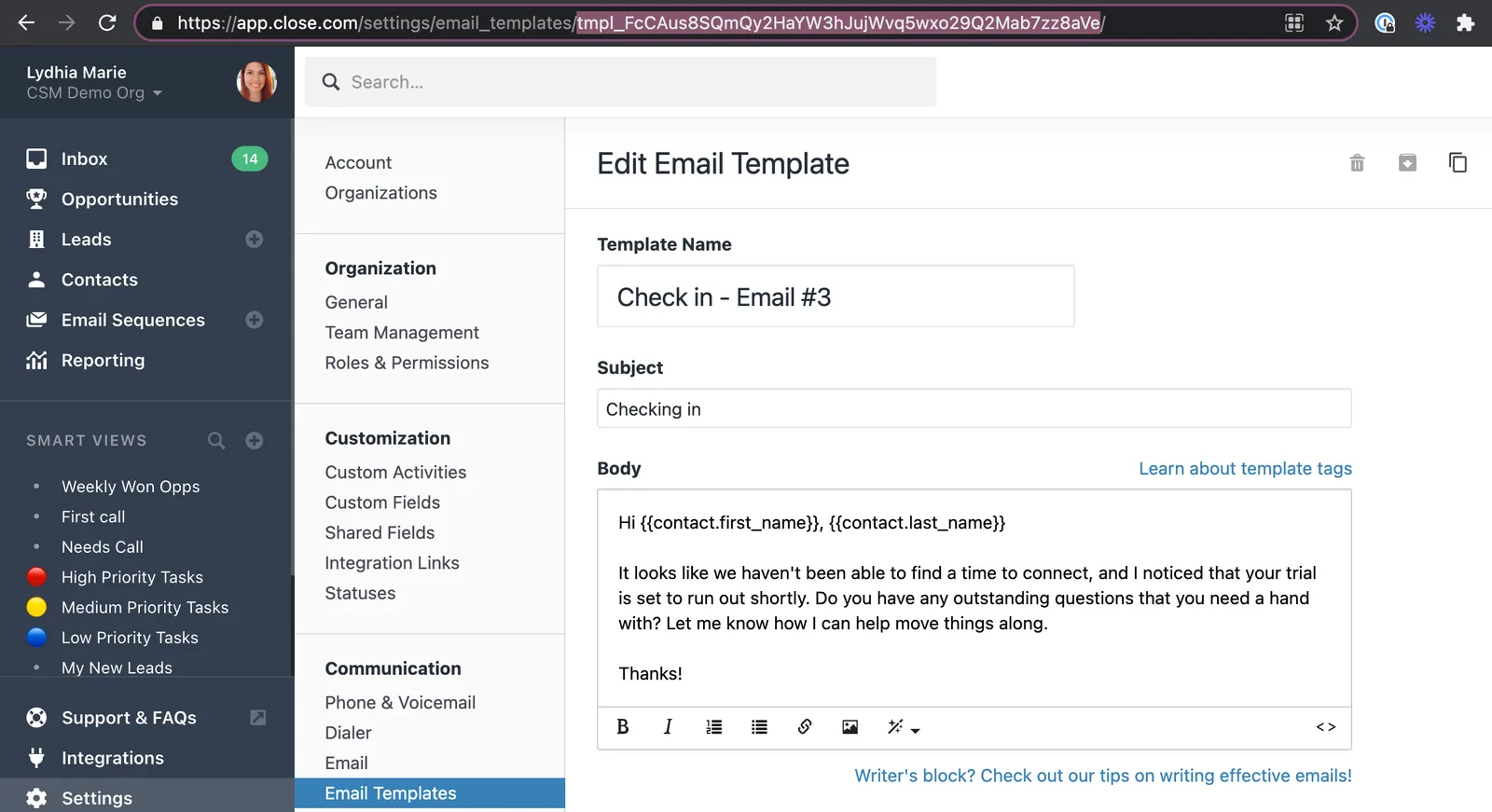
To find an Email Template ID in your browser, go to your Settings > Email Templates.
- Click to edit the template of your choice.
- The Template ID will be in the URL. It starts with tmpl_.
Custom Field ID
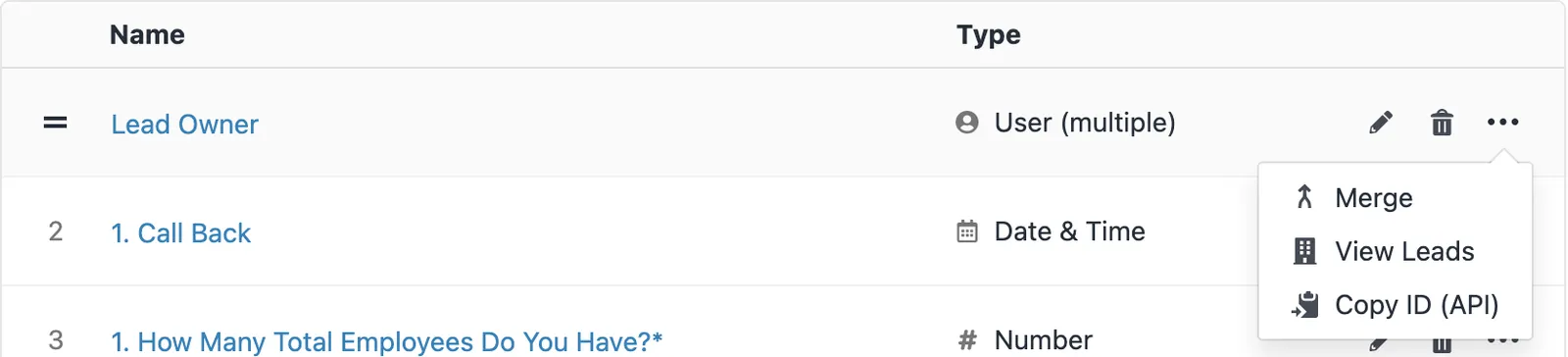
To find a Lead, Contact, or Opportunity Custom Field ID, go to your Settings > Custom Fields.
- To the right of the Custom Field of your choice, click on the three horizontal dots.
- Then click on Copy ID (API) to copy the ID to your clipboard.
Lead or Opportunity Status ID
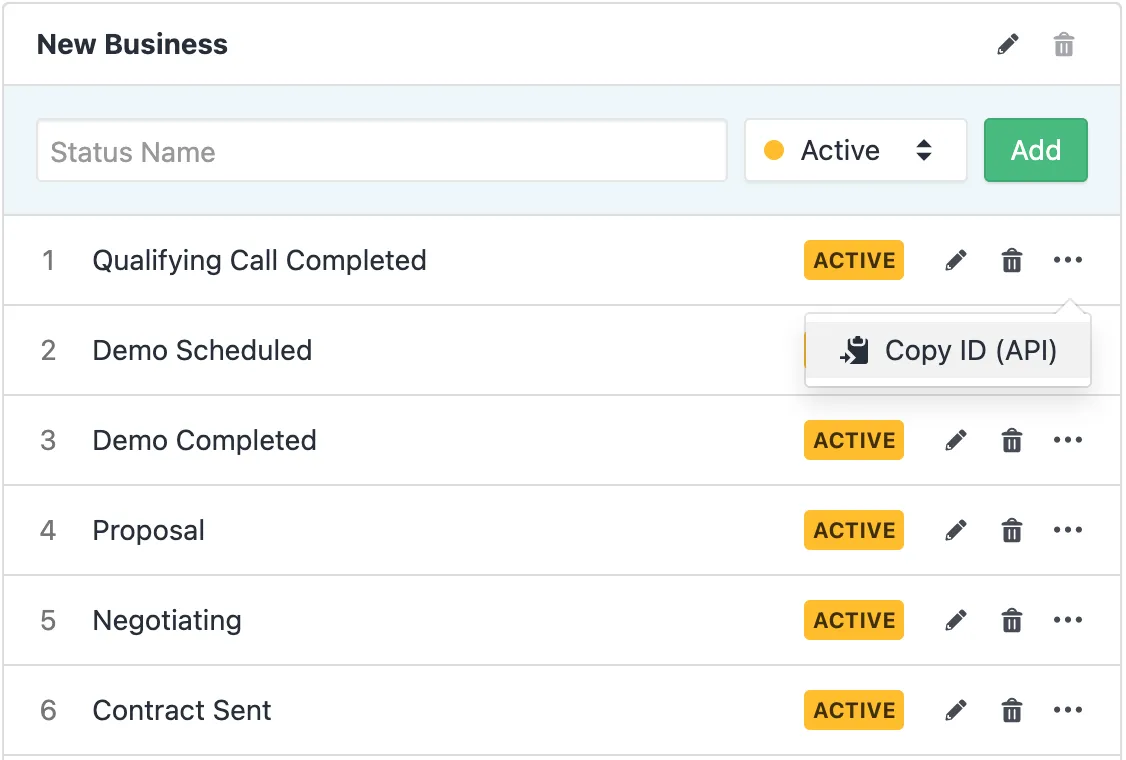
To find a Lead or Opportunity Status ID, go to your Settings > Statuses.
- Scroll down to find the Status you need the ID for.
- Click the three dots next to the Status of your choice and choose Copy ID (API).
Organization
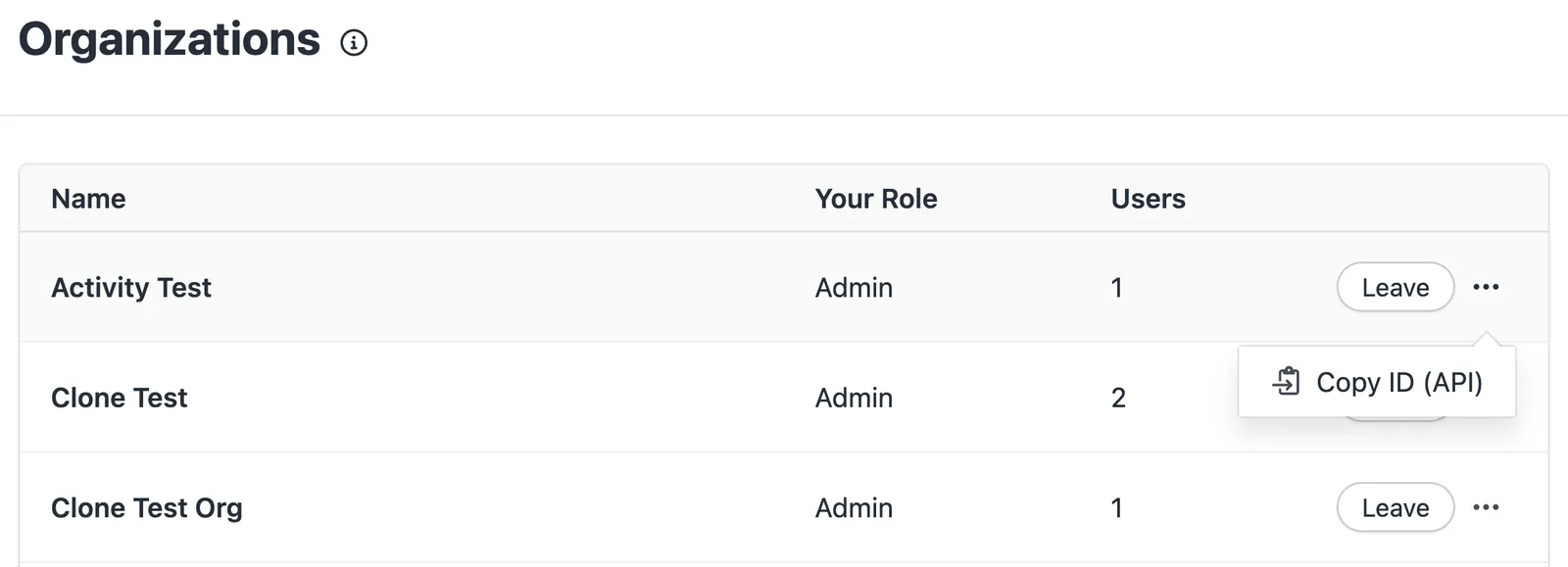
To find an Organization ID, go to your Settings > Organizations.
- Scroll down to find the organization you need the ID for.
- Click the three dots next to the organization of your choice and choose Copy ID (API).
Custom Activity Type
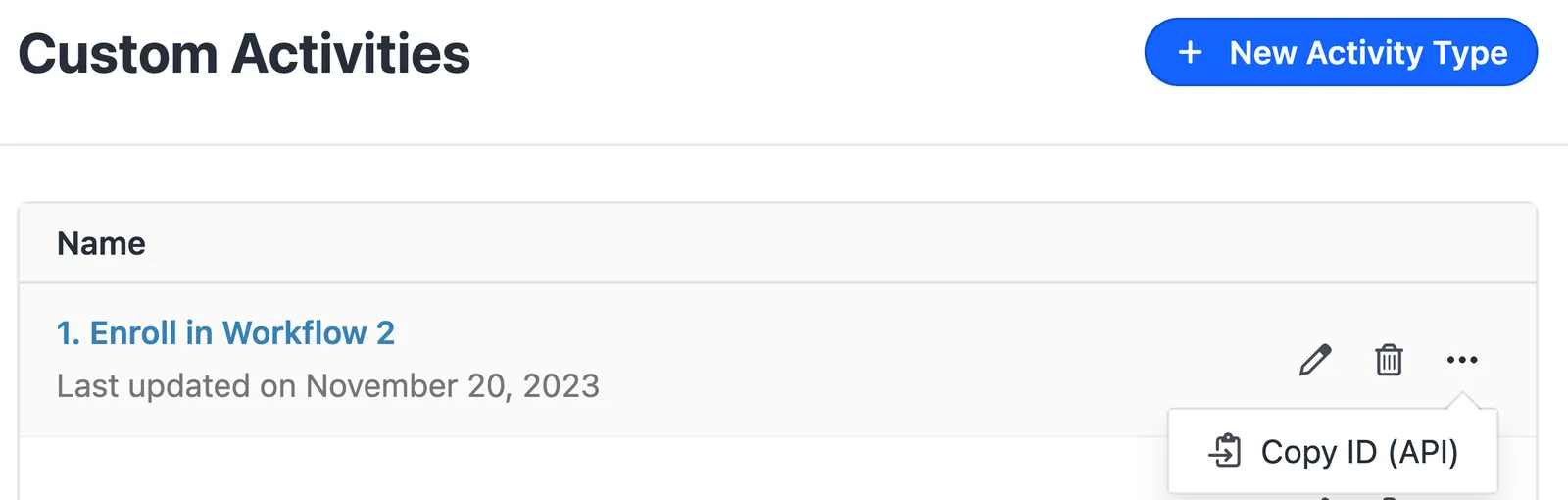
To find an Custom Activity Type ID, go to your Settings > Custom Activities.
- Scroll down to find the activity type you need the ID for.
- Click the three dots next to the activity type of your choice and choose Copy ID (API).