

Opportunity Pipeline View
Find the Pipeline View in the left-hand menu under Opportunities.
Customizing the Pipeline View
By default, the Pipeline View shows the actual annualized value of Opportunities broken down by Status. The top of the report can be configured to show:
- Type of Opportunity value: one-time, monthly, or annual
- Expected values (Value × Confidence)
- Active Opportunities only, or all Opportunity statuses including Won and Lost
- Opportunity Notes and Custom Fields for additional context
Opportunities can be sorted by order or filtered by date.
Changing an Opportunity’s Status
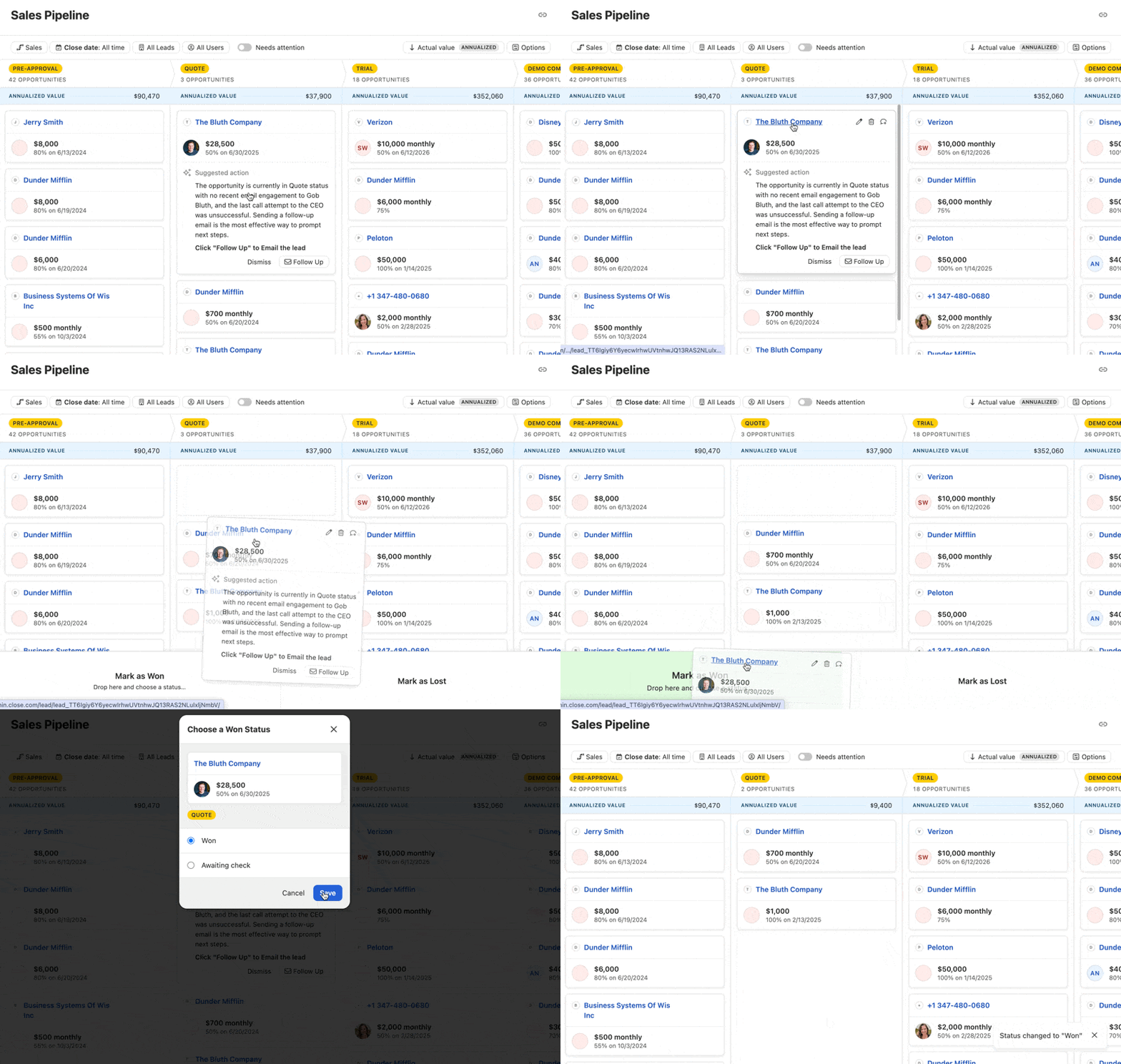
As you scroll horizontally in your report, you’ll see Opportunities with links to the Lead page for more information. Drag an Opportunity between different Statuses to update it without visiting the Lead page. The value associated with each Opportunity Status updates automatically.
From the Options menu in the upper-right, you can choose to display only active Opportunities, or all Opportunity statuses, including Won and Lost Opportunities. Opportunities can be sorted by order, or filtered by date. You can include Opportunity Notes and Custom Fields in your view for added context.

Changing an Opportunity’s Status
As you scroll horizontally in your report, you will see Opportunities with links to the actual Lead Page for more information. With the Pipeline View’s easy drag-and-drop feature, you can drag an Opportunity between different Statuses to automatically make updates without visiting the Lead page associated with this Opportunity.
This will also automatically update the value associated with these particular Opportunity Statuses.
Marking Opportunities as Won or Lost
You can also drag and drop the Opportunities to the bottom of the Pipeline View to mark them as Won or Lost in Close.
Filtering by Pipeline
Pipelines act as separate categories for the different teams, products, and workflows at your company. Filter the Pipeline View to a specific Pipeline to focus on the Opportunities you want to see. Multiple Pipelines and Pipeline filtering are available on all Close plans (Solo, Essentials, Growth, Scale).
Filtering by Close or Created date
Filter Opportunities by when they were Created or by their Close date. For Won Opportunities, the Close date filter shows all Opportunities closed on the selected date.

Filtering by Smart View
Filter the Pipeline View by an existing Smart View to scope the report to a specific set of Leads. For example, a sales manager who wants to see the Pipeline View for new leads only can build a Smart View for that segment and apply it as a filter on the Pipeline View.
