

Calendly
Connect your Calendly account to insert your scheduling links into email and SMS communication with 1-click and create new Contacts when new bookings are made.
Connect your Calendly account
Users can add their Calendly account by going to Settings >Accounts & Apps and selecting Calendly from the list of options. Once connected, all of the Calendly Event Types (aka “booking links”) available to the connected Calendly account will be added to Scheduling Links and will appear under “Event Types” in the Connected Account management page.
Calendly accounts can be associated with multiple Organizations, allowing users to have the same Calendly Event Types synced with Scheduling Links for multiple Organizations they manage.
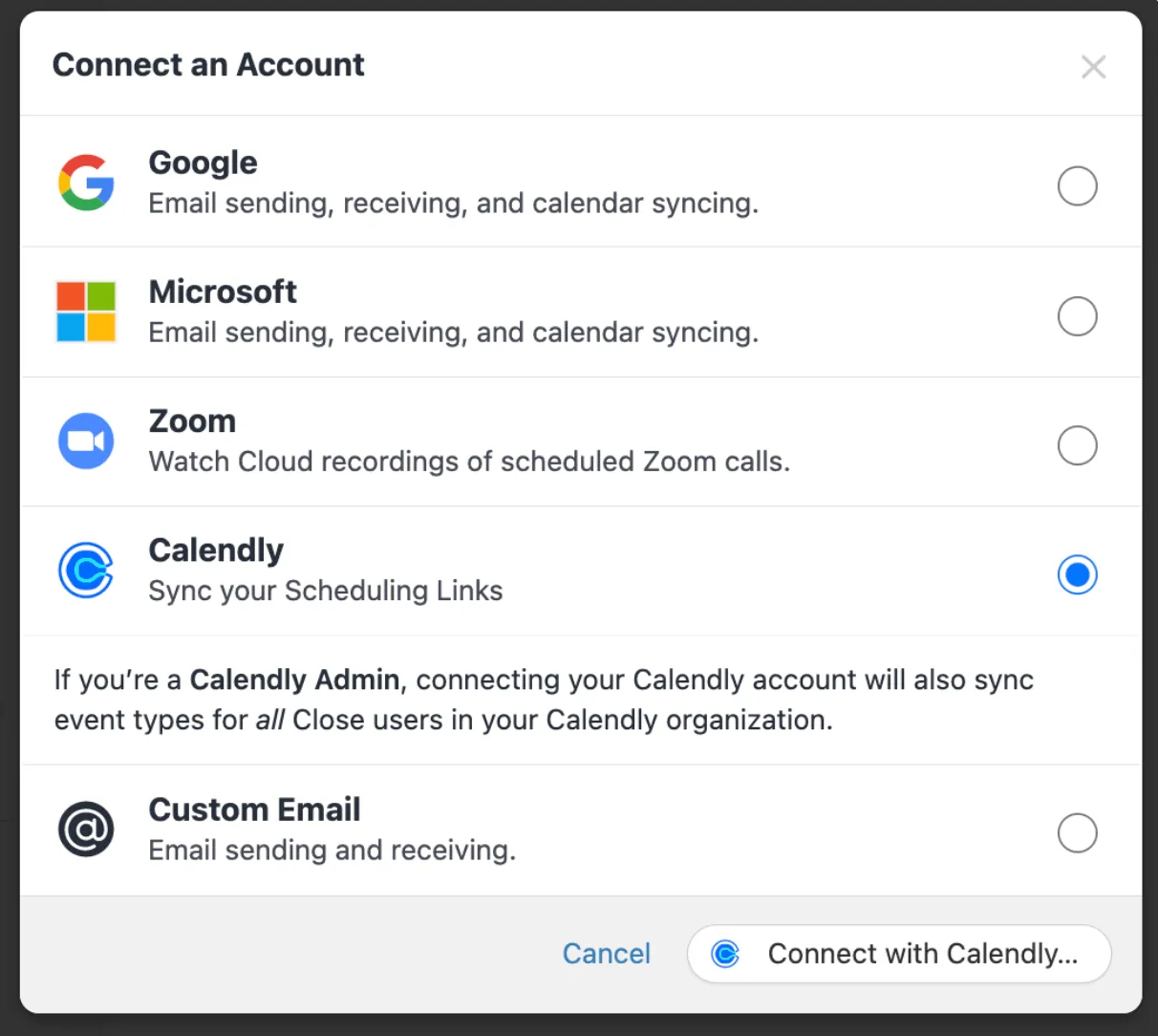
If you have made recent changes to a synced Calendly account, click the “Sync” button at the top right of the Connected Account management page to force Close to sync with Calendly. Otherwise, changes will be synced automatically every 10 minutes.
Automatically create Contacts when meetings are booked
Due to plan limitations, this feature is not available to accounts on Calendly’s “Free” plan.
If you have a round-robin group event in Calendly, all Calendly accounts that are part of that group must be connected to Close to ensure that Contacts are created.
For each Calendly Event Type, enable the “Create Contacts” toggle and Close will automatically create a new Contact when new meetings are booked. To sync in the meeting details, connect your Calendar to Close.
If Close detects that the invitee already exists in Close (by email address), no new Contact will be created. If there is an existing Lead in Close with contact(s) matching the email domain of the invitee, Close will still create a new Contact (and Lead).
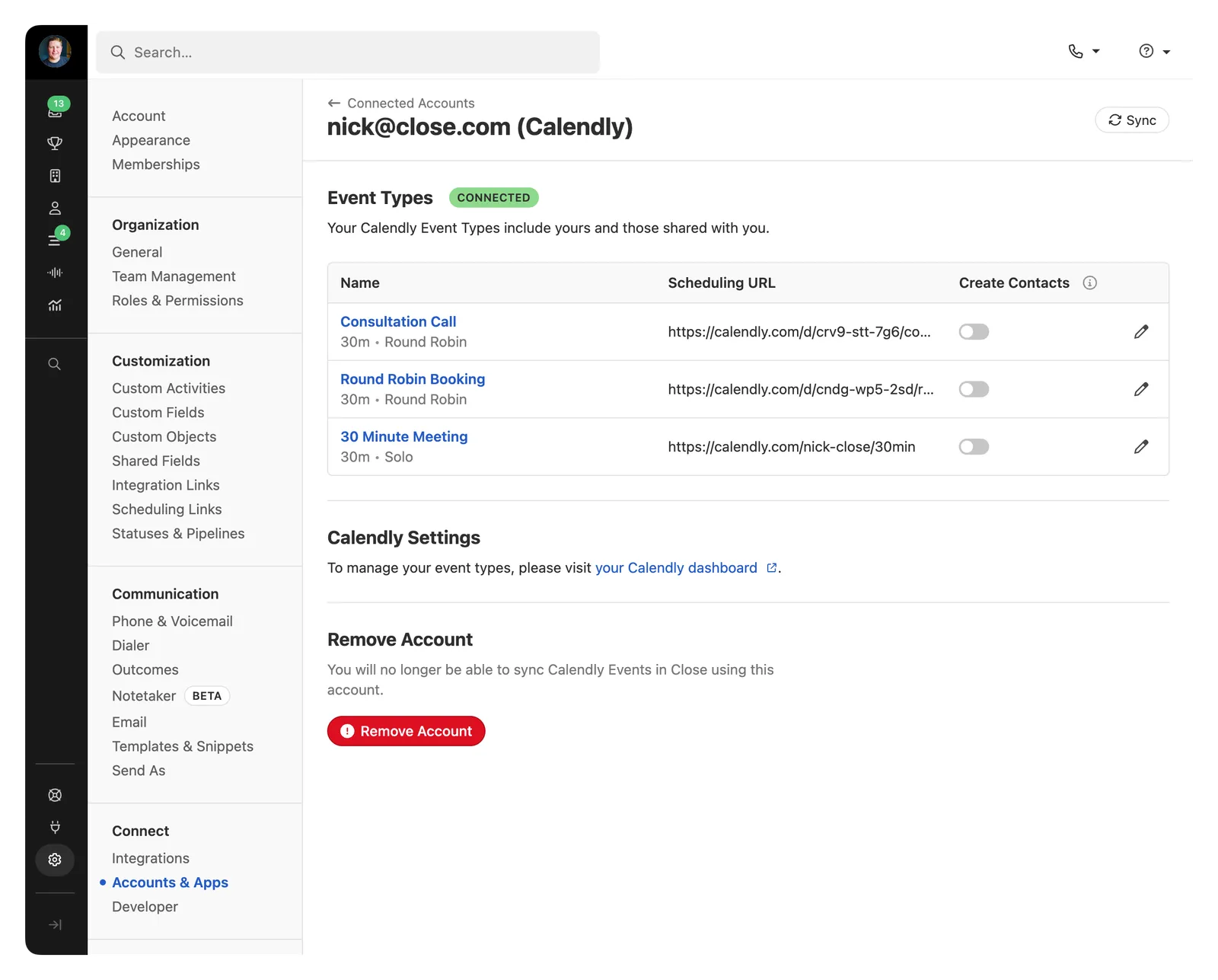
Assigning Calendly form fields to Close Lead and Contact fields
By default, the invitee’s name and email map to the corresponding Contact fields. Additional fields can be mapped to Lead or Contact fields:
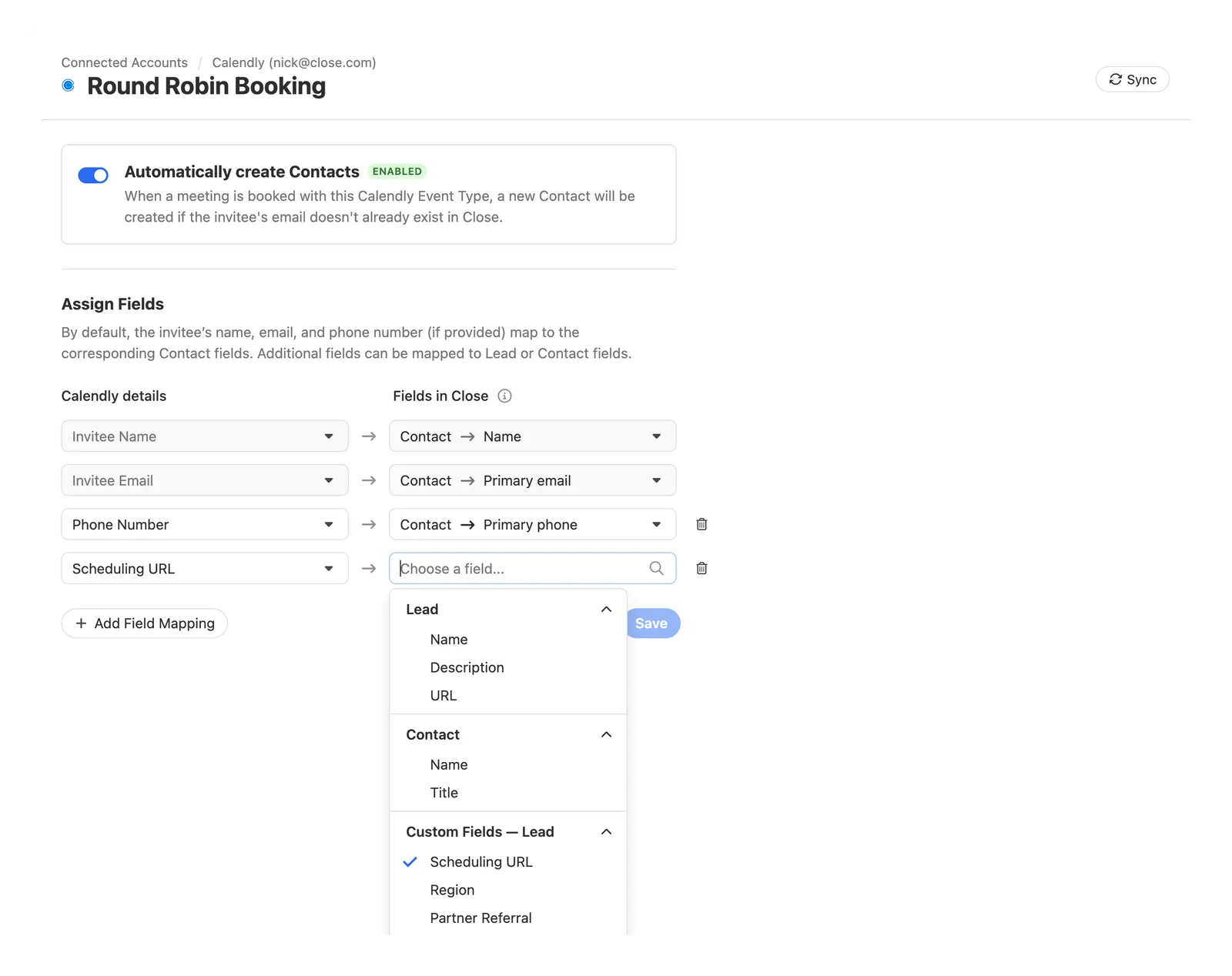
To have additional fields added to Close when a new meeting is booked, assign the corresponding Calendly form fields to the appropriate Lead or Contact field in Close. If Close detects that the invitee already exists in Close (by email address) any additional fields are not updated on that existing Contact. The fields are only used to create new Contacts within Close.
Multiple users can edit the field mappings for a single Event Type and they will stay in sync across all Close users.
There are a handful of standard Event Type fields that can be mapped to fields in Close:
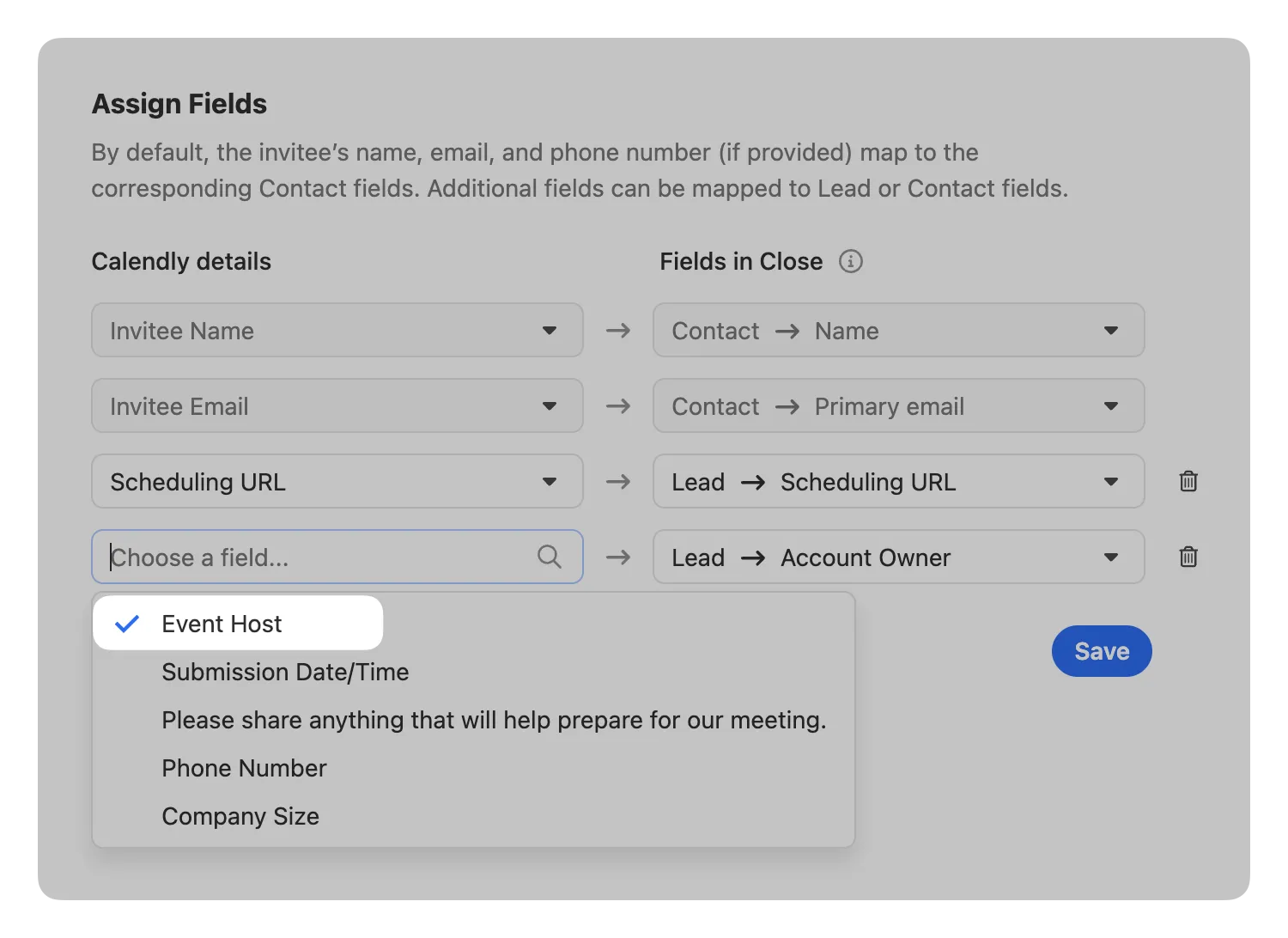
Assigning Leads using the “Event Host” field
When assigning fields from a Calendly Event Type to a Lead or Contact in Close, the “Event Host” field can be used to map to User Field types. “Event Host” is the Calendly user that has the meeting booking, so this is a great way to automatically assign Leads to the user who got the meeting. When assigning “Event Host” to a User field type (Ex: An “Account Owner” Lead Custom Field), Close will automatically match the Event Host’s email address to the corresponding User with the matching email address in Close. If there is no match, the field will not be updated and there will be an error.
“Event Host” is not available on Calendly Event Types that have multiple hosts (Collective and Multi-Pool).
Managing field mapping errors
When Close tries to create a new Contact with the assigned fields, errors may occur when the data coming from Calendly doesn’t match the assigned field type in Close. In the event of an error, Close still may create the Contact.
When an error occurs, the owner of the Calendly Event Type in Close will receive an email with the error details.