

Book a Meeting
Book meetings directly from a Lead page. Close Scheduling creates the calendar event, sends the invite, and logs the meeting on the Lead automatically.
You can also let Chloe book meetings on your behalf during live calls.
What you can do with Close Scheduling
Book from a Lead page — open the Book a Meeting modal from any Lead, pick a time that works, and Close creates the calendar event and sends the contact their invite.
Let Chloe book meetings for you — Chloe can book a meeting in real time while on a call, without handing off to another tool or breaking the conversation flow.
Requirements
- A Google or Microsoft account connected to Close with Event Management enabled
- Close Scheduling configured under Settings > Scheduling
- Zoom account (optional)
Setup
Step 1: Enable Close Scheduling for your Google or Microsoft account
- Go to Settings > Accounts & Apps.
- Select the Google or Microsoft account you want to use for scheduling.
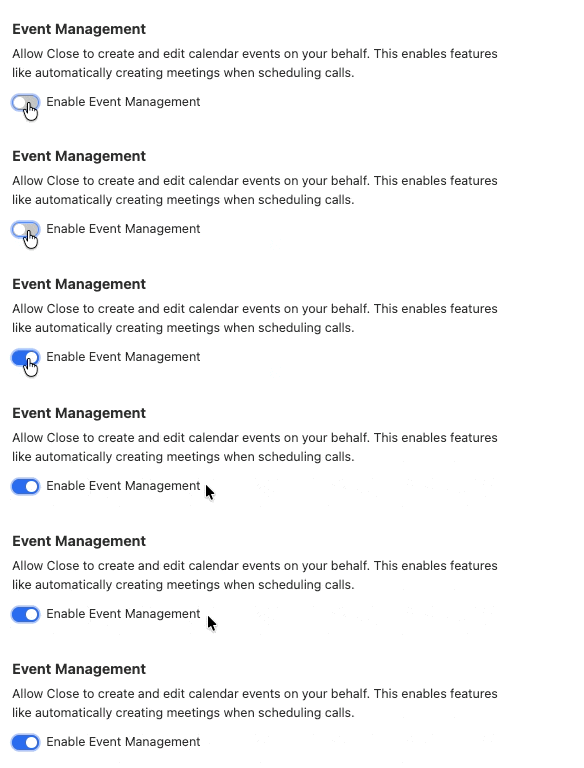
- Toggle on Event Management.
- When the blue banner appears at the top of the page, click Reconnect and grant the requested calendar permissions.
Step 2: Connect your Zoom account (optional)
Zoom is supported for video meetings alongside Google Meet and Microsoft Teams. Skip this step if you only need Meet or Teams.
If you already have a Zoom account connected:
- Go to Settings > Accounts & Apps.
- Find your connected Zoom account and click Edit.
- Click Remove account.
- Add your Zoom account again.
If you don’t have Zoom connected yet:
- Go to Settings > Accounts & Apps.
- Click Add account and select Zoom.
- Follow the prompts to authorize access.
After connecting, you’ll be prompted to set Zoom as your default for video meetings.
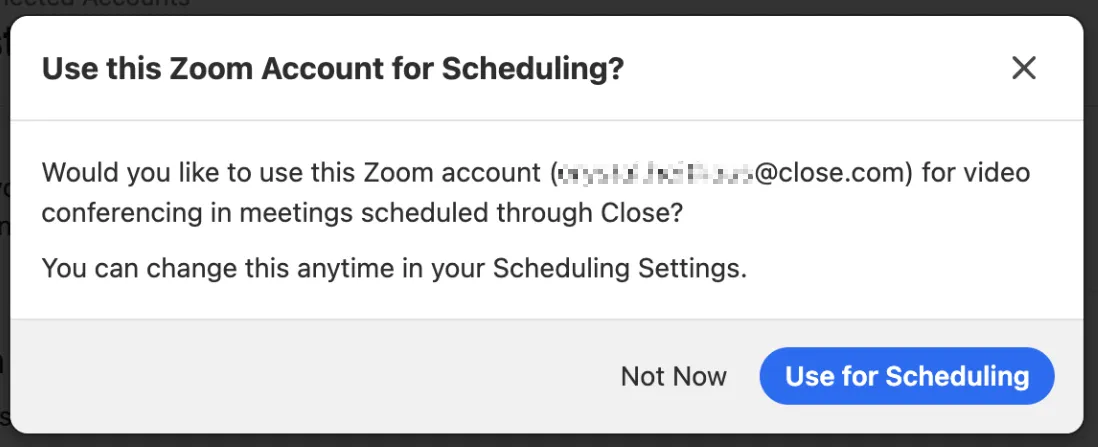
You can also manage this anytime in Settings > Scheduling.
Step 3: Configure your scheduling settings
-
Go to Settings → Scheduling.
-
Confirm the correct calendar and time zone.
-
Scheduling Calendar controls which connected calendar Close writes newly booked events to and is used as the primary calendar for scheduling actions. Set this to the specific calendar you want bookings to be created on.
-
Conflict checking calendars are selected separately and determine which connected calendars Close checks for busy/conflicting times. Availability shown in the Book a Meeting modal (and used by Chloe) is based only on the calendars selected for conflict checking.
-
Set your scheduling rules: booking hours, minimum lead time, and buffer time between meetings.
-
Choose your video meeting platform:
- Meet (default for Google accounts)
- Teams (default for Microsoft accounts)
- Zoom (if a Zoom account is connected)
Book a meeting from a Lead page
-
On a Lead page, click Book a Meeting.
-
Set the meeting participants:
- Contact — the primary contact is selected by default. Switch to a different contact on the Lead if needed.
- Contact time zone — prefilled automatically. Update if needed so available times match the contact’s local time.
- User — choose which Close user the meeting should be booked with. Only users with scheduling enabled will appear.
- Duration — choose 15, 30, 45, or 60 minutes. Default is 30 minutes.
- Pick a time slot:
- Available times are based on the selected user’s booking hours and the contact’s time window. Only slots that work for both are shown.
- The contact time window defaults to 8:00 AM–8:00 PM. Adjust it to filter for mornings, afternoons, or a specific window.
- Time slots are grouped by day. Click Show all to see every available time for a given day.
- Next available shows the next 5 days. Use Specific date range to look further out.
- If the contact and user are in different time zones, both times are shown — the contact’s time on top, the user’s time below.
- Set the meeting details:
-
Meeting name — edit the title before booking if needed.
-
Meeting type:
- Phone — uses the contact’s phone number as the meeting location.
- Video — generates a Google Meet, Microsoft Teams, or Zoom link based on the user’s settings. The contact must have an email address to be added as an attendee.
- Description — optionally add notes or context.
- Click Done.
- Close creates the event on the selected user’s Google or Microsoft Calendar.
- If the contact has an email address, they’re added as an attendee and receive a calendar invite.
- The Close user is not sent an email notification, and the meeting is added directly to their calendar.
- The meeting appears on the Lead once it syncs back, usually within 8–10 seconds.
Important:
If the contact doesn’t have an email address, the meeting may not sync to the correct Lead in Close.
FAQ
What calendars are supported?
Google Calendar and Microsoft Calendar (Office 365) are both supported.
What video conferencing is supported?
Google Meet, Microsoft Teams, and Zoom are all supported. Meet is the default for Google accounts; Teams is the default for Microsoft accounts. If a Zoom account is connected in Close, you can also choose Zoom when setting the meeting type to Video. See Step 2 above for setup steps.
Can I book a meeting for another user?
Yes. In the Book a Meeting modal, use the User field to choose any Close user who has scheduling enabled.
How does booking work with the Chloe?
Chloe can book meetings on your behalf during a live call. Chloe uses your scheduling settings and connected calendar to find available times and create the event. Make sure Close Scheduling is set up and your calendar is connected before enabling your Chloe agent to book meetings.
What happens after I click Done?
Close creates the calendar event on the selected user’s Google or Microsoft Calendar. If the contact has an email address, they receive a calendar invite automatically. The meeting logs on the Lead page within 8–10 seconds via calendar sync.
Can the contact decline or cancel the meeting?
Yes. Meeting status in Close reflects the status from your calendar: Upcoming, Completed, Declined, and Canceled.
Why don’t I see available time slots?
A few things to check:
-
Make sure the selected user has scheduling enabled and booking hours configured in Settings > Scheduling.
-
In Settings > Scheduling, confirm the correct calendars are selected for conflict checking. Available time slots only account for conflicts on the calendars selected there.
-
Check that the contact time window overlaps with the user’s booking hours. Try widening the contact time window or adjusting the date range.
-
Confirm the correct time zone is set for both the user and the contact.
Current limitations
- One user, one contact per meeting — multi-attendee meetings are not supported.
- No team routing — you can only book with a specific Close user. Round-robin scheduling and pooled calendars are not supported.