

API Keys & OAuth
Create an OAuth app for Close so your integration can securely connect to Close accounts. Full instructions are in the Close developer docs.
There are two main ways to authorize (connect) your Close organization to third-party applications or your own internal system:
- using API keys
- using OAuth access
Both methods are designed to help you automate and sync your sales process with other platforms while maintaining high levels of security and data privacy. Whether a third-party app uses an API key or OAuth to connect to Close depends on how the app’s developers decided to set it up.
API keys
An API key is a secret token (like a password) which you can use to connect Close data to third-party applications or your own internal system.
API keys are created and managed on a per-user basis in Close, and each key is tied to the specific Close user who created it. If that Close user is removed/deactivated, any API keys issued for them will be disabled.
Creating an API key
To create a new API key, go to Settings > Developer > API Keys and click + New API Key. Select the Permissions and click Create.
If you’re seeing authentication failures in an integration, double-check in Settings > Developer > API Keys that the API key you’re using is active. If a key was deleted, copied incorrectly, or otherwise compromised, create a new key and update the integration (this is also a common reason to rotate keys).
Make sure to give your new API key an informative name so that you’ll be able to easily tell which key is used for which integration. Once done, you’ll be given the newly-generated API key, which you should copy and store securely. This key will not be displayed ever again (only the key’s ID will be shown), so make sure to copy it.
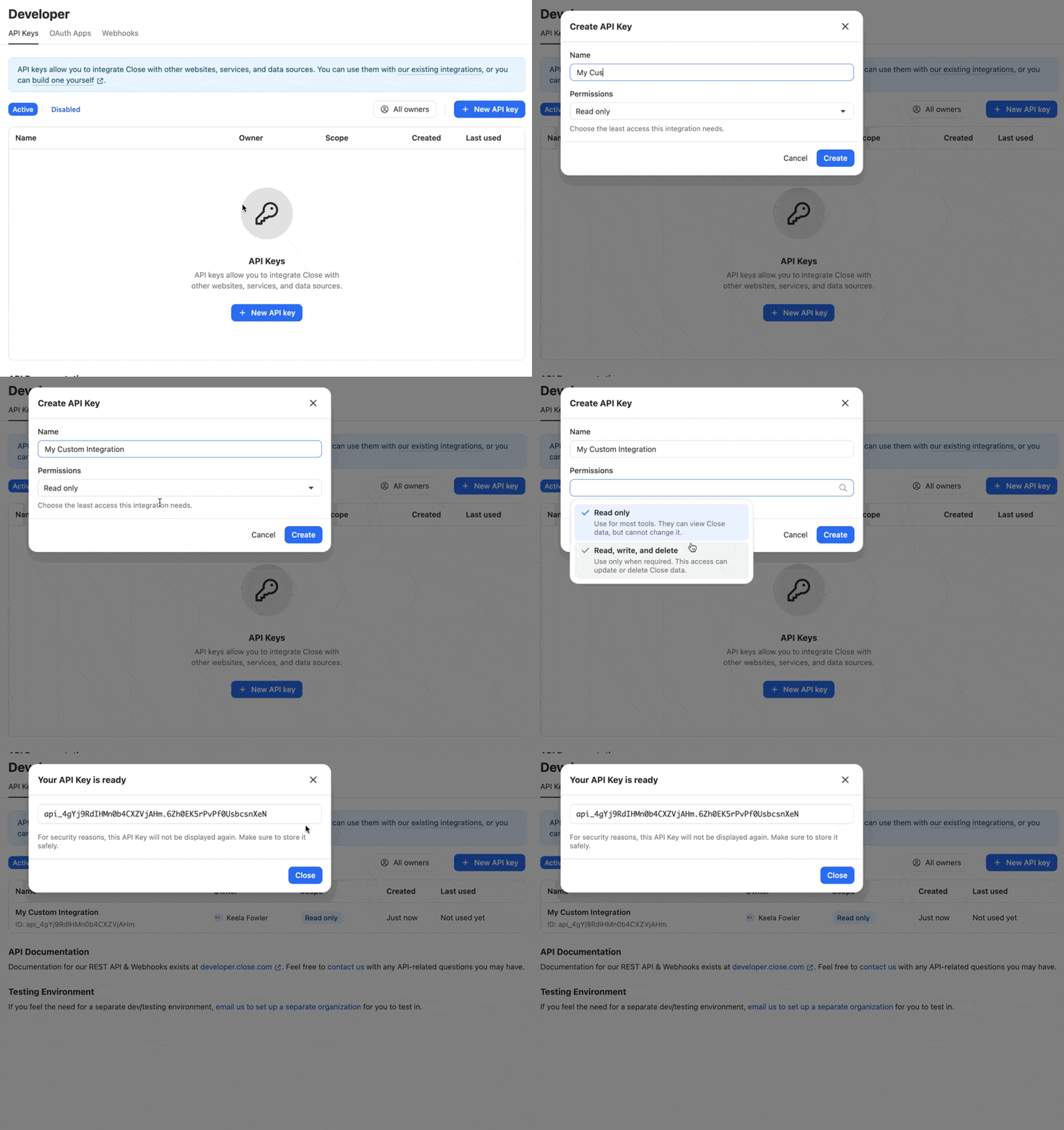
An API key is a secret token, which is used to authenticate your requests to the Close API. It should be kept private and stored securely. On the other hand, an ID of an API key is just an identifier. It is safe to share.
Don’t be confused by the similarity between the two. For example:
API key ID: api_7b8KOSMa0OevK9qJvT6F9s
API key: api_7b8KOSMa0OevK9qJvT6F9s.2H3Bt8ktGaQ9kVK45P7j7p (note: not a real key)
The API key contains the ID, but it also contains a second secret part. Don’t ever share the full API key!
Access Levels
An access level limits what an API key can do.
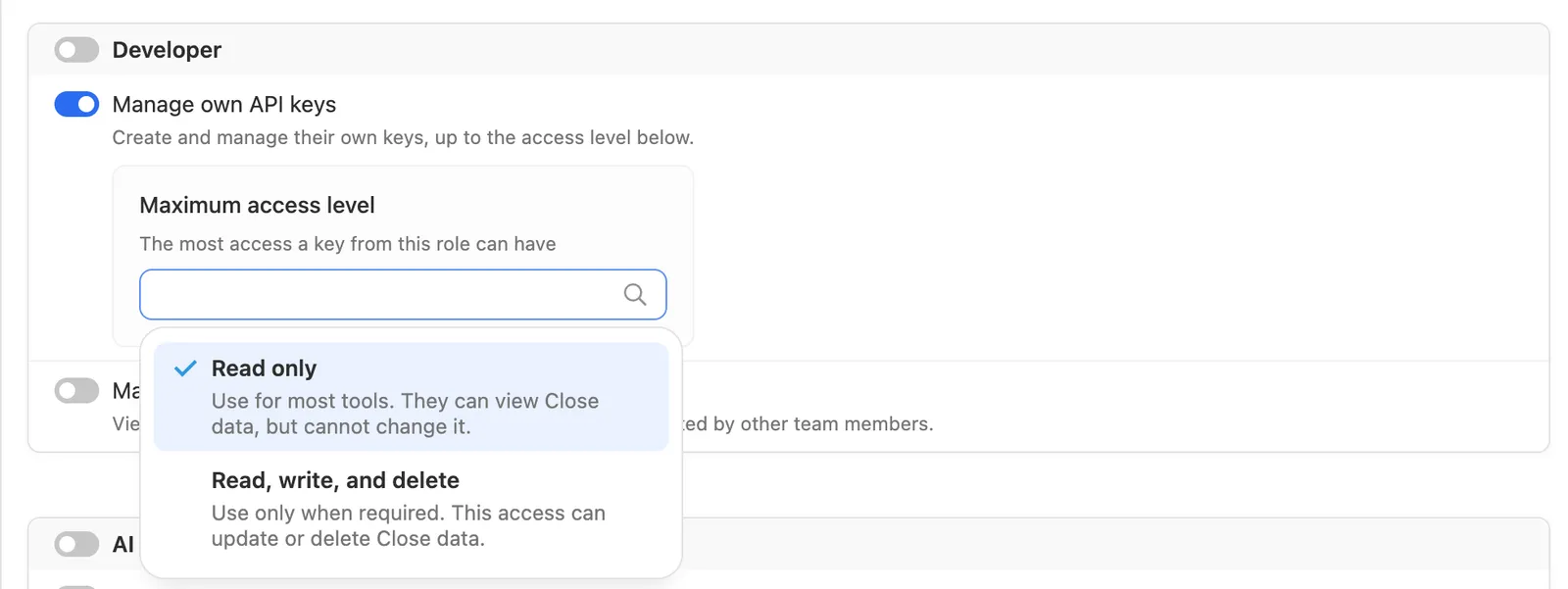
Close checks the access level on every API request and rejects operations outside it. A key can never do more than its owner: it follows the owner’s role and lead visibility, and its access level narrows that access further.
Keys created before access levels were introduced keep Read, write, and delete access and continue to work.
Can’t choose an access level? Your role sets the maximum access level for your keys. Ask an admin about your role if you need a different level.
Editing an API key
To rename a key or change its access level, click the … next to the key and choose Edit. Only the key’s owner can rename it or change its access level. You can select only an access level your role allows.
Disabling and enabling an API key
To pause a key without deleting it, click the … next to the key and choose Disable. Integrations using the key immediately lose access.
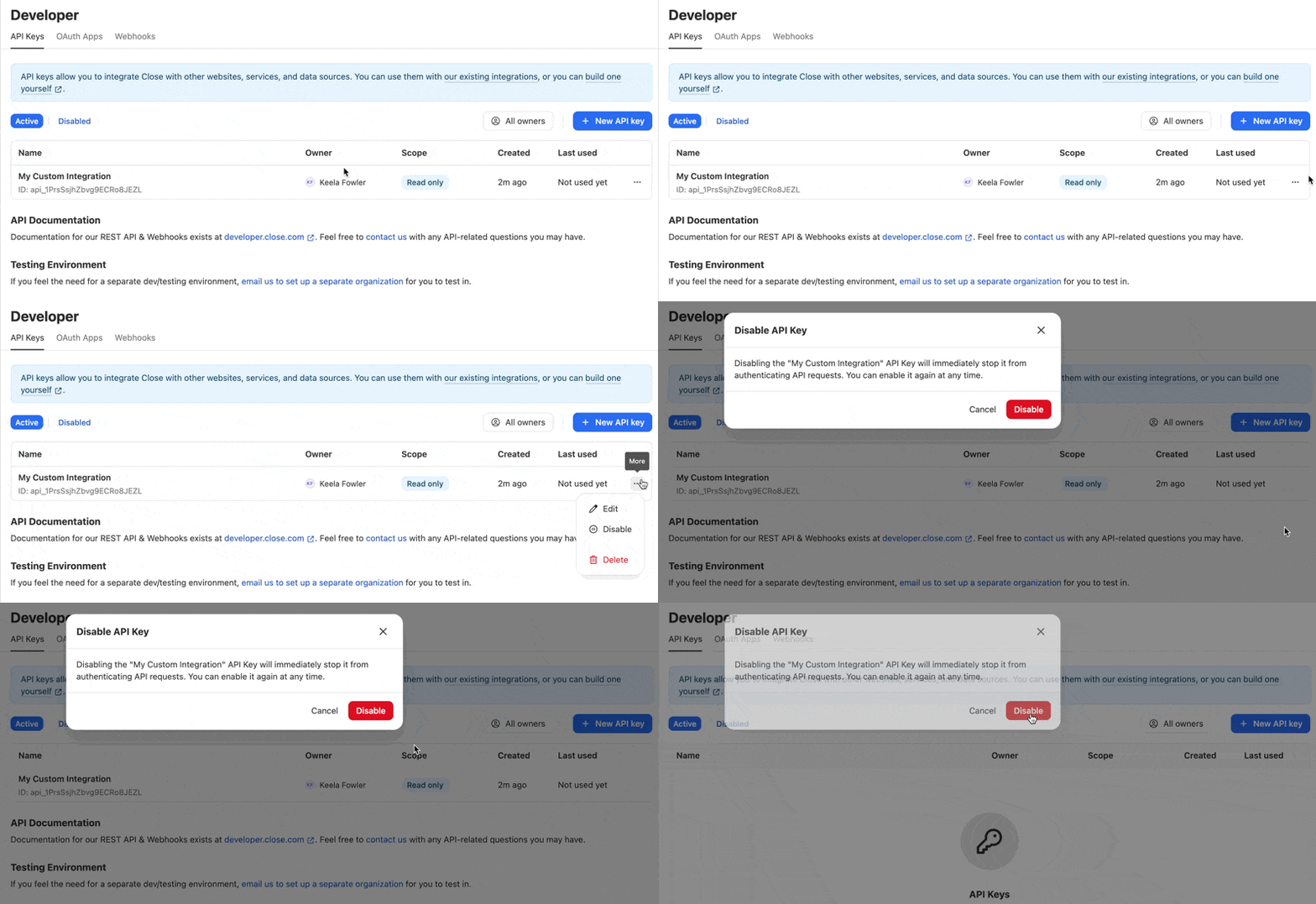
To turn the key back on, click Disabled at the top of the list, then click the … next to the key and choose Enable.

If your role no longer includes Manage own API keys, ask an admin or someone with Manage all API keys to enable it. If you still have Manage own API keys, you can enable an existing key even if its access level exceeds your role’s maximum.
Deleting an API key
To delete an API key, click on the ”…” next to the API key you’d like to delete.
Note that deleting an API key will immediately cut off access to Close data from any integration using that key. You will not be able to restore a deleted API key. Disable it instead if you might need it again.
Reviewing existing API keys
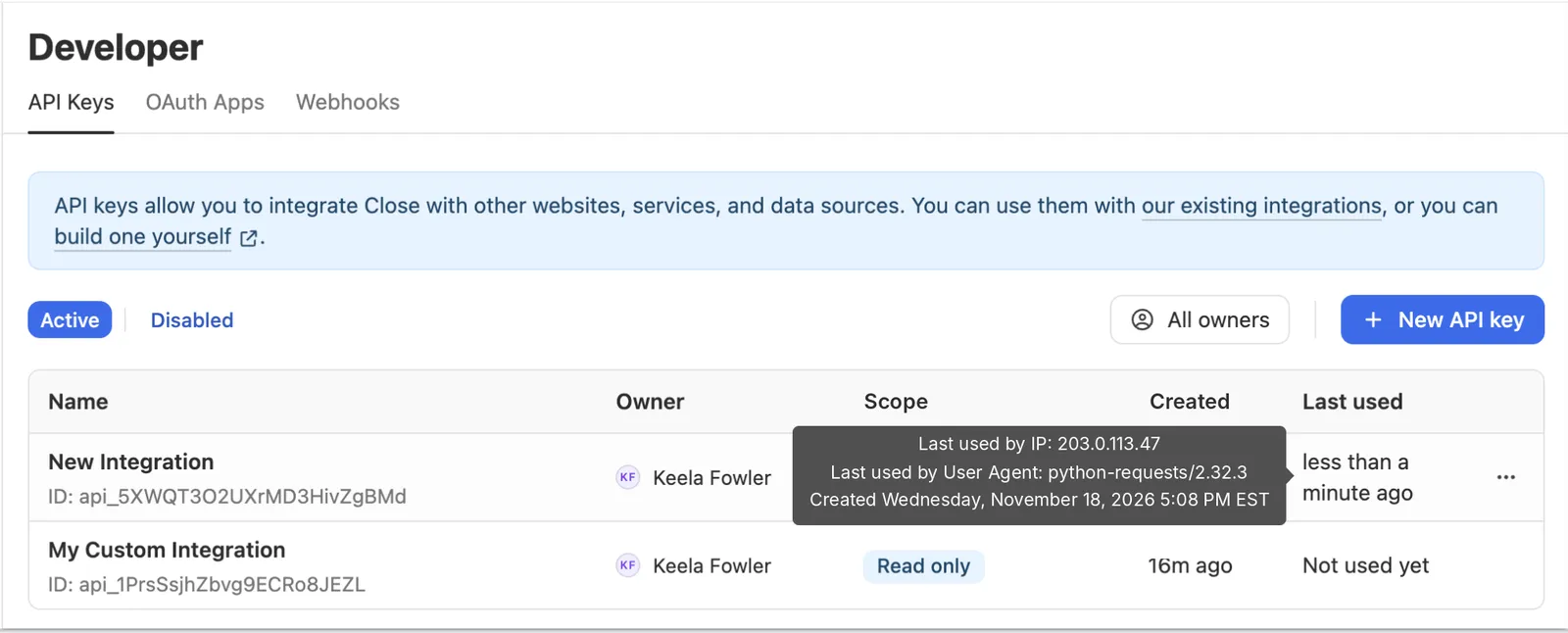
The API Keys list shows each key’s name and ID, owner, access level, creation date, and approximately when it was last used. Hover over Last used to see the recorded IP address and user agent. Usage details update at most about once an hour, so they may not reflect the latest request.
API key permissions
API key access is controlled by two permissions in the Developer section of Settings > Team > Roles. For more on roles, see Roles & Permissions.
- Manage own API keys: Create keys and change their access levels, up to the role’s Maximum access level. Without this permission, you don’t see + New API key and can’t enable your own disabled keys. You can still rename, disable, or delete your existing keys.
- Manage all API keys: View, disable, enable, and delete API keys in your organization, including keys other people created. Enabling this permission also enables and requires Manage own API keys.
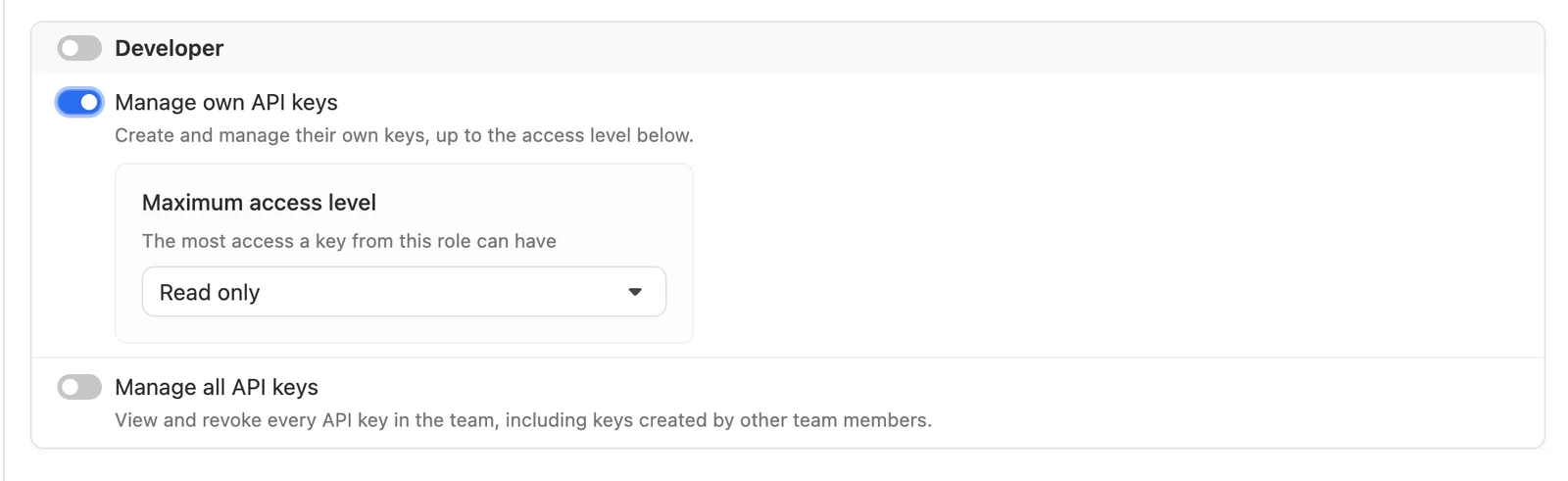
The predefined roles have these permissions:
You can configure these permissions on custom roles. For example, you can create a role that can create only Read only keys.
Existing keys above the new maximum stay active. Close warns you before you save. To reduce their access, ask each owner to edit their key, or disable or delete the keys.
Security
API keys are a great way to connect Close to your favorite applications or your own internal system. However, with great power comes great responsibility. API keys can read and modify all of your CRM data and should be handled very carefully.
You should always store your API keys securely and you should never share them with parties you don’t trust. It is also recommended that you periodically create new API keys, update your integration(s), and delete the old API keys. This practice is typically referred to as “rotating” your API keys.
User availability (rep visibility)
There is no separate Close account setting to “turn on” rep visibility for integrations. Availability/visibility is provided via the User Availability endpoint, and whether you can access it depends on whether the API key or OAuth token you’re using has access to the organization.
OAuth access
Third-party apps can use OAuth to request access to your Close organization, which involves a process where you can approve or deny the specific app’s access to your Close data, rather than handling API keys directly.
Allowing OAuth access
To give a third-party app permission to access your Close account, navigate to the app and look for an option that says something like Connect to Close CRM. Selecting this will take you to a Close authorization page where you can approve the connection:
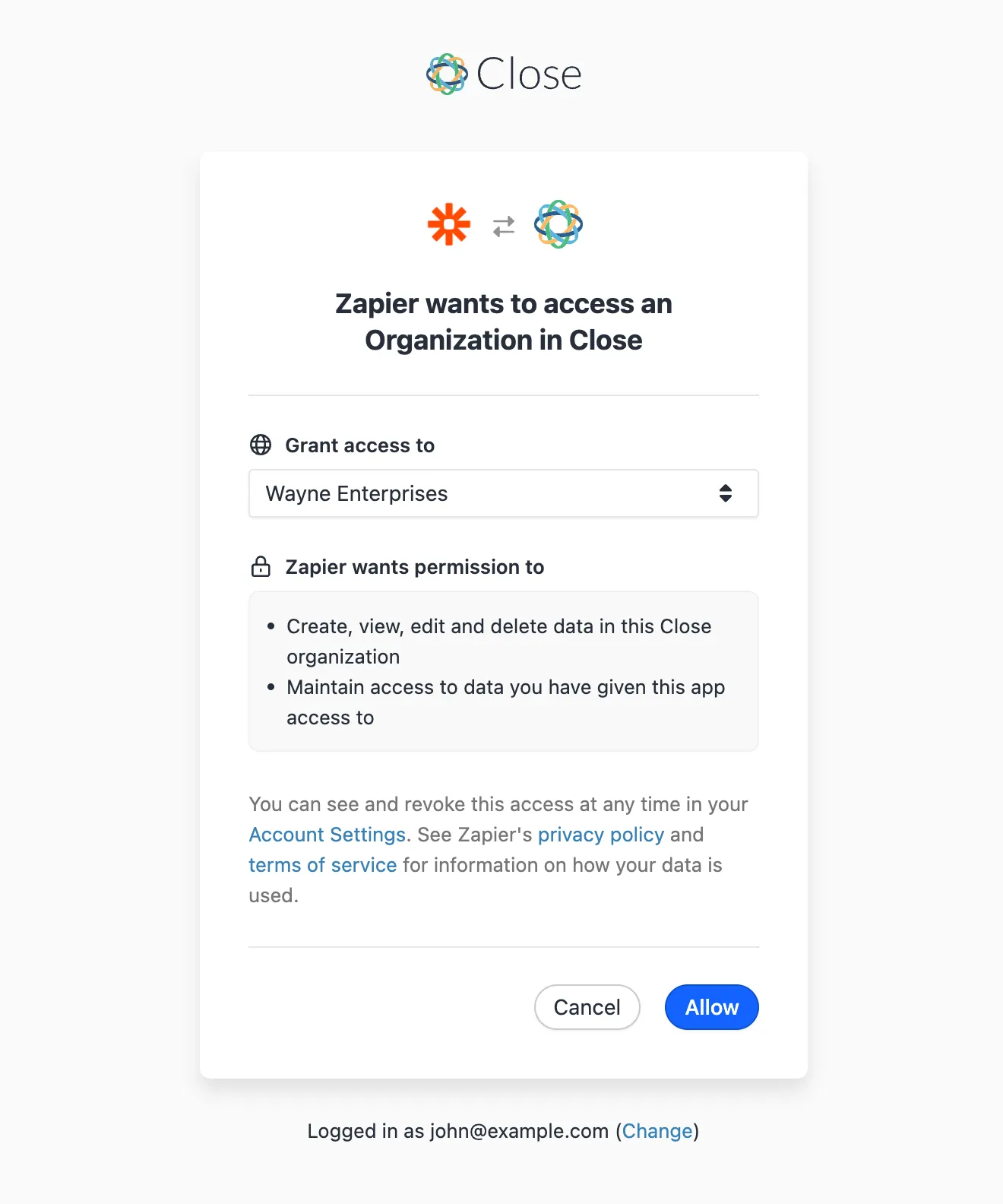
Once allowed, the third party app will get full read/write access to your Close organization (as determined by your Close role in case you’re not a Close Admin).
OAuth authorizations are also tied to a specific Close user account. If that user is removed/deactivated, any OAuth tokens issued for them will be disabled.
If you’re connecting Close via OAuth and see a policy_enforced error, your Google Workspace administrator may be blocking third-party app access. A Workspace admin will need to approve/allow the permissions requested by Close in the Google Admin console for the connection to succeed.
No. Currently, any third-party app using OAuth will obtain the same full access to your Close account as it would with an API key.
Revoking OAuth access
To revoke OAuth access to some of third party apps, go to your Settings > Accounts & Apps > Authorized Apps and click Revoke Access…
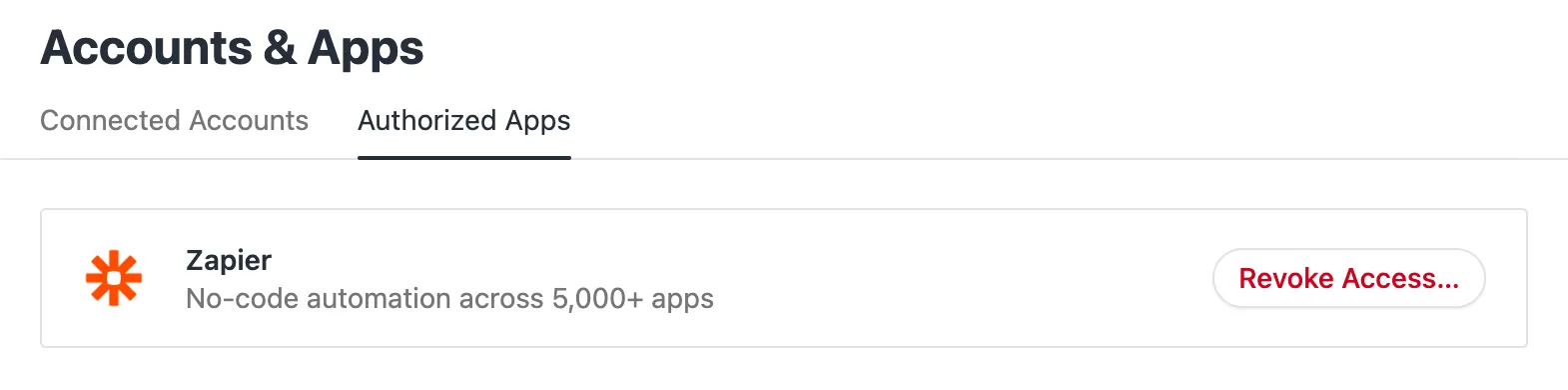
Note that revoking an OAuth access will immediately cut off access to Close data to that integration. The only way to restore the access it go to the third party app and request an access again.