
Call Tasks
You can assign Call Tasks to yourself or a member of the team as a reminder to a call a Contact at a specific date and time. Call Tasks are similar and appear on Leads and the Inbox in the same place as Tasks, but there are a few differences:
-
Call Tasks must have an associated Contact.
-
When created using Workflows (via the Call step), Call Tasks can be assigned to a Group.
-
Close will automatically mark Call Tasks complete when there is a Call between the associated Contact and an assigned User.
-
A Call activity between the associated Contact and assigned User is required in order to mark a Call Task complete.
-
Calls made before the Call Task is created will not retroactively mark that task as complete. The matching call activity must occur after the task is created.
-
Creating Call Tasks
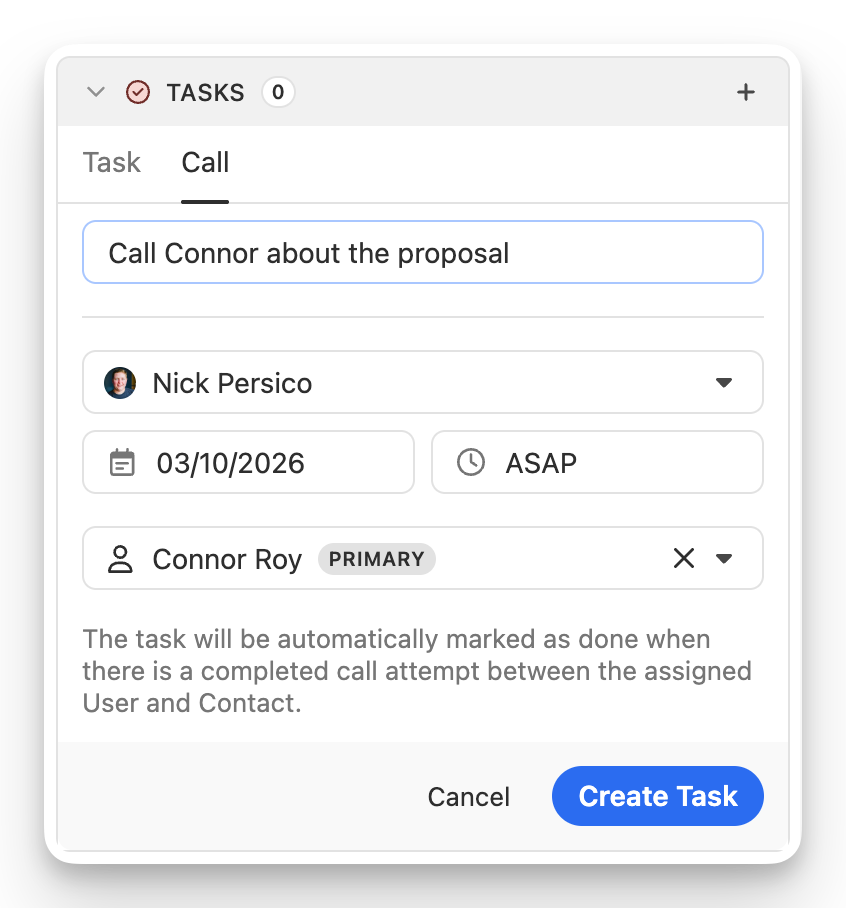
Call Tasks can be created in the same ways regular Tasks are created:
-
On the Lead — Click the + icon next to Tasks and select the Call tab (pictured above).
-
Workflows — The Call step in Workflows creates Call Tasks.
- By default, the Call Task’s due date will be set to the next available date and time according to the Workflow’s Communication Schedule and Contact’s local time. If you want the Call Task to ignore these rules, select “Ignore Workflow Communication Schedule & Blackout Dates” on the Call step and the Call Task due date will be set to when the Step is processed.
-
API/Zapier — Call Tasks can be created using the
/tasksendpoint (documentation) or the “Create Call Task” action in Zapier.
Call Tasks are currently not supported by Close’s MCP server.
Managing and completing Call Tasks
Call Tasks represent an intent to call a Contact. A Call Task will be automatically marked as complete when the assigned user makes a call to one of the Contact’s phone numbers and the call ends with a “Completed” status. Calls logged manually using Log a call will also mark the Call Task as complete.
Only calls that happen after the Call Task is created can auto-complete it; earlier calls to the same Contact won’t complete a newly created Call Task.
If you mark a Call Task as done in the Inbox or on the Lead, Close will automatically create a call activity.
Managing Call Tasks in Inbox
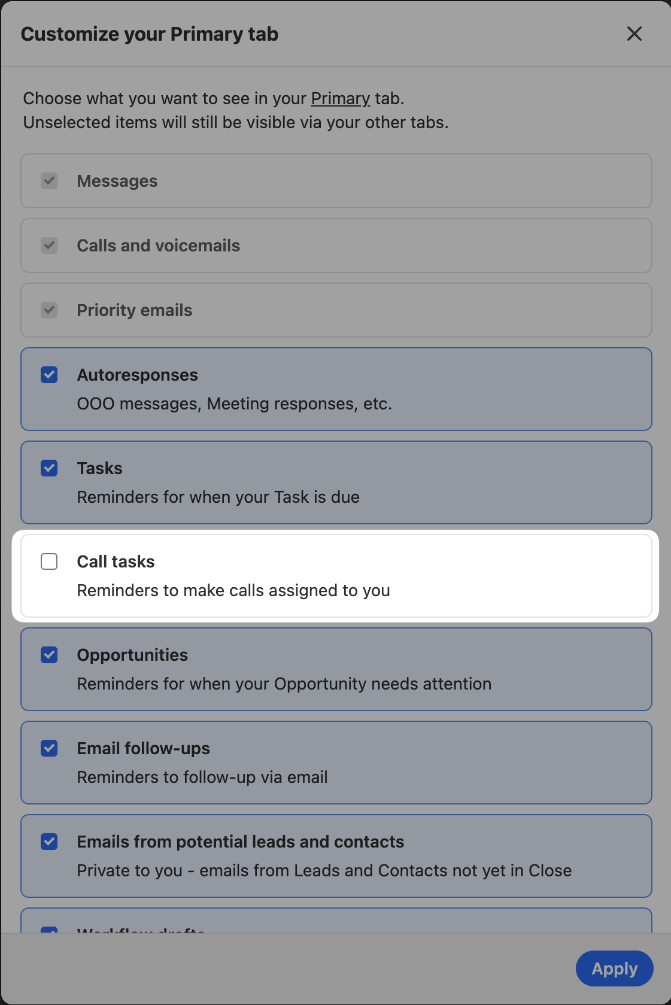
If you prefer not to see your assigned Call Tasks in your Primary inbox tab, deselect “Call Tasks” in your Primary Inbox settings: