

Skills
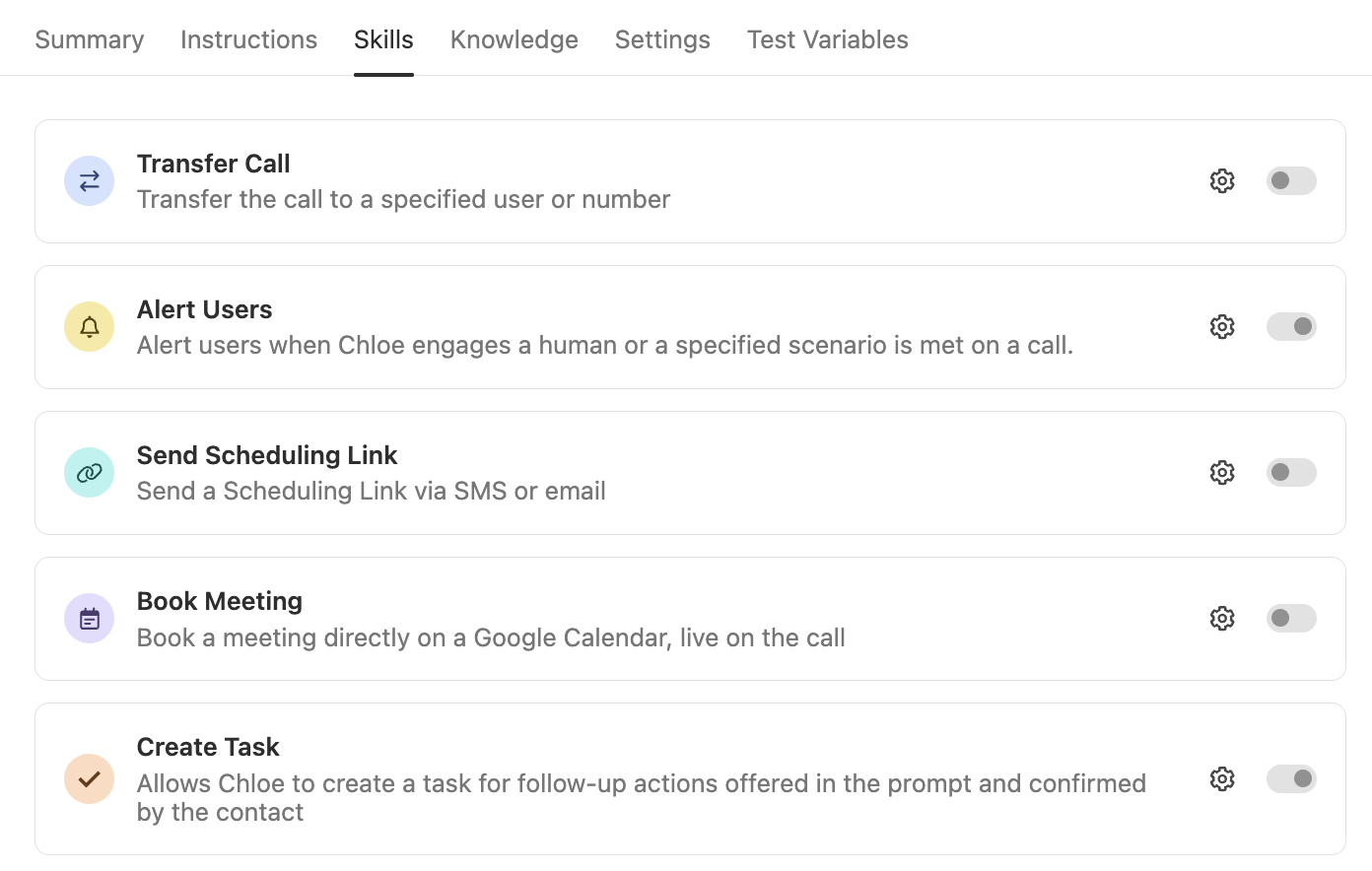
Skills are capabilities Chloe can use during a call. Each skill can be toggled on or off per Voice Agent from the Skills tab. All skills require configuration before they’ll work, and skills with a gear icon have additional settings you can configure.
To access skills: go to Chloe > Voice Agents, open the Voice Agent, and click Edit and then the Skills tab. For guidance on referencing skills in your Voice Agent’s prompt, see Prompt Training.
Overview
Transfer Call
When enabled, Chloe can transfer a live call to a specified user, group, or number during the conversation. The recipient receives the call as a standard inbound call transfer.
A transfer can be triggered:
- By Chloe — based on the call context and your instructions (for example: “Transfer the call if the contact asks to speak with someone”)
- By the contact — if your prompt includes instructions to transfer when a contact requests a human, Chloe will attempt a transfer
To configure:
- Toggle Transfer Call on in the Skills tab
- Click the gear icon to open the configuration
- Choose the transfer target (a specific user, a Group, or a phone number)
- Configure a fallback in case the primary target doesn’t answer
In your Voice Agent’s instructions, specify when Chloe should offer or initiate a transfer. For example:
- “If the contact asks to speak with a human at any point, transfer them immediately.”
- “If the contact is a strong fit and ready to book a demo, transfer to the sales team.”
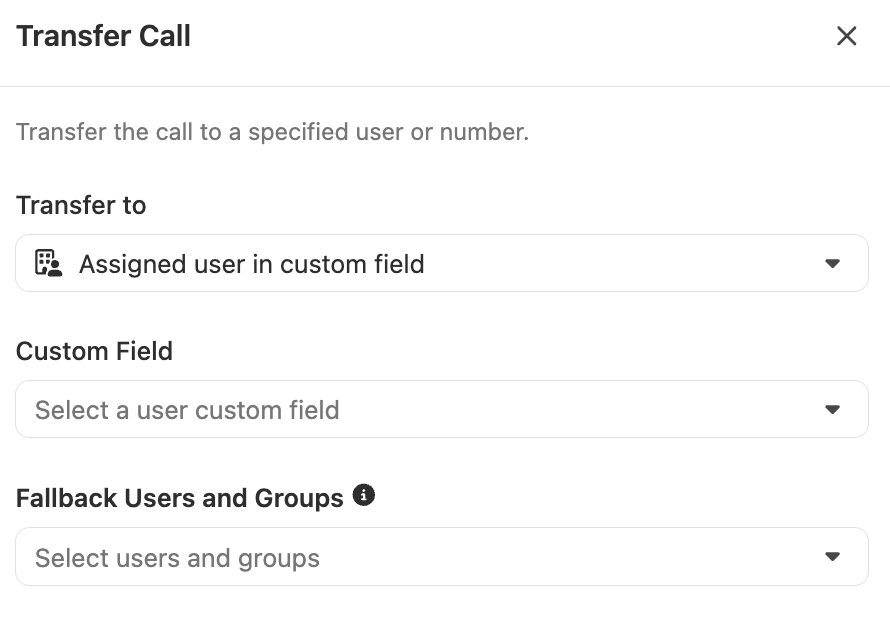
If no rep is available to take the transfer, the call falls through to your configured fallback.
Alert Users
When enabled, Chloe can notify specific team members during or after a call when something notable happens - for example, a contact expresses strong interest, mentions a competitor, or asks to speak with someone from the team.
To configure:
-
Toggle Alert Users on in the Skills tab
-
Click the gear icon to open the configuration
-
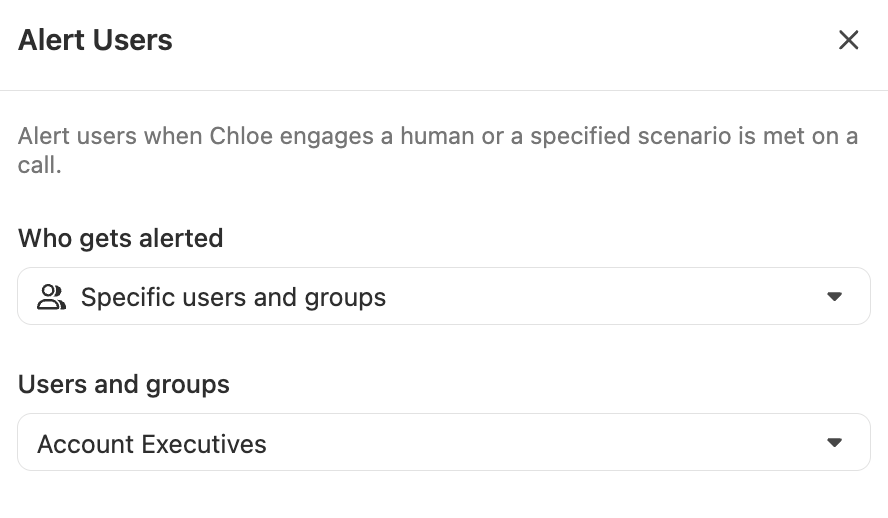
Choose a routing mode:
- Specific users and groups — select individual team members or groups to always notify
- Assigned user in custom field — route the alert to whoever is assigned in a custom field on the lead. Useful when leads are owned by different reps. Set a fallback user or group for cases where the field is empty.
-
Optionally add context in your Voice Agent’s instructions about when Chloe should trigger an alert; for example, “Alert the team if the contact mentions they have a budget approved and are ready to move forward”
Notified users receive an in-app notification with the lead name and a link to the call record.
Send Scheduling Link
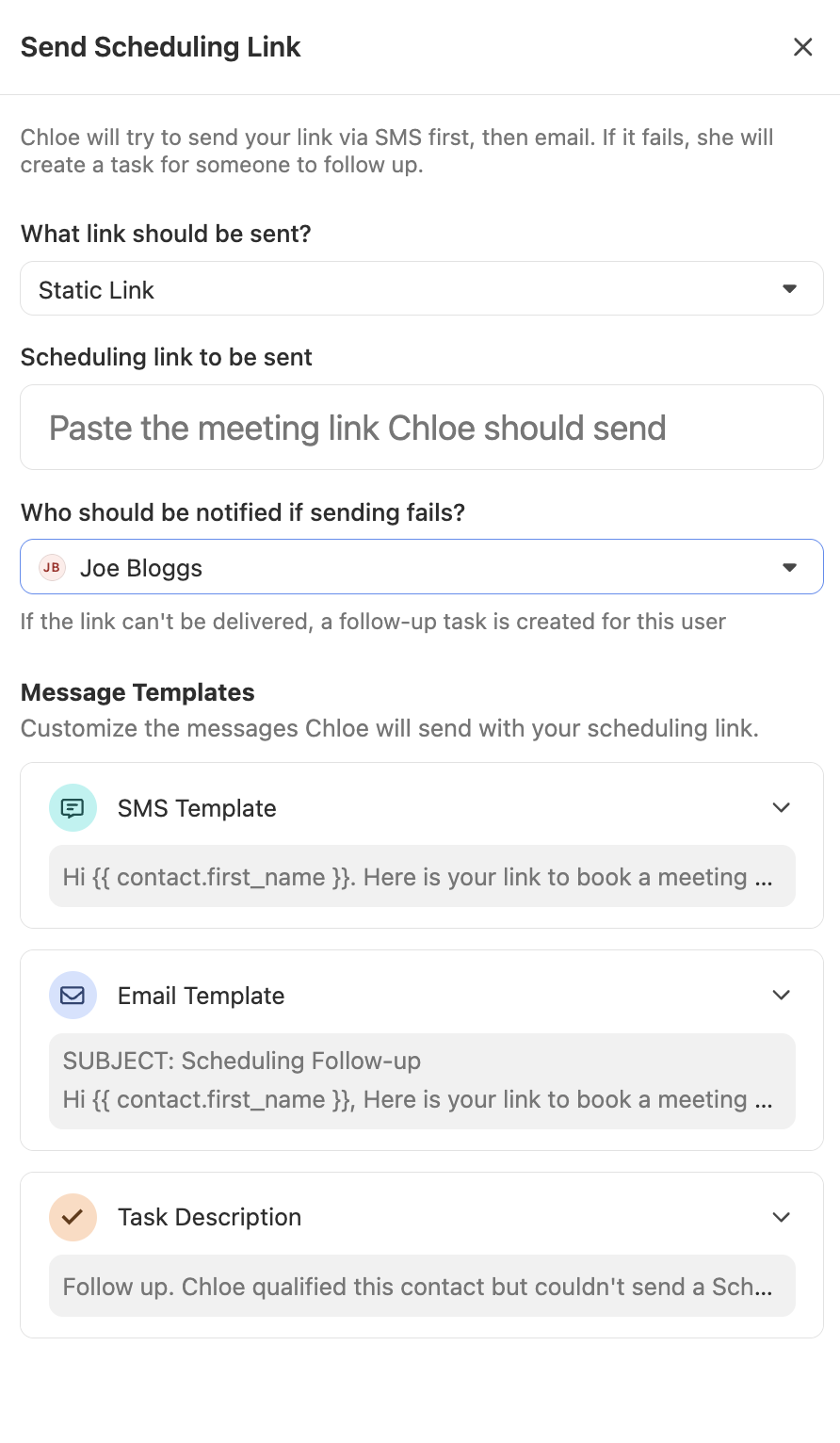
When enabled, Chloe can send a scheduling link to the contact after a call - for example, to book a follow-up call or demo. The skill automatically tries SMS first if a number is available, then falls back to email. If neither can be delivered, Chloe creates a follow-up task instead.
To configure:
- Toggle Send Scheduling Link on in the Skills tab
- Click the gear icon to open the configuration
- Select the Scheduling link to send and edit the default message template if needed
In your Voice Agent’s instructions, tell Chloe when to use the skill. There’s no need to specify the delivery channel, as it’s handled automatically. For example: “If the contact agrees to a follow-up meeting, use the Send Scheduling Link skill.”
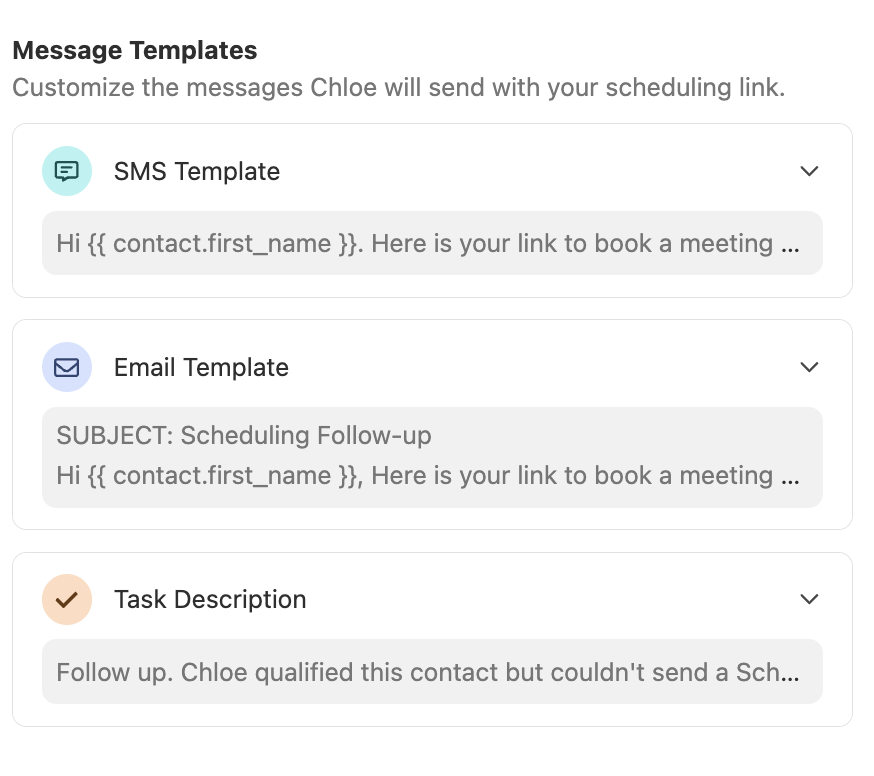
The email address used for sending is configured in the Voice Agent’s Settings tab. Make sure a connected email is assigned before going live.
Book Meeting
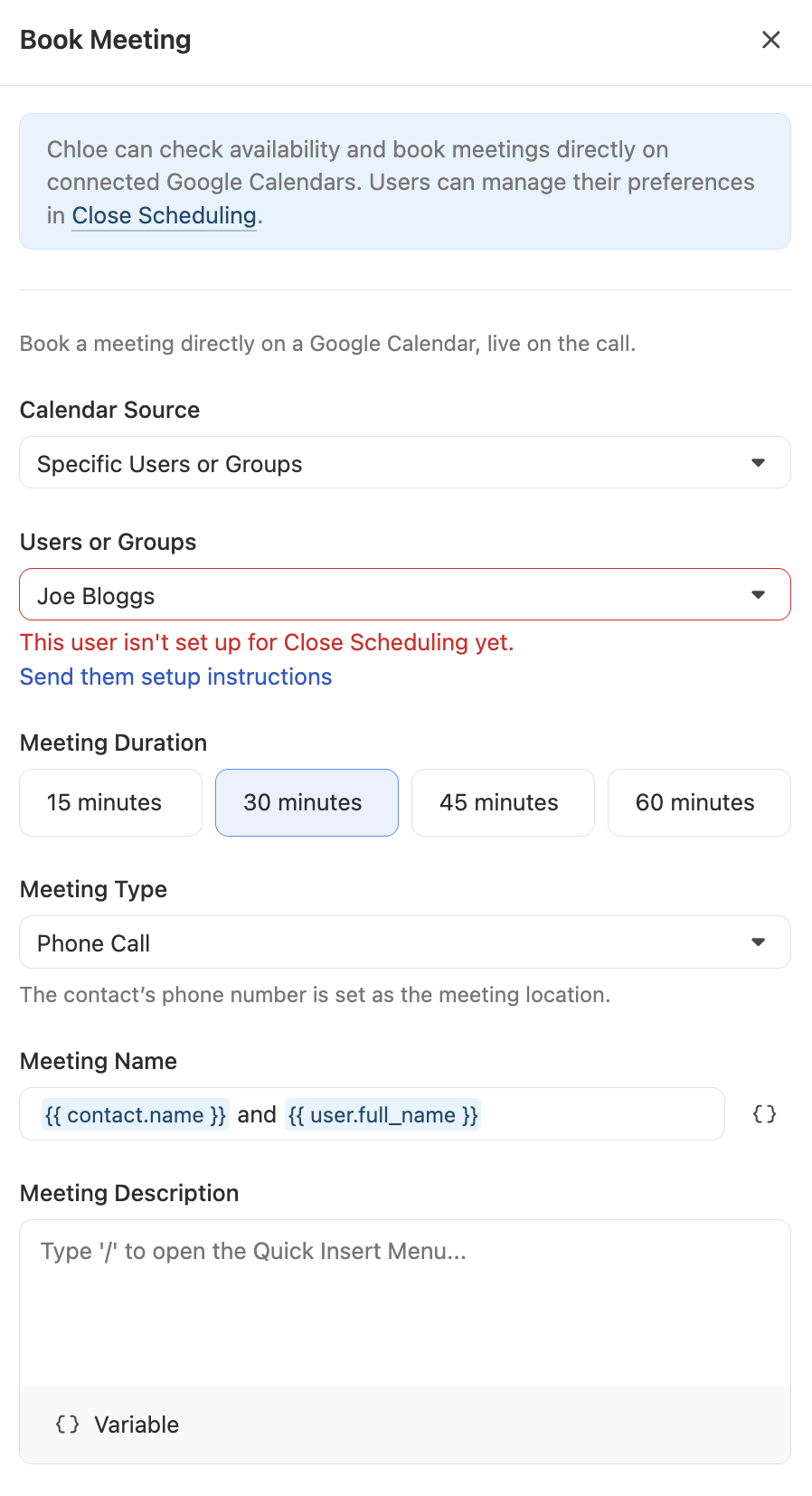
When enabled, Chloe can book a meeting directly during the call by checking calendar availability in real time and confirming the meeting with the contact before the conversation ends.
Before enabling this skill, go to Settings > Connected Accounts and confirm that booking permissions are active for your Google Calendar. This step is not included in the standard setup flow.
Use Book Meeting for high-intent conversations where booking in the moment increases conversion.
If the contact’s schedule is uncertain, Send Scheduling Link gives them flexibility to book when ready.
To configure:
- Toggle Book Meeting on in the Skills tab
- Click the gear icon and select the Calendar to book into
Meeting duration, availability window, and buffer time are pulled from your Close Scheduling settings — configure these in Settings > Scheduling Links before going live.
Book Meeting currently supports Google Calendar only. Outlook is not supported at this time.
In your Voice Agent’s instructions, tell Chloe when to offer to book a meeting; for example: “If the contact expresses interest in a demo, offer to book a call directly.”
Create Task
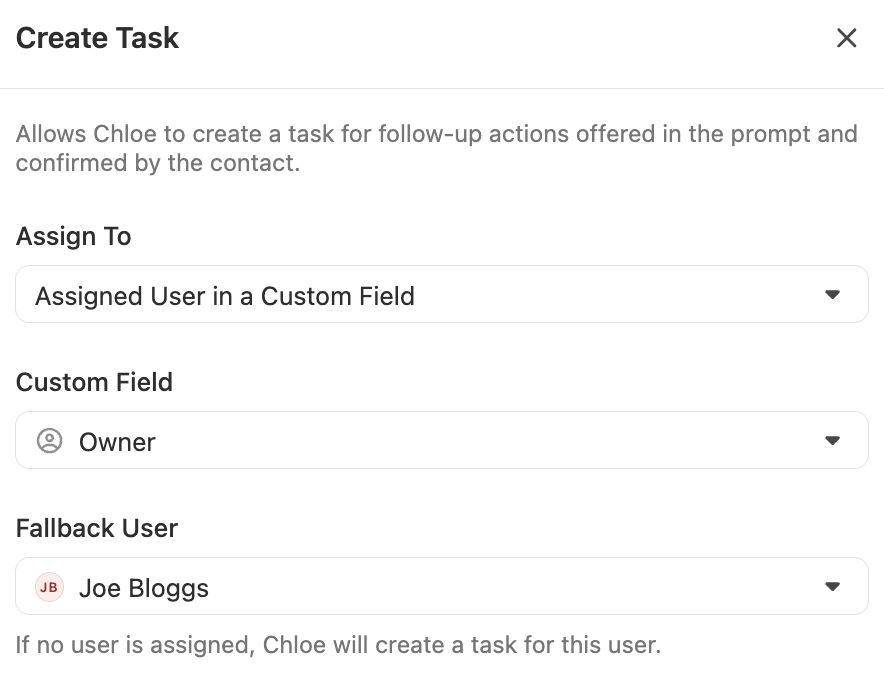
When enabled, Chloe creates a Close task for follow-up actions that were offered during the call and confirmed by the contact.
To configure:
-
Toggle Create Task on in the Skills tab
-
Click the gear icon to open the configuration
-
Configure:
- Task description — Chloe generates this based on the call, or you can provide a template
- Assignee — who the task should be assigned to
In your Voice Agent’s instructions, specify when and what Chloe should create a task for — for example: “If the contact asks you to send information or follow up, create a task for the assigned rep.”
Voicemail and Callback
Voicemail and callback behaviour are configured in the Voice Agent’s Settings tab.
Voicemail message
The voicemail message Chloe leaves when a call reaches voicemail can be customised in the Settings tab. You can use variables such as {{organization.name}} in the message text.
- Keep voicemail messages short and to the point - under 30 seconds is ideal
- Include a callback number or reference to an upcoming follow-up so contacts know what to do next
Callback
Enable the Chloe Callback checkbox in the Settings tab to allow Chloe to offer a callback when a contact is busy or asks to be reached later.
When a contact indicates they can’t talk, Chloe asks if they’d like a callback and, if so, confirms a time. If a callback-related Outcome is defined in the Voice Agent’s Playbook, the callback request will be reflected in the call’s Outcome.
Voicemail detection is functional but not perfect.
Some calls with automated attendants, call screeners, or unusual voicemail configurations may not be detected correctly.