

Migration from another CRM
Migration from another CRM
Use the ‘Import from a CRM’ option in the Lead Importer if you need to migrate leads over from an existing CRM.
Remember that only Close users with the Admin Role are allowed to initiate migration from an existing CRM.
Our partner, Import2, powers imports from external CRMs. As long as you initialize the import from within Close, then in most cases, there will be no cost to you.
Close Pro Tip: Initializing the CRM Import
Only one Close user should initialize the CRM import. Do not have multiple people on your team initialize an import. A single user initializing an import from your CRM will move over all of your team’s data from your old CRM.
Step 1: To get started, just head over to the Lead Importer page from the toolbar menu.
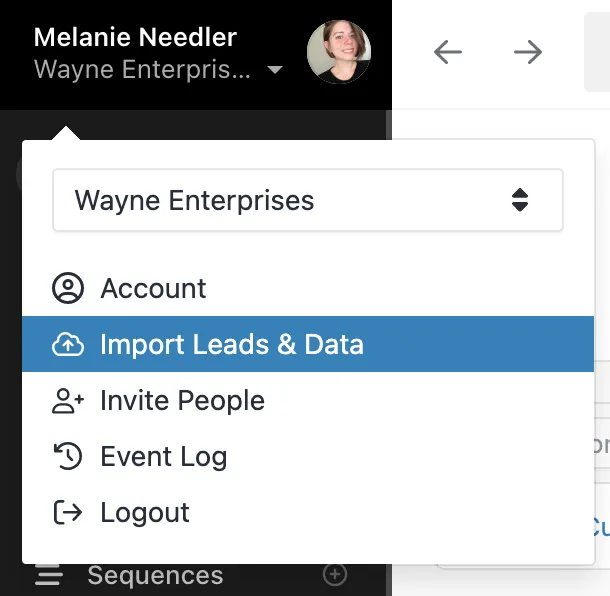
Then select your CRM from the Which CRM? dropdown and press Go.
We currently support automatic imports from the following CRMs into Close:
Act!, ActiveCampaign, Agile CRM, Attio, Capsule CRM, Copper, Firmao, Fow CRM, GoHighLevel, Highrise, HubSpot CRM, Insightly, Keap, Less Annoying CRM, MS Dynamics, Nimble, Nutshell, Onepage CRM, Pipedrive, PipelineDeals, Redtail CRM, Salesforce, Streak, Sugar CRM, SuiteCRM, Wealthbox, Zendesk Sell, and Zoho CRM.
If you’re currently using a CRM that is not listed above and won’t let you easily export everything into a single CSV, contact us at support@close.com and let us know how we can help.
Due to API limitations set by Salesforce, if you’re performing an import from SalesforceIQ, only Accounts and Contacts will be imported into Close. Notes and other Activities are non-transferable.
Step 2: You’ll be directed to connect to your source database.
Some CRMs may require you to enter an API token. You’ll need to find this from the CRM you are importing from. If you need help finding your API token, try reaching out to that CRM’s support team. Some CRMs will just allow you to connect by logging in and clicking to connect.
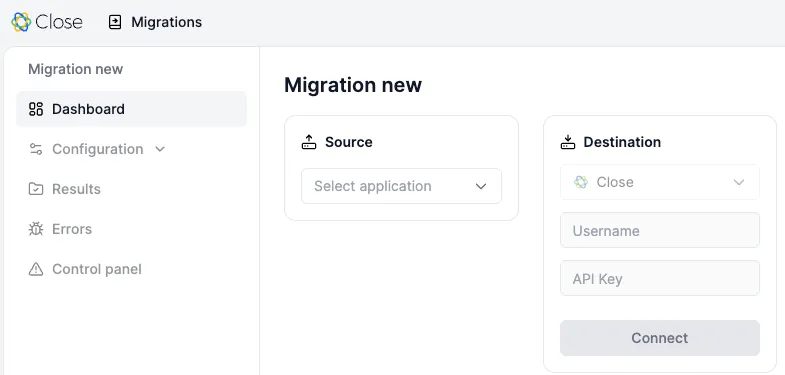
Your Close API Key will be created and added automatically by the system.
Step 3: Once you have connected to your source database, you will be prompted to start a sample migration.
Specific data you may have pertaining to Leads, Contacts, and Opportunities can be added as Custom Fields. Your Opportunities (Deals) Pipelines and all their Statuses can also be created in the “Field Mappings” settings.
Custom Fields can be created here, and you can map to your Custom Fields from the “Configurations” tab. Add and adjust your mappings as needed.
Click on “Start Sample Migration”, and Import2 will execute a sample import of a small section of your data. You’ll receive an email notification when this is complete. Depending on the size of your sample import, this could take a few hours.
Step 4: You can view the status and monitor the progress and/or any errors for your sample on the import page.
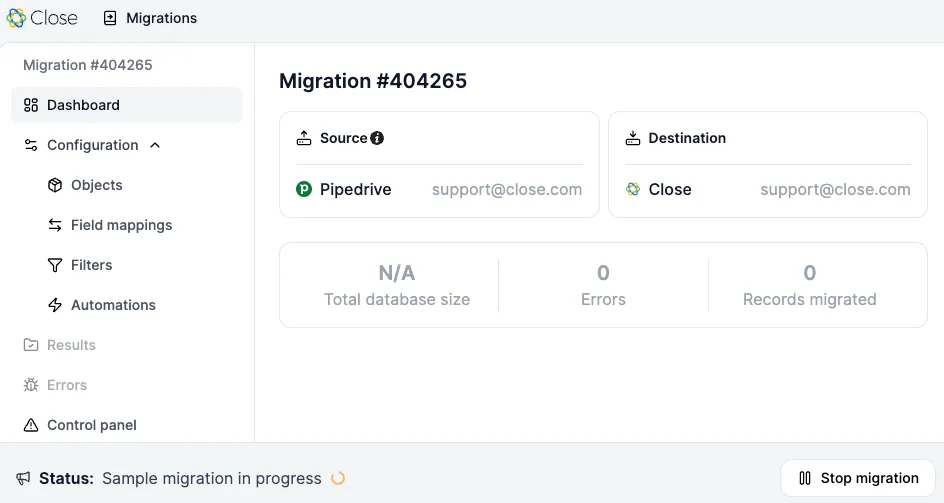
Step 5: Once your sample import is complete, check over the data that was imported into Close to make sure everything was mapped properly. You can also look at the sample records on the Import2 dashboard. After you’ve corrected any errors, initiate the full import from your import page.
If you want to re-do your sample import and change how your data is mapped, select Restart Sample Import from your import page.
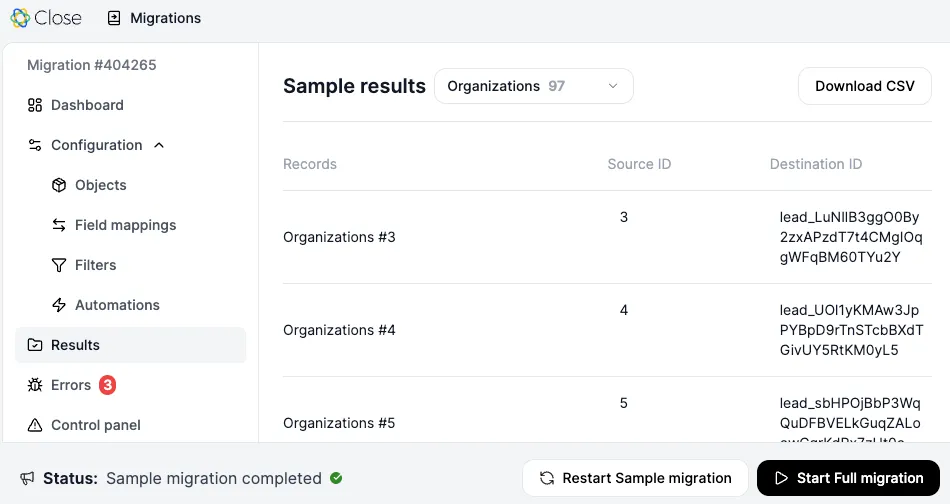
Step 6: You’ll then be directed to your Close account to confirm that you are ready for the full import to begin.
Step 7: Import2 executes the full import and will send you an email notification when it’s complete. You can track the progress on your import page. If you run into any questions, check out Import2’s Help Center.
You can also reach out to our Support Team at support@close.com, and we can help connect you to Import2’s Support Team.
Terminology Mapping
If you’re migrating from another platform, the table below will help you understand how key CRM terms translate into Close’s ecosystem. These are the closest matches, but functionality may be different in each case:
It is important to note that a Contact and Opportunity cannot exist without being tied to a Lead in Close. We have more on this object relationship here - /feature-guide/leads
Some platforms (e.g. Salesforce, Zoho) have different terminology for when a lead converts. In Close, a Lead is considered a Lead pre- and post-sale.
Terminology from other platforms is subject to change