

Leads
Close is designed to collect all of your communication history with a Lead within one view, as well as allow you to communicate with your Leads in a number of different ways.
By default, Close imports Companies as “Leads.” The individuals at that company are seen as “Contacts,” and if you are in the process of selling something to that Lead, we track that through “Opportunities”.
B2B
If you are a B2B business, your Leads will be Companies where each Lead (Company) will have one or more Contacts.
B2C
If you are a B2C business, your Leads will be Customers, and each Lead (Customer) will have precisely one Contact. The Lead name and Contact name will be the same in this case.
Tasks, Opportunities, Contacts, and Custom Fields
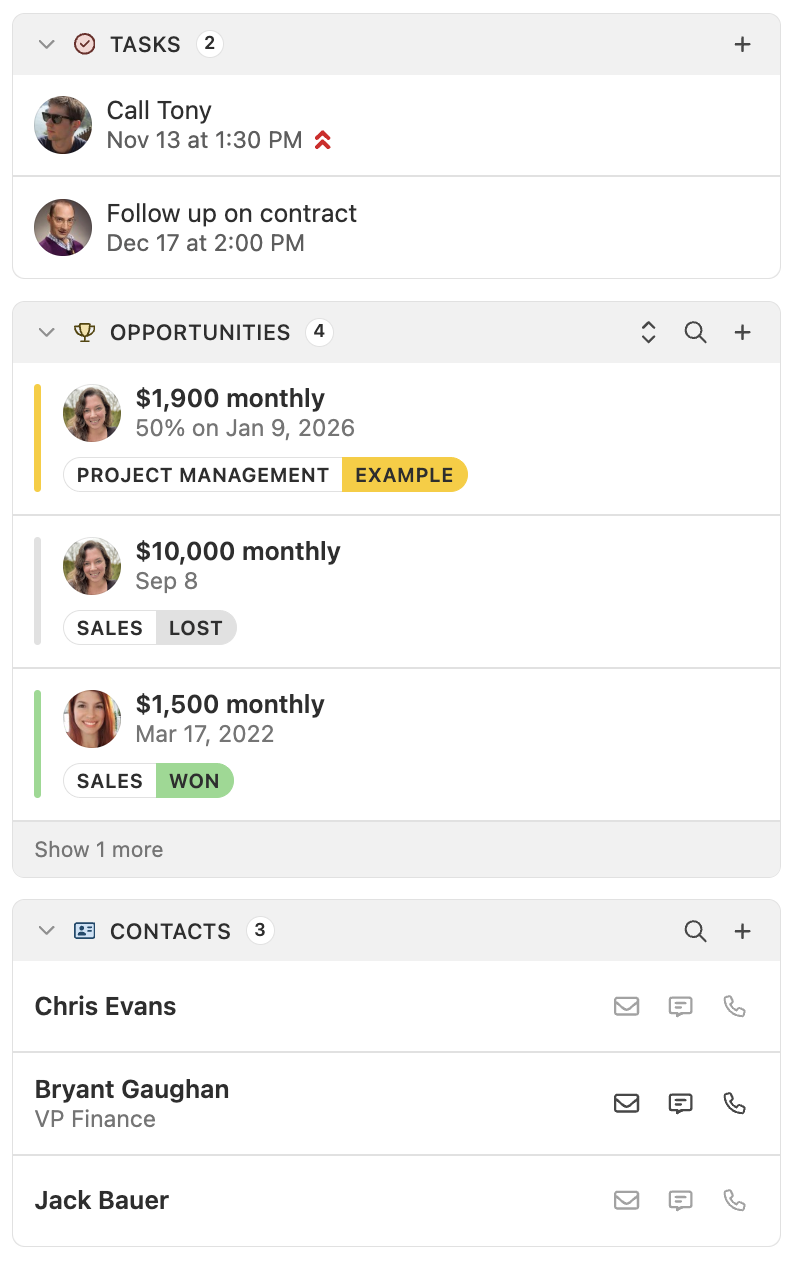
On the left side, you’ll see open (incomplete) Tasks, both active and inactive Opportunities, Contacts, and Custom fields.
Lead Summaries
Lead Summaries are AI-generated summaries of your leads, designed to give you a quick and clear overview of your leads, summarizing their context and history at a glance. This is especially useful when you’re preparing for a meeting or call, handing off a lead between team members, or if you’re a manager needing a quick overview of a lead’s status.
Plan Limitations
AI Lead Summaries is available on the Growth and Scale plans (legacy Professional and Enterprise).
Using AI Lead Summaries
You can generate an AI Lead Summary directly from a lead’s page. The summary is created from the last 90 days of activity or the most recent 100 activities—whichever is greater. This summary includes key lead details from Custom Fields, Opportunities, Tasks, and Contacts.

If you need to share the summary with your team, you can easily copy it to your clipboard using the copy function in the “More” menu shown above.
The summary will be generated in the primary language detected in your communications with the lead. Please note that there is currently no way to manually change the language of the summary. If you encounter any issues with language detection, please let our Support Team know.
Keeping Your Summary Up to Date
Whenever there is new activity on a lead, you’ll see a banner on the summary indicating that the information may be outdated.
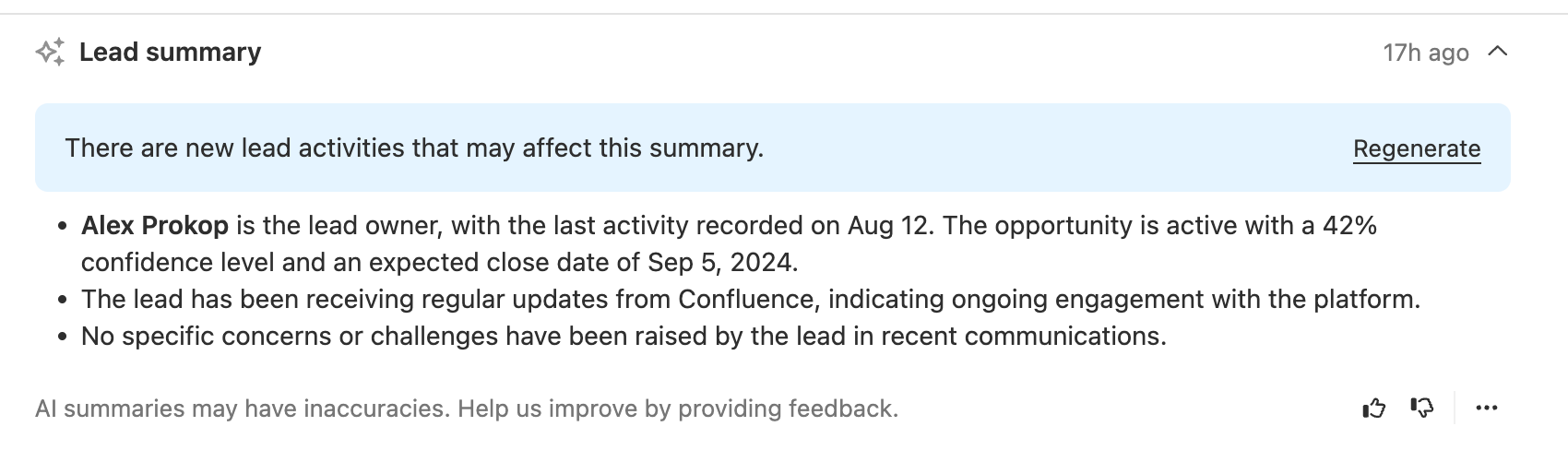
Within 48 hours of new activity, you have the option to manually regenerate the summary. After 48 hours, a new summary will automatically be available and updated when you expand the collapsed view.
Accuracy & Feedback
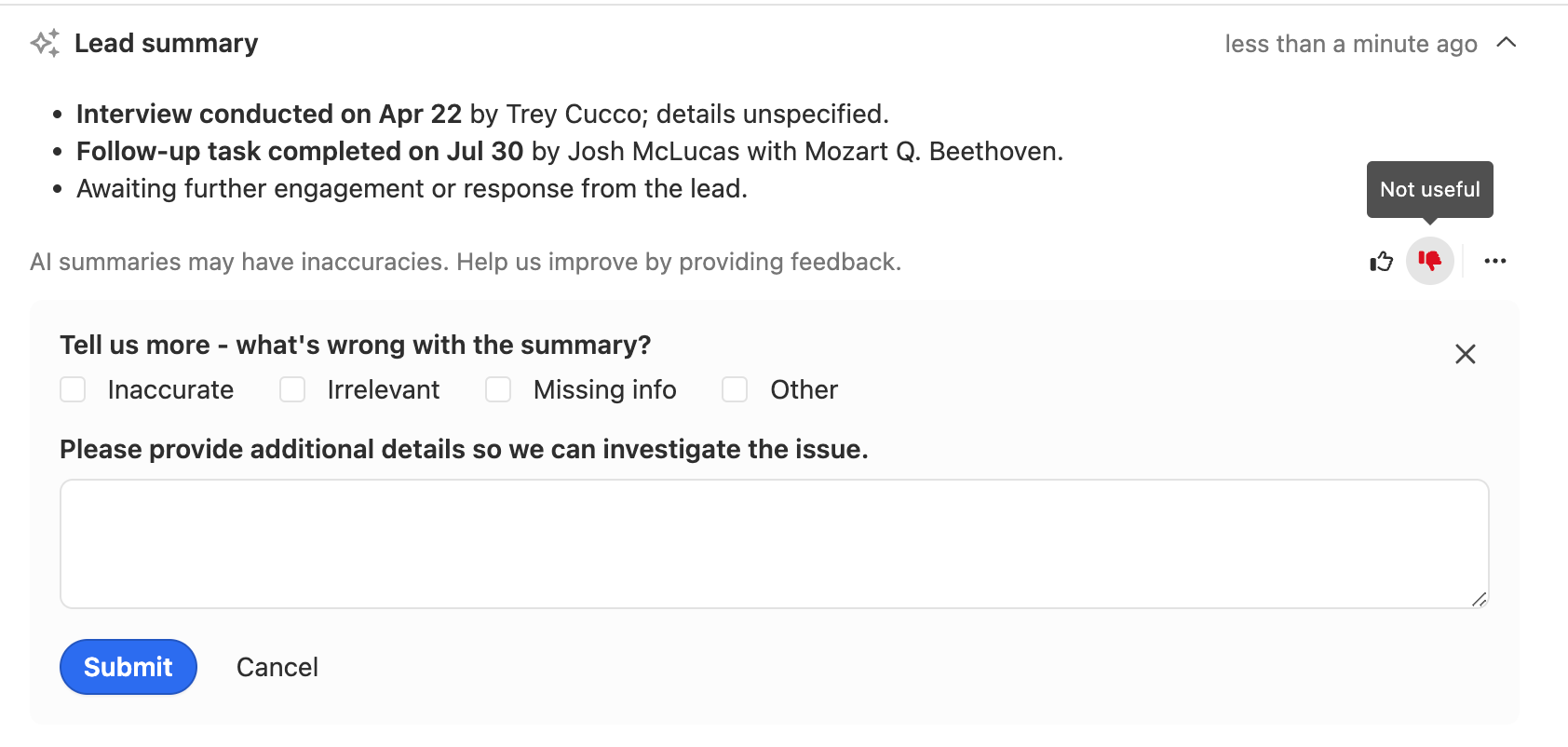
AI Lead Summaries are generated using advanced AI, but they may occasionally contain inaccuracies. We strongly encourage you to rate the summaries to help us improve the feature. If you find an issue, providing detailed feedback with a negative rating is especially valuable, as this information goes directly to our product team for review.
If you’ve rated a summary negatively, you also have the option to delete it if it’s not helpful.
Privacy & Security
The AI Lead Summaries feature is powered by the OpenAI API and your data is handled securely in accordance with our Privacy Policy.
Lead History
Along the right side of the Lead view, you’ll see the history of the Lead. Any Calls, Emails, Status Changes, completed Tasks, as well as Notes will all be shown here. You’ll also see the current Lead status on the top right-hand side of the page, and be able to change it if needed. The communication history automatically sorts in sequential order.
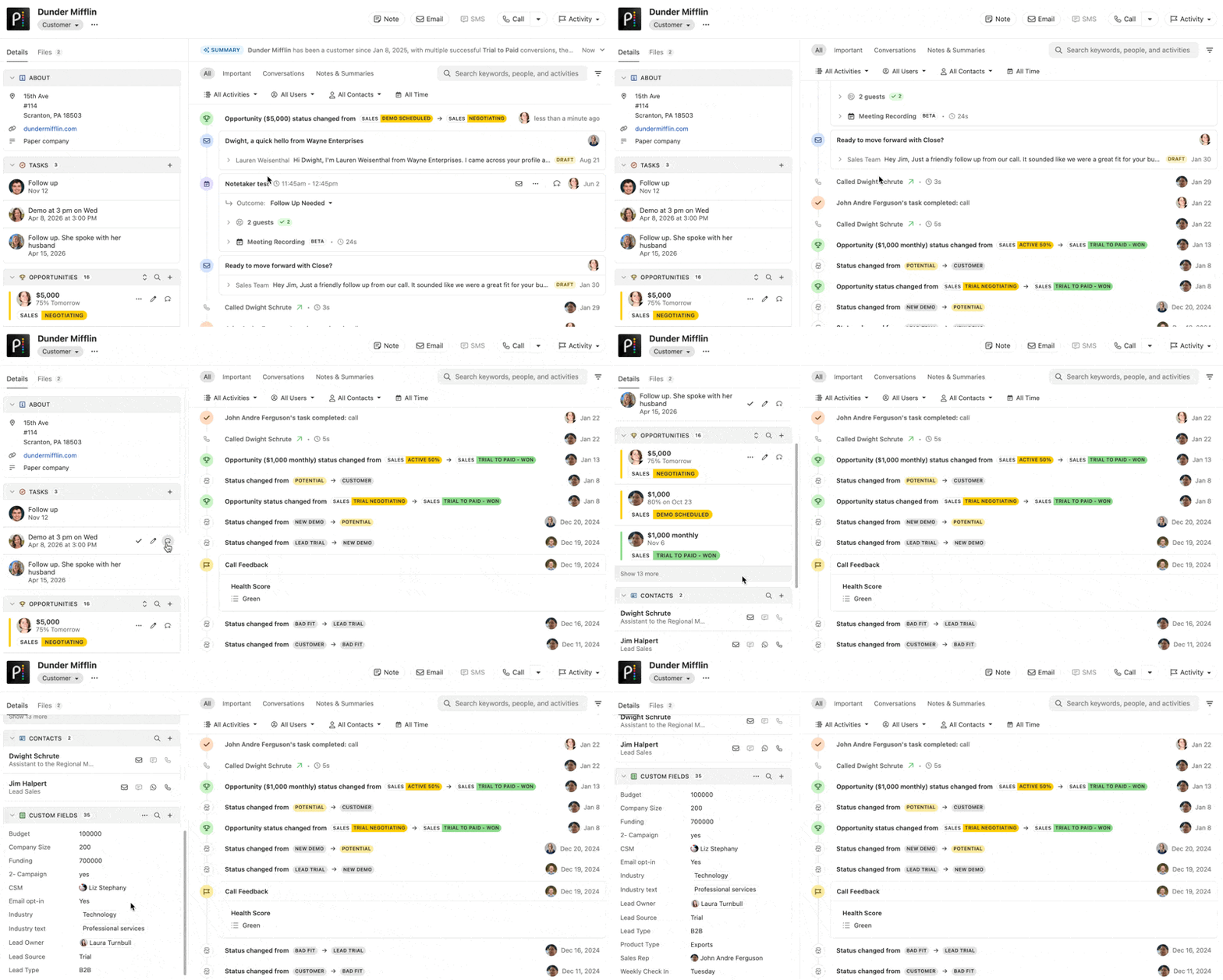
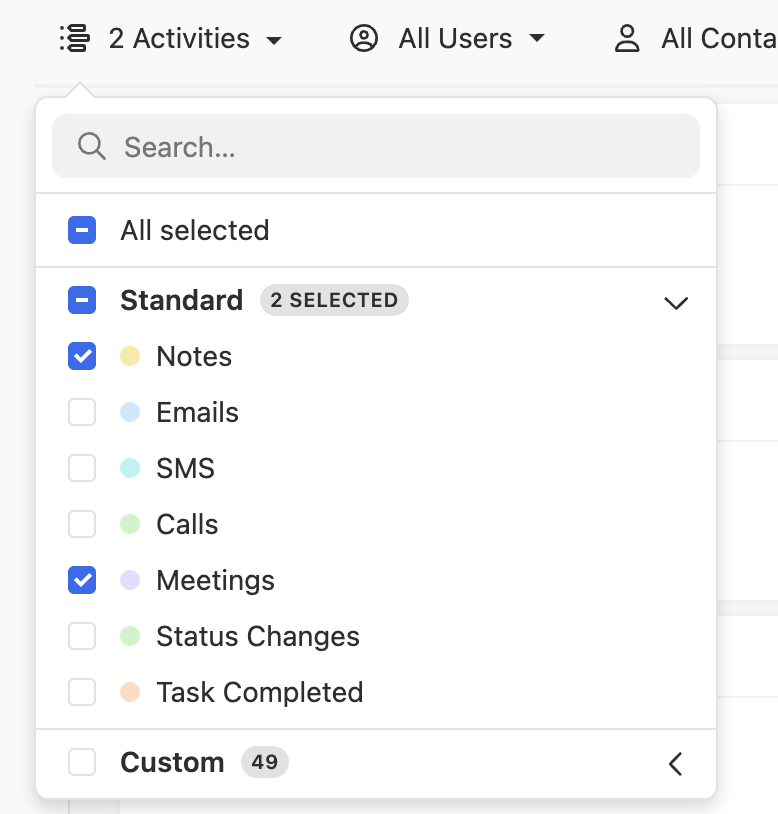
You can also choose only to view a particular type of activity on a Lead. For example, you could only want to show Notes or your call logs. Just toggle the “Activities” option at the top of the page:
Pinning Activities
Any Note or Custom Activity can be pinned at the top of the lead page, making it easy to refer to important details.
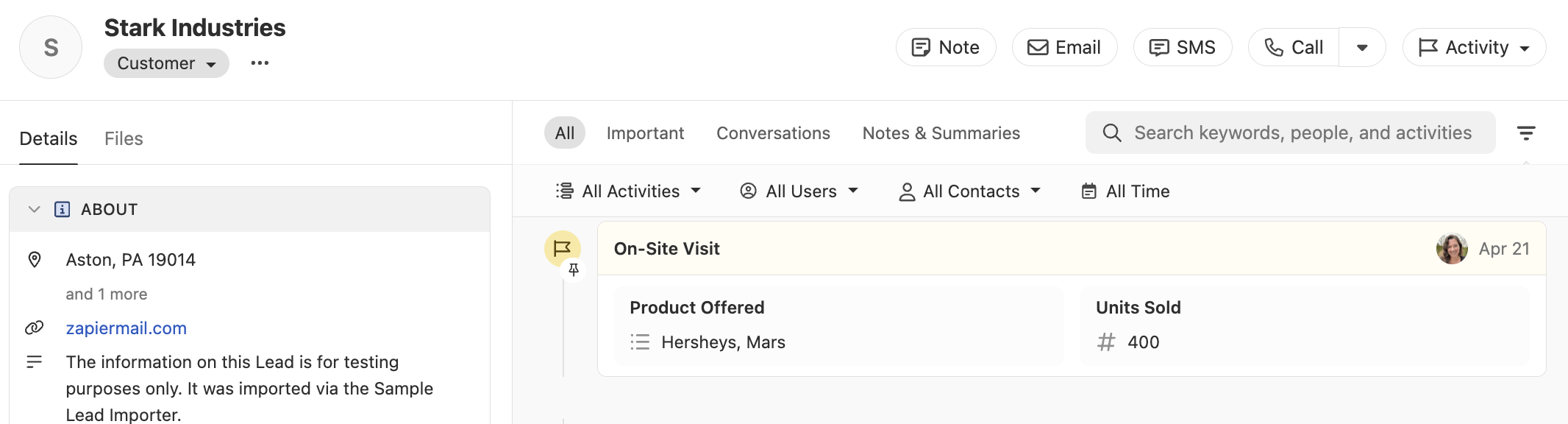
There can be up to 5 pinned activities at any given moment.
Pinned items appear at the top of the activity feed, in the same order as they appear in the feed by created date.
All users who can view that lead can view pinned activites. There aren’t any special permissions needed to pin or unpin items - any user who can view that lead can also pin/unpin activites.
Activity Link Sharing
To share a specific lead activity with a colleague such as an email, SMS, call, note, meeting, or a Custom Activity - just click on the activity date and then press Copy Link.

The date position depends on the activity type. In case of a call, SMS, note, or Custom Activities, the date is at the bottom. For emails is on the right, and for meetings, right below the meeting name.
Copied activity links look something like this:
Sharing this with your colleague will direct them to that specific activity instead of the general lead page.
Shared URLs can be viewed only by active logged-in users within the same Close organization.
Files
Any file or attachment shared with a Lead, or within a Note on the Lead, can be found by tabbing through the Lead menu:
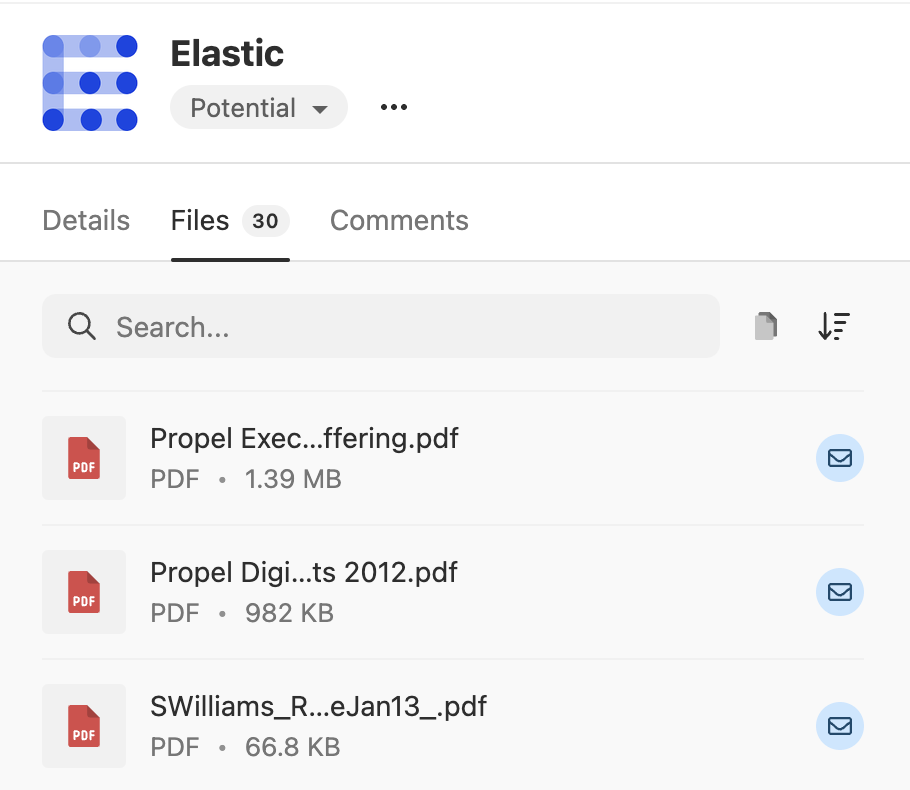
Filter by file type or the date received to find what you’re looking for. You can also hover your mouse over the email icon to see when the attachment was used. Click on the envelope icon to pull up the actual communication.
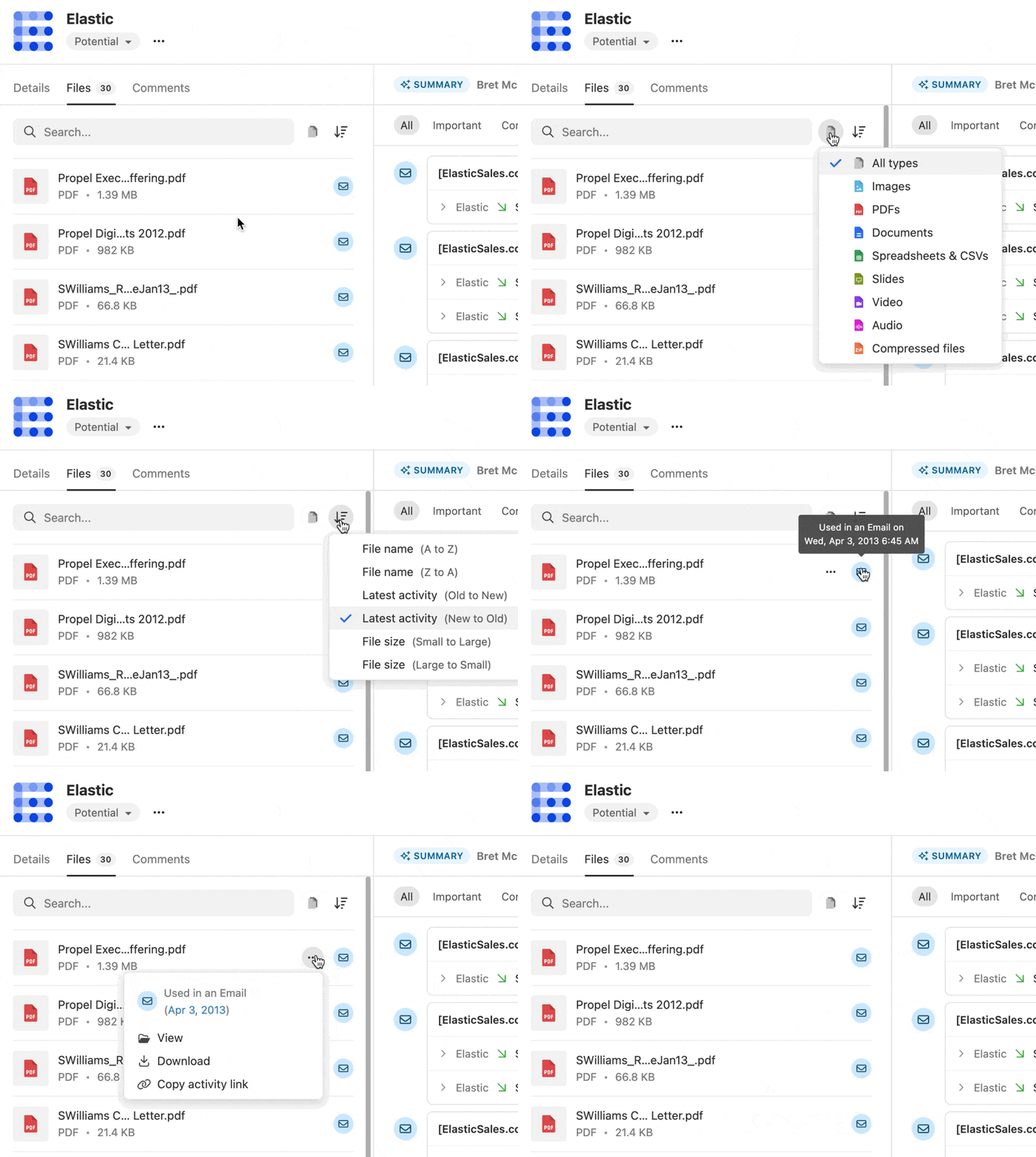
File sizes for email attachments are limited to up to 25MB, and 5MB for SMS. We do not validate or limit file types.