Every Voice Agent is linked to a Playbook that defines what Chloe captures on each call, how she summarizes it, and what Outcomes she can assign.
What the Playbook controls
Outcomes — the results Chloe can assign to a call after the conversation ends
Summary Guidance — how Chloe's post-call AI summary is structured
Custom Fields — data points Chloe captures on the call and writes to the call activity record
Outcomes
When you create a Voice Agent, Close automatically generates a set of Outcomes from a template. Review and update these in the Voice Agent's Settings tab before going live. The descriptions you write are what Chloe uses to detect and assign the right Outcome at the end of each call.
At the end of every call, Chloe will select an Outcome if one matches, based on what was said in the conversation and the descriptions you've written.
The more specific and distinct your Outcome descriptions, the more accurately Chloe will categorize each call.
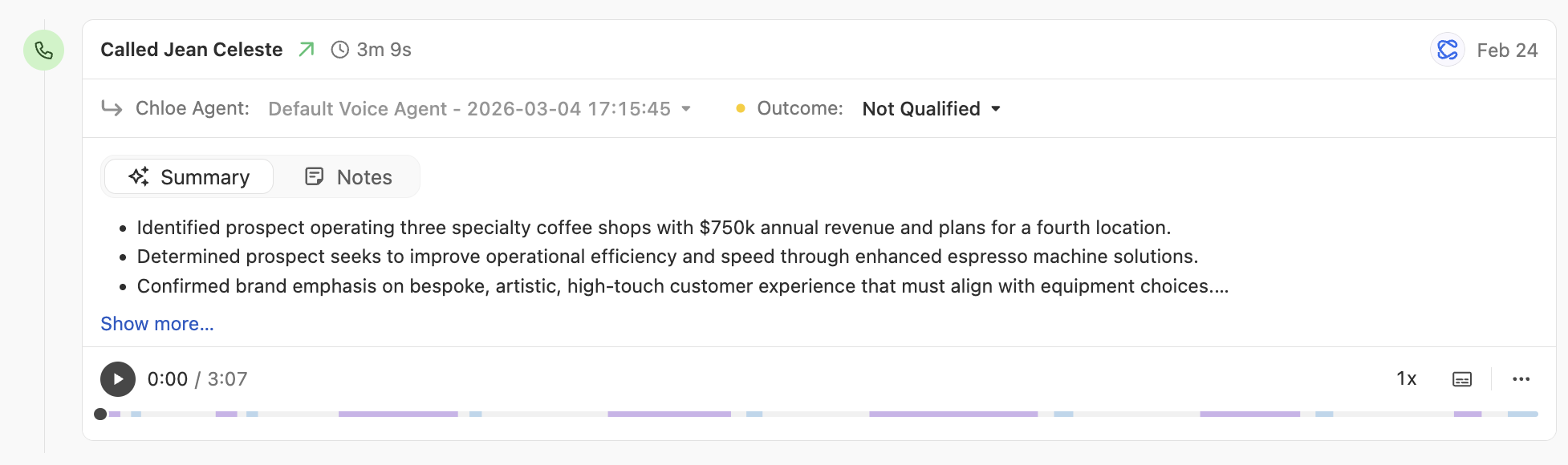
Outcomes assigned by Chloe appear on:
The lead record
The Voice Agent's Calls tab
Close reporting (filterable by Outcome)
Outcomes can also trigger downstream Workflow automations; for example, automatically sending a follow-up email or creating a task when Chloe assigns a specific Outcome. See Workflows for details on setting up post-call automation.
You can limit which Outcomes are available to a Voice Agent from the Voice Agent's Settings tab. Only the Outcomes you include will be options Chloe can assign on that agent's calls. For Playbooks not linked to a Chloe Voice Agent, Outcomes are configured directly in the Playbook edit view at Settings > Playbooks and Outcomes.
Tip
Set up your Outcomes before you go live with calling. Chloe performs best when she has clear, well-described Outcomes to choose from.
Summary Guidance
The Summary Guidance in the Chloe Playbook tells Close how to write the post-call summary that appears on the lead record after Chloe finishes a call. Every Chloe call summary follows that structure.
See Note Templates and Summary Guidance for tips on writing effective Summary Guidance.
Custom Fields
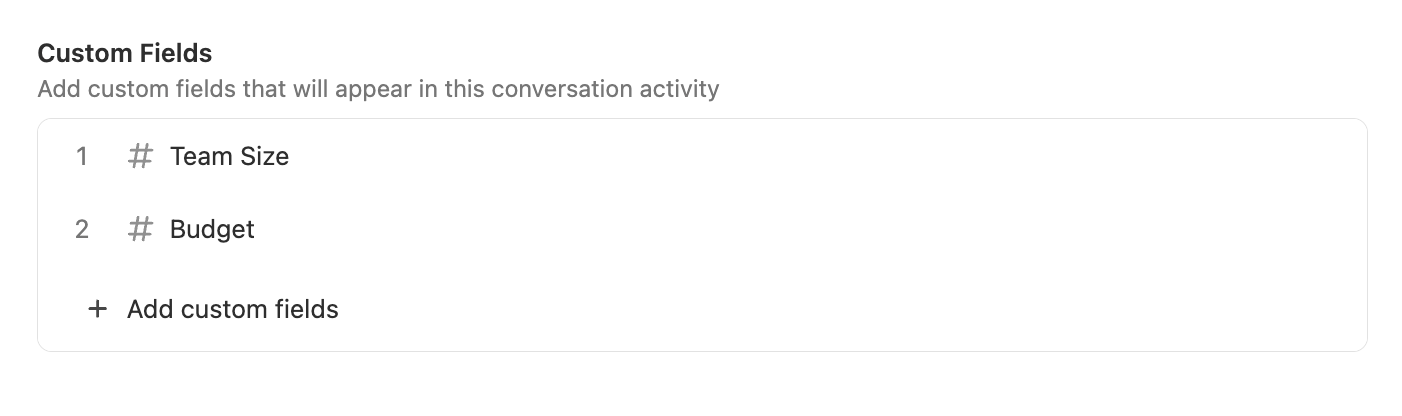
If your Chloe Playbook has Custom Fields linked, Chloe will automatically populate those fields based on what the contact said during the call.
For example, if you link a Team Size field and Chloe asks "How large is your team?", she will write the contact's answer to the Team Size field on the call activity record.
To set this up:
Create or find the field in Settings > Shared Fields - these are call-level fields that appear on call activity records
Link it to the Chloe Playbook in the Voice Agent's Settings tab
Add a question to Chloe's prompt that will prompt the contact to provide that information
Managing your Playbook
When you create a new Voice Agent, Close automatically creates a linked Playbook. You don't need to create one manually.
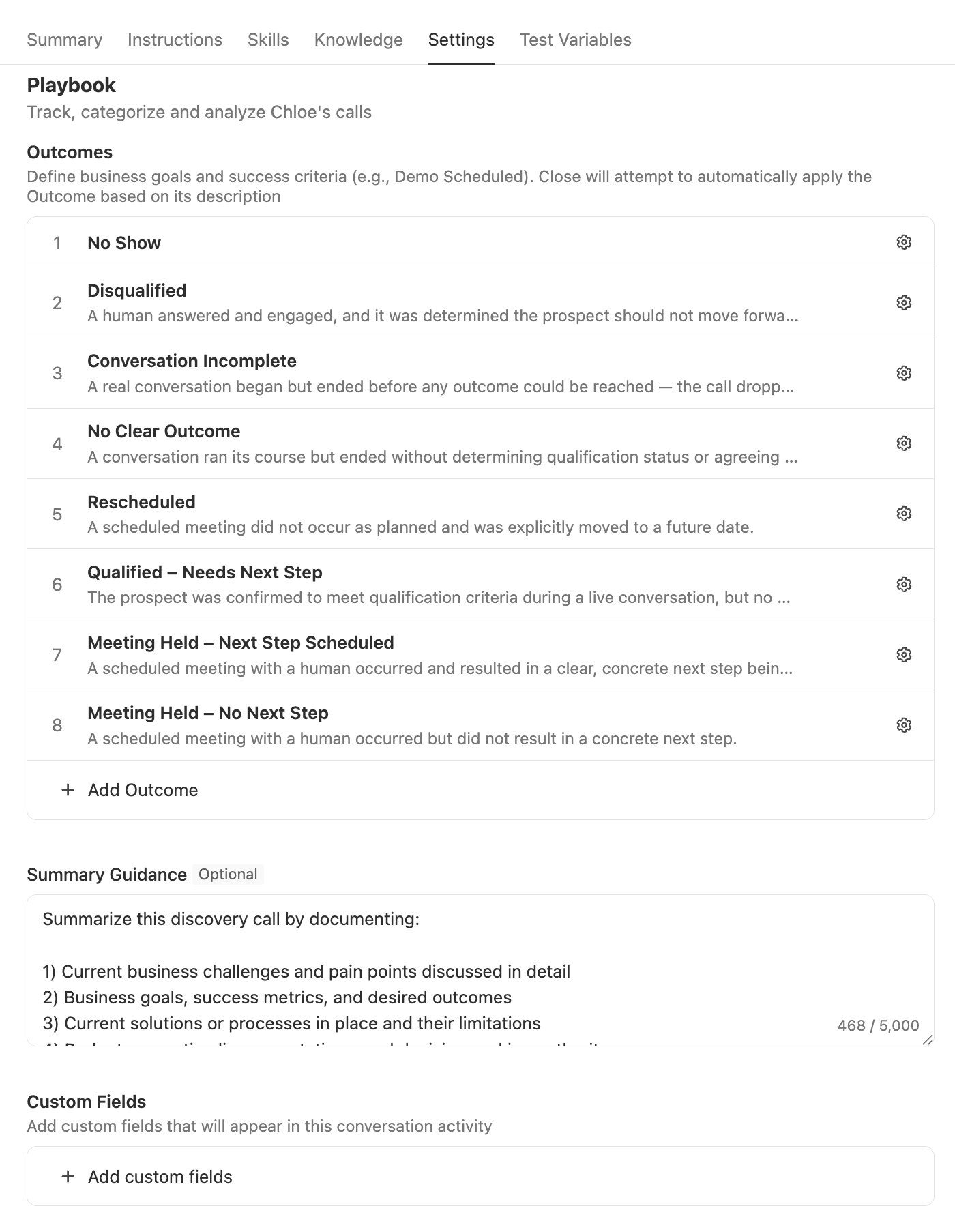
To edit the Playbook, go to the Voice Agent's Settings tab:
Select Chloe > Voice Agents from the left sidebar
Open the Voice Agent
Go to the Settings tab
Update the Outcomes, Summary Guidance, or Custom Fields
Changes to the Playbook take effect on the next call Chloe makes.
Changes to the Voice Agent's Instructions, Skills, and other configuration follow the standard draft/update flow. If the agent is in draft state they won't go live until you click Activate; if the agent is already active, clicking Update pushes changes live immediately.
Chloe Playbooks are managed exclusively through the Voice Agent, and they do not appear in Settings > Playbooks and Outcomes. They cannot be deleted while linked to a Voice Agent, and are archived automatically if the Voice Agent is deleted.