Close lets you block specific phone numbers directly from the app — no need to contact support. Once a number is blocked, the restriction applies across your entire organization, so all users are protected automatically.
You can also independently toggle the blocking of anonymous callers (callers with a hidden or unknown caller ID) from the same settings page.
This feature is available on all Close plans and accessible to all users.
Set up call blocking
Go to Settings → Communication → Phone & Voicemail → Blocked Numbers
Enter the phone number in E.164 format (e.g. +12125551234).
Enter a block reason — this is required and can be up to 200 characters.
Save the block.
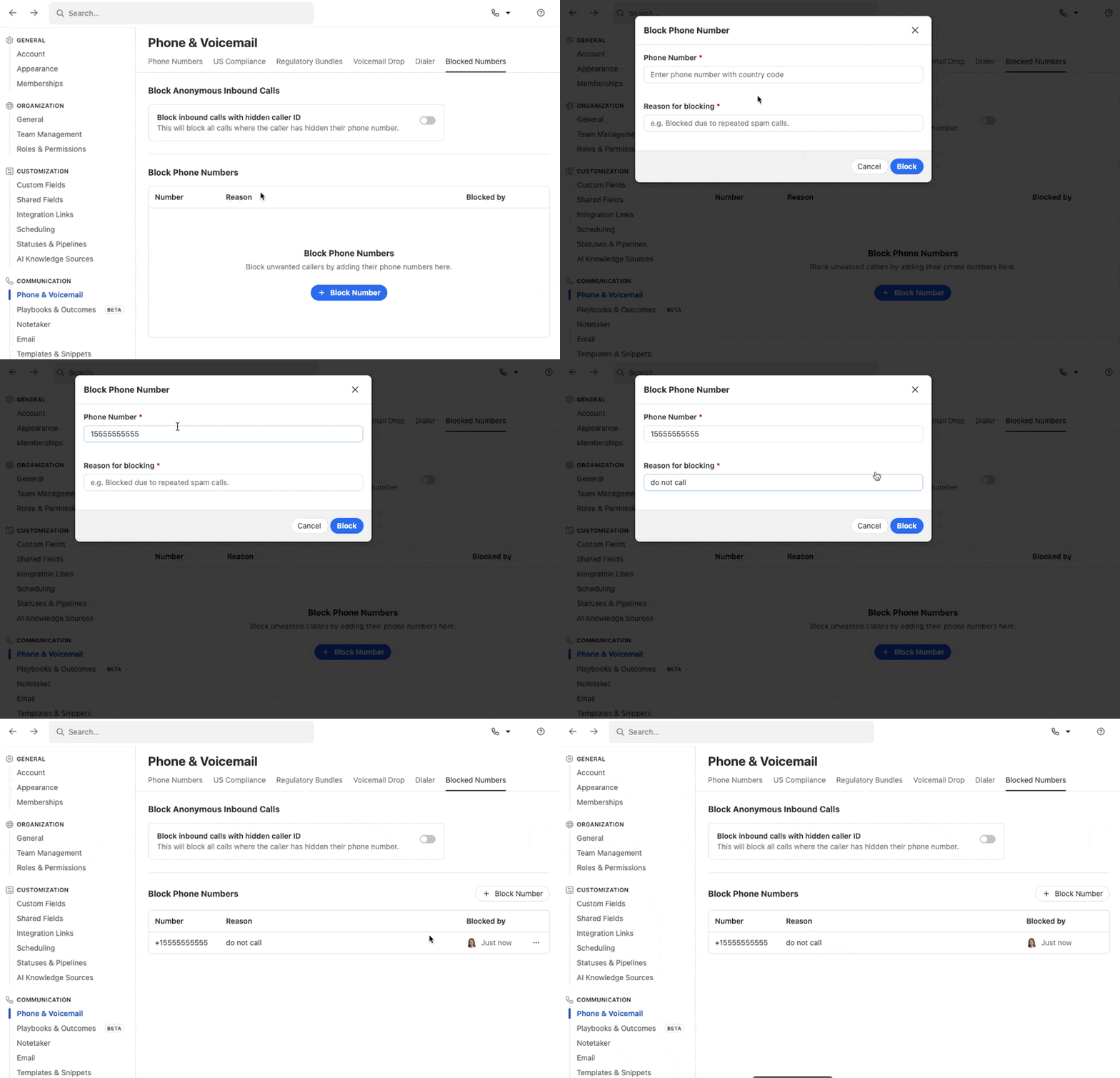
In addition to blocking specific numbers, you can toggle blocking for anonymous inbound calls — callers who have hidden their caller ID. This setting is managed independently from your blocked numbers list, and is also found on the same Blocked Numbers settings page.
What Happens When a Number Is Blocked?
Blocking affects inbound and outbound calls. SMS messages are handled separately and are not affected by call blocks.
Direction | What Happens |
|---|---|
Outbound call (your user calls a blocked number) | The call is blocked. Your user hears: "This number has been blocked by your organization." The attempt is logged and marked as blocked in the call history. |
Inbound call (a blocked number calls you) | The call is blocked. The caller hears: "This call cannot be connected, goodbye." The attempt is not logged in the call history. |
A few things to keep in mind:
The same number cannot be added twice. Close automatically normalizes numbers to E.164 format to prevent duplicates.
The phone number itself cannot be edited after it's added. To correct a number, delete the entry and re-add it.
The block reason can be edited at any time from the blocked numbers list.
Organization-Wide Blocking
Every block is applied organization-wide. This means:
It doesn't matter which user added the block — it applies to everyone in your org.
There is no way to block a number for only a specific user or team.
Removing a Block
To unblock a number, simply delete it from the blocked numbers list by clicking on the ‘…’ option.
.png)