Once Playbooks are set up, reps can apply them to calls and meetings directly from the call record. This article covers the rep experience, from applying a Playbook mid-call to reviewing what Close captured after the call ends.
Applying a Playbook to a call
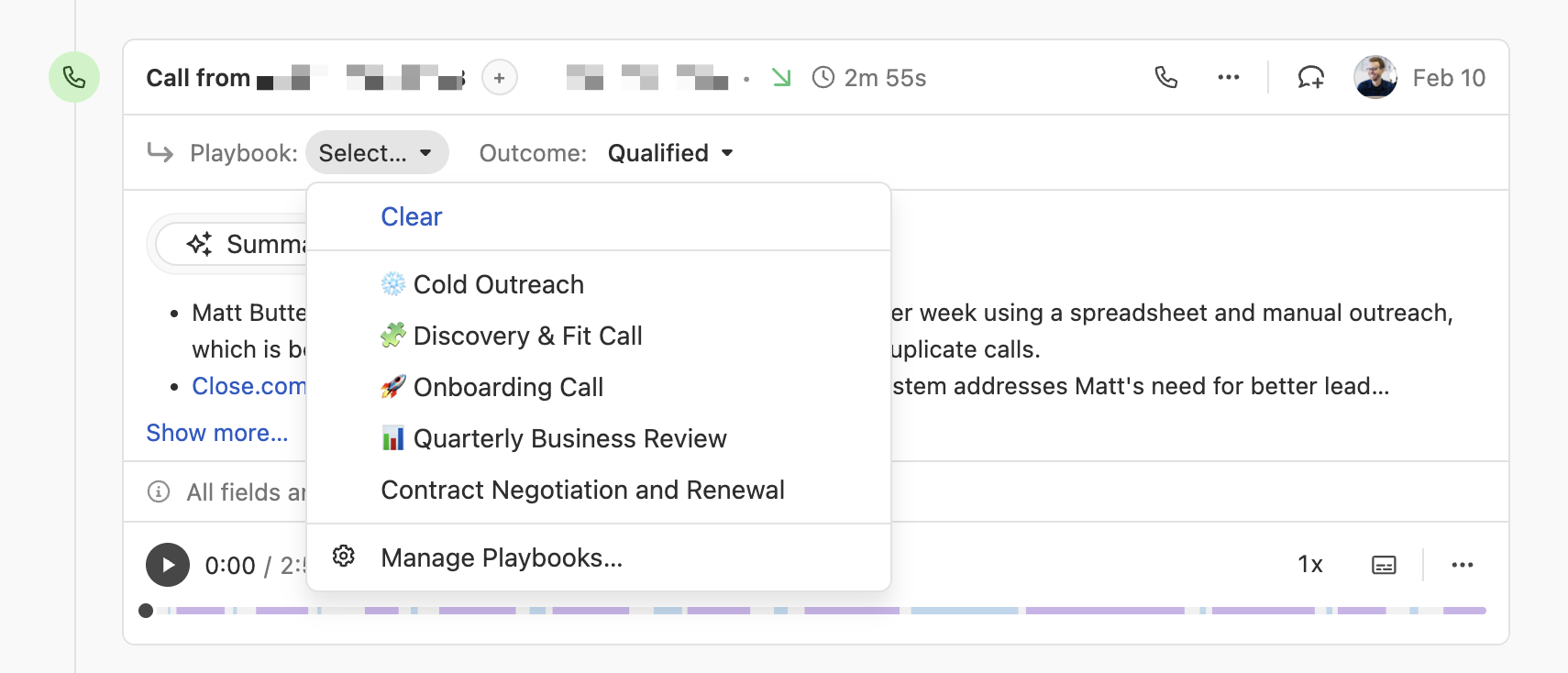
Playbooks can be applied to a call before, during, or after the conversation.
Open the call record in Close
Find the Playbook field on the call
Select the relevant Playbook from the dropdown
Once a Playbook is applied:
The linked Outcomes become available to select
The linked custom fields appear on the call record
The note template (if configured) is generated on the record
The summary guidance takes effect for the AI summary
Selecting an Outcome
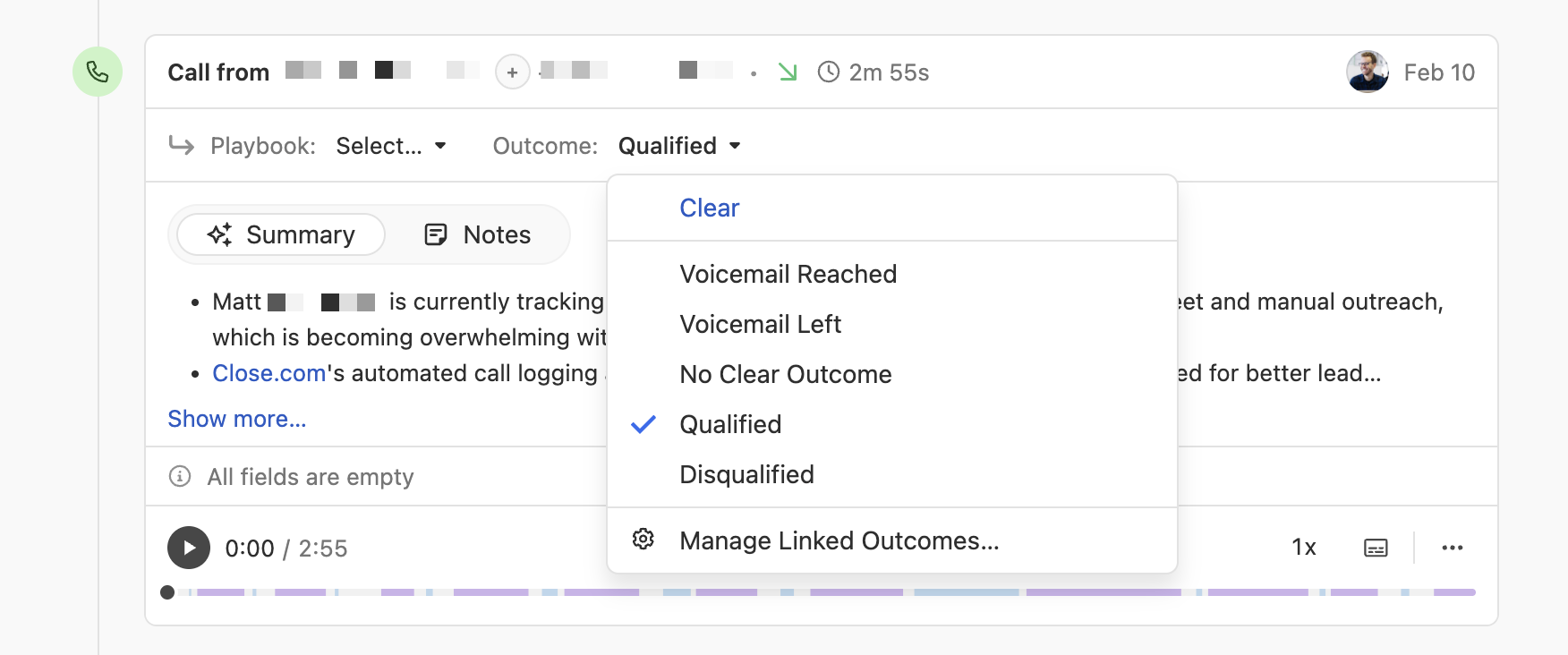
Outcomes capture the result of the conversation. Close will attempt to auto-detect the correct Outcome after the call ends — but you can always override it.
To select or change an Outcome:
On the call record, find the Outcome field
Select the result that best describes what happened
The available Outcomes are determined by whichever Playbook is applied to the call. If no Playbook is applied, no Outcomes will be available.
How auto-detection works
After a call ends, Close analyzes the transcript and automatically selects the Outcome it believes best matches — based on the description your admin wrote for each Outcome.
The auto-detected result appears on the call record within a short time of the call ending
You can accept it as-is or change it to something more accurate
If Close isn’t confident enough in a match, it will leave the Outcome blank for you to fill in
Pro tip
If auto-detection is regularly off for a specific Outcome, let your admin know. The fix is usually improving the description for that Outcome in Settings.
Filling in custom fields
If the Playbook has custom fields linked to it, those fields will appear on the call record after the Playbook is applied.
Fill them in during or after the call
The data is saved to the Lead or Contact record in Close
Your team can filter Smart Views and reports using these fields
The call note
If your admin has added a note template to the Playbook, a structured note will be auto-generated on the call record when the call ends. It gives you a pre-formatted starting point - fill in the blanks and add your own observations.
The note is editable. Anything you add or change is saved to the Lead.
The AI call summary
Close automatically generates a summary after every call. If the Playbook has summary guidance configured, the summary will follow the structure your admin defined.
The summary appears on the call record and gives you (and your team) a quick way to understand what happened on the call without reading the full transcript.
Switching Playbooks mid-call or after
You can change the Playbook on a call at any time. Keep in mind:
Switching Playbooks will update the available Outcomes
If the current Outcome is not linked to the new Playbook, it will be cleared automatically
The note template and custom fields will update to reflect the new Playbook
Calls without a Playbook
Playbooks are optional. If no Playbook is applied to a call:
No Outcomes will be available
No custom fields or note template will appear
The AI summary will use the default Close behavior (no custom guidance)
If your team’s calls should always use a Playbook, ask your admin to set a default or include it in your team’s call workflow.