Playbooks are currently in free beta. Reach out to support@close.com for more info.
Playbooks give your team a shared framework for how to run specific types of conversations, whether that's a discovery call, a demo, a follow-up, or an onboarding check-in. Pair them with Outcomes to track what happened on each call, and use them with Close AI to generate structured summaries and automatically capture key data points.
What is a Playbook?
A Playbook is a reusable conversation template that defines the structure and goals of a specific type of call or meeting. It brings together:
Outcomes: the possible results of the conversation (e.g. Demo Scheduled, Not Interested, Callback Requested)
Custom fields: structured data points to capture during the call (e.g. Team Size, Budget Range, Use Case)
Note template: an auto-generated call note structure that populates after the conversation
Summary guidance: instructions that tell Close AI how to summarize the call
Playbooks live in your org's settings and are available to use on any call or meeting in Close.
Setting Up Playbooks
Playbooks are created and managed in your Close settings. You’ll need the Manage Customizations permission to create, edit, archive, or delete them. To get started, go to Settings > Playbooks and Outcomes > Playbooks. Click Add New Playbook.
Edit a Playbook by clicking the Playbook you want to edit, making your changes, and Save. Changes take effect immediately on any call or meeting where the Playbook is applied.
.gif)
Delete or Archive a Playbook
Archiving removes a Playbook from the active list and stops it from appearing as an option on new calls. Archived Playbooks are not deleted — their history is preserved. Deleting a Playbook is permanent. Call records that used the Playbook will retain their Outcome and note history, but the Playbook will no longer be selectable.
Linking Outcomes to a Playbook
Outcomes define what can happen at the end of a conversation. You can link Outcomes to a Playbook when creating or editing it.
Select from existing Outcomes in your org, or
Create a new Outcome directly from the Playbook form
For full details on creating and managing Outcomes, see Outcomes.
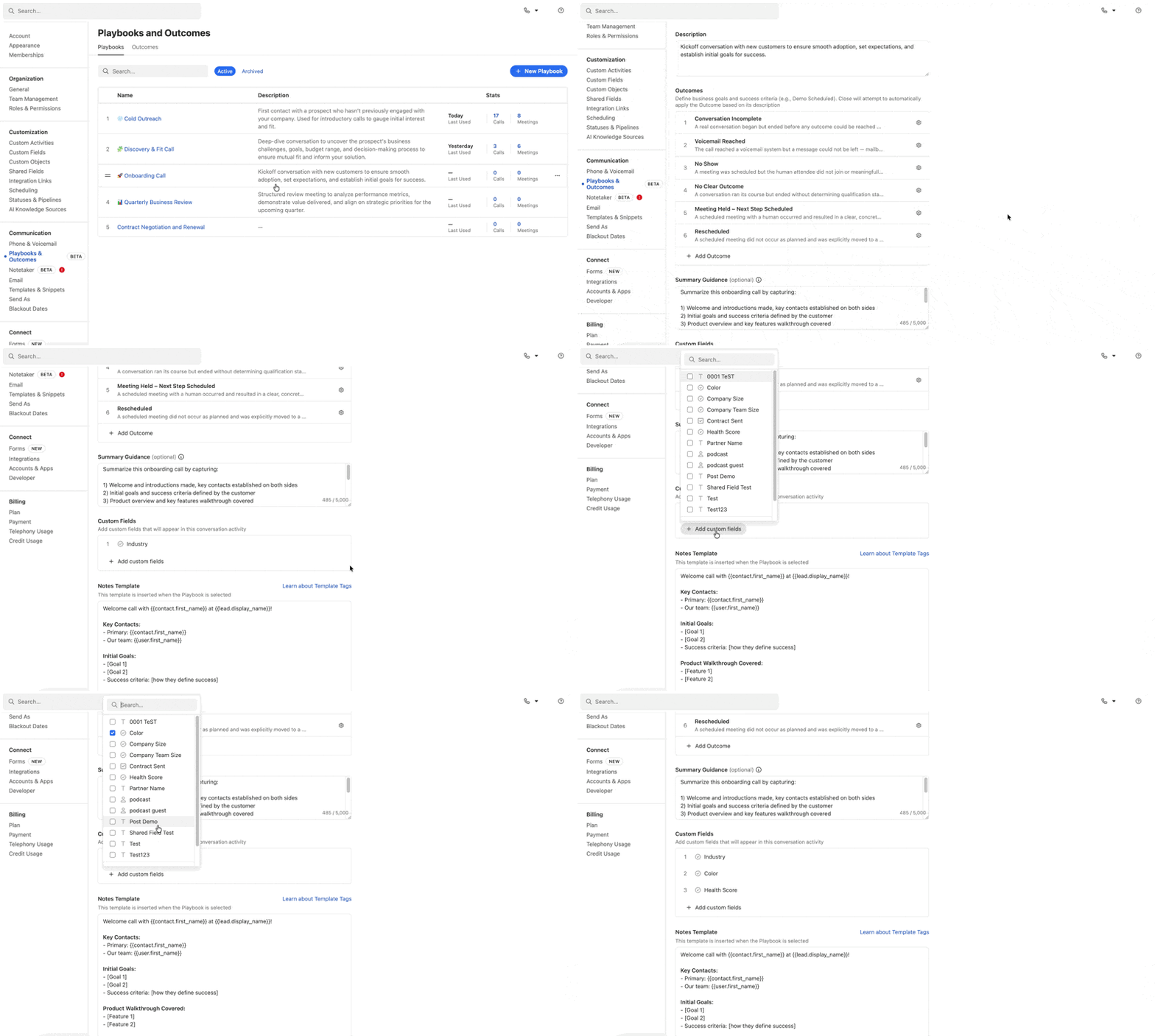
Linking Custom Fields to a Playbook
Custom fields let you capture structured data on the call record when a Playbook is used. For example, a Discovery Call Playbook might capture Team Size, Budget Range, and Primary Use Case.
In the Playbook, scroll to Custom fields
Select the fields you want to attach
Save the Playbook
After a call where this Playbook is used, the linked fields will appear on the call record for reps to fill in.
Note:
Custom fields must already exist and be a Shared Field in your Close organization before they can be linked to a Playbook. Create them in Settings > Custom Fields first.