

Outcomes
Call and Meeting Outcomes
Call and Meeting Outcomes help you track and categorize the results of your calls and meetings, giving you better insights into your sales activities and performance.
Overview
Outcomes represent the result of a connected call or a completed meeting. They help you understand what happened during your conversations and provide valuable data for reporting and analysis.
Key Benefits:
- Track the effectiveness of your calls and meetings
- Generate more accurate performance reports
- Reduce manual data entry
Getting Started
Availability
Call and Meeting Outcomes are available to users on Growth and Scale plans.
Managing Outcomes
Creating Outcomes
Outcomes are created and managed within Playbooks.
- Go to Settings > Playbooks and Outcomes
- Open the relevant Playbook
- In the Playbook edit view, add or edit its Outcomes
- Enter the outcome name and description (optional but recommended)
- Set whether the outcome applies to calls, meetings, or both
- Save
For Playbooks linked to a Chloe Voice Agent, Outcomes are configured in the Voice Agent’s Settings tab instead.
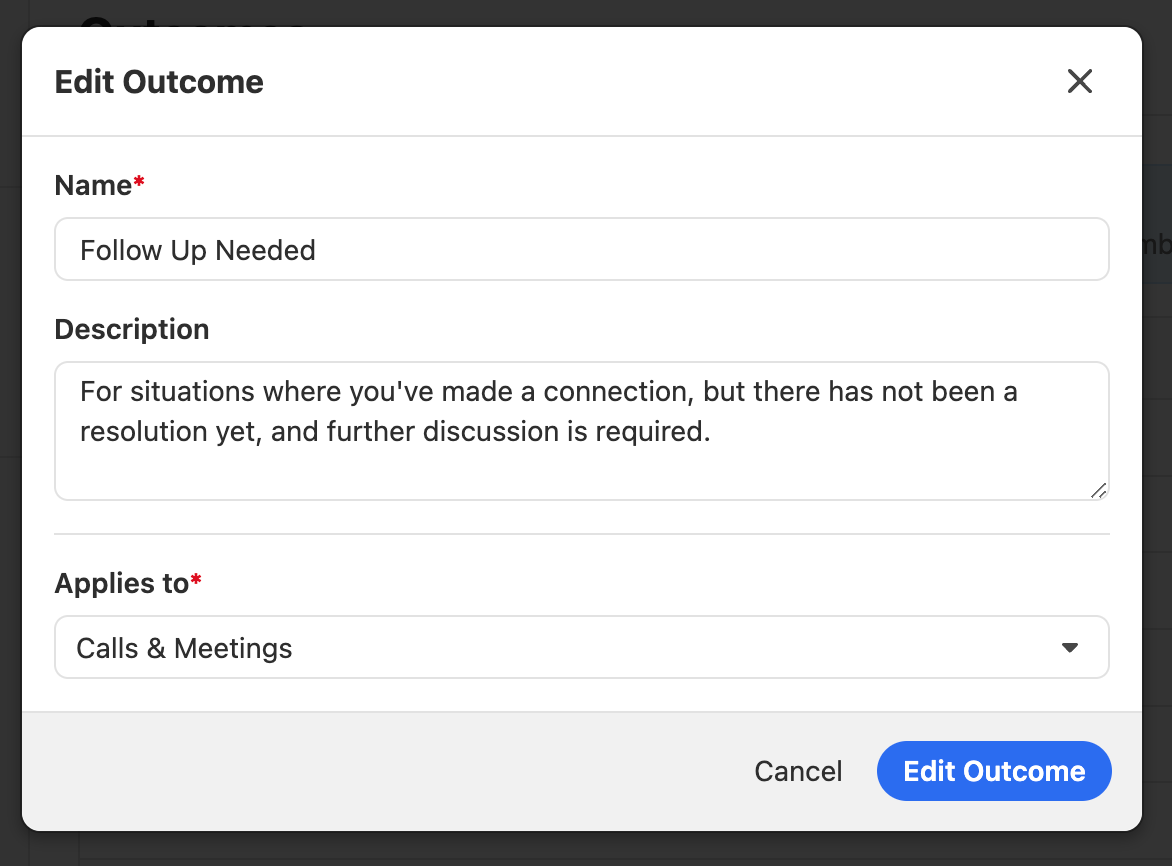
- Use clear, descriptive names
- Add detailed descriptions to guide your team
- Order outcomes logically for quick selection
- Keep the list manageable (avoid too many similar outcomes)
Setting Outcomes on Calls
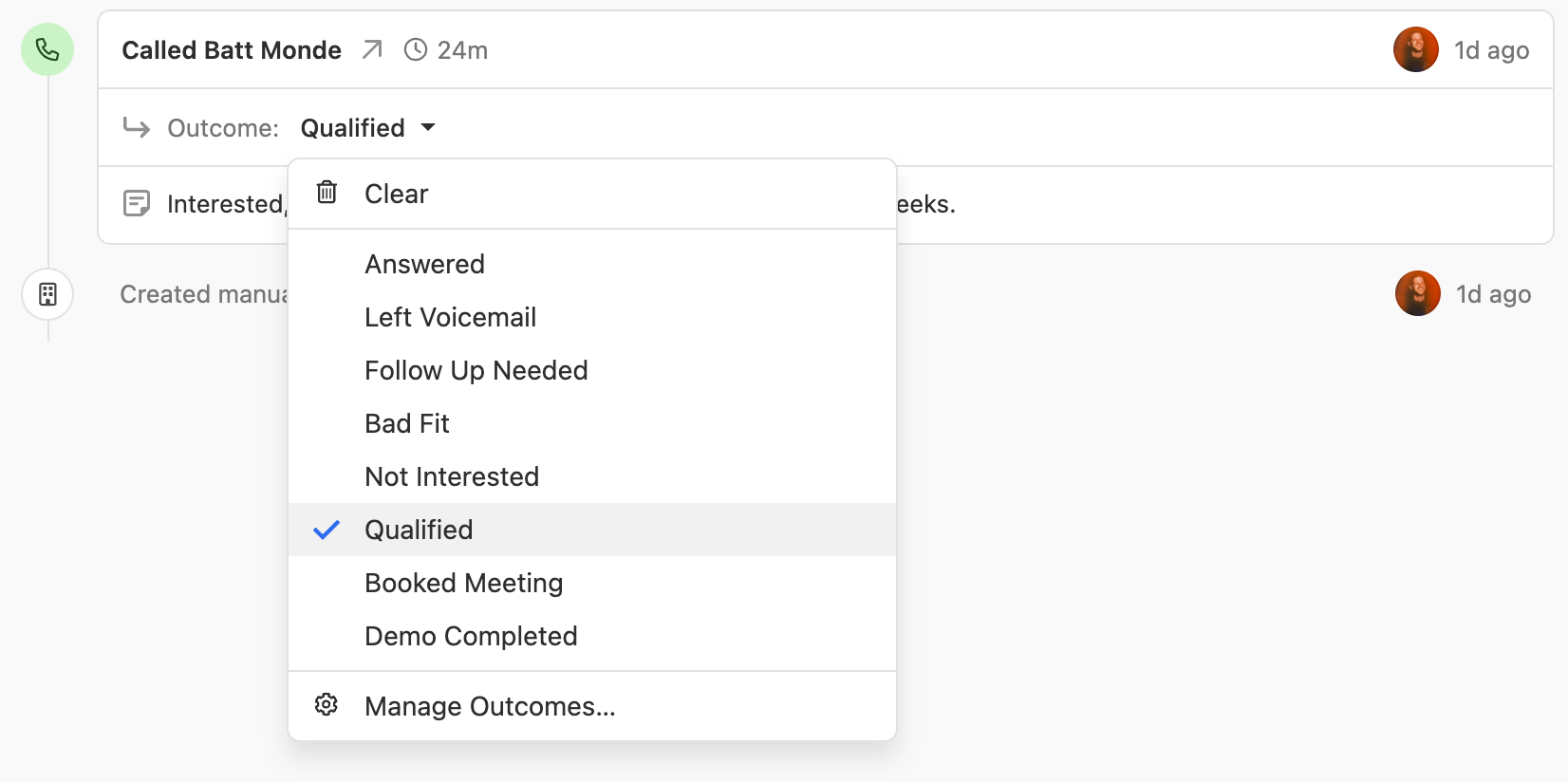
The Outcomes available for a call are determined by whichever Playbook is applied to it. Apply a Playbook first, then select the Outcome. If no Playbook is applied, no Outcomes will be available to select.
When to Set Outcomes
- During the call: Use the outcome dropdown in the call interface
- After the call: Edit the call activity to add an outcome
Important Notes
- Outcomes are not mandatory - you can leave them blank
- Only appears for connected calls
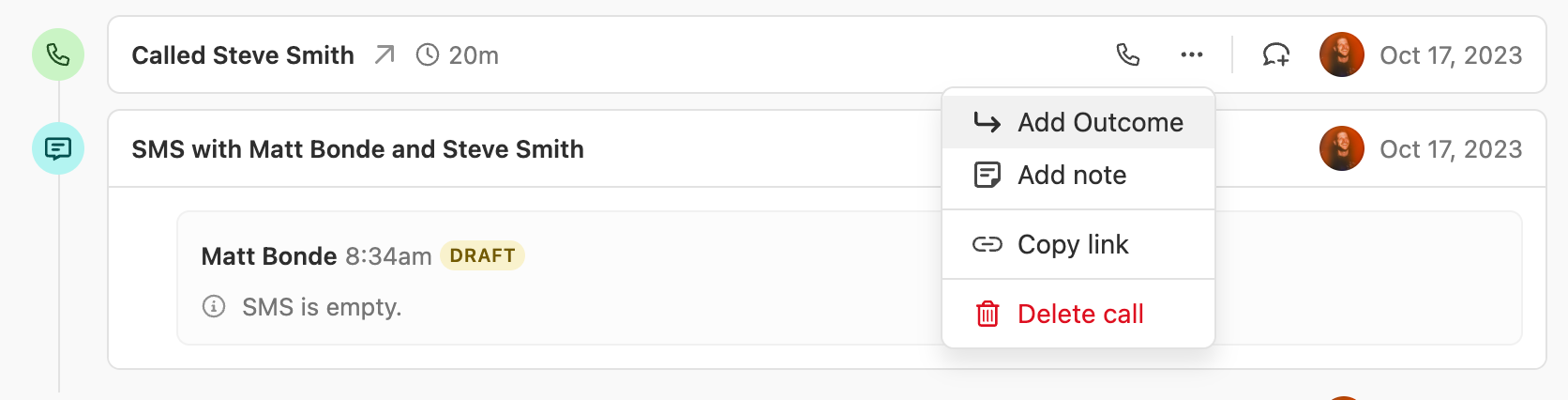
- If not set within 24 hours, the outcome section is minimized, but can be added later via the “More” menu
Setting Outcomes on Meetings
The Outcomes available on a meeting are determined by whichever Playbook is applied to it. Apply a Playbook first, then select the Outcome. If no Playbook is applied, no Outcomes will be available to select.
When to Set Outcomes
- Before the meeting: Prepare for expected results
- During the meeting: Update in real-time
- After the meeting: Reflect the final outcome
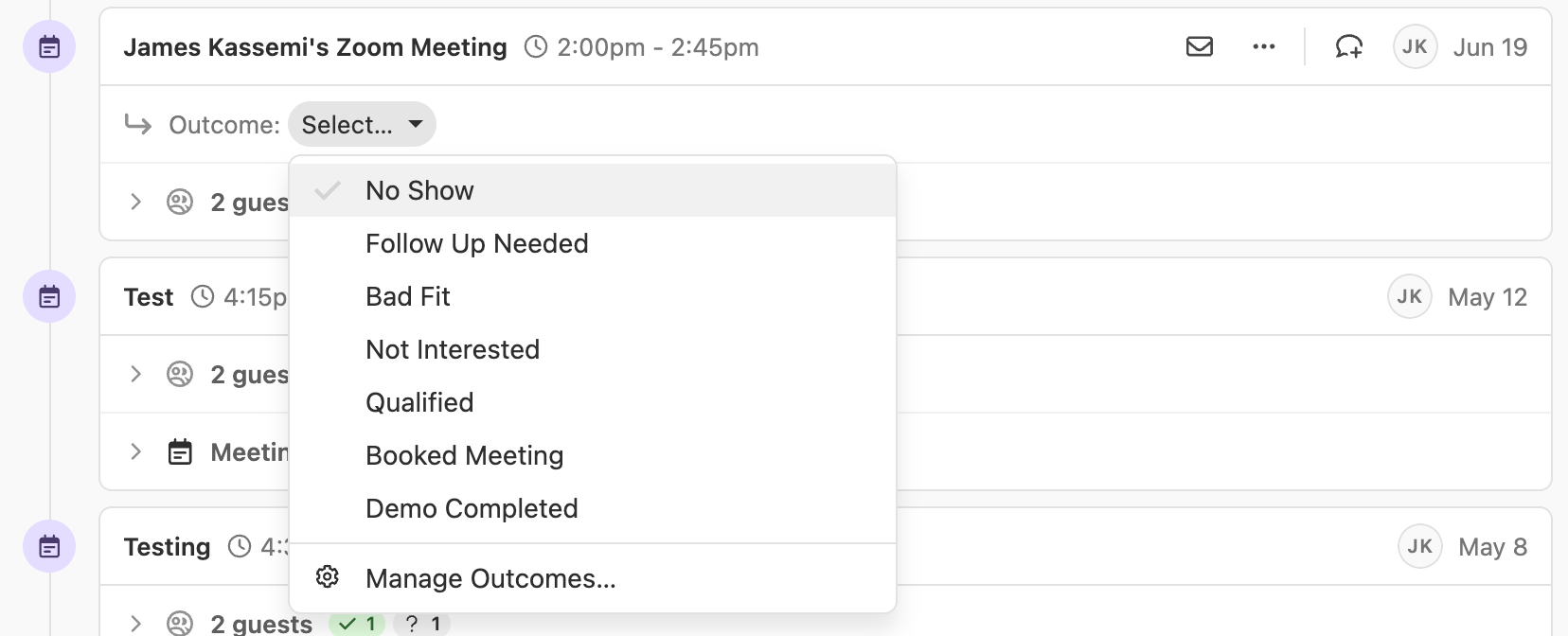
If a call is attached to a meeting, you’ll see outcomes for both calls and meetings in the dropdown.
Managing Outcomes
Editing and Deleting Outcomes
- Go to Settings > Playbooks and Outcomes
- Only users with “Manage Customizations” permission can edit
- Changing the name updates it everywhere it was previously used
- Descriptions can be updated anytime
- When an outcome is deleted, that outcome can no longer be used on future activities, but existing activities are unchanged.
Voicemail Drop Automation
If you utilize our voicemail drop functionality, you can link any outcome to the voicemail drop feature so that it is automatically set when a voicemail is dropped.
Setting Up
- Go to Settings > Communications > Outcomes
- Find the outcome you want to use for voicemail drops
- Mark it as your “Voicemail Drop Outcome”
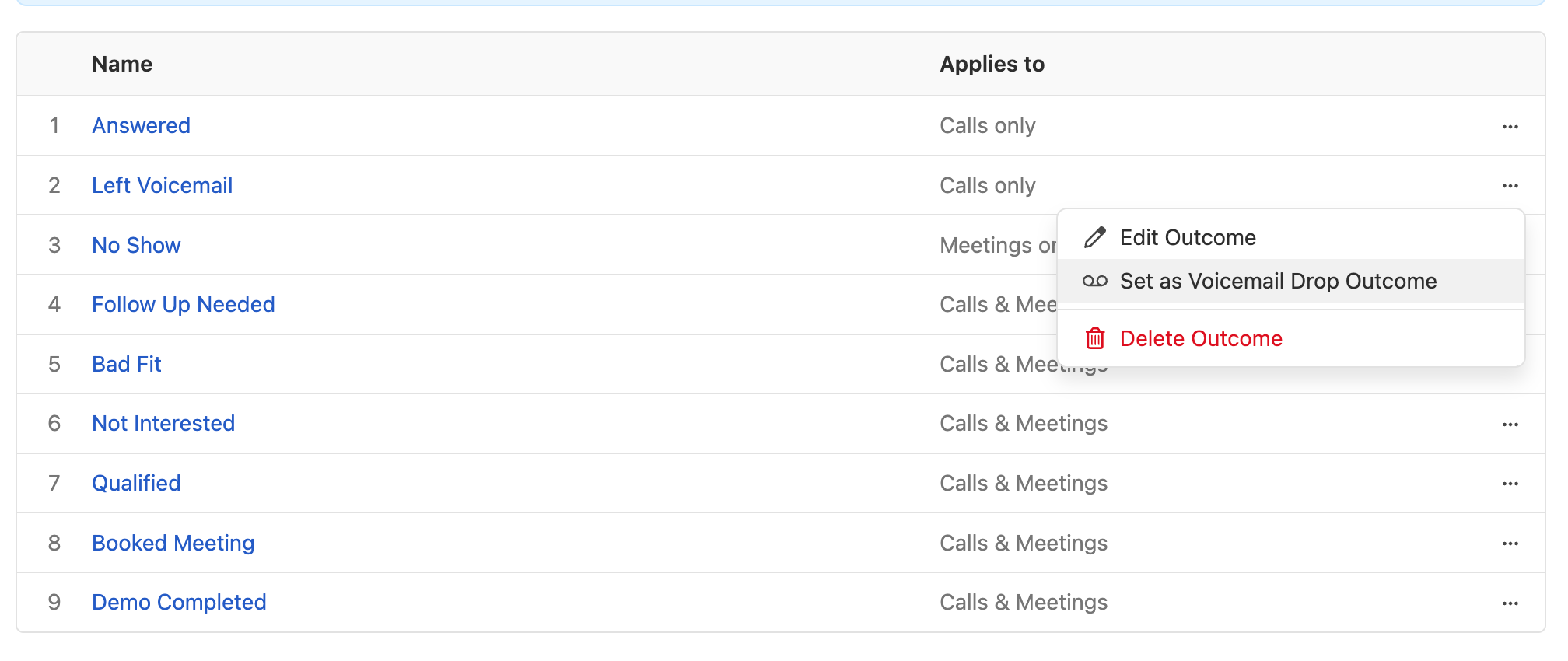
Changing Voicemail Drop Outcome
- You can change which outcome is used for voicemail drops
- Remove the automation entirely if desired
- Only one outcome can be designated for voicemail drops
Reporting and Analytics
Activity Reports
Outcomes appear in Activity Overview and Activity Comparison reports with three metrics per outcome:
- Total count (e.g., “Demo Completed - Total”)
- Total duration (e.g., “Demo Completed - Total Duration”)
- Average duration (e.g., “Demo Completed - Average Duration”)
Search and Filtering
- Search: Find leads with specific call or meeting outcomes
- Conversations: Filter conversation views by outcome
- Reports: Generate reports based on outcome data
Available Filters
- Find Calls where… outcome equals specific value
- Find Meetings where… outcome equals specific value
- Find the latest Call where… outcome equals specific value
- Find the last completed Meeting where… outcome equals specific value
Best Practices
Here are some best practice tips for getting the most out of Outcomes.
Team Training
- Provide clear descriptions for each outcome
- Train your team on when to use each outcome
- Review outcome usage regularly to ensure consistency
Outcome Design
- Focus on final results rather than intermediate steps
- Example: Use “Demo Completed” rather than “Gatekeeper → Decision Maker → Demo”
- Keep outcomes actionable and meaningful for reporting
- Utilize Outcomes in Workflows to automatically pause a Workflow when an intended Outcome has been reached
Regular Maintenance
- Review and clean up unused outcomes
- Update descriptions as your process evolves
- Ensure outcome names remain clear and relevant