If you're experiencing issues with your Close application, error logs might help us in our debugging process where we'll have a better understanding of what went wrong, especially for issues we can't reproduce on our end.
Extracting logs for the Desktop app
Enable Logging
The Close Desktop App includes a built-in logging feature to help capture detailed diagnostic information during troubleshooting.
To log your issue:
- Open the main application menu.
- Go to Develop > Enable Logging to turn it on.
- Reproduce the issue.
- Go to Develop > Enable Logging to turn it off.
This will capture console messages from all major processes, including the background view.
Accessing the Log File
Once logging is enabled and the issue has been reproduced:
- Go to Develop > Open Config/Log Folder. This will open the folder where your logs are stored.
- Open the
Logssubfolder. - Attach the
main.logfile to your support request so our team can help diagnose and resolve the issue more effectively.
Extracting logs for the Web app
Once you see the error happen again, please refer to the video or follow the steps below to get the logs so you can send them over in a form of a screeenshot.
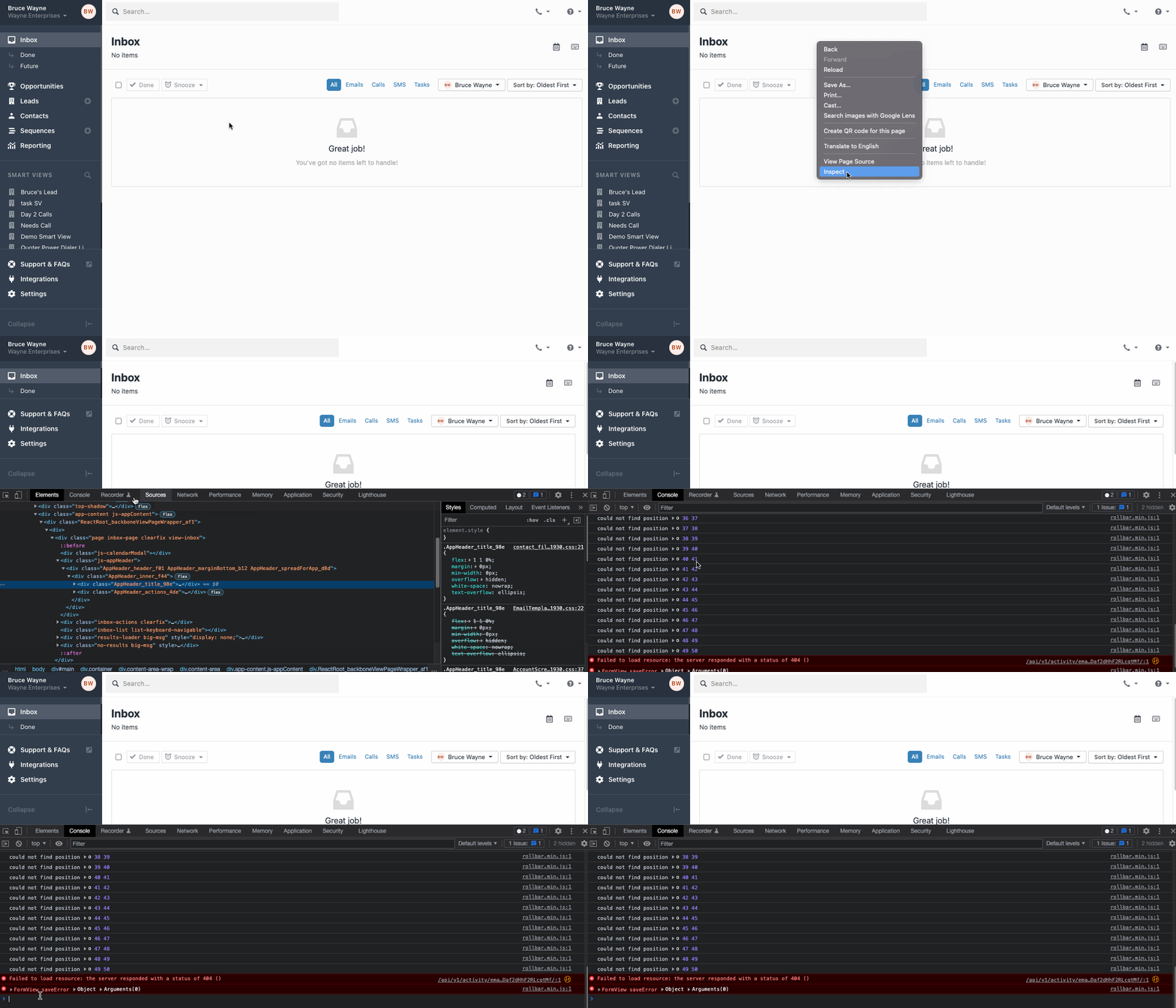
- Reproduce the issue in the app. Usually, this will be a general error pop-up saying something like
There was a server error. Please let us know if this keeps happening!. - Anywhere in the Close app
right-click > Inspect or Inspect Elementto open up the developer's tools:.jpeg) Usually it will appear at the bottom as shown below:
Usually it will appear at the bottom as shown below: 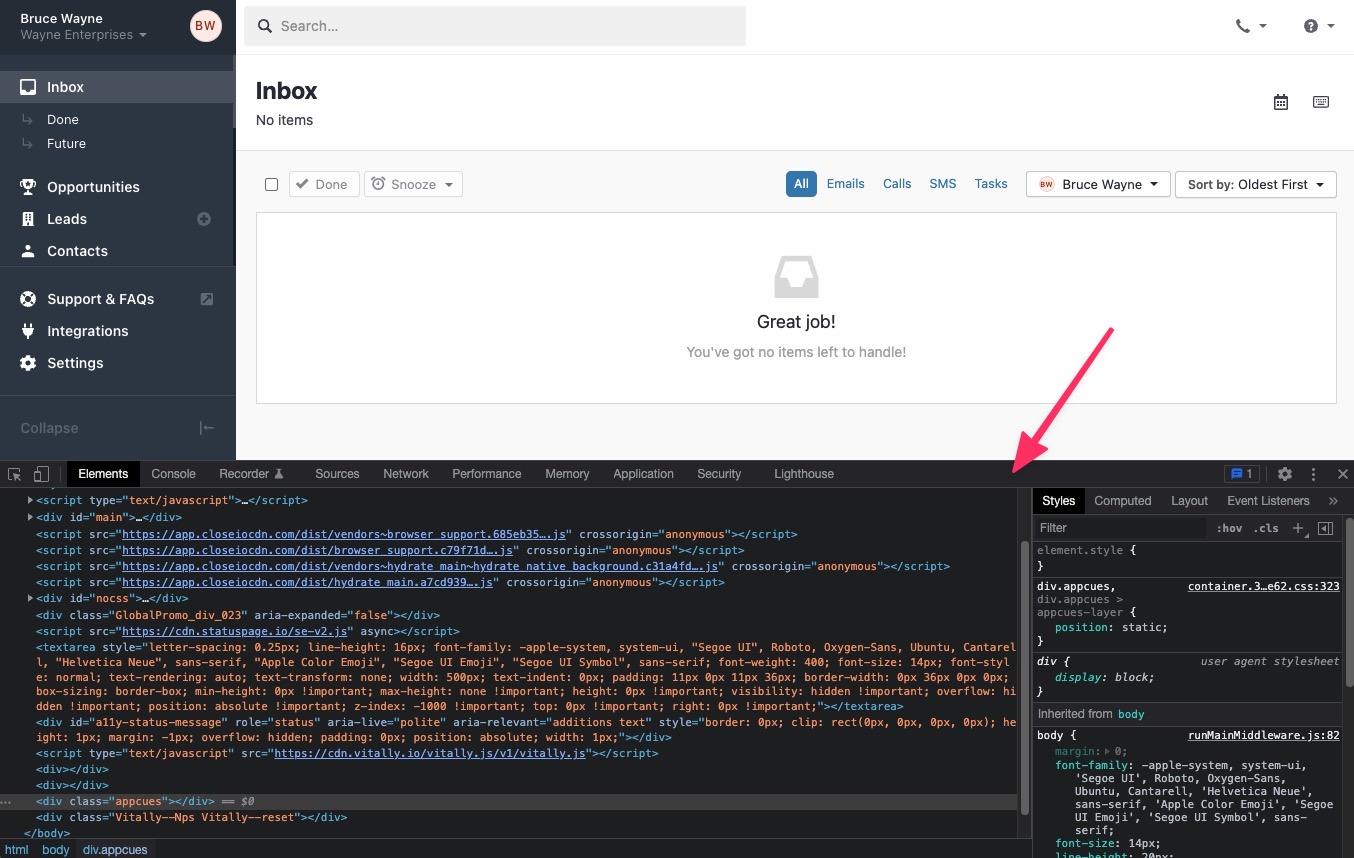
- Click on the
Consoletab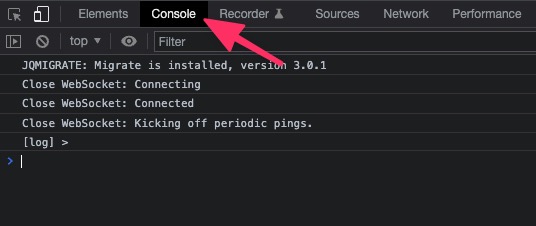
- Scroll all the way down in the
Consoletab and take a screenshot. It will look something like this: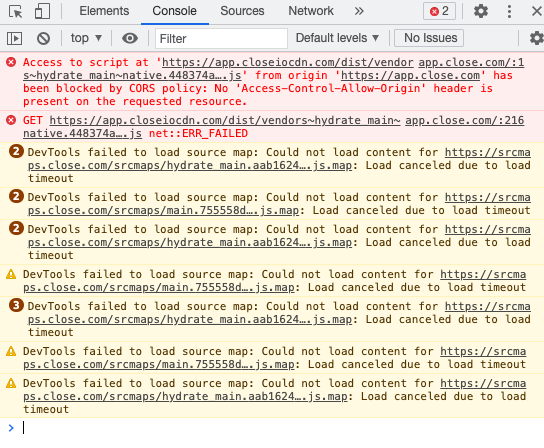
- Send over the screenshot to support@close.com
- We'll take a look at the logs and provide you with further instructions on how to resolve this specific issue