Notes allow you to quickly insert an unstructured text note on the Lead activity panel. While Custom Activities, Call, and Meeting Notes are better suited for their respective contexts, simple text notes can also be a useful tool.
Here's an example of what a Note looks like in-app:
.png)
Example Note
Notes behave like any other default activity in Close - you can create, edit, search/filter, and report on them. You can also add them via our API if you want to integrate Close with other services.
Creating and Editing Notes
Notes are created through the Lead page view, just like any other activity. You can simply click on the “Note” button in the top center of the page, or use a keyboard shortcut (Cmd/Ctrl + Shift + O):
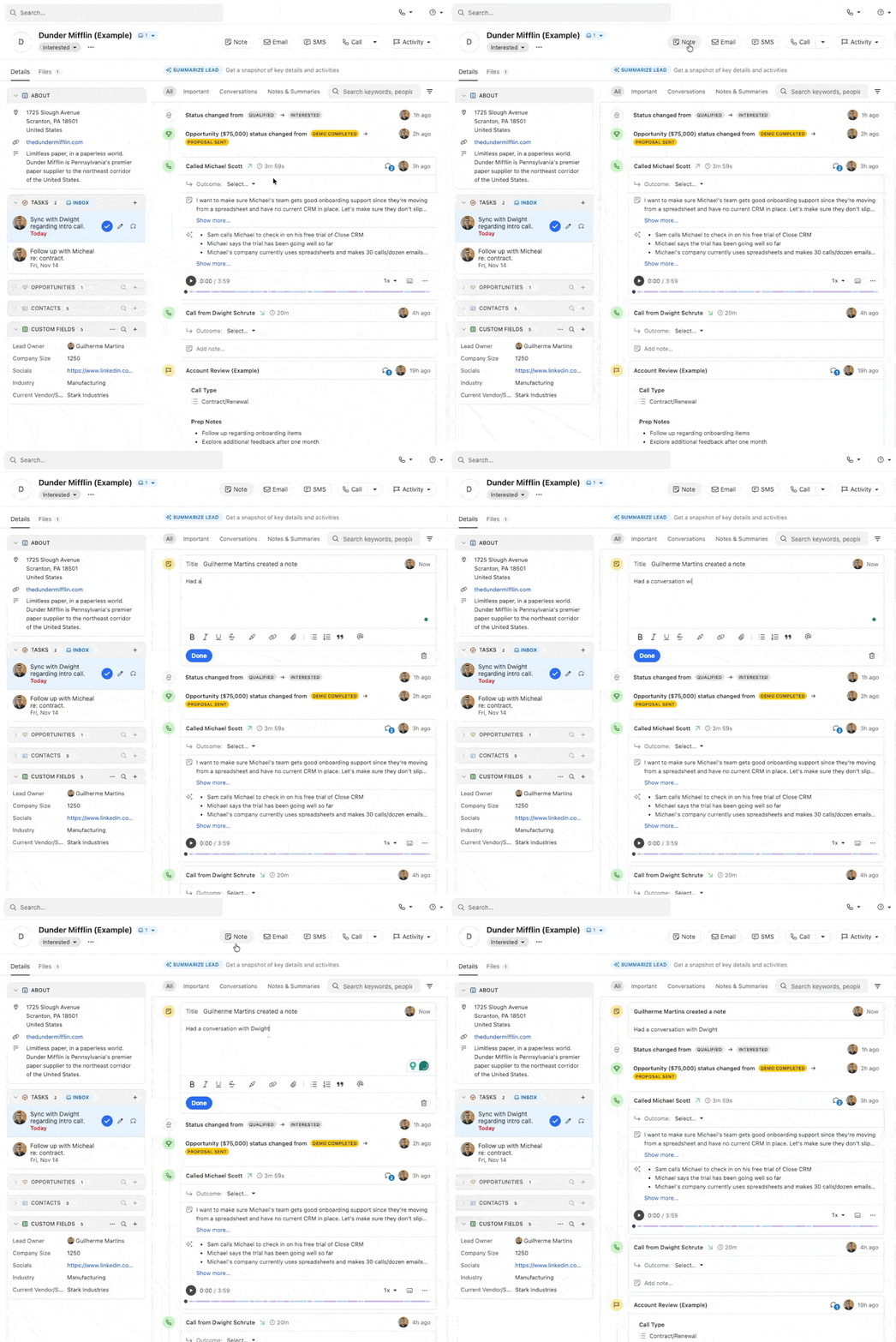
Creating a Note
Notes support basic formatting options, such as bolded or italic text, bullet points, emojis, quotes, etc. If you paste formatted content into a Notes field, Close will try to approximate it as much as possible to your source format. You can also use Cmd/Ctrl + Shift + V to strip any formatting when pasting text into a Note.
If you create a Note, start typing and navigate away from the page without clicking Done, we'll automatically save it.
You can edit existing notes by clicking on the pencil icon at the top-right part of the note:
.png)
Editing a Note
To completely remove a Note, click on the three-dot button and select the option to “Delete note":
.png)
Deleting a Note
Close Pro Tip:
You can use the Pin icon to pin a particular note to the top of the Lead activity panel!
.png)
Mentions and Comments
You can use the @ character to mention other Close Users in a particular Note:
.png)
Mentioning another User in a Note
Once you type the @ character, a selection box appears, containing the names and avatars of all the other Active Users in your organization. You can use the arrow keys on your keyboard to select the correct user, or simply click on them. You can also start typing to narrow down the list.
Mentioned Users will receive an email notification letting them know about it.
Similar to other activity types, you can also add a side comment on any Note by clicking on the "text bubble" icon at the top-right part of the Note:
.png)
Adding a comment to a Note
That opens up a comment box, where you can type your comment related to that particular Note:
.png)
Comment box
Multiple comments can be added to the same note, either by you or other Users, and they will appear as a conversation view:
.png)
Comment conversation view
Close Pro Tip:
You can also mention other Users inside the Comment conversation view.