Always test before going live
Run a Test Call from the Voice Agent editor at least once to confirm your prompt and tone sound right before calling real leads. Test calls run in your browser, and they do not call a phone number.
How to start calls with Chloe
Batch calling
Use Batch calling when you have a defined list of contacts you want Chloe to call in sequence; for example, webinar attendees, inbound leads from the past day, or a reactivation list.
Open the Voice Agent from Chloe > Voice Agents and select Batch call.
Select the contacts you want called. Enter plain language to define a list (for example, "Contacts in 'New' status that haven't been called in the last 7 days"), or select a saved Smart View. Up to 1,000 contacts per batch session.
Set the max calls limit, which defines how many calls to place before stopping. Default is 100; maximum is 100.
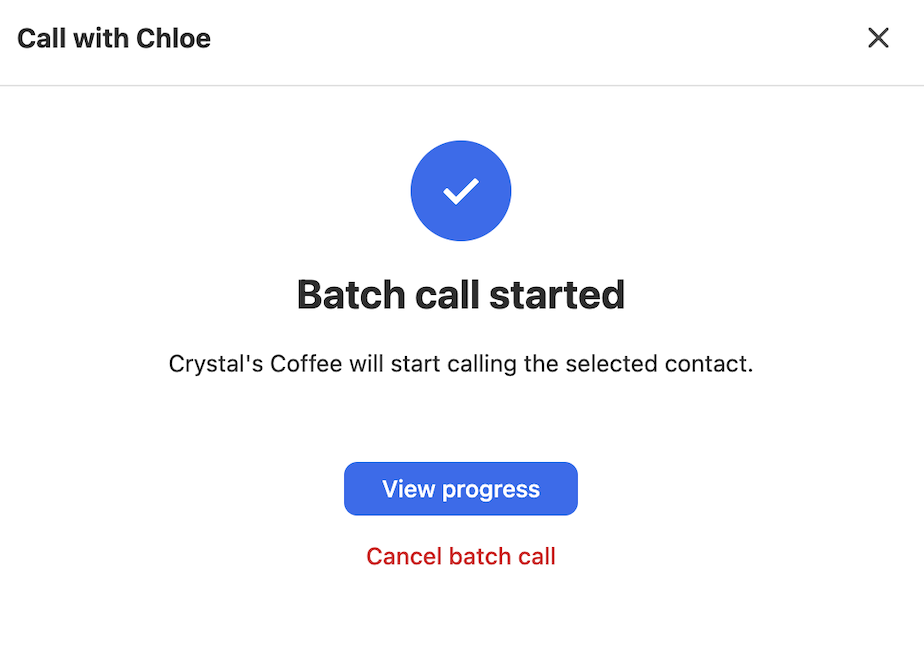
Each contact gets its own call result and status. Batch calls are processed 3 at a time in no particular order. Failed contacts are skipped so the batch can continue.
Calling hours
Batch calls respect a communication schedule. Calls are placed between 8am–6pm in the contact's timezone, all days. This window is not currently configurable. Contacts without a timezone set, or whose local time falls outside this window, are skipped and not retried.
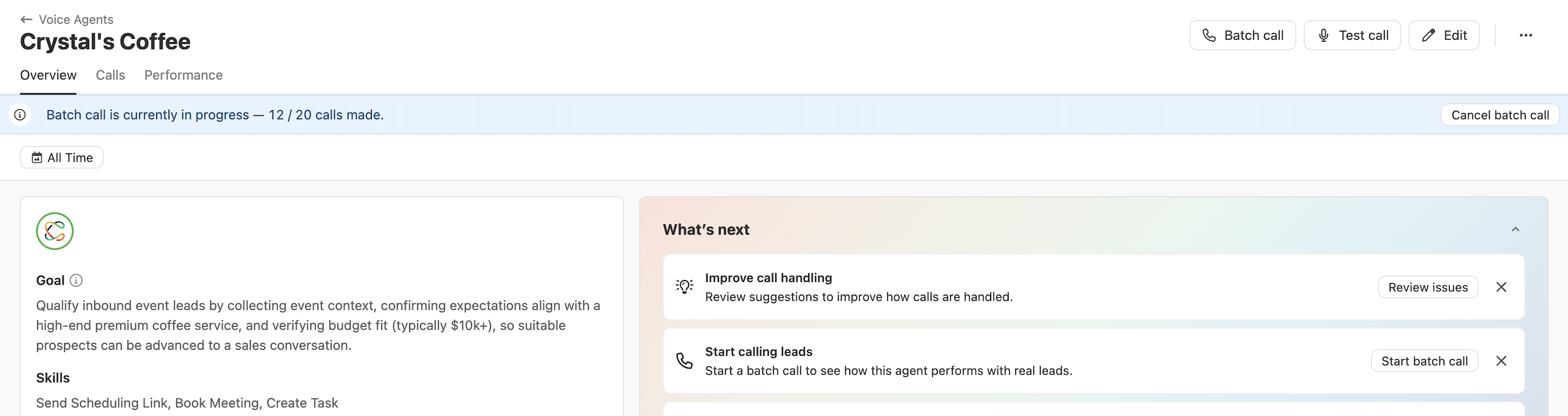
To cancel an in-progress batch session, open the Voice Agent, and a banner will show at the top of the page showing call progress. Select Cancel batch call. Any active calls will complete; queued calls will be cancelled.
Workflows
Use a Workflow when you want Chloe to call leads automatically based on specific criteria; for example, new inbound leads, contacts with no response after a set number of days, or trials that started today.
The easiest way to set up a Workflow is directly from the Voice Agent's Overview tab. Open the Voice Agent and scroll to the Workflows section - it shows any Workflows already connected and has a + Add Workflow option.
From here you can set up two types of Workflow:
Calling Workflow — a guided flow that creates a Workflow to trigger Chloe calls when leads meet defined conditions (for example, new inbound leads, trials that started today).
Post-call automation — a guided flow that creates a Workflow triggered by a specific Chloe call Outcome (for example, when Chloe assigns "Qualified", automatically send a follow-up email or create a task). Outcomes from the Voice Agent's Playbook are available to select directly in the flow.
.png)
Adding a Chloe call step to an existing Workflow
If you prefer to build or edit a Workflow from scratch, you can add a Chloe call step manually:
Create or open the Workflow in the Workflow editor.
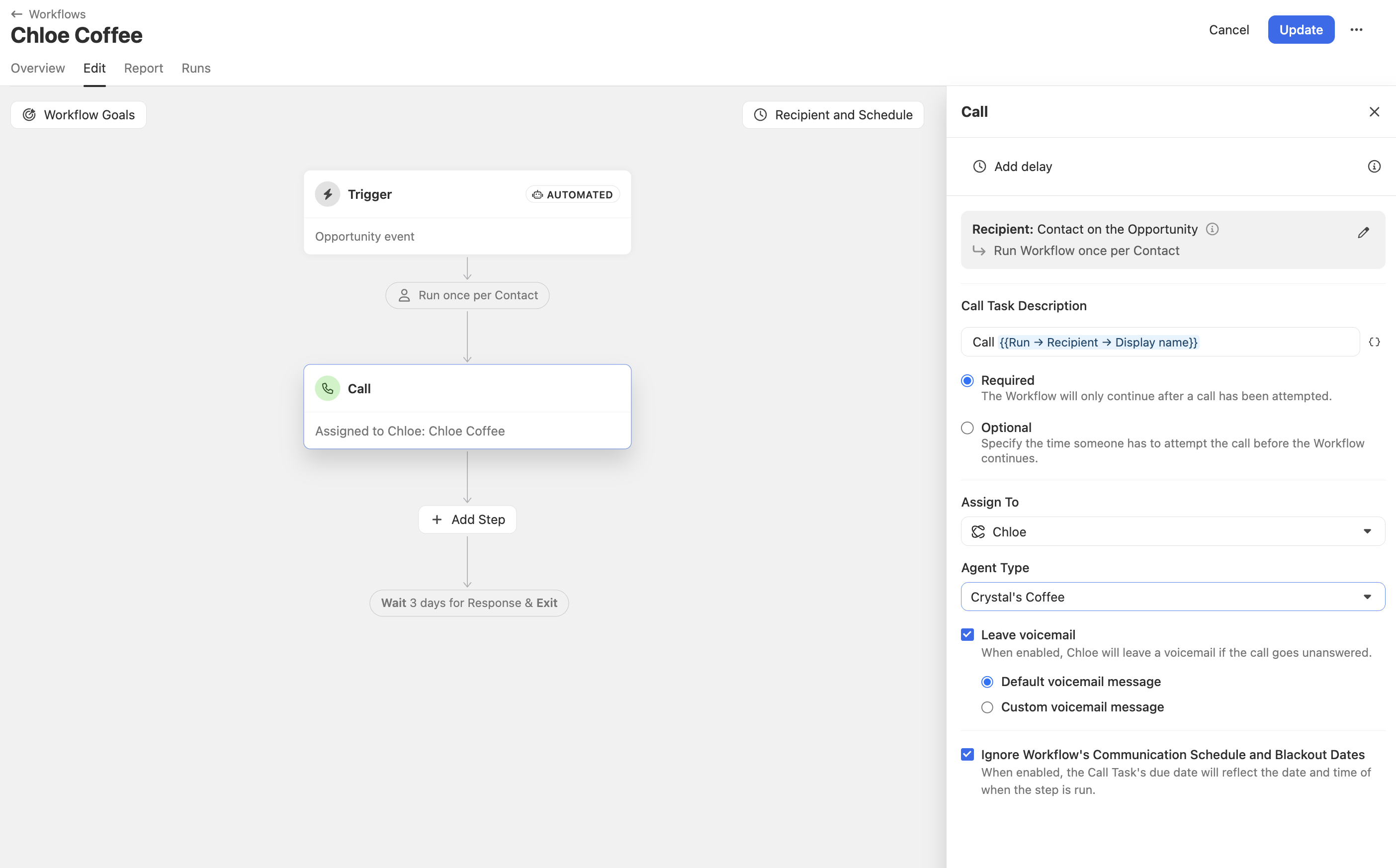
Add a Call step.
In the step settings, set Assign to = Chloe and select the correct Voice Agent.
Turn the Workflow on and enrol the right leads based on your triggers and filters.
Workflow call steps support required and optional behaviour.
Required steps hold the Workflow until the call completes.
Optional steps can time out and move on depending on your setup.
After the call, the Workflow advances based on the call outcome or disposition.
Chloe respects the communication window configured on the Workflow. Contacts without a timezone set will use the fallback timezone defined on the Workflow.
One-off call
Use a one-off call when you want Chloe to call a specific contact without building Workflow logic or running a full batch. This is useful for spot-checking behaviour on a real lead.
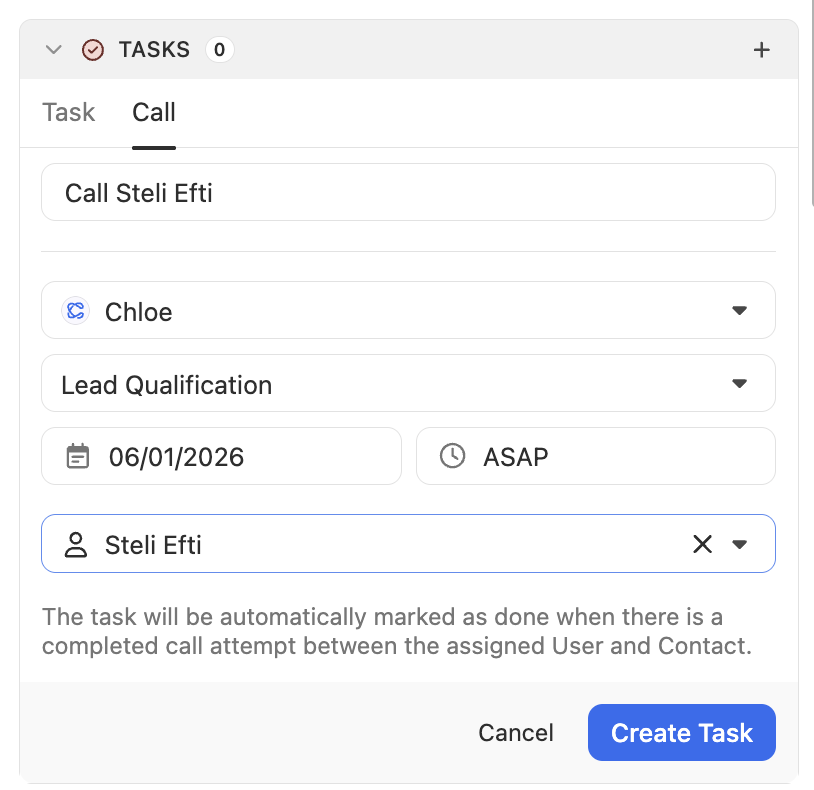
From the lead record: Create a call task on the lead, assign it to Chloe, and select the preferred Voice Agent.
From Chloe Chat: Ask Chloe Chat to schedule a Voice Agent call for a contact. Chat will show an approval prompt, and you can allow it once or for the session. Once approved, Chloe schedules the call using the selected Voice Agent.
Concurrent call limit
Your organization can run up to 3 concurrent Chloe calls at a time across Workflows, batch sessions, and one-off calls. You can see active calls in the Calls Happening Now section on the Voice Agents page.
Monitoring call activity
The Voice Agent Overview page shows a live summary of call activity for that agent:
Happening now — calls currently in progress
Upcoming — calls queued and waiting to be placed
Voicemails left and Error counts with percentages
The Upcoming calls tab on the main Voice Agents page shows all calls scheduled across all agents. Calls are not processed in a fixed order, as the list is for visibility, not a queue.
The Calls Happening Now banner on the main Voice Agents page shows active calls across all agents. Open any active call from either surface to view the live transcript.
During a call
While Chloe is on a call, the call appears as active on the lead record. You can watch the conversation in real time by opening the lead page. The live transcript shows speaker turns as they happen, including when Chloe uses a skill such as Transfer Call or Book Meeting.
Live transcripts are also accessible from the Calls Happening Now view on the Voice Agents page.
Live transcript vs. post-call transcript
The live transcript is a real-time stream visible only while the call is active. The post-call transcript is the final record saved to the lead after the call ends and may differ slightly, as the live version can include tentative transcription that gets corrected once the call completes.
After a call
When a call ends, Chloe logs the activity directly on the lead record. Each call record includes:
Voice Agent — the Voice Agent that made the call
Outcome — the outcome applied based on the Voice Agent's Playbook
Summary — an AI-generated summary of the call
Notes — a field for manual notes
Recording and transcript — a full recording with playback controls, speaker breakdown (contact vs. Chloe talk time as a percentage), and a searchable, timestamped transcript
The Outcome can be adjusted manually from the call record if needed.
If outcomes are inaccurate, update the outcome descriptions in the Voice Agent's Settings tab.
Clearer, more specific outcome descriptions help Chloe assign the right result at the end of each call.
Reviewing Chloe's calls
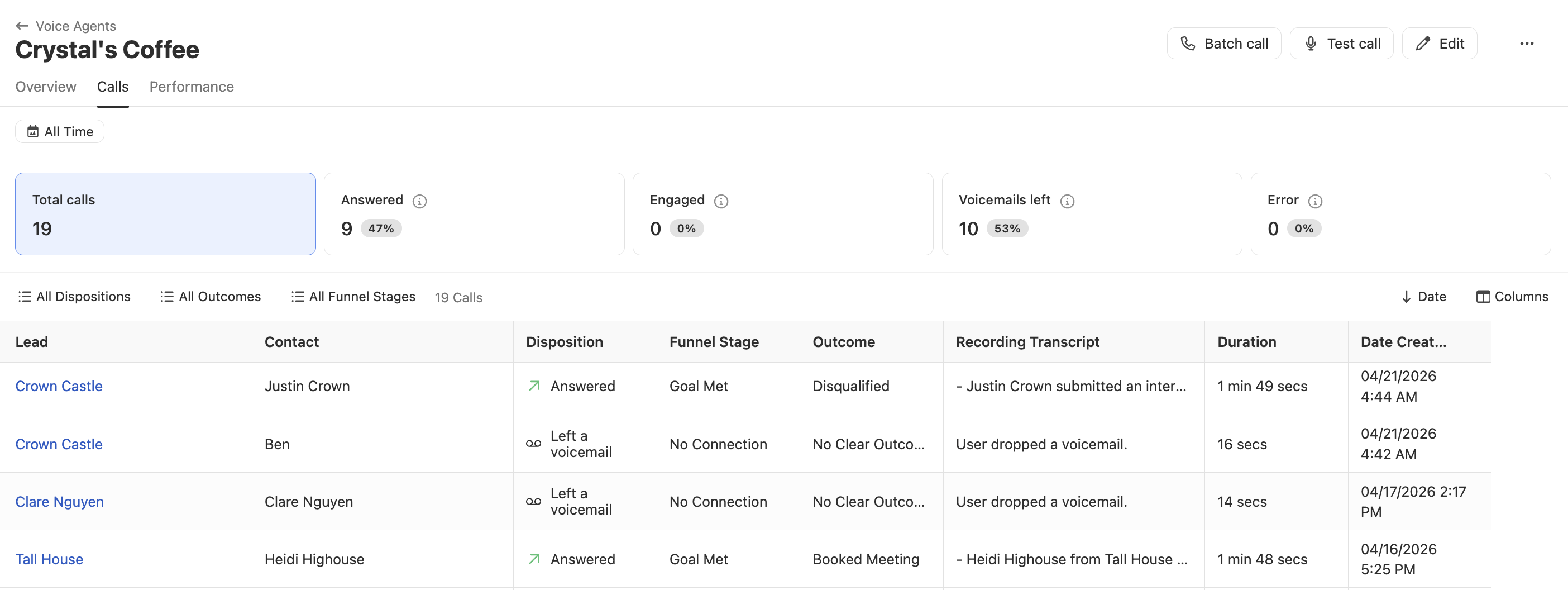
Anyone with the Manage Voice Agents permission can review all calls made by a specific Voice Agent from the Calls tab. Select Chloe > Voice Agents from the left sidebar, open the Voice Agent, and open the Calls tab.
The Calls tab shows summary stats at the top, such as total calls, answered (with percentage), engaged (with percentage), voicemails left (with percentage), and errors (with percentage). Click any stat to filter the list to that call type.
The call list can be filtered by time period, Disposition, Funnel Stage, and Outcome. Disposition is the technical call result (Answered, Left a voicemail, No answer, Blocked). Funnel Stage shows how far the call progressed: No Connection, Human Reached, or Goal Met. Outcome is the Playbook-defined result Chloe assigned at the end of the call.
Select Engaged at the top to focus on calls where the contact had a substantive conversation with Chloe. This is the recommended starting point for reviewing call quality.
Click any row to open the full call record on the lead page.
Permissions
Permission | What it controls |
|---|---|
Manage Voice Agents | Access and configure Voice Agents, assign Chloe to Workflow call steps, run Batch calls |
View Voice Agents | View-only access can see Voice Agents but cannot create, edit, or delete them. Users have this by default. |
Manage Chloe Call Tasks | Manage tasks created by Chloe during calls |
If someone cannot assign Chloe to a call step or access the Voice Agents page, check that their role includes the Manage Voice Agents permission.
For a full breakdown of reporting metrics, see Reporting. For troubleshooting, see FAQ & Troubleshooting.