

Custom Activities
Custom Activities allow you to create a custom action type to record a specific type of activity. The most common examples include forms filled in by prospects, support tickets, call outcomes, invoice/payment items, and various structured notes such as call playbooks.
Plan Limitations
Custom Activities are not available on the Solo, Essentials and Base (legacy) plans.
In our examples below, we’ll use aCustimer Onboarding checklist Custom Activity for reference.
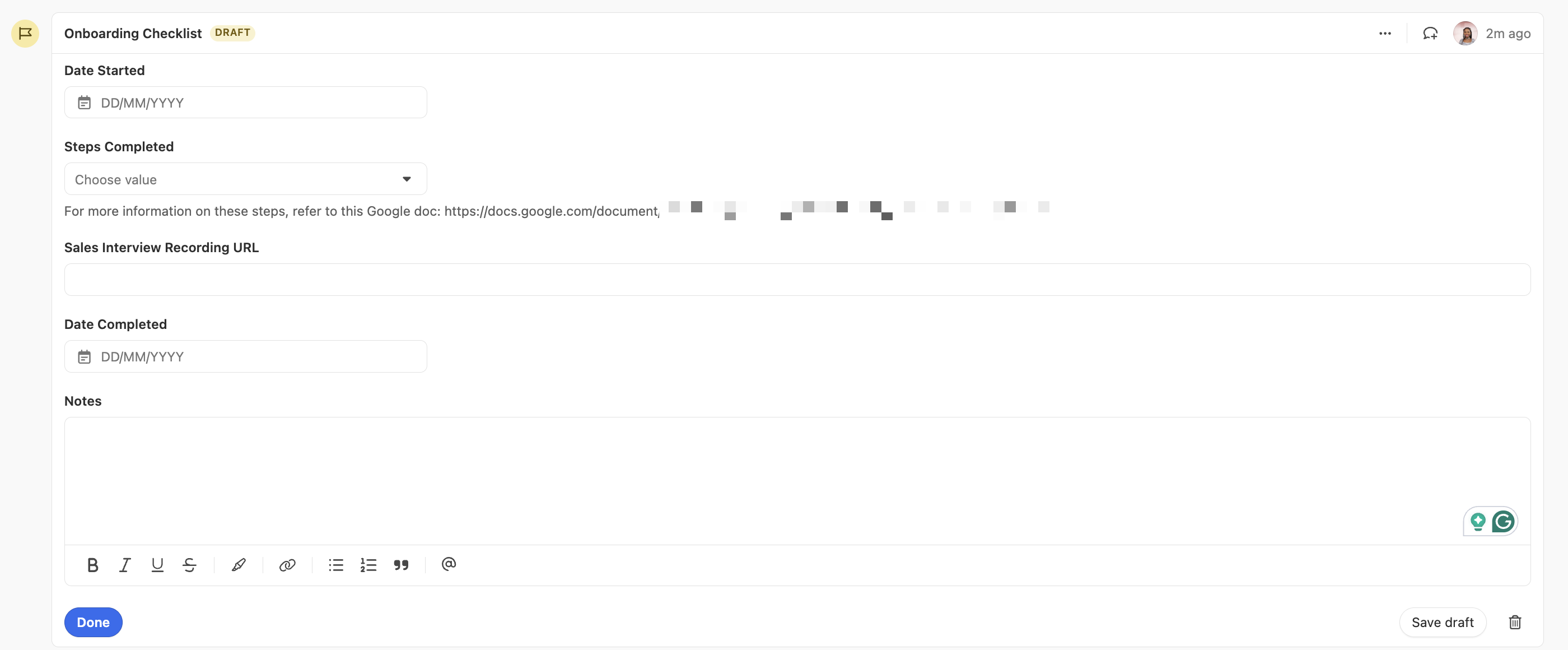
Customer Onboarding Checklist example
Custom Activities behave like any other default activity (email, SMS, call, note) - you can create, edit, search/filter, and report on them. You can also add them via our API or Zapier if you want to integrate Close with other services (e.g., automatically create an Inbound Form custom activity when a prospect fills out a form).
Creating a Custom Activity Type
Before creating an instance of a custom activity on a lead page, we have to define its structure by using Custom Activity Type. Common examples of types are:
- Intercom ticket
- Sales Qualifying Call
- Onboarding checklist
- Stripe invoice
- NPS Feedback
To create a new Custom Activity Type, go to Settings > Custom Activities > + New Custom Activity, give it a name, and click Save.
Limits
When creating custom activity types, the following limits will apply depending on your plan:
- Solo, Essentials, and Base (legacy): No custom activity type
- Startup (legacy): 5 custom activity types
- Professional (legacy): 5 custom activity types
- Enterprise (legacy): 200 custom activity types
- Growth: Unlimited
- Scale: Unlimited
Enabling Restrict Editing will prevent other users from adding/editing/deleting instances of this type - for example, you’d want to restrict Sales Qualifying Call activity to Sales Team only. To control who can add/edit/delete custom activity types - make sure that the user has Manage Customizations permission enabled on a Roles & Permissions page.
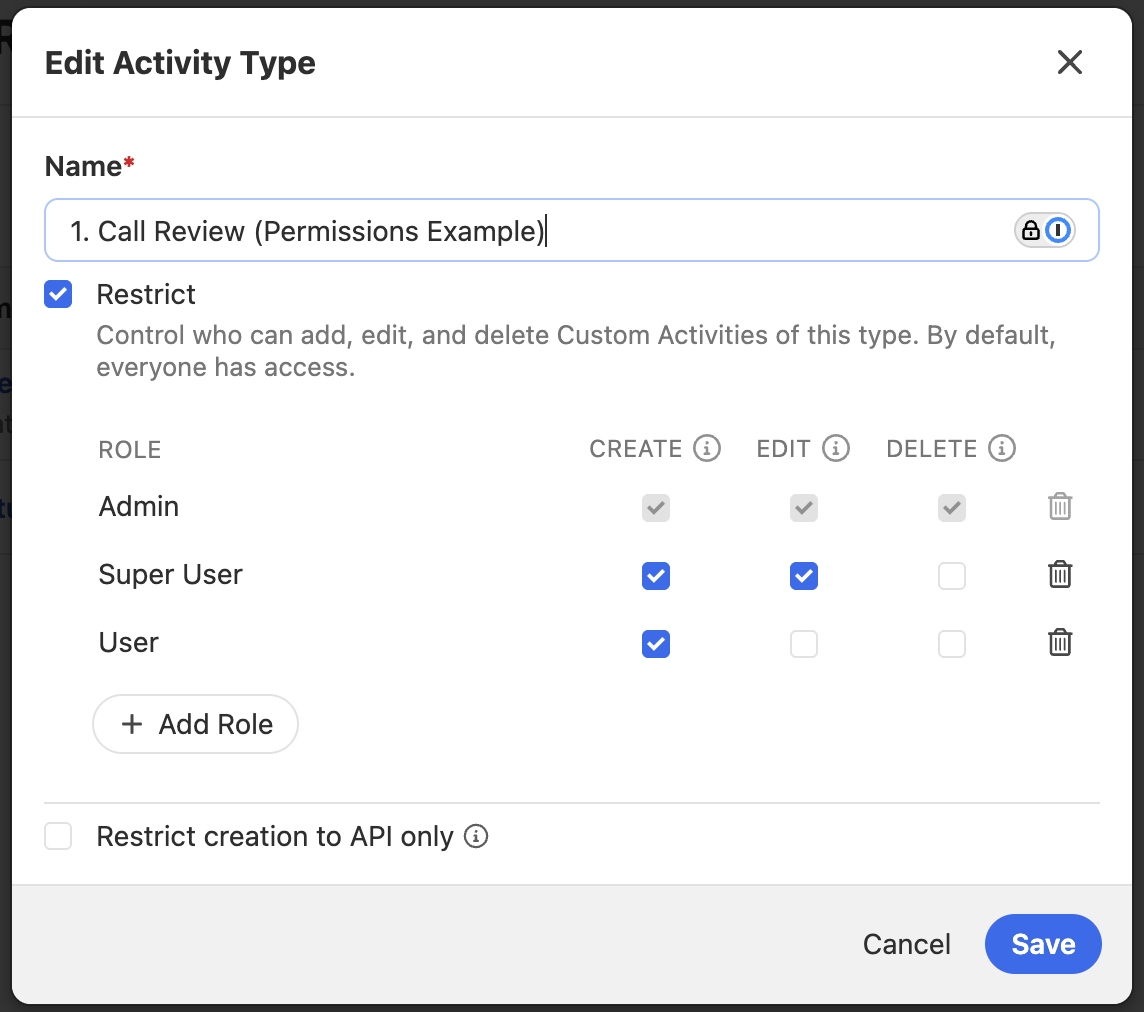
If you are using the custom field exclusively through an integration (API or Zapier), you can enable Hide (for API use only) so that type is not visible on a lead page, and as such Close users can’t create one from the app user interface.
Custom Activity Fields
Upon creation of the new activity type, you’ll be automatically redirected to add some fields to this activity type. Each field is just like a Custom Field you can use on Leads and Contacts - there are field options for Number, Text, Date & Time, etc. We’ll create several ones for our Sales Qualifying Call activity type:
TextAre they qualified?Choices (single)What is their current CRM?NumberHow many users do they anticipate having?Choices (single)How did they hear about us?TextWhat is their sales process like?
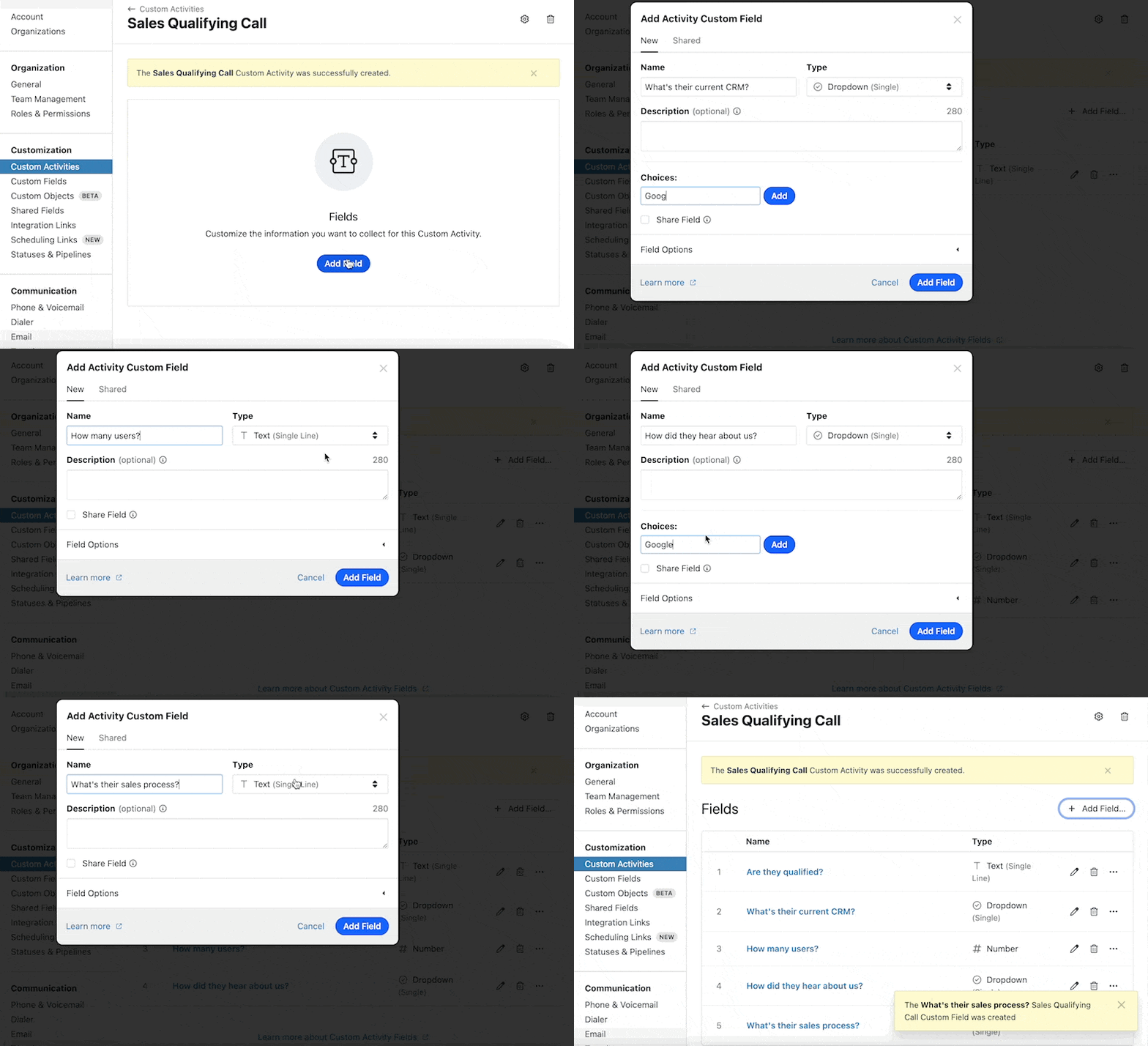
Fields are not required. You can have an activity type without any field, such as Connected on LinkedIn that serves as a touchpoint indicator.
Limits
You can have a maximum of 50 fields per activity type, independent of your billing plan.
You can also mark any field as Required - users won’t be able to create an instance of this type without including this field.
Creating a Custom Activity Instance
Custom Activities are created through the Lead page view, just like any other activity. Go to the Lead page > Activity > Sales Qualifying Call to add a new instance. Fill in all the details and click Save.
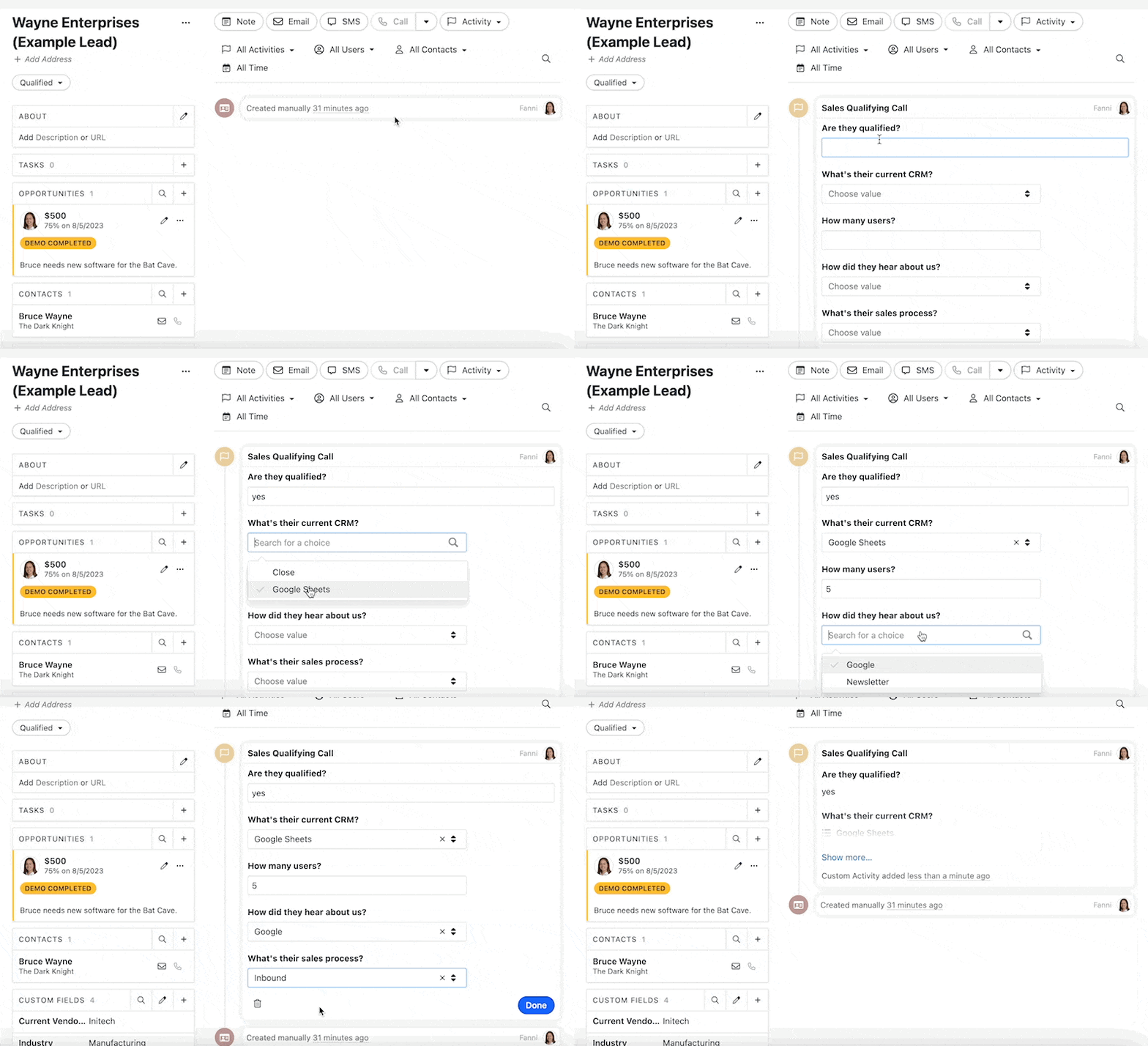
If you fill in some details and navigate away from the page without clicking Save, we’ll automatically save it as Draft that you can delete or save it later on. Required fields are optional for drafts.
If you marked your Custom Activity Type as Restrict creation to API only then you won’t see it here, but you’ll be able to create one only through the API.
Limits
When creating custom activity instances, the following limits will apply depending on your plan:
- Startup (legacy): 250 instances/calendar month
- Growth and Professional (legacy): 10,000 instances/calendar month
- Scale and Enterprise (legacy): 50,000 instances/calendar month
Limits are per calendar month, which means they reset on the 1st of the month, independent of your billing cycle.
Searching and Filtering Custom Activities
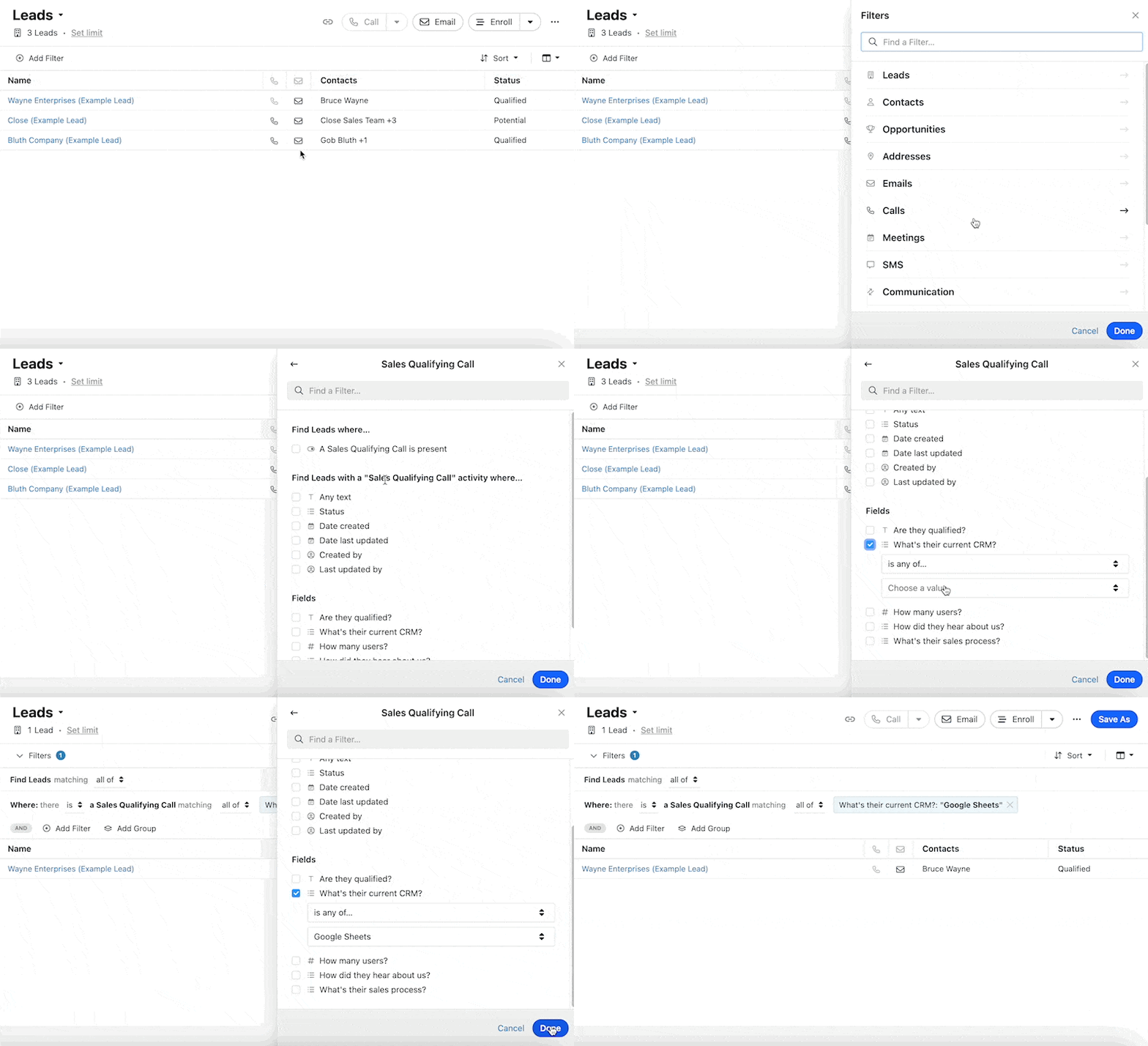
Each Custom Activity Type will be visible within the search on a Leads page. You can search & filter by:
- date created
- date last updated
- created by
- last updated by
- any field within a custom activity
Reporting
You can report how often you’ve created a specific custom activity via Activity Overview and Activity Comparison reports.
Simply add a new tile, and you can immediately start tracking your new metrics:
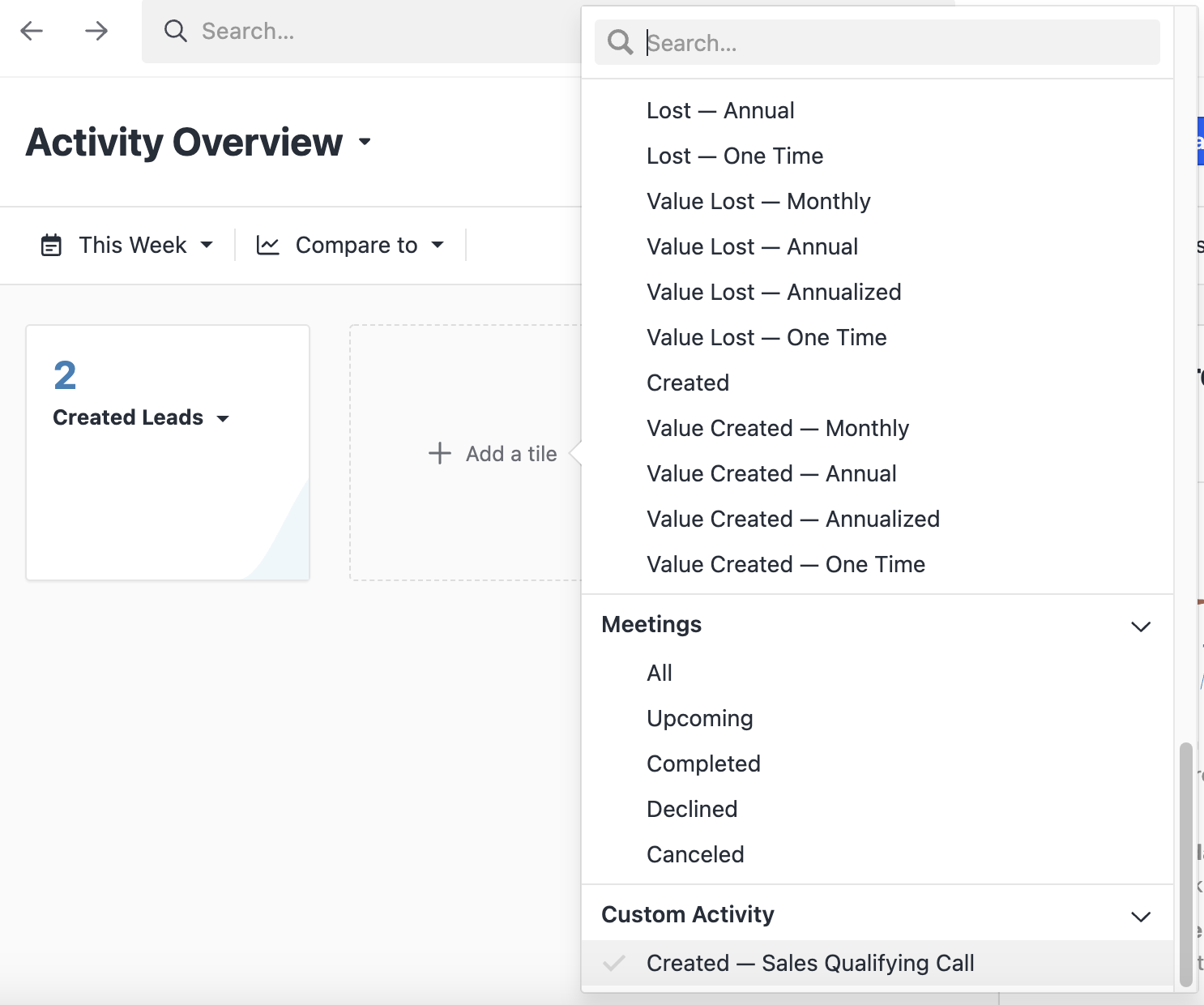
Custom Activities in Activity Overview Report
The same applies to Activity Comparison, where you can select the custom activities as well:
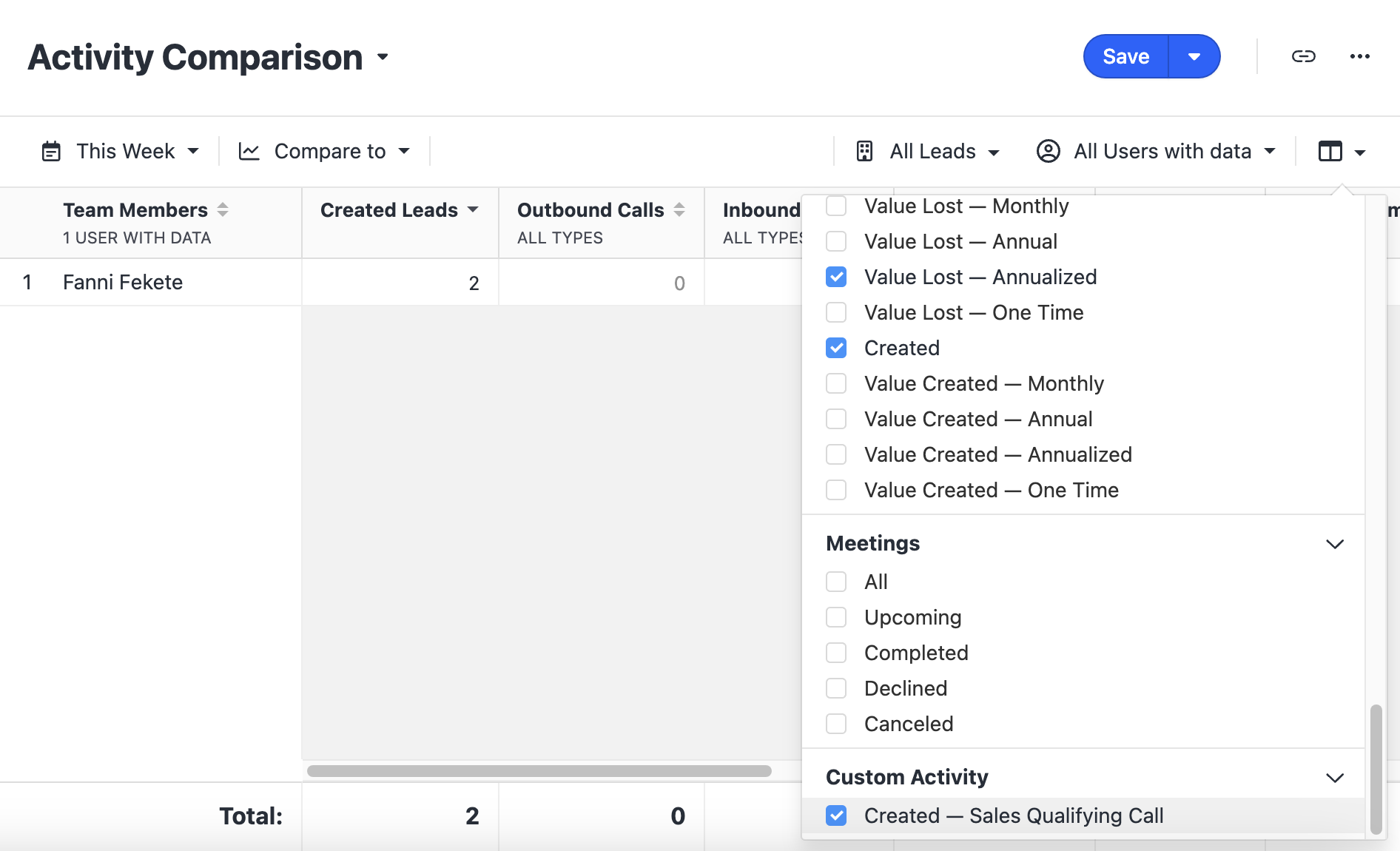
Custom Activities in Activity Comparison Report
Currently, only the Created metric for each custom activity type is supported.
Archiving Custom Activities
If a Custom Activity is no longer needed, consider archiving it.
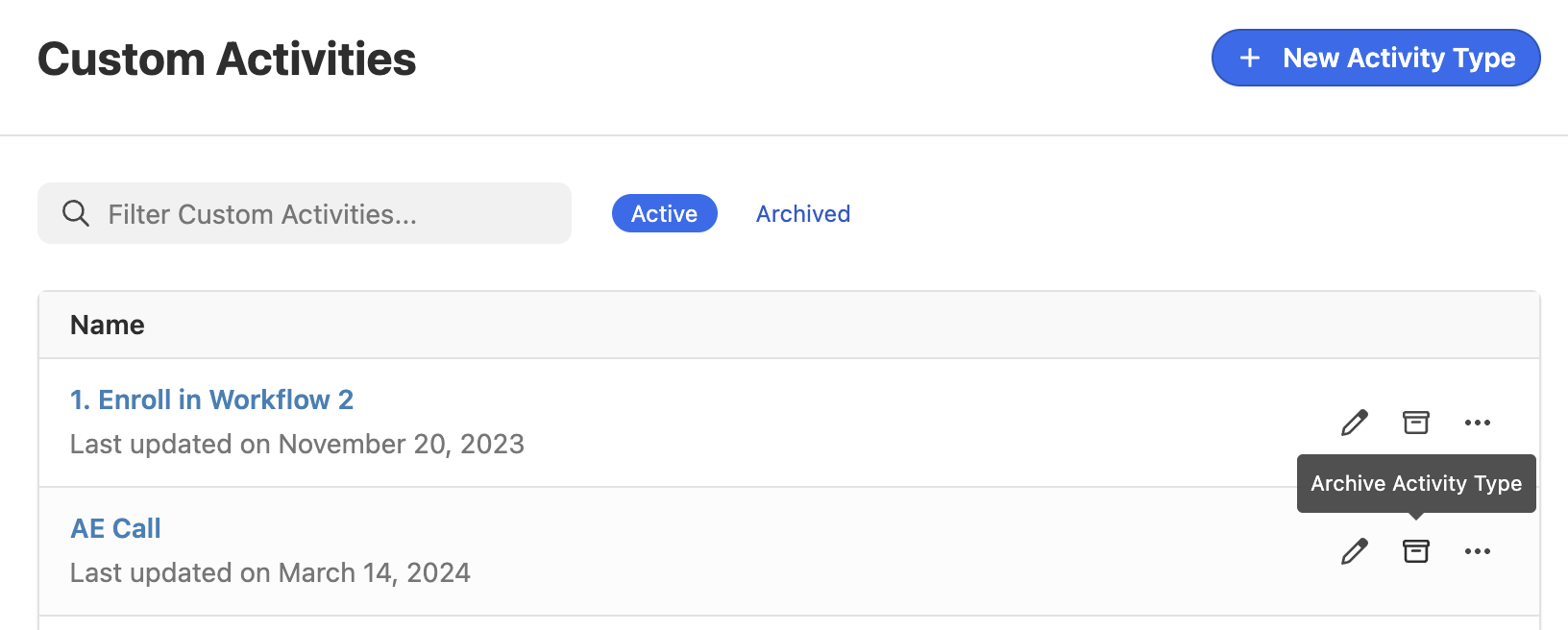
When a Custom Activity is archived, new instances cannot be created on Leads. Previously created instances are still shown on Leads, and they can also be searched for. Archived Custom Activities can be used to keep Custom Activity logs on file even when not a actively used.
Archived Custom Activities do not count against an organization’s plan limits.
They can be unarchived later if needed.
Importing and Exporting Custom Activities
If you need to move that data in or out of Close in bulk, whether you’re migrating from another system or analysing activity data externally, you can use the support tools below to import and export Custom Activity instances via CSV.
Both tools require a Close API Key. Go to Settings → Developer → API Keys and click + New API Key to generate one before getting started.
Importing Custom Activities
Create new Custom Activity instances or update existing ones from a CSV file. The tool supports both creating new records and updating properties on records that already exist in Close.
All CSV column headers are case-sensitive and must match exactly as shown below. For example, Date_Created will not work, it must be date_created.
Creating new Custom Activities
Use this CSV Format when importing Custom Activity records that don’t yet exist in Close. Your CSV should include the following columns:
Updating existing Custom Activities
Use this when you need to edit properties on Custom Activity records that already exist in Close. Your CSV should include:
Exporting Custom Activities
Download all Custom Activity instances from your Close account as CSV files. You can filter by a specific Custom Activity Type, or download all types at once. Each exported file contains all instances of a single Custom Activity Type.
Run the tool, select a Custom Activity Type to filter by or choose to export all types at once. Each file downloaded will contain all instances of one Custom Activity Type.
API Documentation
If you’re interested in connecting to our API to automate your Custom Activities, review our API documentation for a list of different endpoints.